
Description
The User Management feature allows you to view all users who have access to the Exclaimer subscription and their user roles, including the ability to edit user roles (subscription Owners and User Managers only).
NOTE: For other management actions, such as cancelling a subscription, viewing subscription details such as the subscription ID or status, or purchasing a subscription if you are currently in a trial, see Manage Subscription.
How to access it
To access the User Management section:
- Log in to your Exclaimer account using your subscription Owner credentials or User Manager credentials and launch your subscription.
-
From the header bar, select the initials icon, then select User Management.
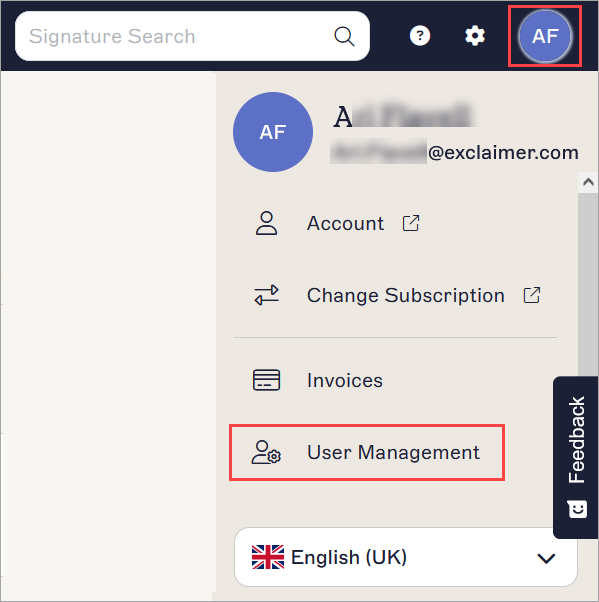
Select the initials icon to open the Account menu. The initials are of the user currently logged in.NOTE: If you have multiple subscriptions, the system will not automatically launch your subscription. Select Launch next to the relevant subscription. - Navigate to the User Management section.
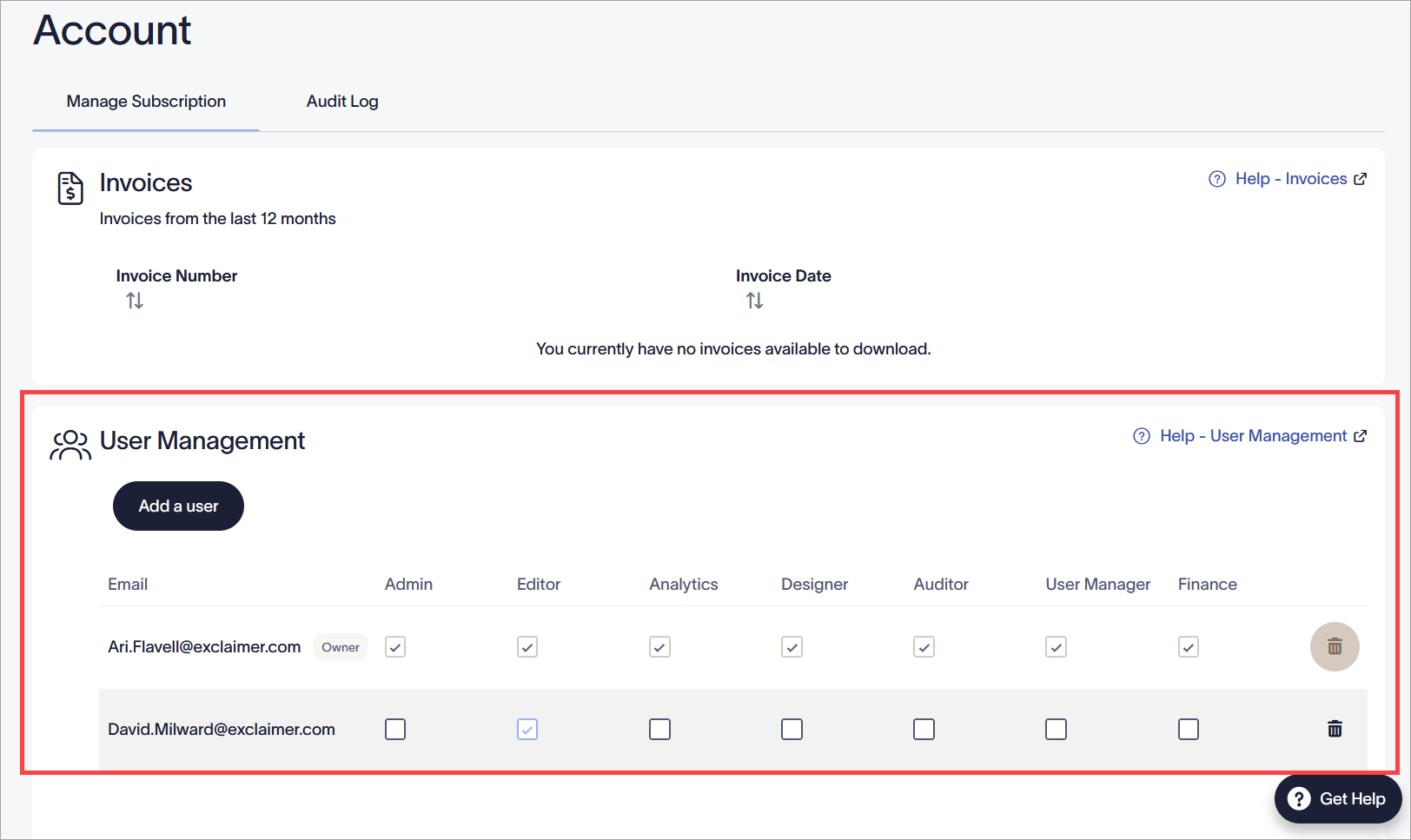
The User Management section.
The User Management section contains a list of all users who have access to the subscription and their permissions.
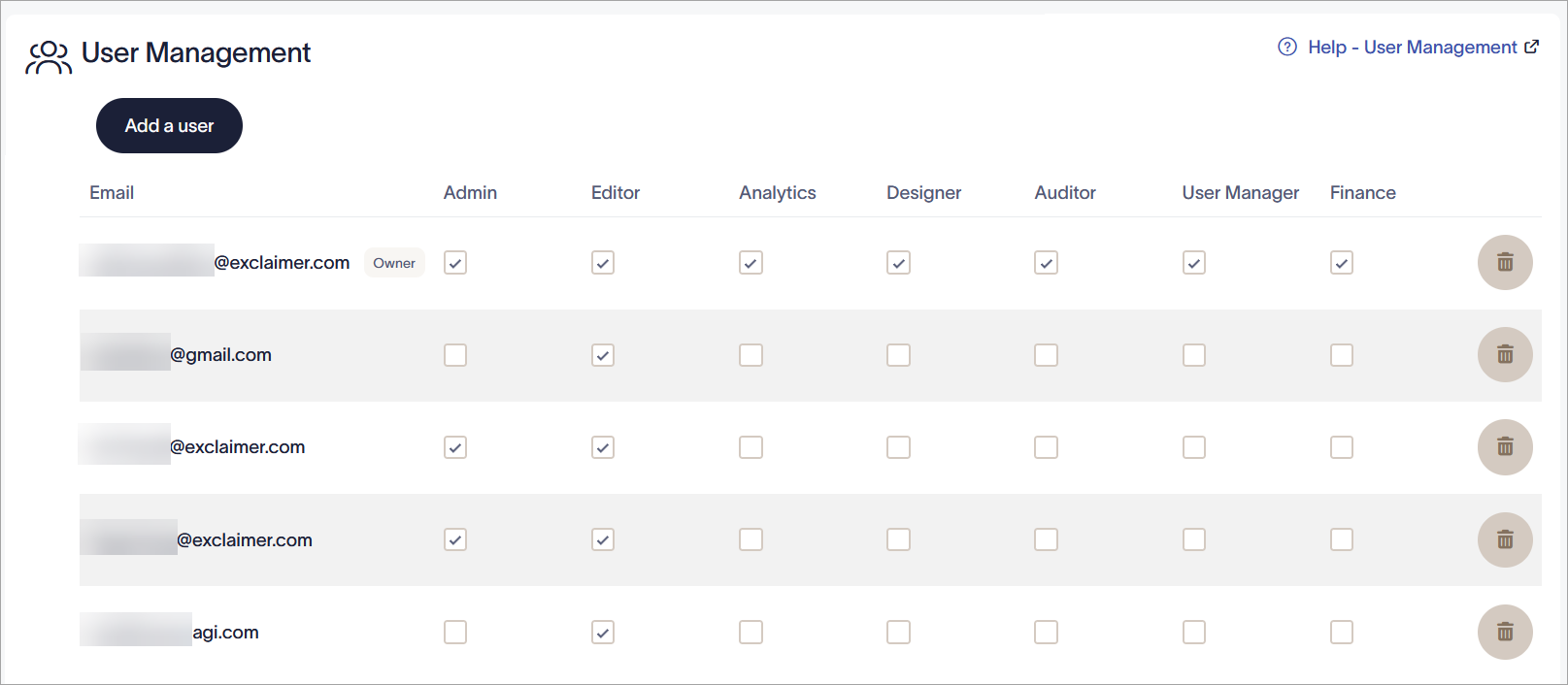
The User Management section showing all users who have access to the Exclaimer subscription and their user roles.
To edit a user:
- Ensure you are signed in as the subscription Owner or User Manager. Users who are not the Owner or a User Manager will not be able to interact with the role checkboxes.
-
Select the checkboxes in the named Role columns to set a user's role. A user can have a combination of roles. Each role comes with different read/write permissions within Exclaimer.
Owner: Can access all features and functionalities.
Admin: Can access and use most features in Exclaimer except purchasing or canceling subscriptions, changing user numbers or roles, or viewing Diagnostics.
Editor: Can access and use a selection of features in Exclaimer. Some permissions include read-only access.
Analytics: Can view and manage analytics report, including usage, engagement and feedback data.
Designer: Can create new and edit existing signatures, create and edit Brand Kits, Meeting Branding, Disclaimers and Campaigns.
Auditor: Can use the Audit Log feature only.
User Manager: Can use the features available on the User Management screen only: add a user, remove a user, and set different roles for users.
Finance: Can download Exclaimer invoices.NOTE: This role is only available to the direct customers of Exclaimer. -
Uncheck a checkbox to remove the role and associated permissions from the user.
NOTE: A user must be set as at least one role. Users cannot have all role boxes unchecked. - Select Save Changes.
Role changes are recorded in the Audit Log.
To add a new user, select Add a user.
Select the bin icon on the user row to remove a user.
For more information, see Add or remove a user for your Exclaimer subscription.
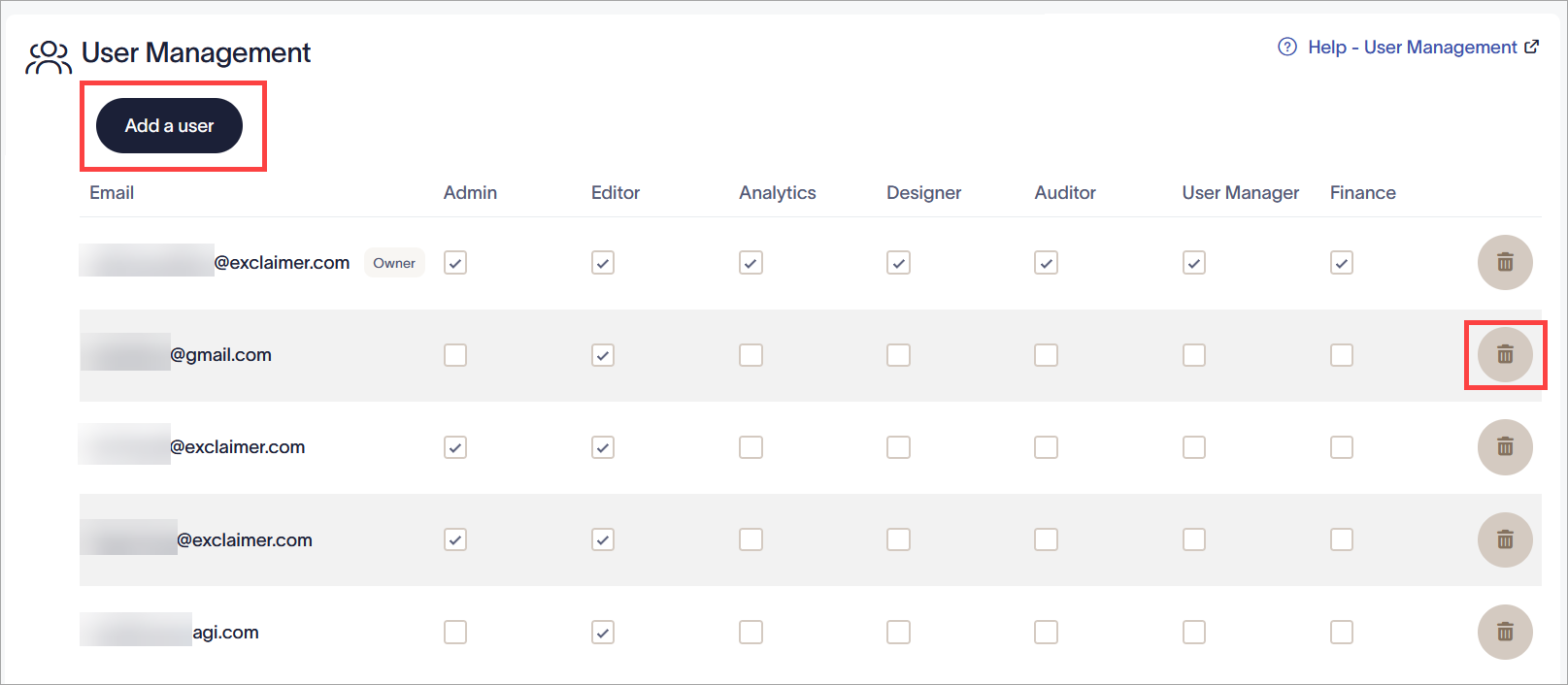
Select Add a user to add a new account that can log in. Select the bin icon to delete a user.
The following table lists which user roles can use the different features and functionalities of Exclaimer. Features are organized by which section of the menu sidebar they are contained within.
The available roles are:
Owner - Unrestricted access.
Admin - Unrestricted access with the following exceptions:
- Accepting terms and conditions.
- Purchasing and managing payment options.
- Removing integrations.
- Deleting users.
Editor - Access to:
- Signature design, management and testing.
- Configure integrations.
- Manage user data.
Analytics - Access to:
- View and manage Signature Usage Analytics
- View and manage Feedback Analytics
- View and manage Engagement Analytics
- View and manage Social Feeds Analytics
Designer - Access to:
- Create new signatures and edit existing signatures
- Create new campaigns and edit existing campaigns
- Create new disclaimers and edit existing disclaimers
- Create new branding and edit existing branding
- View Meeting Branding and edit the icon and meeting background.
Auditor - Allows access to view audit logs.
User Manager - Access to features available on the User Management screen only:
- Adding a user
- Remove a user
- Setting different roles for users
Finance - Access to download invoices within Exclaimer.
| Sidebar section | Feature | Role access |
| Configuration |
Manage Subscription >
|
|
|
Manage Subscription > Invoices |
|
|
|
Sender Management >
|
|
|
|
Sender Management > Start Synchronization (Microsoft 365) |
|
|
|
Sender Management >
|
|
|
|
Sender Management > User Photos (Microsoft 365 and Google Workspace) |
|
|
|
Mail Flow >
|
|
|
|
Mail Flow >
|
|
|
|
Outlook Signatures >
|
|
|
|
Outlook Signatures > Client Side Downloads (Microsoft 365) |
|
|
|
Exchange On-Premises (Microsoft 365) |
|
|
|
Gmail Signatures > Start Synchronization (Google Workspace) |
|
|
|
Integrations (Pro plans only) >
|
|
|
|
Audit Log (Pro plans only) |
|
|
|
Brand Kits |
|
|
| Signatures |
All Signatures (Microsoft 365 and Google Workspace) |
|
|
All Signatures >
|
|
|
|
All Signatures >
|
|
|
|
All Signatures >
|
|
|
|
Signature > Manage >
|
|
|
|
Signature > Edit design (Microsoft 365 and Google Workspace) |
|
|
|
(Microsoft 365 and Google Workspace) |
|
|
|
Folder > Signatures tab (Microsoft 365 and Google Workspace) Senders (Microsoft 365 and Google Workspace) Exceptions (Microsoft 365 and Google Workspace) Re-order (Microsoft 365 and Google Workspace) |
|
|
|
Folder > Security (Microsoft 365 and Google Workspace)
|
|
|
| Campaigns |
Campaigns (Microsoft 365 - Server-Side and Client Side, and Google Workspace - Server Side only) >
|
|
|
Campaigns >
|
|
|
|
Campaigns > Create/Edit Campaign >
|
|
|
|
Campaigns > Create/Edit Campaign >
|
|
|
| Disclaimers |
|
|
|
Disclaimers >
|
|
|
|
Disclaimers > Create/Edit Disclaimer
|
|
|
|
Disclaimers > Create/Edit Disclaimer
|
|
|
| Meeting Branding |
NOTE: Brand Kit asset role restrictions still apply |
|
| Signatures Tester | Signatures Tester (Microsoft 365 - Server-Side and Client Side, and Google Workspace - Server Side only) |
|
| Analytics |
Analytics >
|
|
| Troubleshooting |
Diagnostic Logs (Microsoft 365 and Google Workspace) |
|
| Message Capture (Microsoft 365 and Google Workspace) |
|
|
| Account Settings |
Billing > |
|
|
Subscriptions > |
|
|
|
Subscriptions > |
|