
Description
Once you have created a Disclaimer, you can configure the rules and settings to apply that Disclaimer using the Manage screen. The Manage tabs for a Disclaimer work in the same way as the options available in the Manage screen for signatures, allowing you to configure rules to apply your Disclaimer in certain ways, such as targeting or excluding specific senders and/or recipients.
How to access it
To open the configuration options for a Disclaimer:
- Select Disclaimers from the menu sidebar.
- Find your Disclaimer and select Manage. This opens the Manage screen, which has five tabs: Senders, Exceptions, Recipients, Date/Time, and Advanced Rules.

Select Manage on your Disclaimer.
Using the Manage options
Each tab in the Manage screen contains different rules to control how your Disclaimer is applied. For more information on using rules, see the Manage Signature Rules section of this knowledgebase or follow the links in the table below.
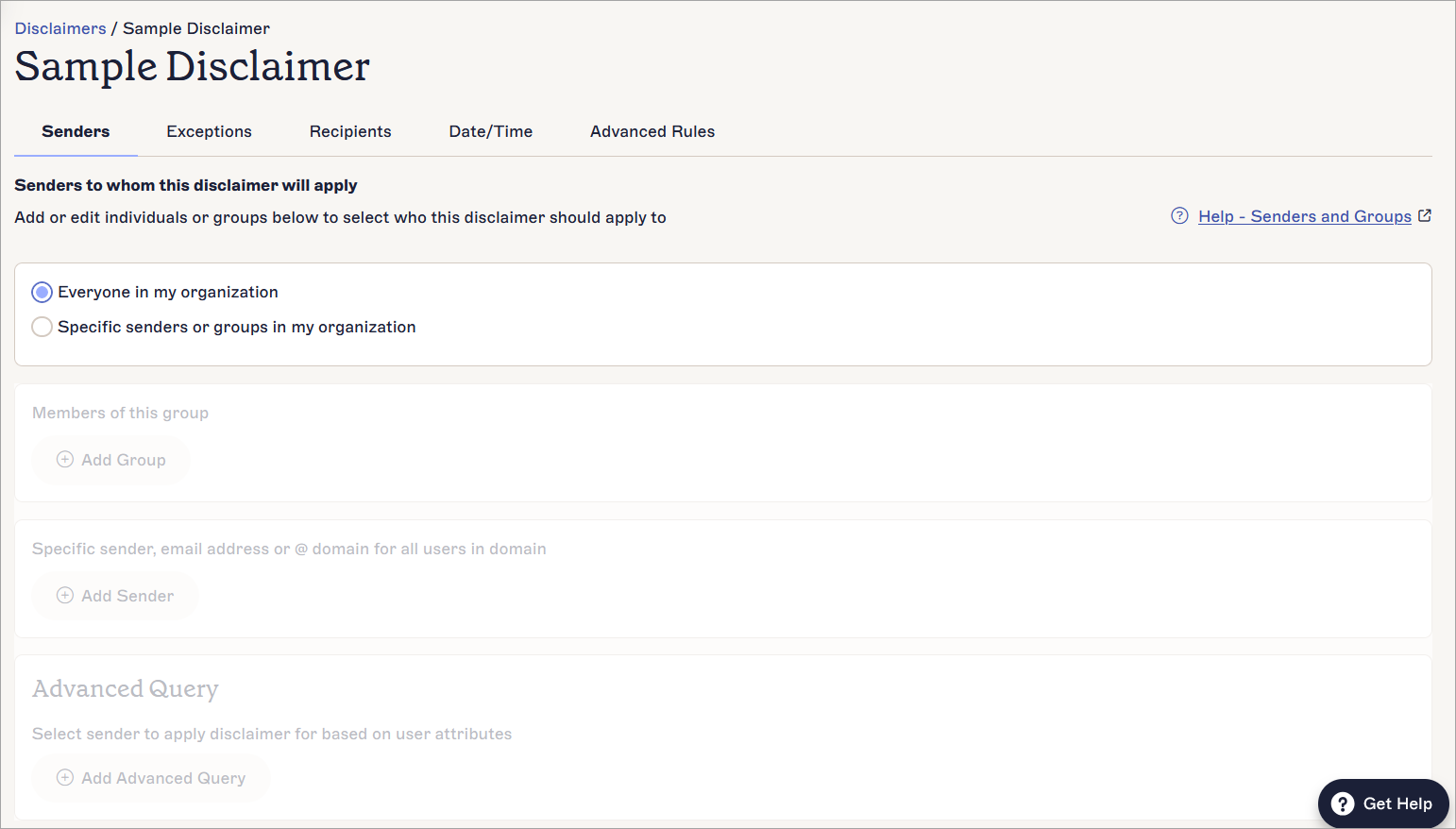
Select a tab to configure your Disclaimer.
The following table outlines the functionality available in each tab:
| Manage tab | Configuration available |
|---|---|
| Senders | Apply the Disclaimer to specific senders, such as via specific domains or user attributes. |
| Exceptions | Exclude specific senders from using the Disclaimer. |
| Recipients | Apply the Disclaimer to specific recipients, such as Internal or External or on Salesforce lists, or by excluding recipients. |
| Date/Time | Apply the Disclaimer during a specific time period. |
| Advanced Rules |
NOTE: Advanced Rules in Disclaimers is for server-side deployment only.
Apply or prevent a Disclaimer using trigger text in the subject or body text of the email. |
Once you have configured your Disclaimer and selected Save Changes, it will be automatically appended to your email when the send conditions are met. It appears in the emails you send along with your email signature(s) and Campaigns.