
Scenario
You are using Exclaimer, and you wish to exclude a signature from being applied to emails sent to a specific email address or domain.
Resolution
You can use recipient rules to prevent your signature from applying if the recipient has a specific email address or domain by adding exclusions.
To exclude the selected signature from the email addresses of specific recipients or domains:
- Log into your Exclaimer account and select Signatures from the menu sidebar.
- From the All Signatures tab, select Manage Rules next to the relevant signature.
This opens the Manage screen.
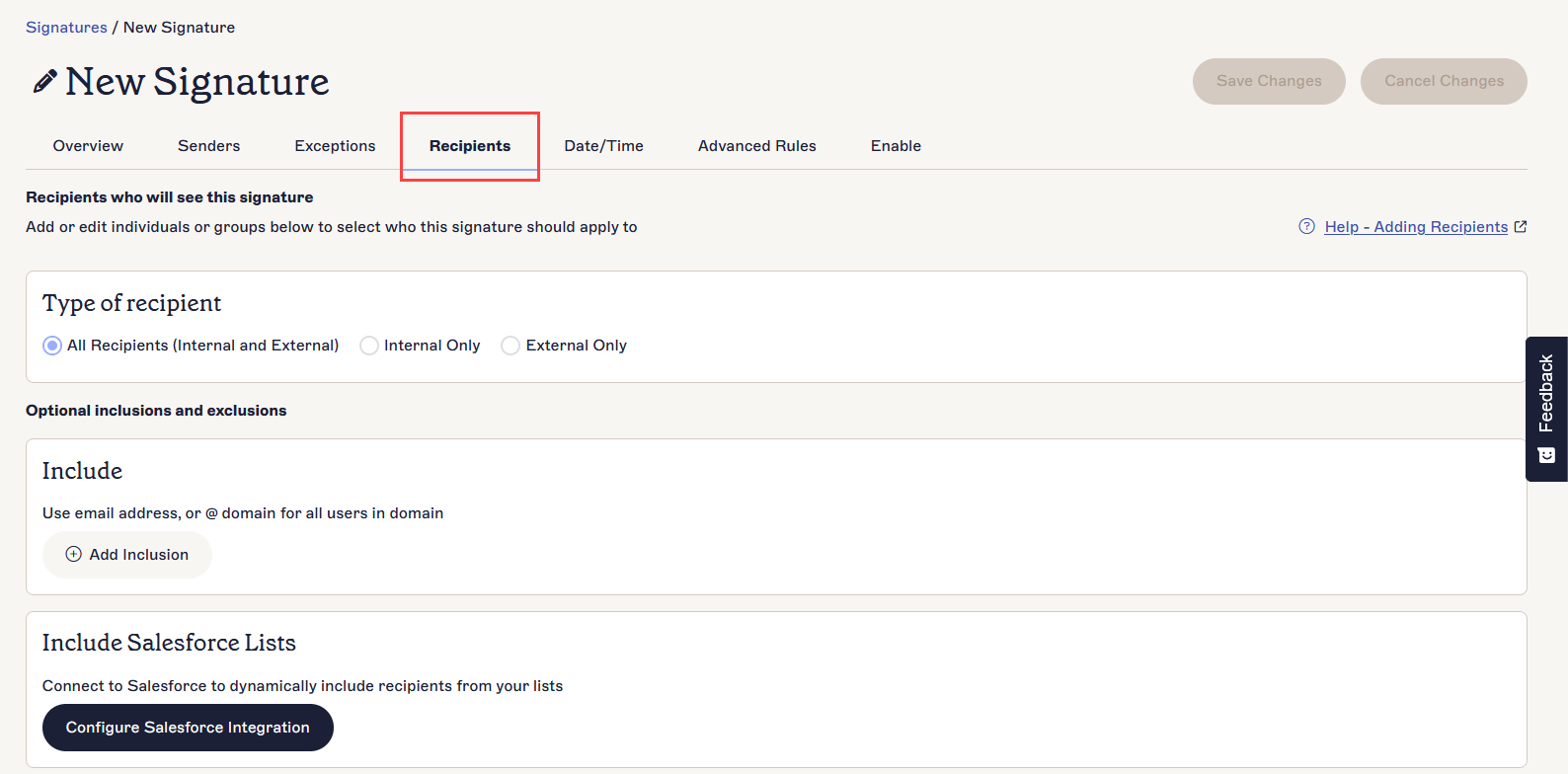
- Select the Recipients tab to define the recipient rules for the selected signature.
- Select Add Exclusion to enable the text box.
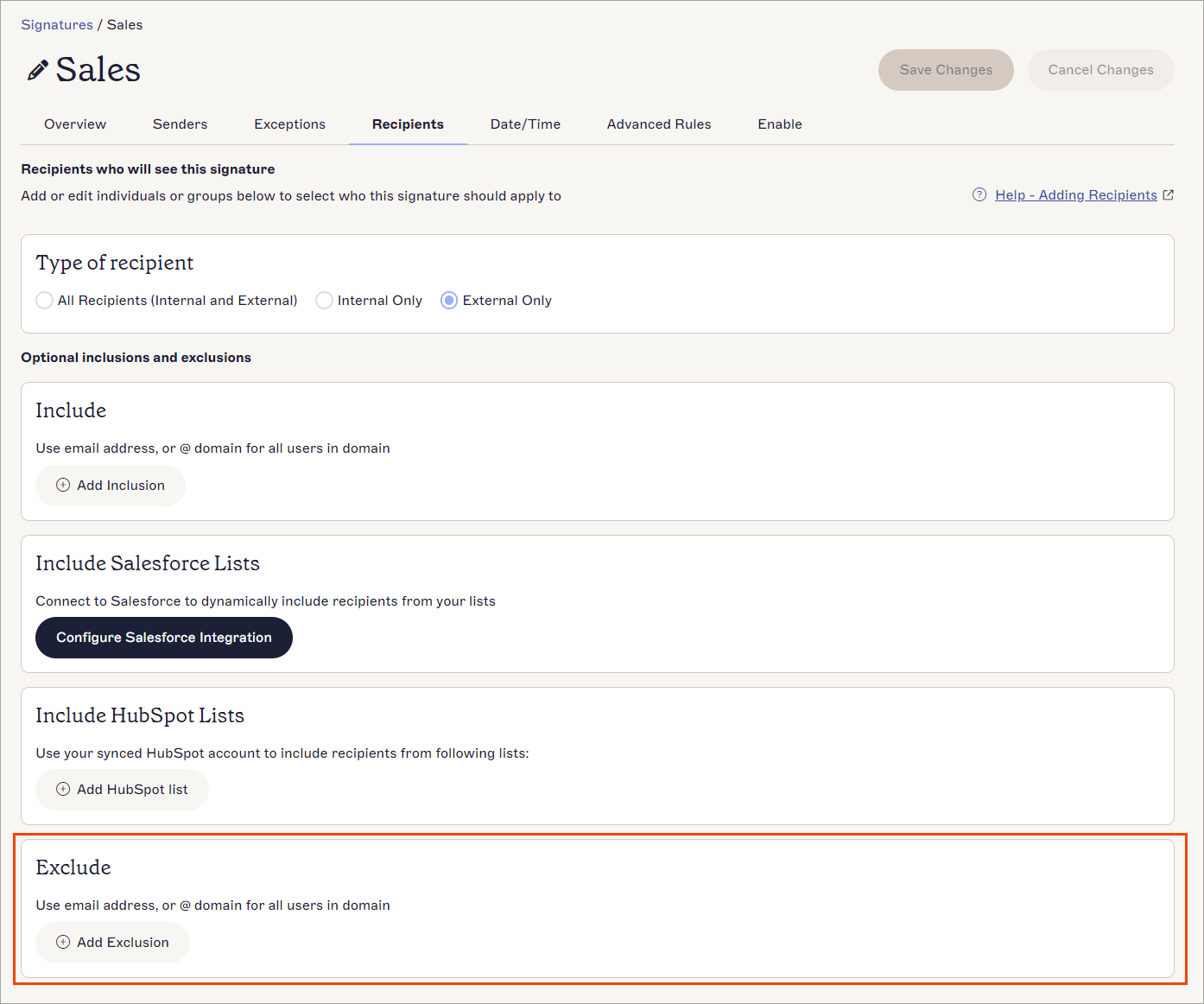
Add an Exclusion to stop a specific user from receiving the signature.
-
Enter a recipient's email address or @domain name.
TIP! You can also use wildcard (*) when entering an email address or domain name. Wildcard represents any available characters attached to the complete text. Exclaimer allows for any amount of characters to be substituted for wildcard.
Some examples using wildcard are:
*@greenorg.net - this would include any email addresses that are followed by '@greenorg.net'.
@exclaimer.* - this would include any domains attached to Exclaimer email addresses.
@*.de - this would include any domains that are followed by .de. - Select Add Exclusion to add another email address or domain.
- Select the bin icon
 to delete an email address or domain.
- In the unsaved changes banner, select Save.
NOTE: If inclusions have been defined, they will be processed before exclusions. Inclusion conditions must be met for rules processing to continue. When exclusion conditions are met, the signature is not applied for the specified recipients.