
Description
This feature allows you to choose which users can access signatures inside specific folders, including the main signatures list in the All Signatures tab.
You can only restrict access on a folder-by-folder basis. You cannot set restrictions on individual signatures.
How to access it
To access the Security tab:
- Log in to Exclaimer and select Signatures from the menu sidebar.
- EITHER:
Select the Security tab to set security for the main All Signatures list.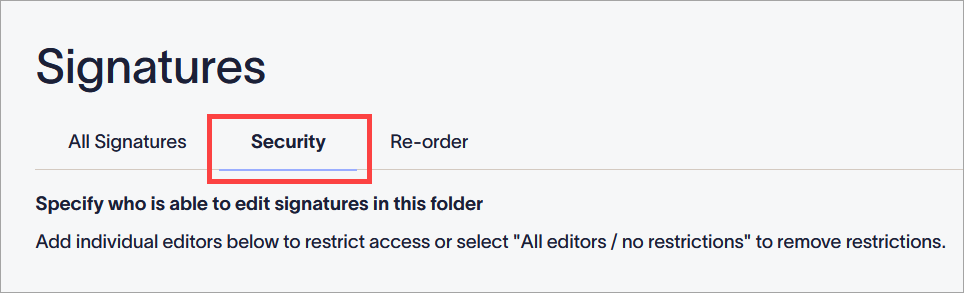
The Security tab on the main Signatures screen.
OR
Open a folder, then select the Security tab to set security for that folder.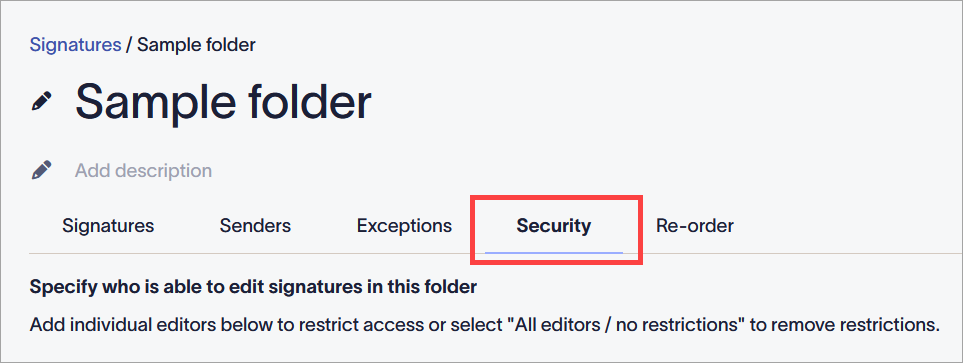
The Security tab inside a folder.
Defining folder security
Folder security is defined by either allowing all users to access the folder, or by choosing specific users to access it. Any user who is not defined as an Editor for that folder will not see the folder in the All Signatures list, meaning they also cannot see or edit any of the signatures stored in it.
To define folder security:
-
To set the folder as accessible to all users, select the All Editors / no restrictions checkbox.
NOTE: All users with the Admin, Editor, or Designer user role can edit signatures in this folder when the checkbox is selected. For more information on what each type of user can do, see User Management.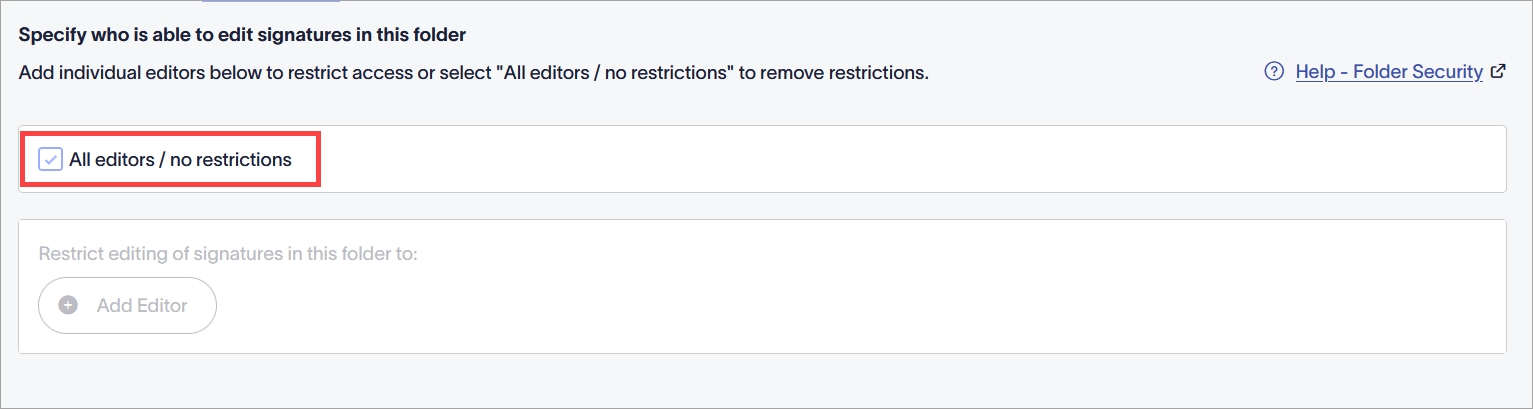
When the checkbox is selected, all users (with the sppropriate user role) can access and edit signatures in this folder.
-
To restrict access to certain users, deselect the All Editors / no restrictions checkbox. In the Restrict editing of signatures in this folder to: entry field, enter the email address of a user to define them as an Editor and grant them access to the folder.
NOTE: To add more than one user as an Editor at a time, enter a list of each user's email address, separated by commas.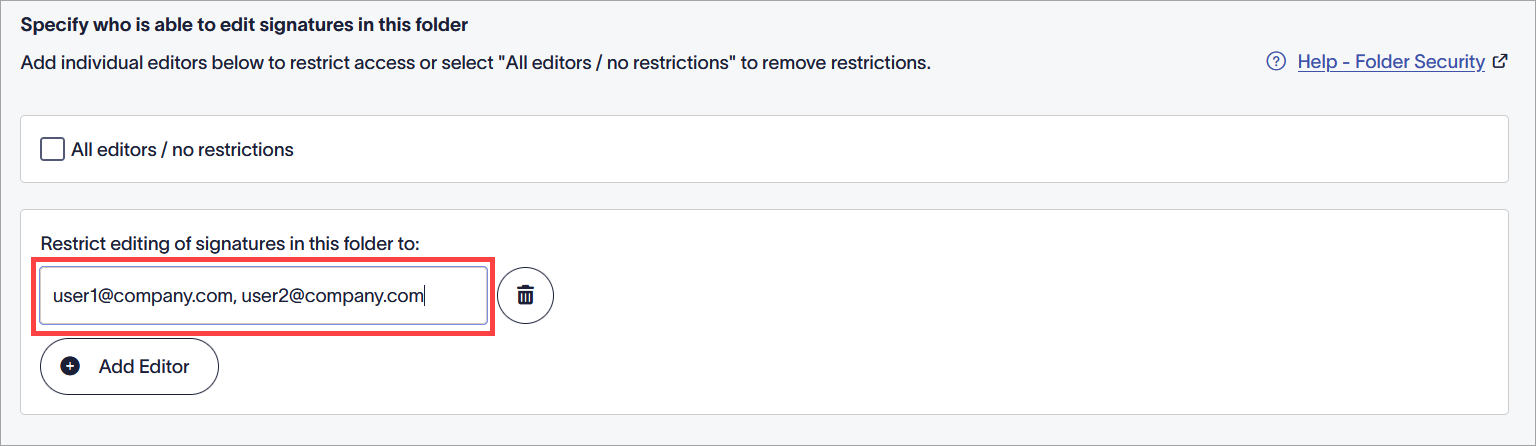
Enter the email address(es) of the users you want to set as Editor(s).
- To add more editors, select Add Editor
 .
.
- To delete an Editor, select the bin icon
 .
.
-
In the unsaved changes banner, select Save to save your changes, or select Cancel to revert any changes made.
Tip! You can restrict users' access to the All Signatures tab and still allow them to access a specific folder. When that user selects Signatures from the menu sidebar, they will not see the All Signatures list, but instead Exclaimer auto-opens the folder they have access to.