
Description
A policy set is a group of configurations that controls how the Signature Tamper Detection for Outlook Add-in behaves for your organization. Each policy set lets you turn on tamper detection, choose whether checks happen before a message is sent, after it is sent, or both, and control which senders and recipients the policy applies to. You can create multiple policy sets; Exclaimer evaluates them in the order they appear in the list.
How to access it
To access your policy sets:
- From the menu sidebar, select Tamper Detection.
The Tamper Detection page displays your existing policy sets, along with the senders and configuration each one applies to.
- Select Add new policies to open the New policy set window.
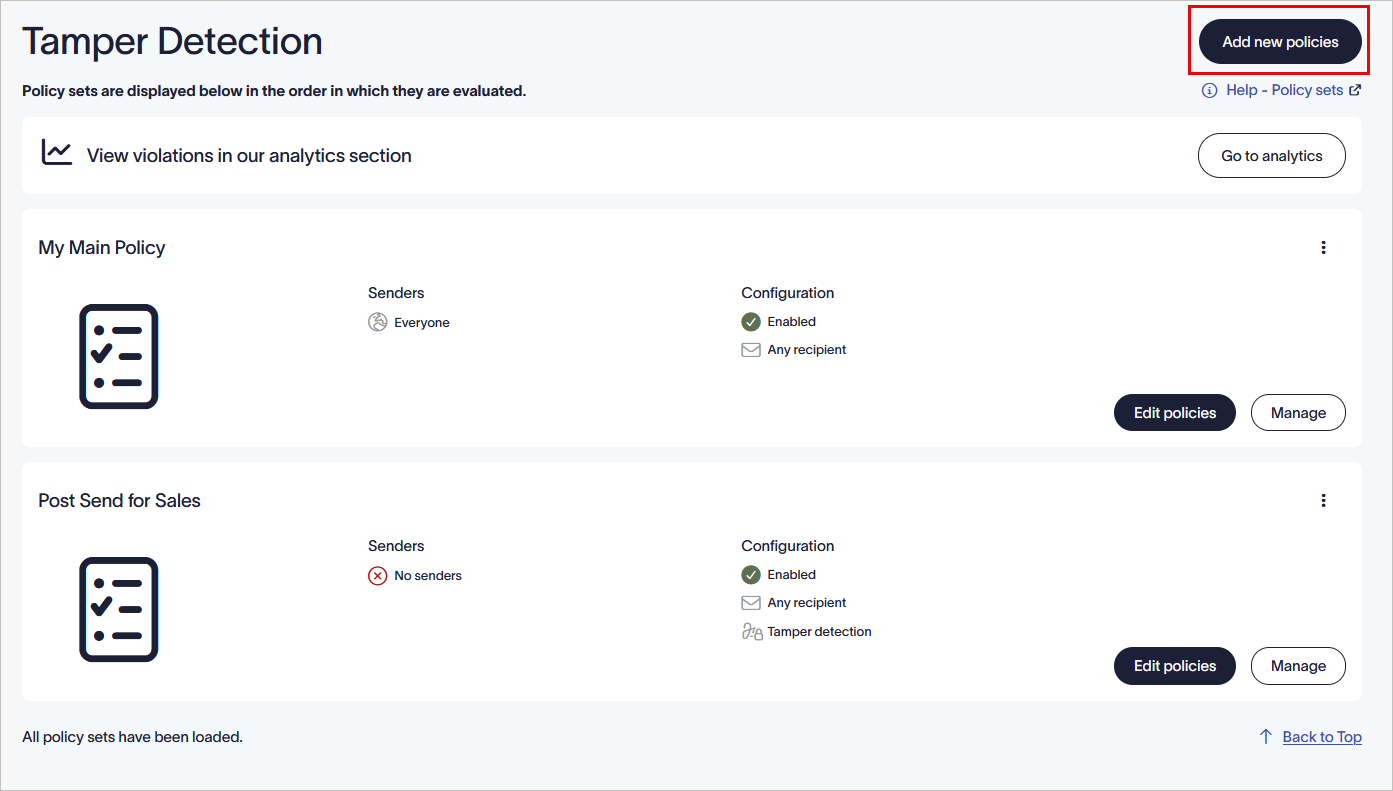
Select Add new policies to add a new policy.
Create a new policy set
To create a new policy set:
- In the New policy set window, click the policy name to edit it.
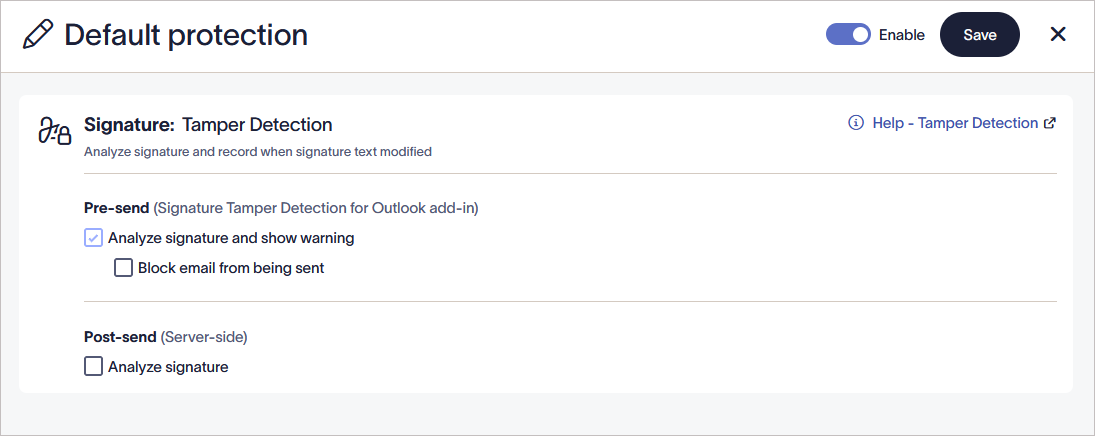
Click the policy name to edit it.
-
Under Signature: Tamper Detection, select the checkboxes for the checks you want to run:
• In Pre-send, select Analyze signature and show warning to enable client-side detection through Outlook Add-in.
• Select Block email from being sent to stop the sender from sending an email when they have changed or removed their signature.
NOTE: If an email signature has been tampered with, Outlook will display a warning advising you not to send the email because it does not comply with company policy.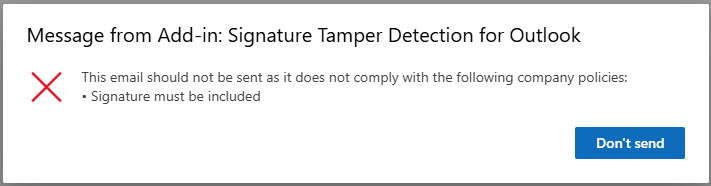
Outlook will display a warning advising you not to send the email.• In Post-send (Server-side), select Analyze signature to check for tampering on the server after the email is sent.
Post send checks record a policy violation, whether the signature was modified or is missing entirely, without interrupting mail flow. Administrators can review all recorded policy violations in the Tamper alerts.
NOTE: You must select at least one option Analyze signature and show warning or Analyze signature. If you clear both checkboxes, Exclaimer switches Enable off automatically, and you can't turn it back on until you select at least one checkbox. - Select the Enable toggle to turn the policy set on or off.
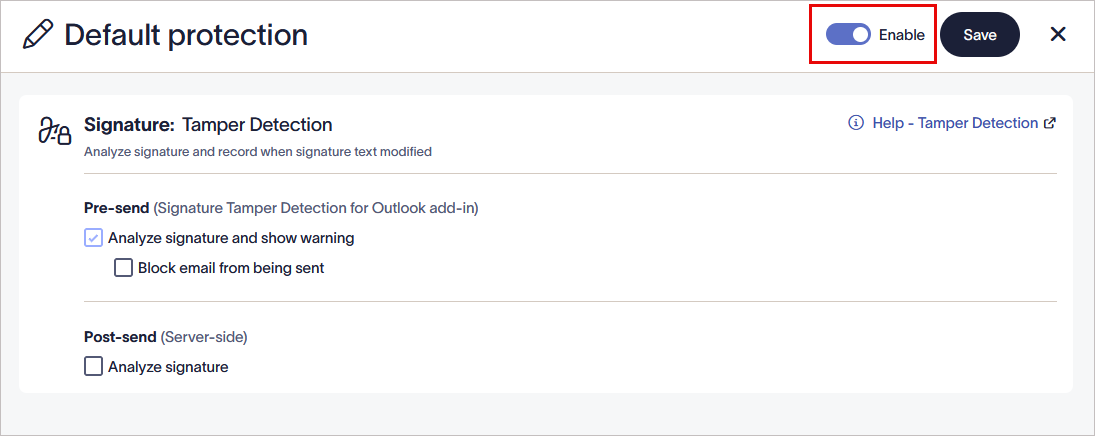
Select the Enable toggle to turn the policy on.
- Select Save. The new policy set is added to the Tamper Detection screen.
Tamper Detection Policy Configuration
Manage Senders
Manage Recipients
Manage Exceptions