
This feature will be available for Pro Plan users only. For more information on pricing plans, see Exclaimer Pricing Plans.
Description
The Exclaimer Compliance Add-in helps monitor changes to Exclaimer-managed email signatures when users send emails. If a user changes the signature text, the Add-in flags a policy violation.
This article guides you through how to install the Exclaimer Compliance Add-in in your Microsoft 365 tenant.
Before you install the Exclaimer Compliance Add-in, make sure you have:
• The Exclaimer Outlook Add-in is already installed and enabled for Client-Side signatures.
• Microsoft 365 Global Administrator credentials.
• The manifest.xml file for the Compliance Add-in.
• Mailbox type: Microsoft 365 mailboxes only. Google Workspace is not currently supported.
• Platform: New Outlook and classic Outlook on Windows, and Outlook on the web. Outlook on Mac and Outlook on mobile (Android/iOS) are not currently supported.
Deploying the Compliance Add-in to your Microsoft 365 tenant
Microsoft 365 Global Administrator credentials
Follow these steps to deploy the Compliance Add-in to your Microsoft 365 tenant:
- Log on to the Microsoft 365 Portal as a Global Administrator.
- Open the admin center.
- From the menu sidebar, select Settings, then select Integrated apps.
-
Select Upload custom apps.
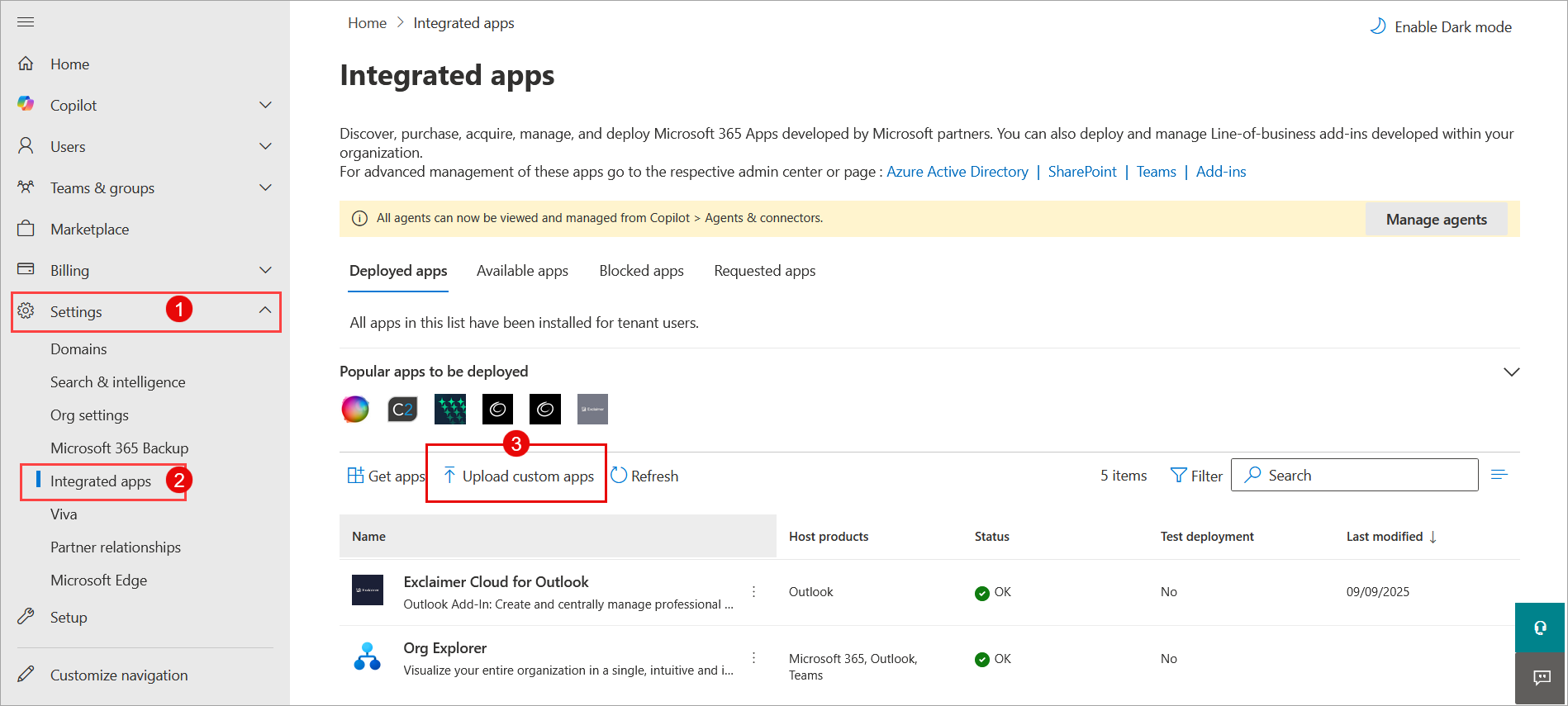
Select Settings, select Integrated apps. Then select Upload custom apps.
The Deploy New App window is displayed.
- From the App type drop-down list, select Office Add-in.
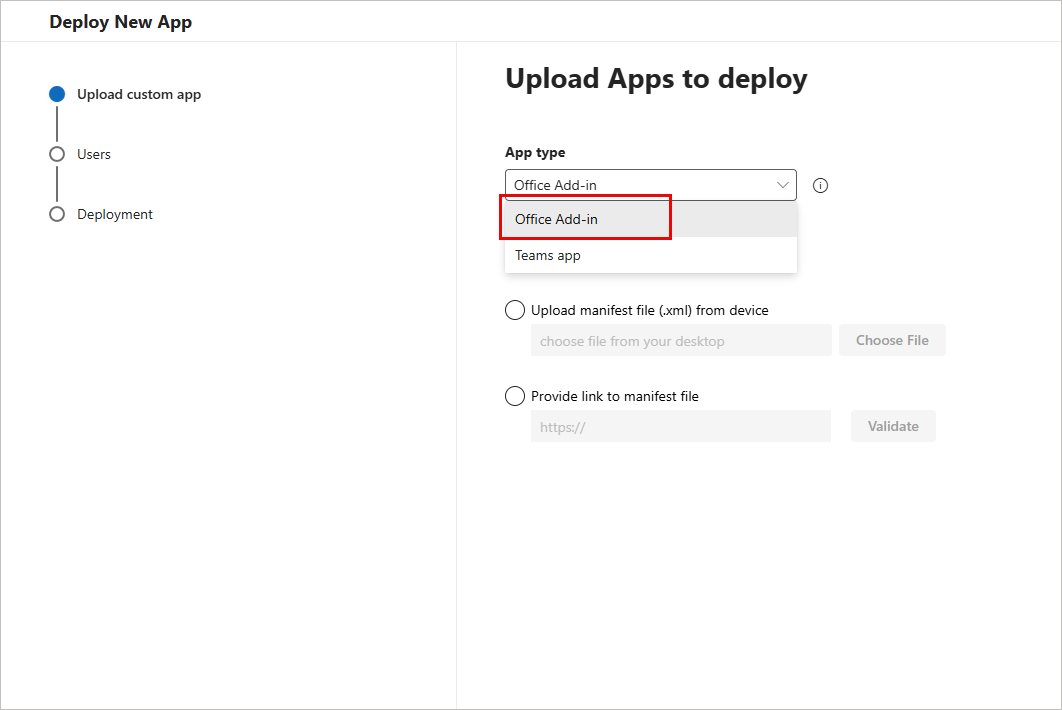
From the App type drop-down list, select Office Add-in.
-
You can either
• Select the Upload manifest file (xml) from device option. Select Choose File. Browse to and select the manifest.xml file sent to you by Exclaimer.
OR
• Select Provide link to manifest file. Enterhttps://outlookclient.exclaimer.net/compliance-addin/manifest.xml. Select Validate.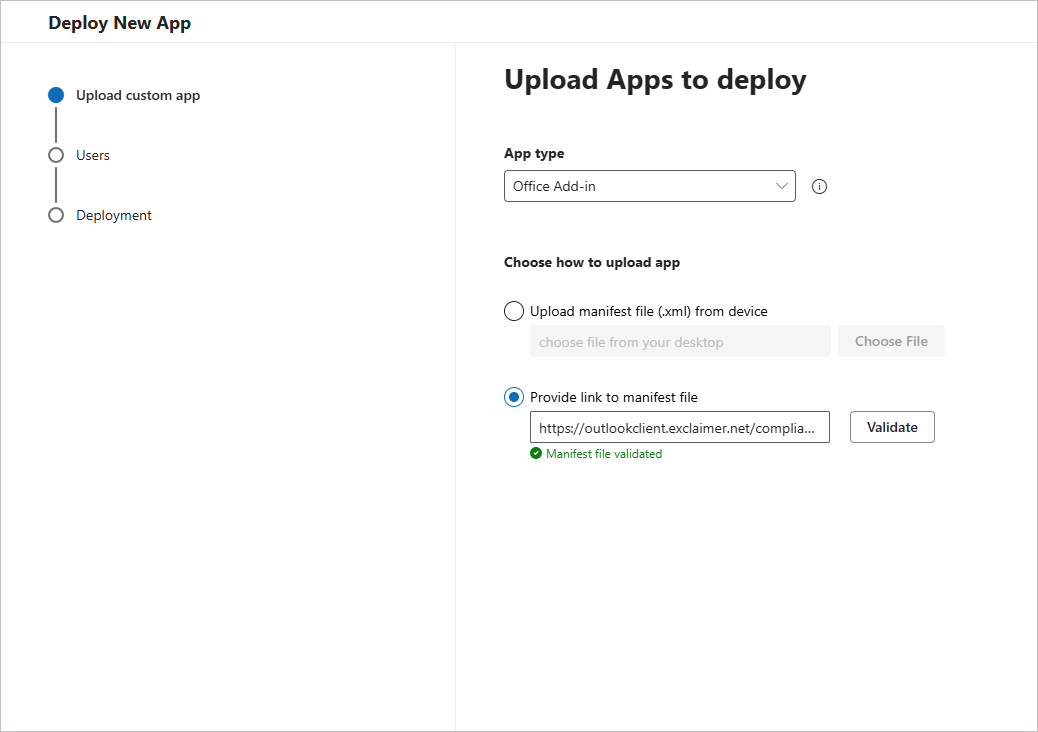
Enter the manifest file link.
- Select Next.
-
Select which assigned users should have access to the Exclaimer Compliance Add-in:
• Just me: Select to assign only yourself, in your organization, access to the Exclaimer Compliance Add-in.
• All users: Select to assign everyone in your organization access to the Exclaimer Compliance Add-in.
• Specific users/groups: Select to assign specific users or groups within your organization access to the Exclaimer Compliance Add-in. Enter a specific user or group name; this is a predictive text field, so it will display any matching users or groups as you start to type.NOTE: You cannot use nested groups.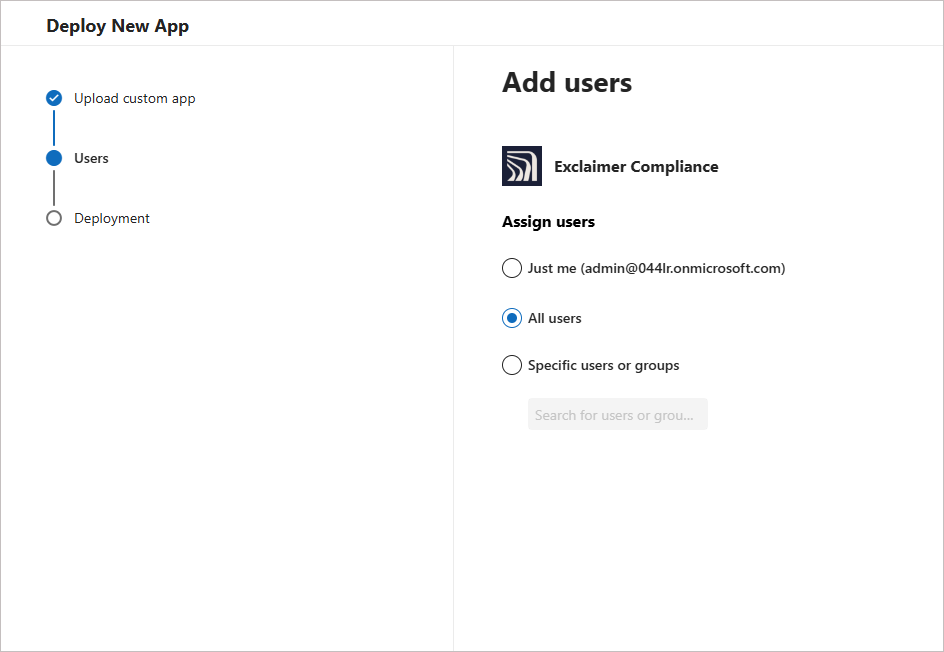
Select which users should have access to the Compliance Add-in.
- Select Next.
- Select Finish deployment to complete the deployment process.
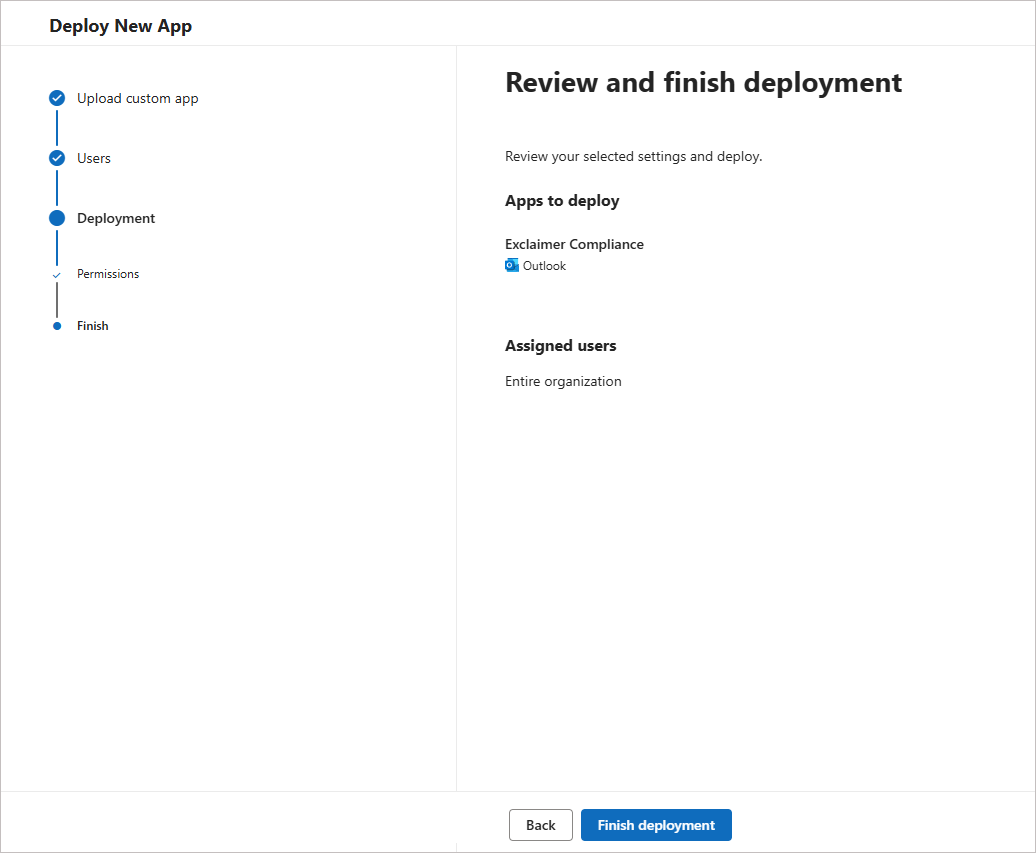
Select Finish deployment.
- Review the permissions requests. Select Next.
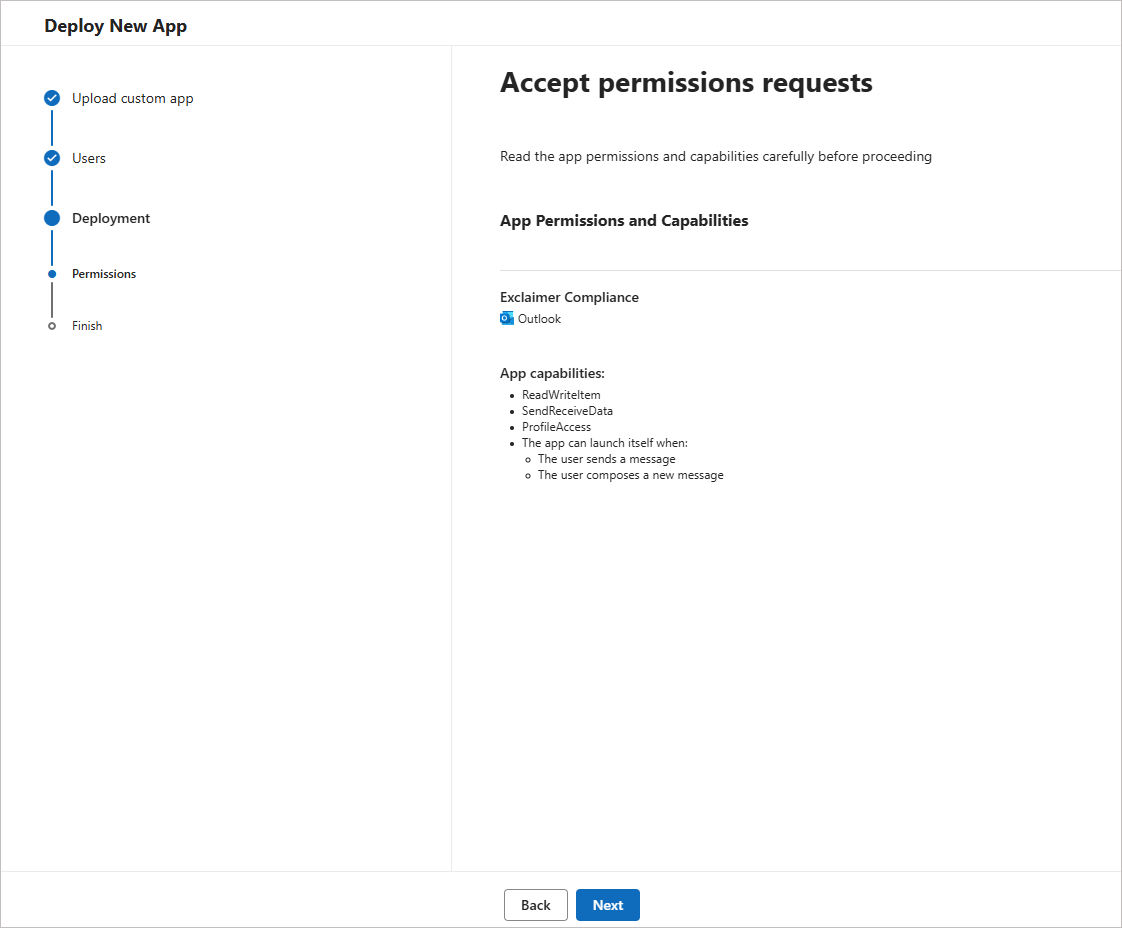
Review the permissions request. Select Next.
Authorizing permissions via admin consent
After you deploy the manifest, grant admin consent for the Compliance Add-in to read enrolled user profiles.
To authorize permissions:
- Log on to the Microsoft 365 Portal as a Global Administrator.
- Open the following URL:
https://login.microsoftonline.com/organizations/adminconsent?client_id=0879b393-3c3a-4d08-b2a3-ded5f99a9cb6&scope=https://graph.microsoft.com/User.Read&redirect_uri=https://outlookclient.exclaimer.net/compliance-addin/consented.html
-
Select Accept on the Microsoft permissions screen.
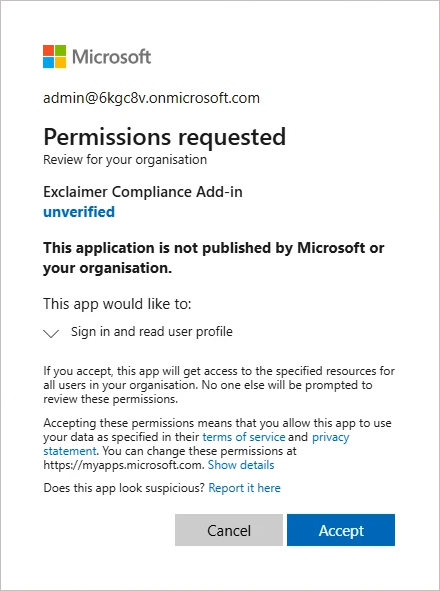
Review the permissions request. Select Next.
You are redirected to the Exclaimer consent confirmation page. Close the browser window.
For more information on how the Compliance Add-in works, see Using the Exclaimer Compliance Outlook Add-in.
Troubleshooting
If you have installed the manifest, but the Add-in does not appear in Outlook:
- Allow up to 72 hours for the Add-in to propagate across your Microsoft 365 tenant.
- Check the deployment scope in the Microsoft 365 admin center to confirm that the intended users are included.
This error occurs when Microsoft Entra ID cannot find the Add-in application registration in the tenant.
- Verify that the Tenant ID specified in the admin consent URL is correct.
- Confirm that the Tenant ID belongs to the Microsoft Entra tenant you are currently configuring.
• Install Exclaimer Outlook Add-in
• Using the Exclaimer Compliance Outlook Add-in
• Compliance Dashboard