
NOTE: The Exclaimer Compliance Outlook Add-in is currently in BETA and is not yet available. Features and screens may change as we continue to refine and improve the experience.
This feature will be available for Pro Plan users only. For more information on pricing plans, see Exclaimer Pricing Plans.
This feature will be available for Pro Plan users only. For more information on pricing plans, see Exclaimer Pricing Plans.
Description
The Compliance Dashboard lets administrators review signature policy violations detected by the Exclaimer Compliance Add-in across their organization's outgoing emails. Administrators can view a list of recorded violations and open an individual violation to see its details.
Pre-requisites
• Install Exclaimer Compliance Outlook Add-in
• Install Exclaimer Outlook Add-in
• Authorized tenant administrator
• Install Exclaimer Compliance Outlook Add-in
• Install Exclaimer Outlook Add-in
• Authorized tenant administrator
How to access it
To access the Compliance Dashboard:
- From the menu sidebar, select Analytics.
- Select the Compliance tab.
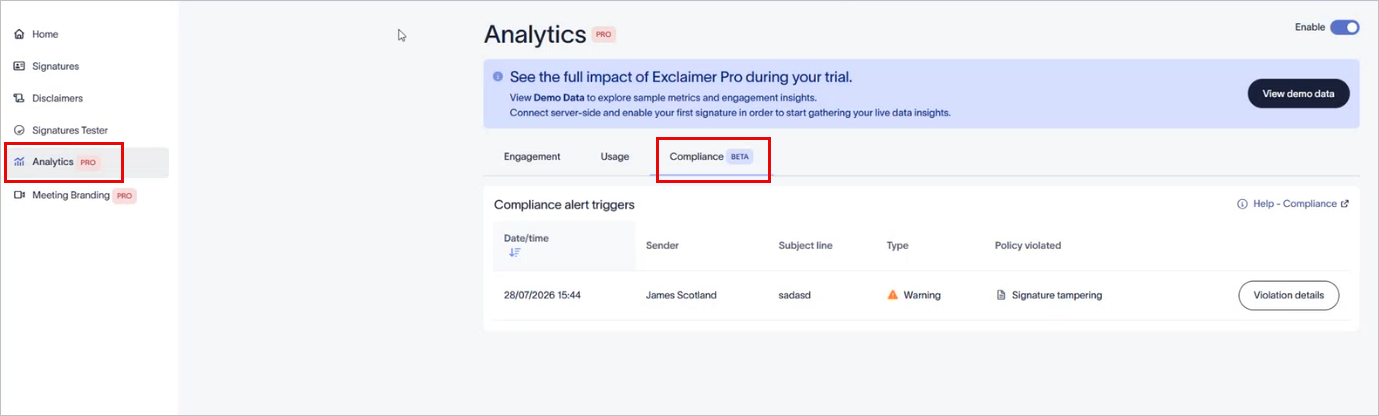
Select the Compliance tab.
NOTE: Data is currently available for Microsoft 365 users who have both the Compliance Add-in and the Exclaimer Outlook Add-in installed.
Understanding the Compliance Dashboard
If no violations have been recorded, the dashboard displays an empty table.
The Compliance Dashboard lists each recorded violation in a table with the following columns:
| Column | Description |
|---|---|
| Date and time | The date and time the violation occurred. |
| Sender | The name of the user who sent the email. |
| Subject | The subject line of the email. |
| Type | The type of violation recorded. |
| Policy | The policy that was breached. |
Select Violation details to view more information about the selected violation. For more information, see Policy Violation.