
Description
Tamper Detection is a policy you configure within a policy set. It checks whether a sender changes or completely removes their Exclaimer-managed signature before they send an email, after they send it, or both, depending on how you configure it.
How to access it
To access your policy sets:
-
From the menu sidebar, select Tamper Detection.
The Tamper Detection page displays your existing policy sets, along with the senders and configuration each one applies to.
- Select Edit policies on the relevant policy set you wish to configure.
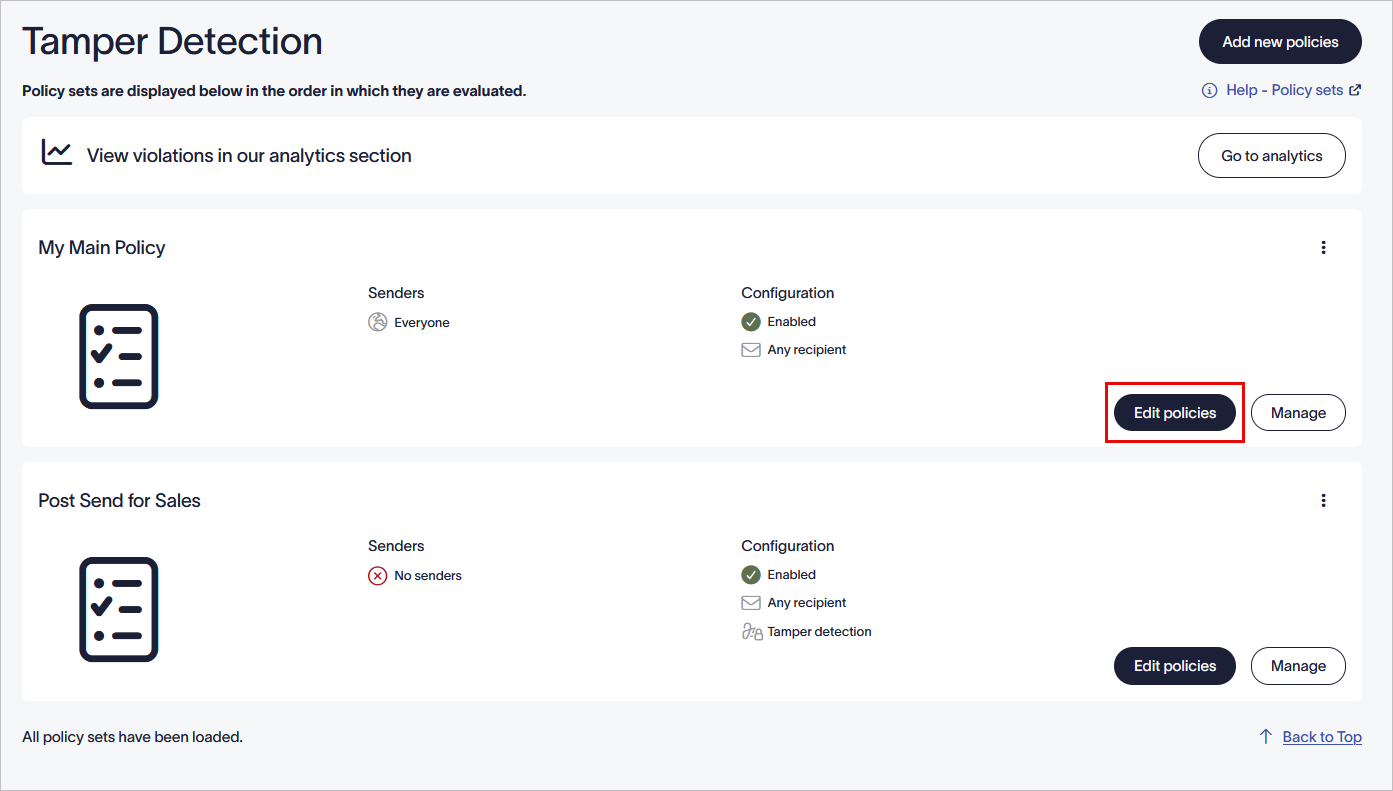
Select Edit policies.
Configure Tamper Detection
To configure Tamper Detection for a policy set:
- Click the policy name to edit it.
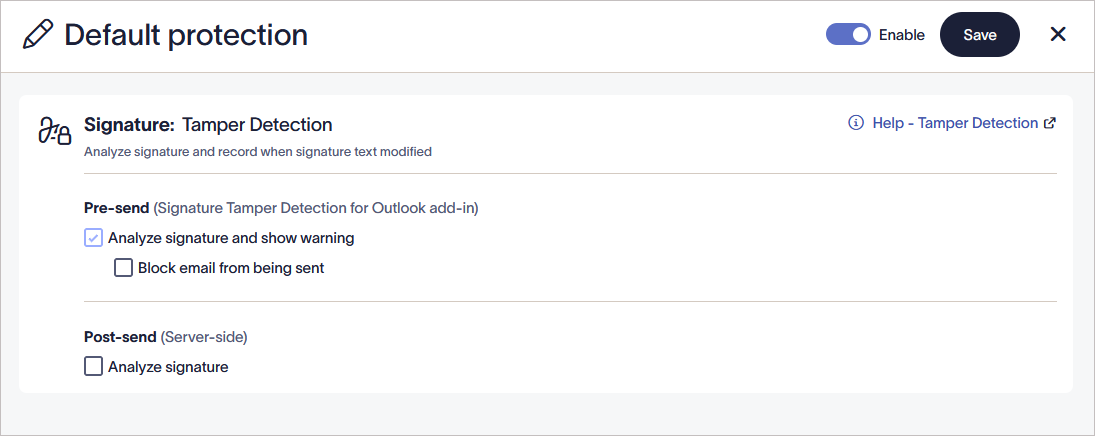
Select the pencil icon to edit the policy name.
-
Under Signature: Tamper Detection, select the relevant checkboxes:
• In Pre-send, select Analyze signature and show warning to enable client-side detection through Outlook Add-in.• Select Block email from being sent to stop the sender from sending an email when they have changed or removed their signature.
NOTE: If an email signature has been tampered with, Outlook will display a warning advising you not to send the email because it does not comply with company policy.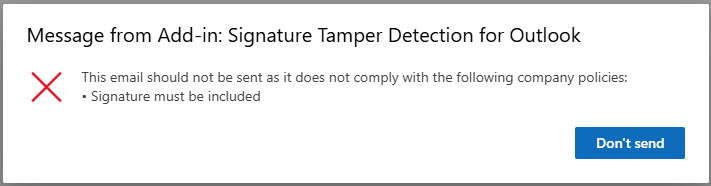
Outlook will display a warning advising you not to send the email.• In Post send (Server-side), select Analyze signature to check for tampering on the server after the email is sent.
Post send checks record a policy violation, whether the signature was modified or is missing entirely, without interrupting mail flow. Administrators can review all recorded policy violations in the Tamper alerts.
- Select the Enable toggle to turn the policy set on.
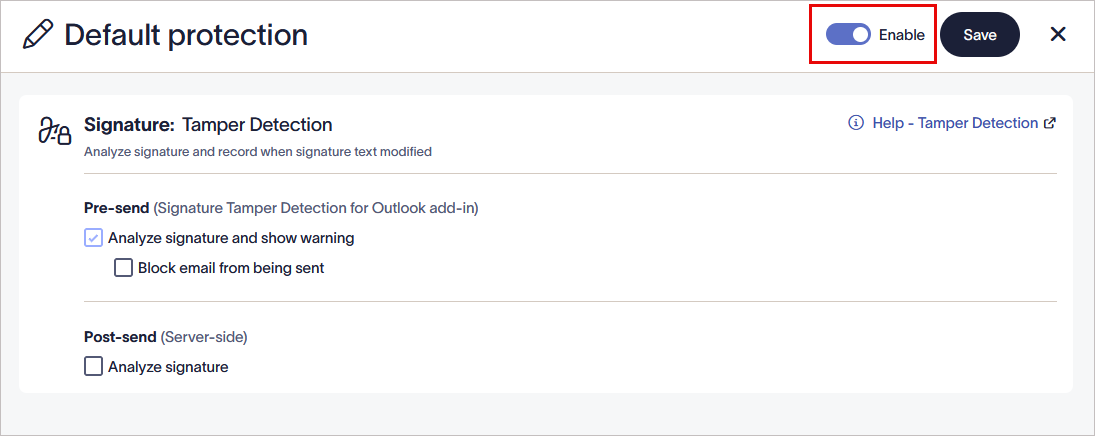
Select the Enable toggle to turn the policy on.
- Select Save.