
Description
The Exceptions tab lets you exclude specific senders or groups from a policy set that would otherwise apply to them — for example, applying a policy set to a team while excluding one member of that team.
How to access it
To access the Exceptions tab:
- From the Tamper Detection page, select Manage on the relevant policy set.
- Select the Exceptions tab.
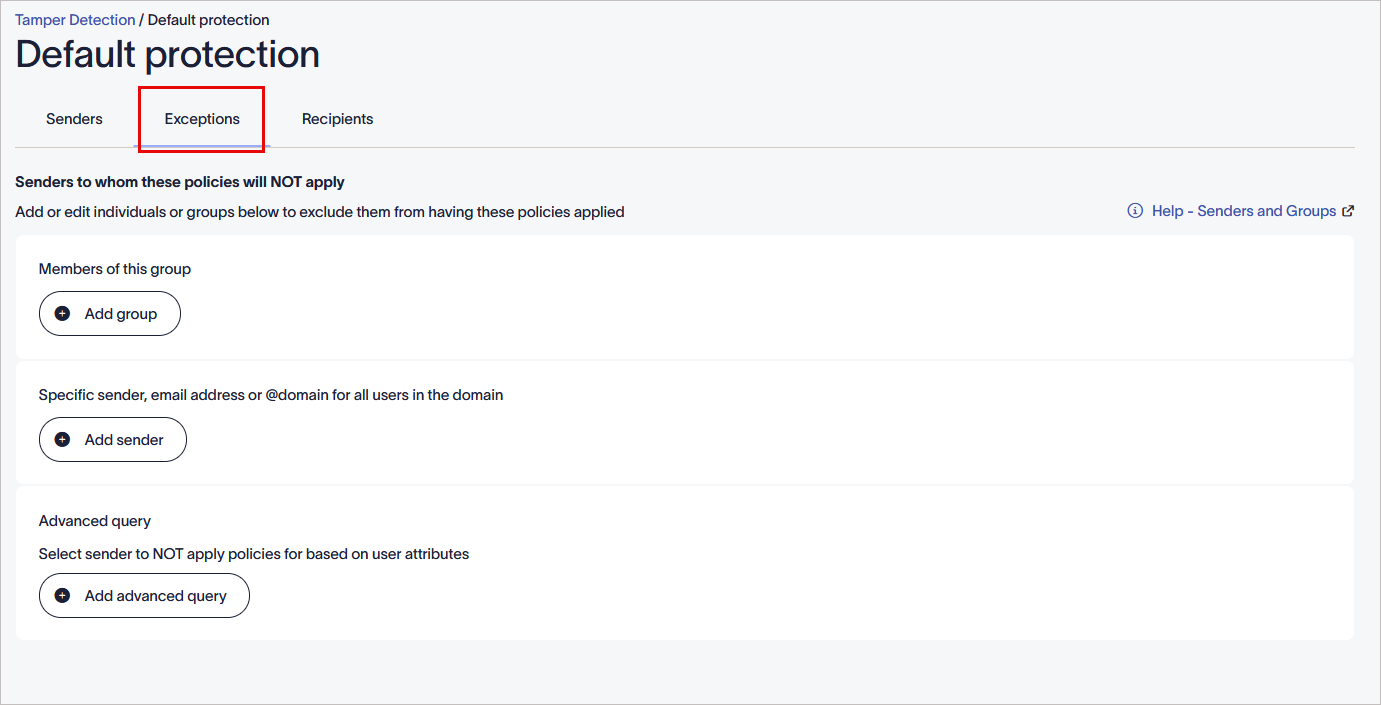
Select the Exceptions tab.
Defining which sender this policy will not apply to
To exclude senders or groups from a policy set:
Use the configuration options in the Exceptions tab to exclude senders or groups from a policy set. If multiple options are configured, each sender condition is added to the list of excluded senders and acts as a logical OR — all applicable rules are applied together.
Select an option below to view the related instructions:
This option stops the policy set from applying to members of a group configured in your Microsoft or Google Directory.
To exclude a group:
- Select Add group.
-
Under Members of this group, enter the group name. The predictive text field displays names as you type.
NOTE: Only the contact details of mail-enabled security groups and distribution groups synced with Exclaimer are available to select. - Select Add group again to exclude another group, or the bin icon
 to remove one.
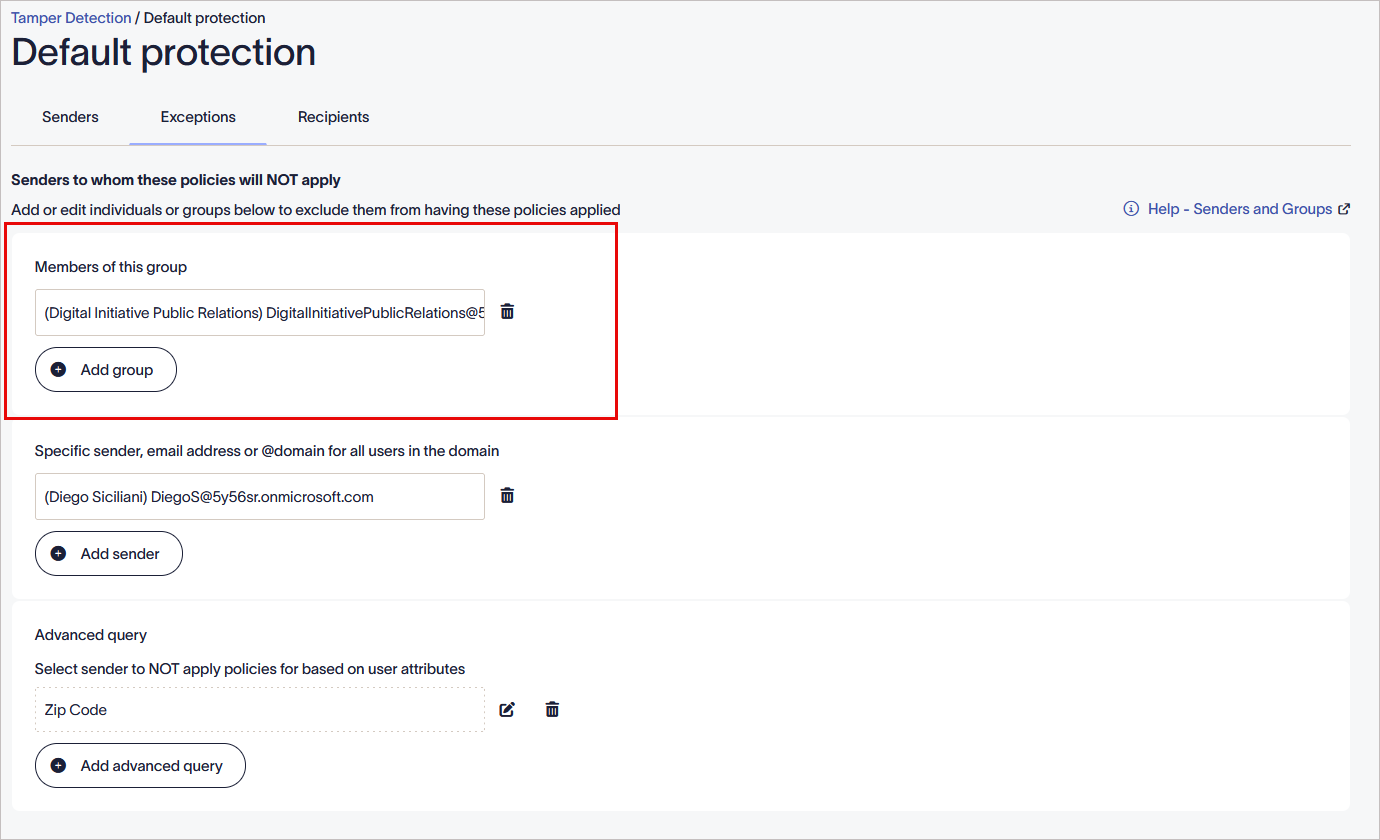 Members of this group.
- In the unsaved changes banner, select Save to apply your rules, or select Cancel to revert all changes.
This option stops the policy set from applying to manually selected users or domains. Using an @domain excludes all users whose email address uses that domain.
To exclude a specific sender, email address or @ domain:
- Select Add sender.
-
Enter the specific sender name, email address or domain. The predictive text field displays names as you type.
Tip! You can also use a wildcard (*) when entering an email address or domain name. A wildcard represents any available characters attached to the complete text. Exclaimer allows for any number of characters to be substituted for a wildcard.
Some examples using a wildcard are:
*@greenorg.net - this would include any email addresses that are followed by '@greenorg.net'.
@exclaimer.* - this would include any domains attached to Exclaimer email addresses.
@*.de - this would include any domains that are followed by .de. - To exclude another sender, select Add sender. To delete a sender, select the bin icon .
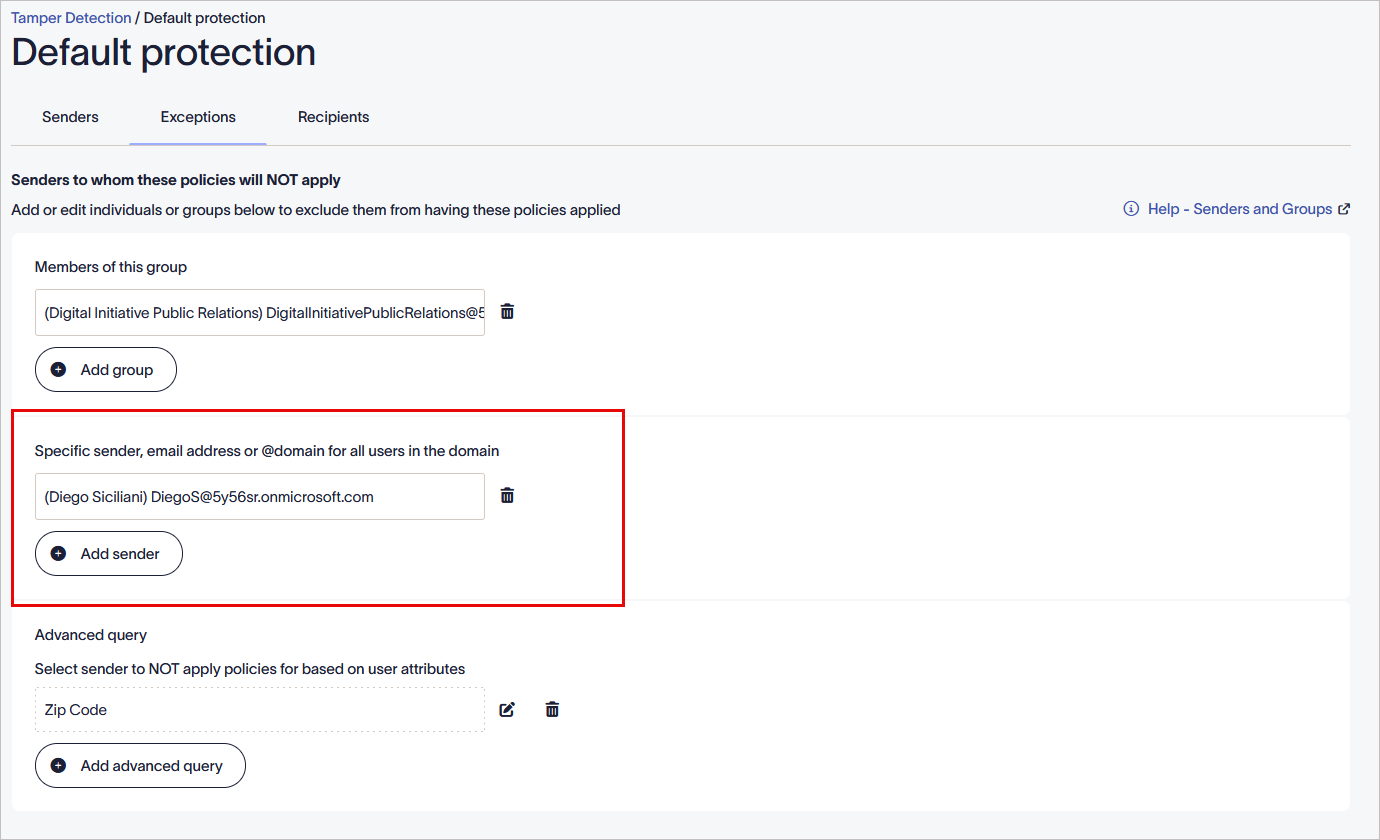
Specific sender, email address or @domain for all users in the domain.
- In the unsaved changes banner, select Save to apply your rules, or select Cancel to revert all changes.
This option stops the policy set from applying to senders based on user attributes assigned to your users in the Microsoft or Google directory.
To exclude senders with specific attributes:
- Select Add advanced query.
The Advanced query window is displayed.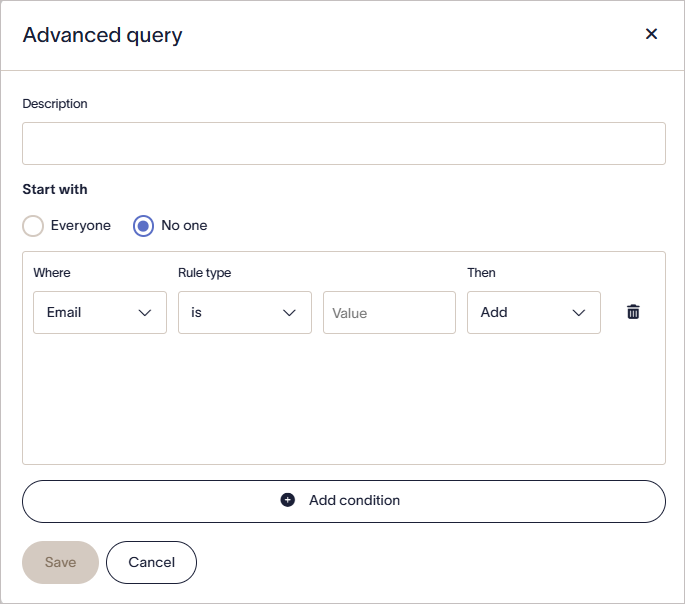
The Advanced query window.
- In Description, enter the text to name your query. This description appears in your Exceptions tab to identify the Advanced Queries you have set.
- Under Start with, select either:
No one to start the query with no users and add matched users.
or
Everyone to start the query with all users and remove matched users.
- From the Where drop-down, select a user attribute field to check the data for.
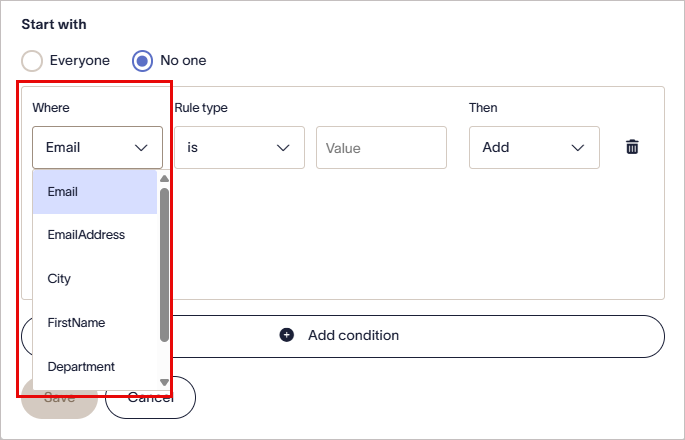
From the Where drop-down, select a user attribute field to check the data for.
- From the Rules type drop-down, select one of the following options to set how your attribute data is checked:
is - the attribute data must completely match the following text.
contains - the attribute data must have the following text somewhere within it.
starts with - the attribute data must begin with the following text.
ends with - the attribute data must end with the following text.
is not - the attribute data must not be the same as the following text.
does not contain - the attribute data must not have the following text anywhere within it.
does not start with - the attribute data must not begin with the following text.
does not end with - the attribute data must not end with the following text.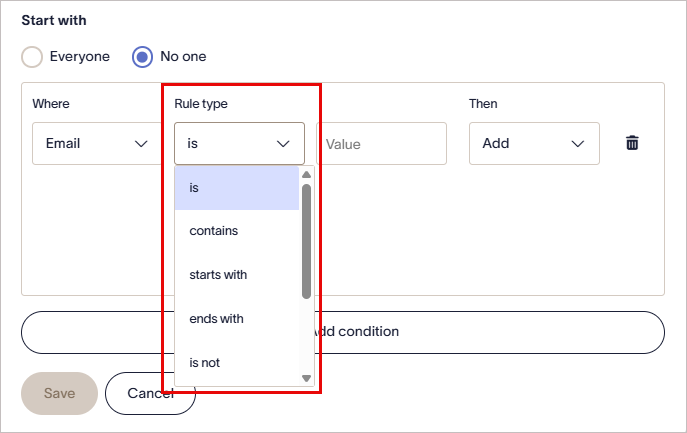
From the Rules type drop-down, select an option.
-
In the blank text box, enter the comparison text. This field is not case sensitive.
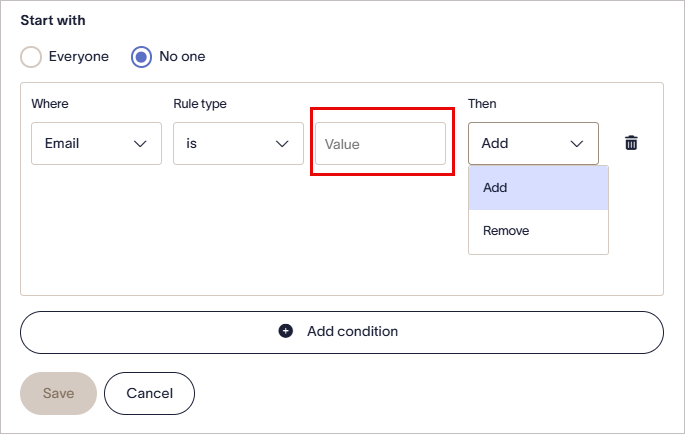
Enter a comparison value.
NOTE: Your query uses the options and text to search for users that match the criteria and either set or eliminate them as senders.
Some examples of queries are:
Start with: No one, Then: Add > User Where: JobTitle > includes > Sales will add only users with the term Sales anywhere in their job title as senders.
Start with: Everyone, Then: Remove > User Where: EmailAddress > ends with > example.com will add everyone as a sender except for any users whose email address ends with example.com. - From the Then drop-down, select either Add or Remove to include or exclude the matching users.
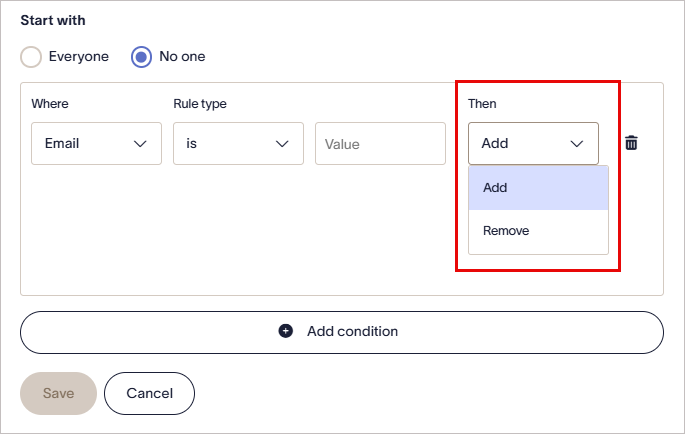
From the Then drop-down, select either Add or Remove to include or exclude the matching users.
-
Select Add Condition to add further rows (maximum ten).
NOTE: Conditions are processed in order, and conflicting conditions are resolved by priority — higher rows take precedence.
- Select the bin icon to remove a row, or the pencil icon
 to edit a saved query.
-
Select Save to save the query and return to the Exceptions tab. Your query is displayed with its description.
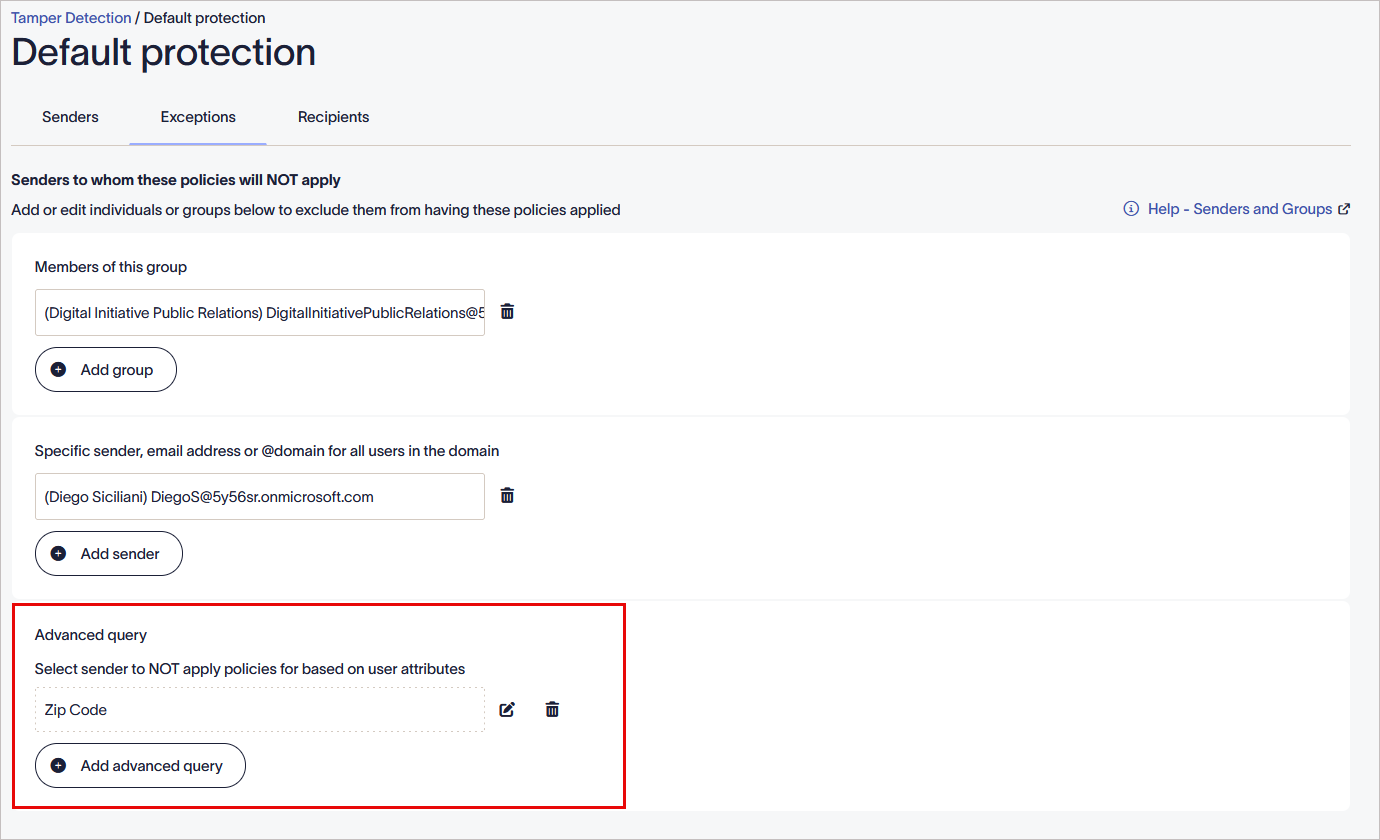
Query description in the Exceptions tab. - Select the pencil icon to edit the advanced query. Select the bin icon to delete the advanced query.
- In the unsaved changes banner, select Save to apply your rules, or select Cancel to revert all changes.