
Description
The Recipients tab lets you control whether a compliance policy set applies to an email based on who is receiving it. You can scope a policy set to internal recipients, external recipients, or both, and refine this further by including or excluding specific email addresses or domains.
How to access it
To access the Recipients tab:
- From the Tamper Detection page, select Manage on the relevant policy set.
- Select the Recipients tab.
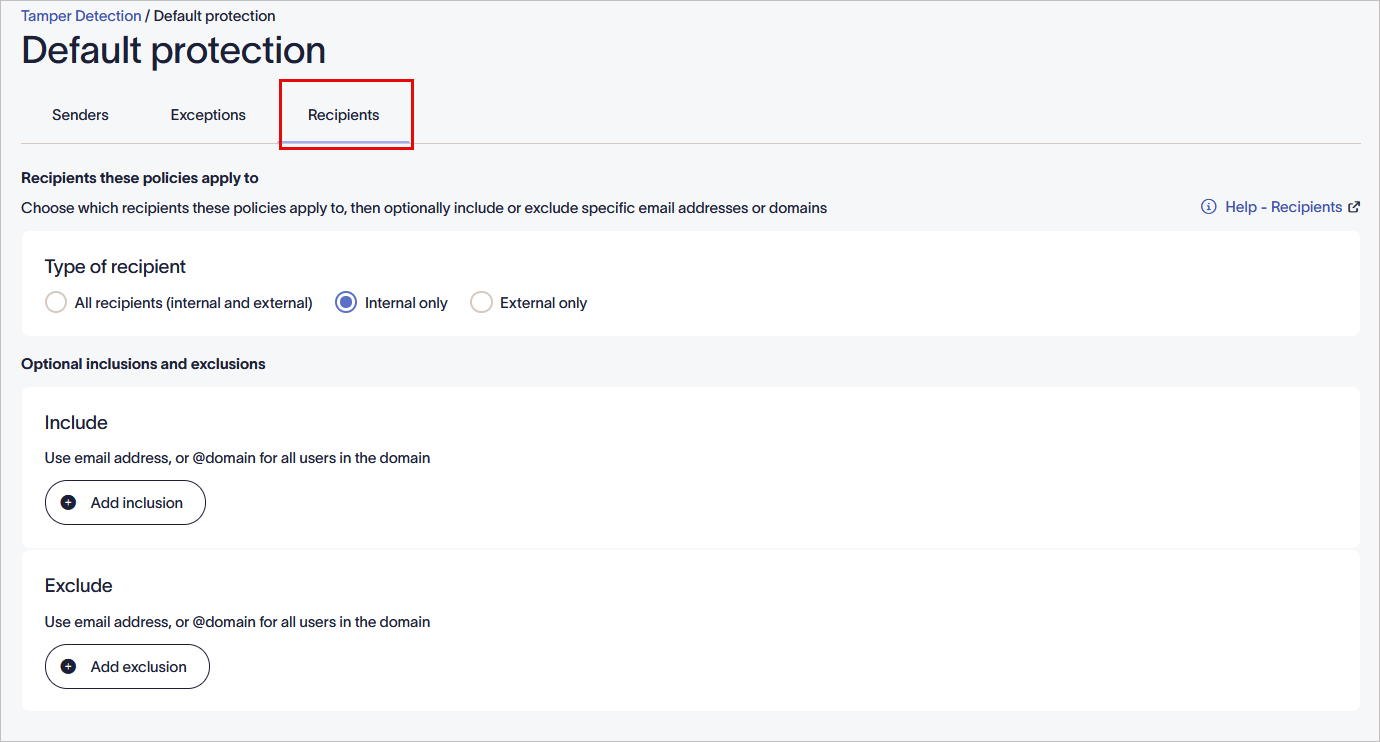
Select the Recipients tab.
Defining which recipient(s) this policy applies to
To control which recipients a policy set applies to:
To define recipients for the selected policy:
The Type of Recipient setting determines whether a policy set applies based on whether the recipient is inside or outside your organization.
To select the type of recipient for the selected policy:
- Under Type of recipient, select either:
All recipients (internal and external): The policy is applied to all recipients.
OR
Internal only: The policy is applied only to recipients within your organization.
OR
External only: The policy is applied only to recipients outside your organization.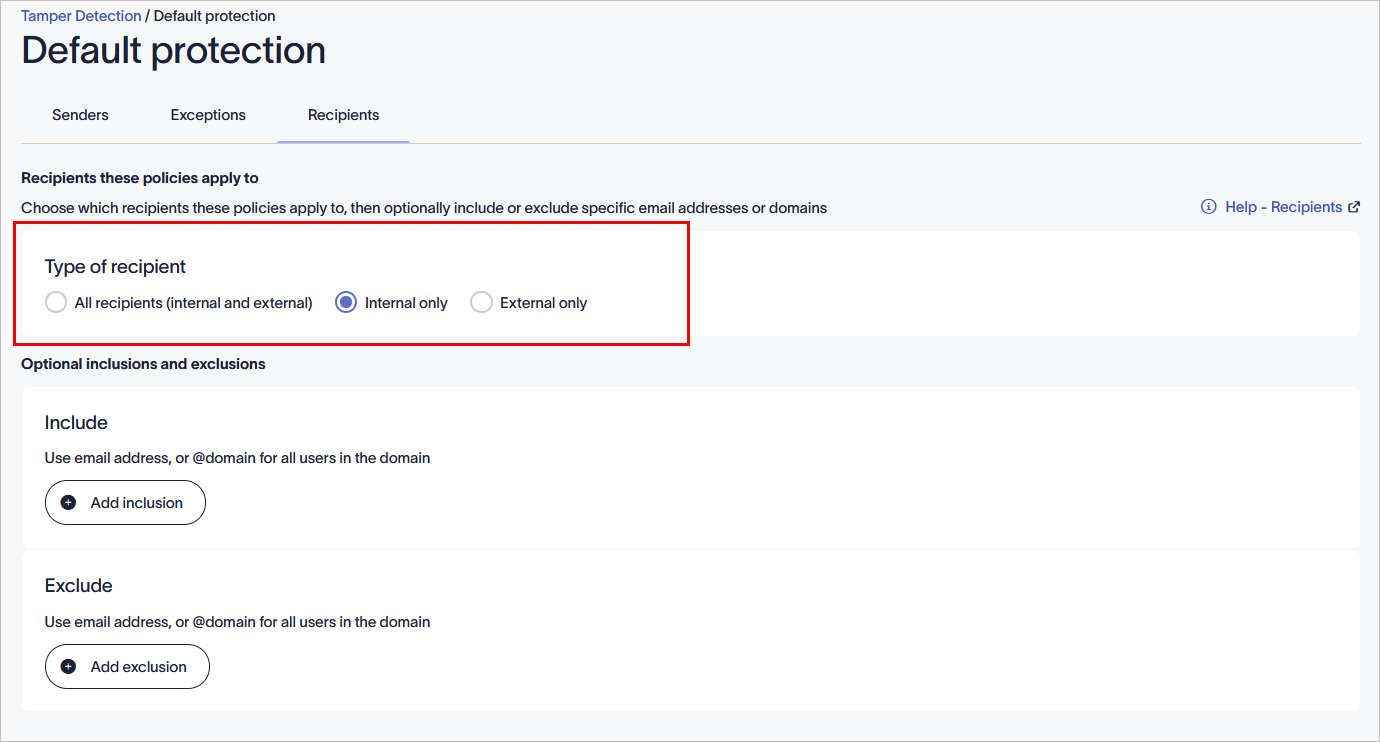
Select the type of recipient.
- In the unsaved changes banner, select Save to apply your rules, or select Cancel to revert all changes.
Under Optional inclusions and exclusions, you can add further rules to refine which recipients the policy set applies to.
To include or exclude recipients, select an option below to view the related instructions.
To apply the policy set to specific recipients or domains:
- Select Add inclusion to enable the entry field.
-
Enter a recipient's email address or @domain name.
TIP! You can also use a wildcard (*) when entering an email address or domain name. A wildcard represents any available characters attached to the complete text. Exclaimer allows for any number of characters to be substituted for a wildcard.
Some examples using a wildcard are:
*@greenorg.net - this would include any email addresses that are followed by '@greenorg.net'.
@exclaimer.* - this would include any domains attached to Exclaimer email addresses.
@*.de - this would include any domains that are followed by .de. - Select Add inclusion to add another email address or domain.
- Select the bin icon
 to delete an email address or domain.
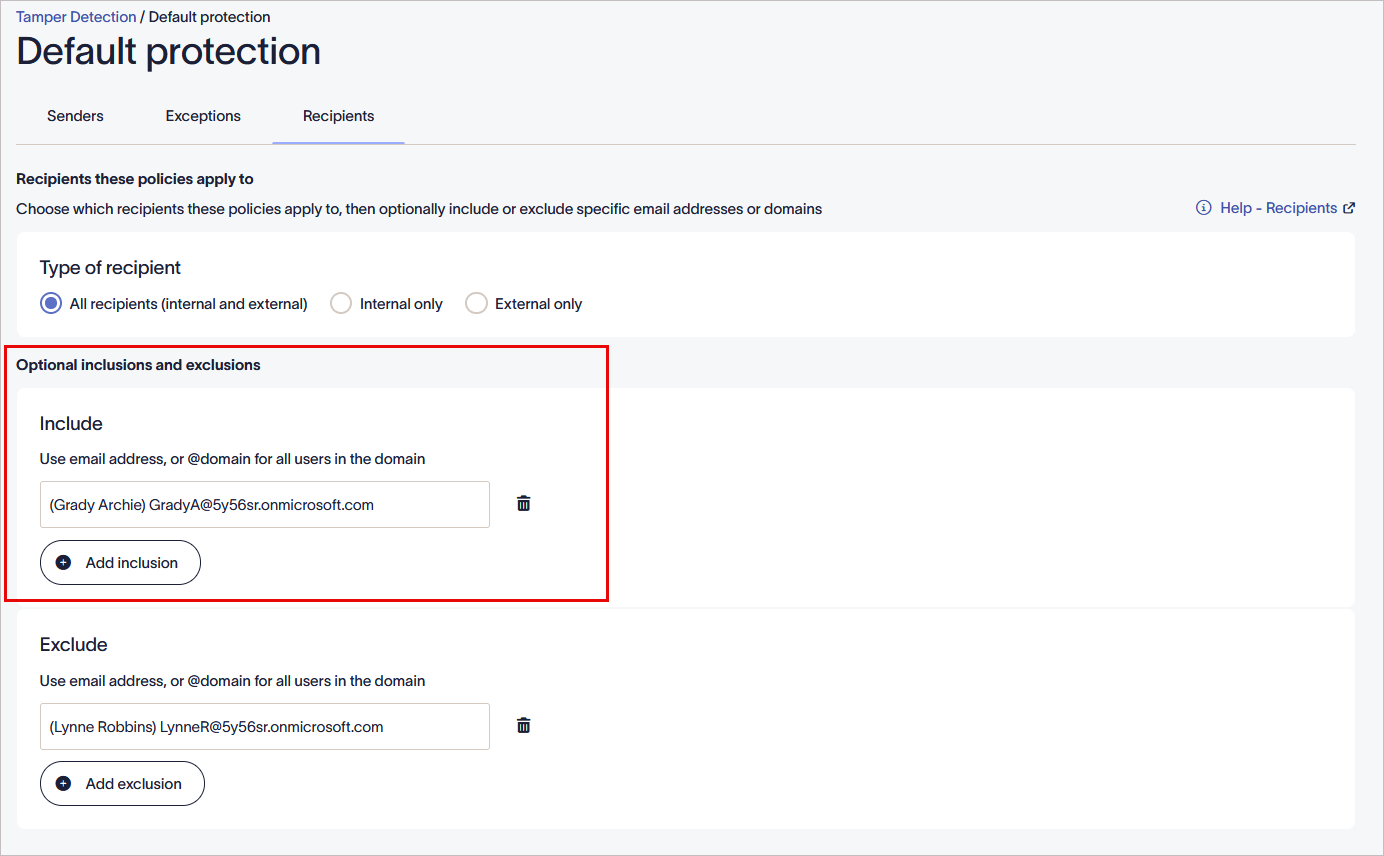
Include recipients.
- In the unsaved changes banner, select Save to apply your rules, or select Cancel to revert all changes.
To exclude specific recipients or domains from the policy set:
- Select Add exclusion.
-
Enter a recipient's email address or @domain name.
TIP! You can also use a wildcard (*) when entering an email address or domain name. A wildcard represents any available characters attached to the complete text. Exclaimer allows for any number of characters to be substituted for a wildcard.
Some examples using a wildcard are:
*@greenorg.net - this would include any email addresses that are followed by '@greenorg.net'.
@exclaimer.* - this would include any domains attached to Exclaimer email addresses.
@*.de - this would include any domains that are followed by .de. - Select Add exclusion to add another email address or domain.
- Select the bin icon to delete an email address or domain.
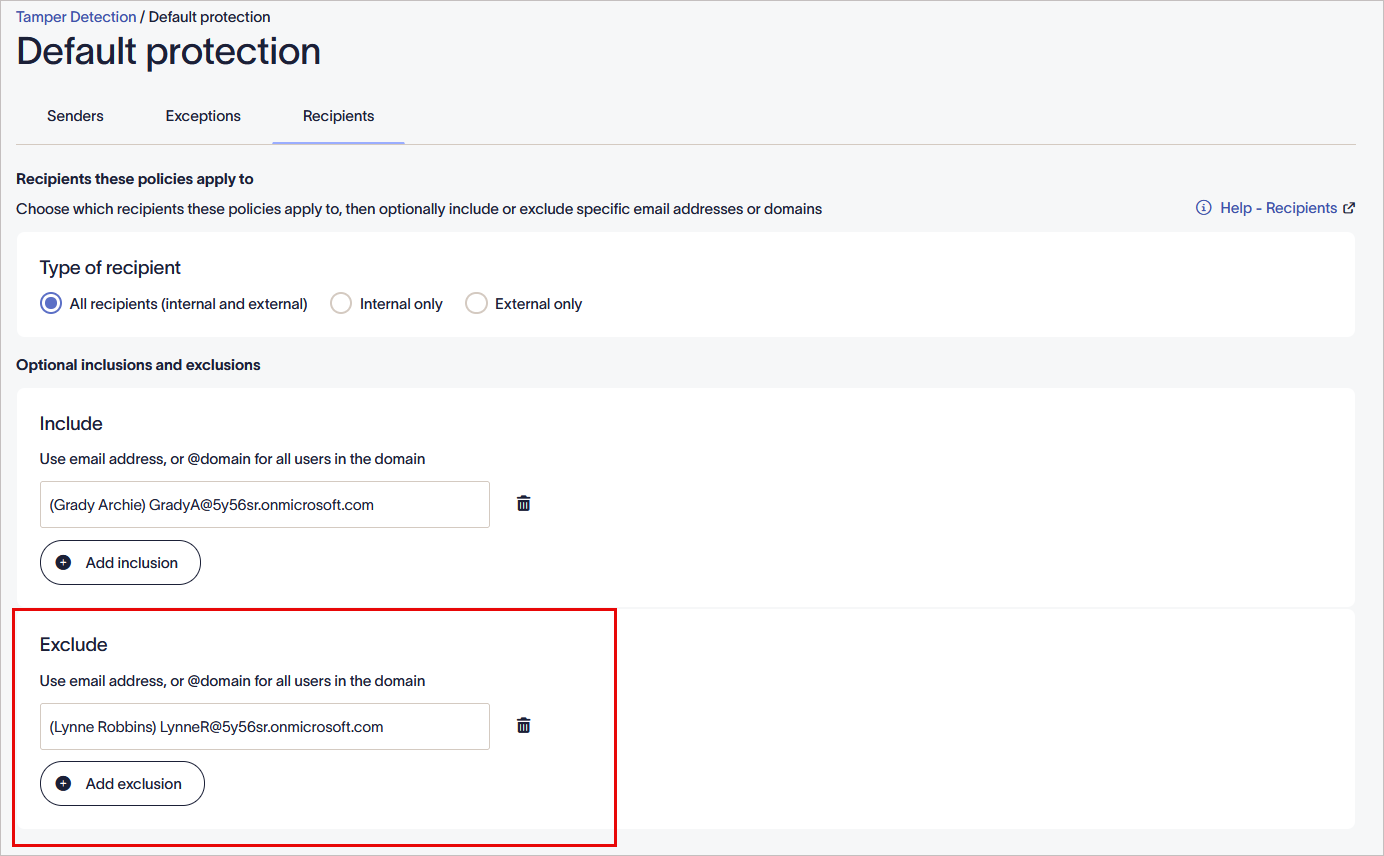
Exclude recipients.
- In the unsaved changes banner, select Save to apply your rules, or select Cancel to revert all changes.