
Scenario
You are trying to send an email in Microsoft Outlook, and you see a pop-up stating 'Please wait to send. Inline images are still loading. You can send your message after they've loaded.'
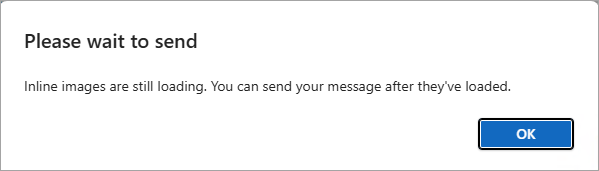
The pop-up in Microsoft.
Reason
This pop-up is expected behaviour from Microsoft, and appears in the following circumstances:
- Your signature contains a large number of images
- Your network connection is slow or interrupted
- You are trying to send your message while the Exclaimer Outlook Add-In is still executing a task.
Resolution
This issue usually resolves after waiting to send. Check that your signature has appeared in your message completely before sending.
To avoid long loading times, we recommend reducing the number of images in your signature.
See the following tips on avoiding excess images:
- Embedded images increase the file size of your email. If you are using multiple embedded images in your signature, try using linked images instead.
- Multiple high-resolution images may take longer to load. Consider using images at a lower resolution. See How to resolve image quality issues for instructions on checking your images' resolutions.
-
If you use custom fonts or background images in your signature, your signature will automatically render these as bitmap images. To avoid this, use font stacks instead of custom fonts and remove background images.
For instructions on using font stacks, see How to use font stacks in Exclaimer.
Tip! You may be able to replace your background image by recreating it using background colors. For more information on using colors and images, see Difference between background image and background color and the Creating a wide image section of How to extend an element across the width of a signature. This is only suitable for background images that use simple block colors.