
Beschreibung
Wenn Sie eine E-Mail senden, wendet Exclaimer die erste Signatur in den Listen an, die Ihren Signaturregeln entspricht. Sie können die Reihenfolge Ihrer Signaturen und Ordner sowohl in der Alle Signaturen-Liste als auch innerhalb einzelner Ordner über die Registerkarte „Neu anordnen“ ändern.
HINWEIS: Exclaimer wendet nur Signaturen an, die den Regeln und Bedingungen für die von Ihnen gesendete E-Mail entsprechen. Wenn Sie mehrere Signaturen mit denselben Regeln haben, wird diejenige angewendet, die zuerst in der Liste erscheint. Wählen Sie aus, welche Signatur angewendet werden soll, indem Sie sie höher in der Liste verschieben.
Zugriff darauf
So greifen Sie auf die Registerkarte Neu anordnen zu:
- Melden Sie sich bei Ihrem Exclaimer-Abonnement an und wählen Sie im Menü auf der Seitenleiste Signaturen aus.
-
Wählen Sie die Registerkarte Neu anordnen aus.
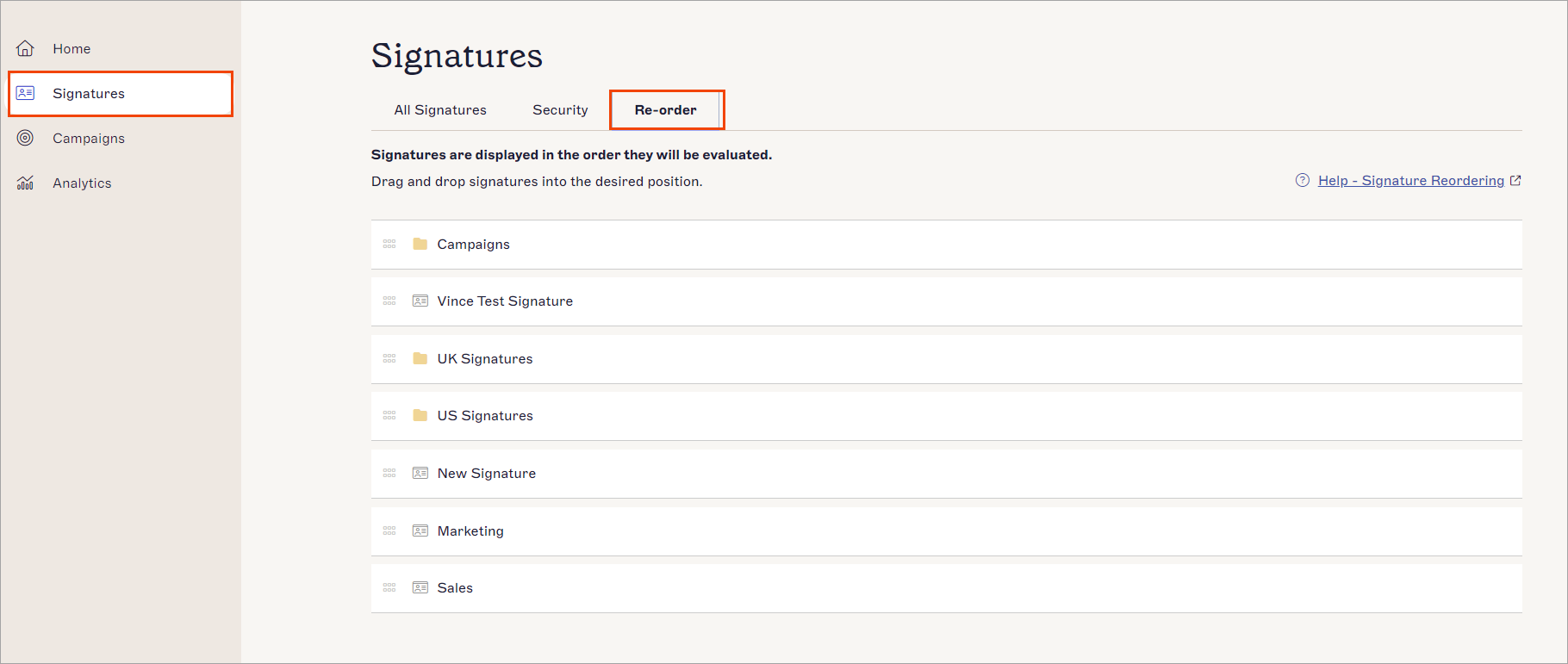
Wählen Sie die Registerkarte „Neu anordnen“ aus.
Signaturen neu anordnen
So ordnen Sie Ihre Signaturen und Ordner neu an:
HINWEIS: Nur Benutzer mit den Benutzerrollen Eigentümer oder Administrator können Signaturen in der Liste „Alle Signaturen“ neu anordnen. Benutzer mit der Rolle Editor können jedoch Signaturen innerhalb von Ordnern neu anordnen, auf die ihnen Zugriff gewährt wurde. Weitere Informationen finden Sie unter Benutzerverwaltung.
- Um zu ändern, an welcher Stelle eine Signatur oder ein Ordner in der Liste erscheint, ziehen Sie sie per Drag & Drop an eine neue Position.
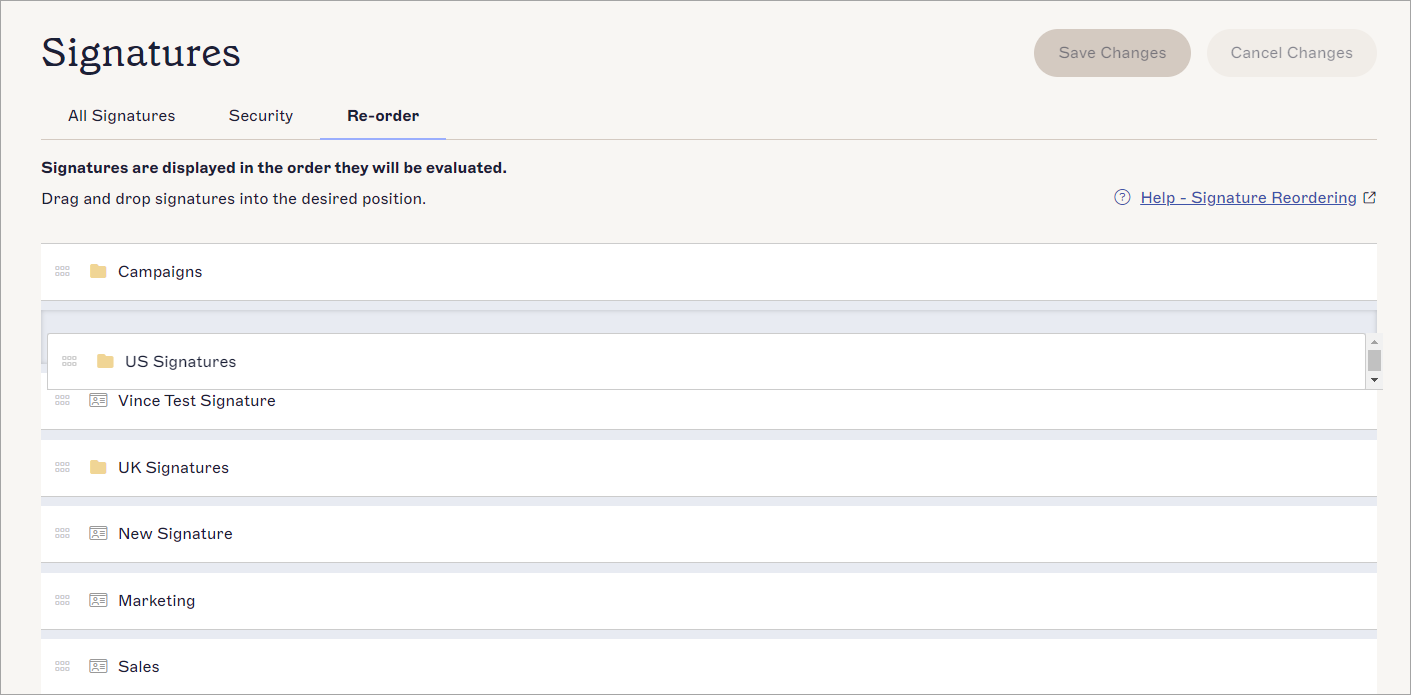
Ziehen Sie Signaturen oder Ordner per Drag & Drop, um sie neu anzuordnen.
- Wählen Sie im Banner für nicht gespeicherte Änderungen Speichern aus.