
Scenario
Users send emails from a shared mailbox, but would like to be able to apply a personal signature to some emails.
Resolution
In Client-Side deployment, you can apply a personal signature using the Exclaimer Outlook Add-In. In Server-Side deployment, you can apply a personal signature via Exchange Online.
NOTES: This solution is only applicable to users with a Microsoft 365 subscription.
Your email address and the shared mailbox email address must be part of the same Microsoft 365 tenancy to access personal signatures when sending from a shared mailbox.
Your email address and the shared mailbox email address must be part of the same Microsoft 365 tenancy to access personal signatures when sending from a shared mailbox.
Select an option below to view the related instructions:
For Client-Side signatures
Pre-requisites: Ensure that your signature is enabled for Client-Side deployment, and that you have installed the Exclaimer Outlook Add-In.
To apply a personal signature using client-side:
- Open Outlook and select New Email.
-
Select the From field to open the drop-down, then select Other email address...
NOTE: If you do not see the From field, select Options from the menu ribbon, then the Show From checkbox to enable it.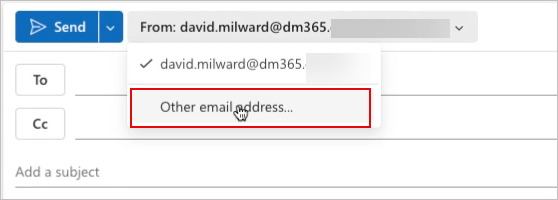
Select the From field, then select Other email address...
- Enter the email address of the shared mailbox.
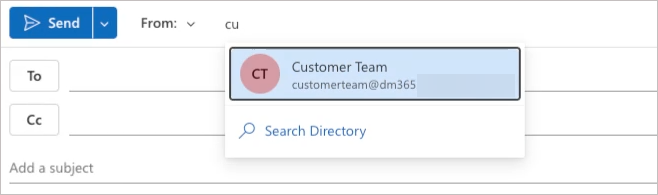
Enter the shared mailbox email address.
- In the To field, enter the recipient's email address. This filters the available signatures by checking any signature rules that may affect which ones can be used.
- Select the Message ribbon and open the Exclaimer Outlook Add-In by selecting the icon or button with the Exclaimer logo. This may vary depending on your Outlook instance (for example, Outlook Web or Desktop). For more information, see Using the Exclaimer Outlook Add-In.
Sign in to your Microsoft 365 account if prompted.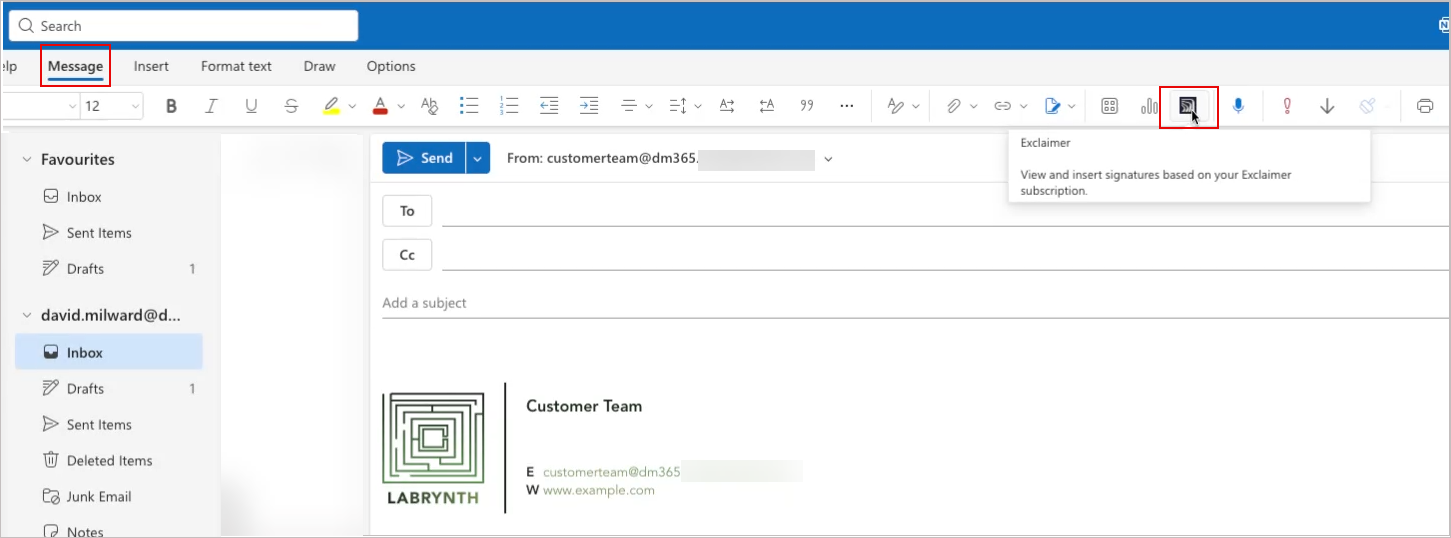
An example showing the Exclaimer icon in the Message ribbon. This may appear as a button labelled Exclaimer.
-
In the Add-In pane, select the drop-down menu, then select your personal email address. This displays your available personal signatures.
NOTE: If you do not see the drop-down menu, ensure you have completed Step 3.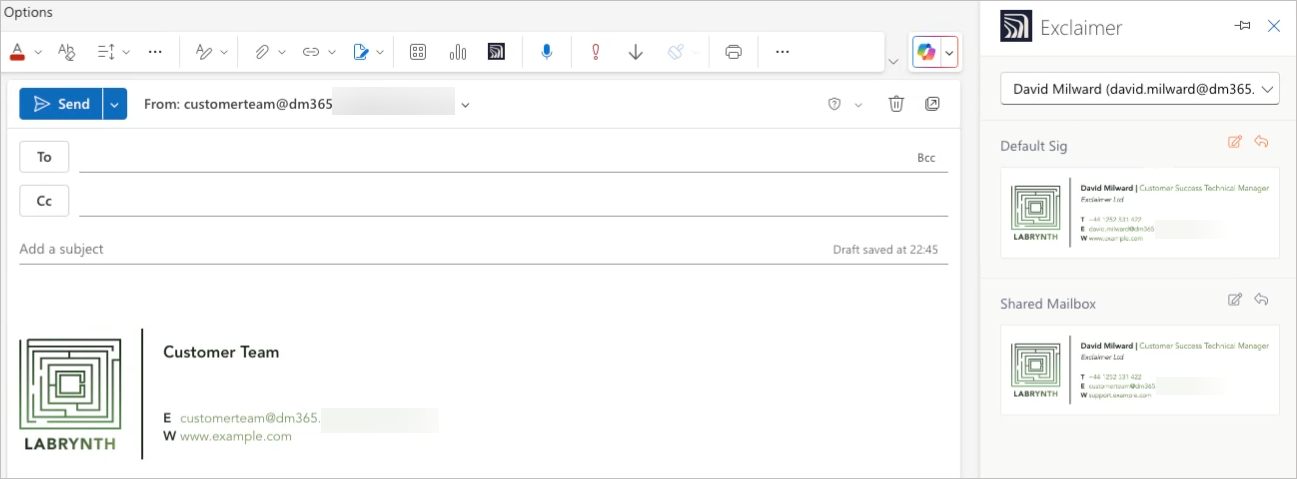
Select your email to view your signatures instead of the shared mailbox signatures.
- [Optional] To set your personal signature as the default signature, which is automatically applied, select the icons above the signature. The pencil icon sets this signature as default for new messages, and the arrow icon for replies/forwards. For more information, see How to set default and reply signatures for Client-Side with Microsoft 365 subscriptions.
NOTE: You may need to de-select and re-select the icons to ensure this default is set. To check, hover over the icon(s) after setting. If a text tooltip beginning 'Remove as user default' appears, your defaults have been set.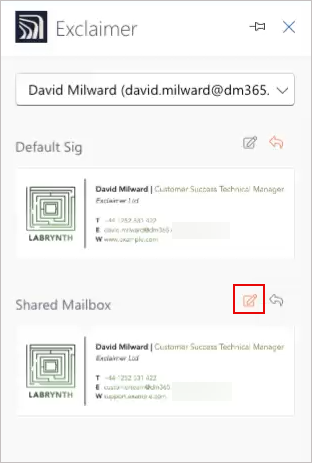
The icon buttons allow you to set a signature as the default.
- Select a signature from the pane. This applies it to your email. When you send the email, your chosen personal signature will apply instead of a signature from the shared mailbox.
For Server-Side signatures
Pre-requisites: You must have Microsoft 365 Global Administrator credentials.
To apply a personal signature using server-side:
- Sign in to the Exchange admin center using Global Administrator credentials.
- From the menu sidebar, select Recipient, then select Mailbox.
- Select the shared mailbox from the list.
- In the details pane, select Send on behalf to allow users to send emails from the shared mailbox on behalf of their personal account.
- Log in to Exclaimer.
- From the header bar, select the cogwheel icon to open the Settings menu, then select Mail Flow.
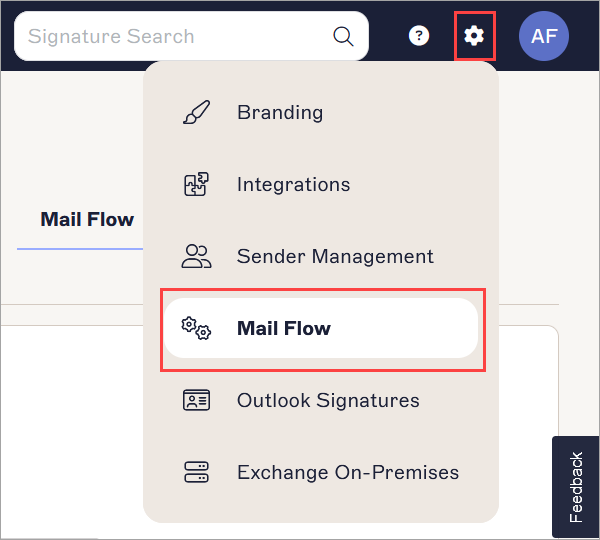
The Settings menu is found under the cogwheel icon.
- In the Send on Behalf section, deselect the Use 'send on behalf' sender checkbox, then select Save.

The Send on Behalf section.
CAUTION! In the Exchange Admin Center, if you set both Send As and Send on Behalf permissions, Send As permissions take precedence because Microsoft does not allow both.