
Description
The Social Feed Analytics dashboard displays analytical information on social feed performance, such as engagement rates and click tracking for each post.
If you have configured social feed integrations with Exclaimer and added social feed elements, such as LinkedIn or Facebook, to your signatures, recipient interaction is logged in Social Feeds Analytics. No data is available if you have not configured and sent any signatures with a configured social feed.
Analytics requires Server-Side configuration to function. You can use Analytics on Client-Side deployment, but only if you have enabled and configured Server-Side. For help setting up Server-Side, see our onboarding guides for either Microsoft subscriptions or Google subscriptions.
How to access it
To access the Social Feeds Analytics:
- From the menu sidebar, select Analytics.
- Select the Social Feeds tab.
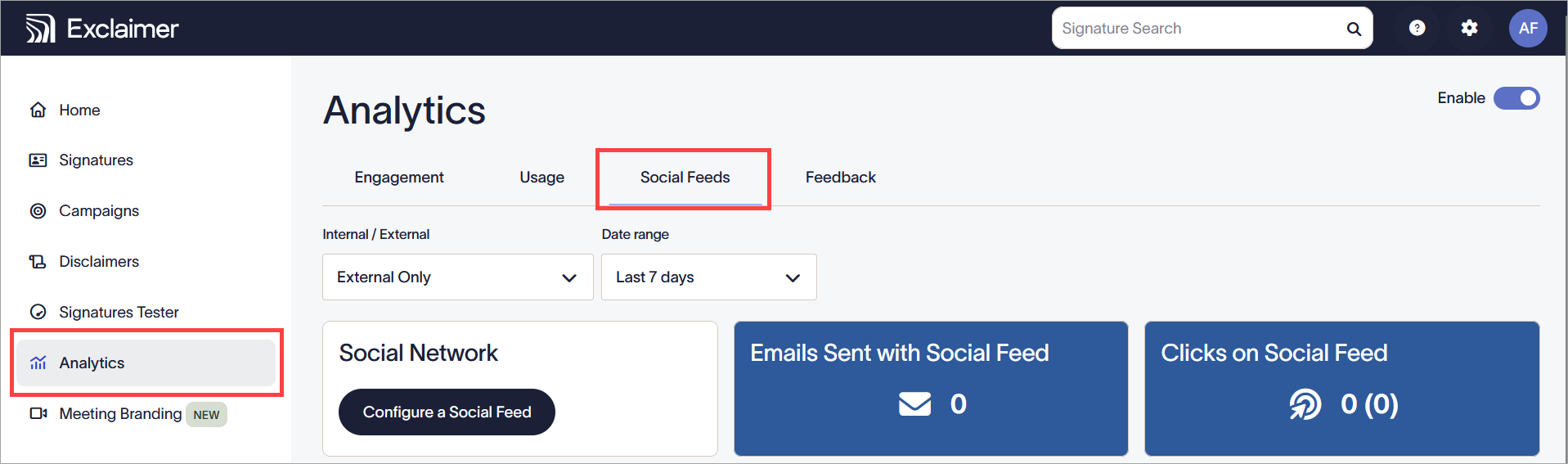
Select Analytics, then Social Feeds.
Understanding Social Feed Analytics
In order for the data to be collected and displayed on the dashboard, your emails must be routed through the Exclaimer servers. Hyperlinks are automatically rewritten and redirected through Exclaimer's click tracking service.
URLs have a regional code <Region Code> prefixed to them.
You can choose whether to collect analytics data using the Enable toggle. 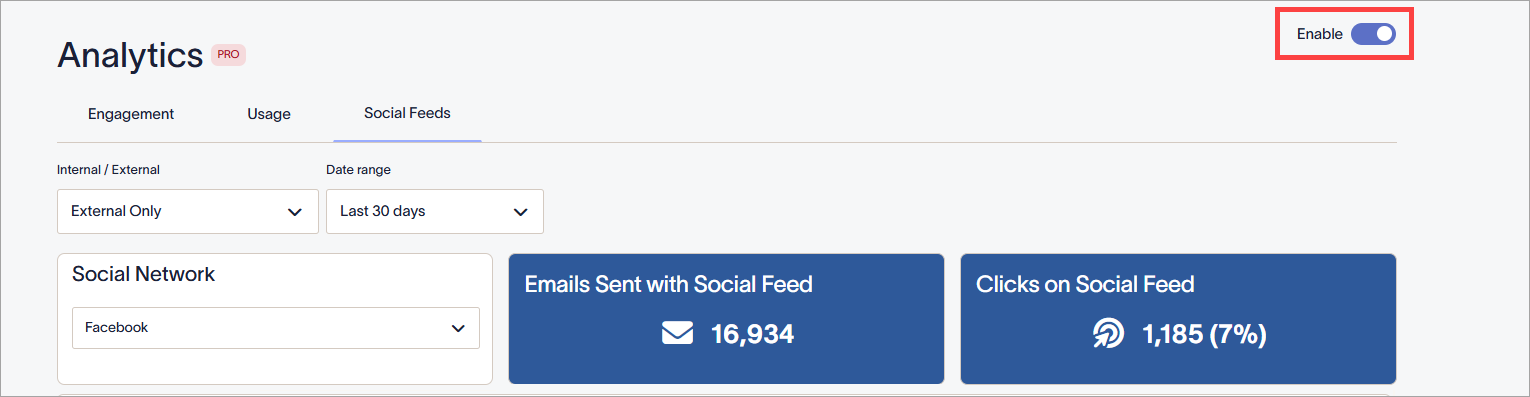
The Enable toggle in the On position.
If analytics is not enabled, your links are not changed, and data is not collected. Your dashboard will not show any data.
The Social Feeds Analytics dashboard
The Social Feeds Analytics dashboard displays information to help you analyze how recipients interact with the social feed elements in your signatures. 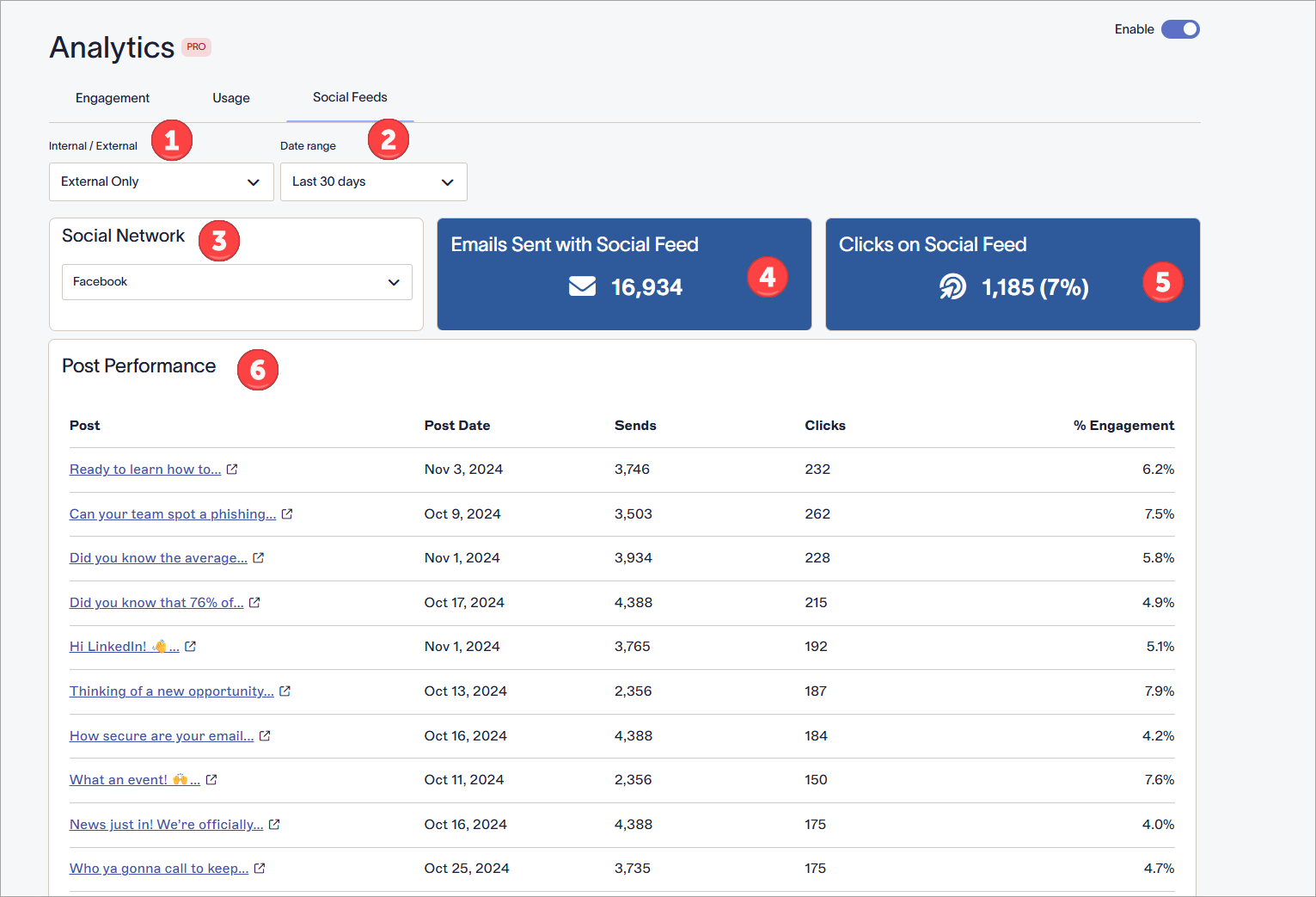
The following table outlines the different options available on the Social Feed Analytics dashboard:
|
Internal/External |
Select a type of email from the drop-down list:
|
|
Date Range |
Select a date range from the drop-down list:
To set a Custom date range, enter or select a start and end date and time using the calendar picker. |
|
Social Network |
Displays which social feed the dashboard data is for. If you are using both Facebook and LinkedIn social feeds, select an options from the drop-down list to view data for each feed. If you are not using any social feeds, select Configure a Social Feed to go to Integrations and set up a connection to either Facebook or LinkedIn. This button only displays if you are not using any social feed integrations. |
|
Emails sent with Social Feed |
Displays the number of emails sent in your specified date/time range that include the selected social feed. |
|
Clicks on Social Feed |
Displays the number of clicks on the selected social feed, including a representative percentage based on how many were sent. |
|
Post Performance |
Displays all sent posts in your social feeds. Use the page numbers to view more posts. The following fields are displayed for each post: |


