
Scenario
You have an existing signature template that you want to add personal details to, but instead of adding a {Fields} element, you want to add a field as part of other text.
Resolution
You can use fields in text-based signature elements by entering the { symbol when entering your text.
To add a field to text:
- Open your signature in the Signature Designer.
- Add a text-based element from the Toolbox, such as the Text element or the Registered Office element.
- Enter your text in the text box on the canvas. When you want to add the field, enter the { symbol. This opens the fields drop-down.
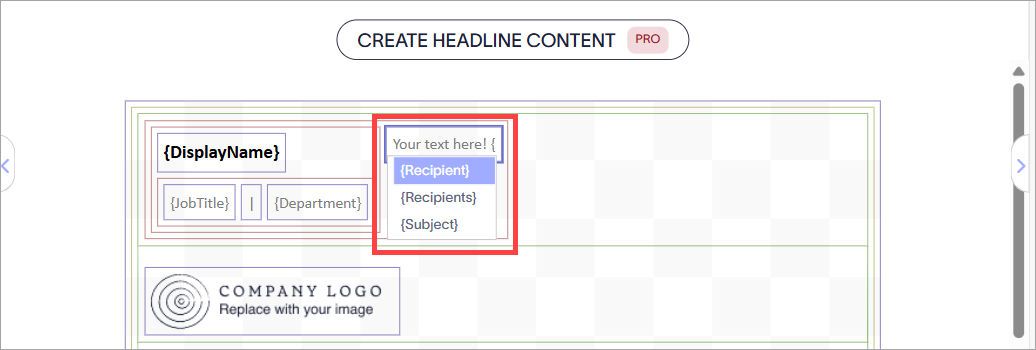
Enter { to display the list of available fields.
- Select your field from the drop-down.
- Select Save Changes or select Save in the unsaved changes banner.
Tip! If you want to add custom data that is not available in the list of existing fields, see How to create and add data to custom attributes.
If you want to use fields to create hyperlinks that change based on the sender's information, see How to add a dynamic hyperlink (URL) to a signature element or, for image links, see How to set linked images using custom fields.
If you want to use fields to create hyperlinks that change based on the sender's information, see How to add a dynamic hyperlink (URL) to a signature element or, for image links, see How to set linked images using custom fields.