
Description
You can purchase an Exclaimer subscription directly without setting up a trial subscription. Payment options include credit card, debit card, or, for larger organizations, purchase order with invoicing. Available methods may vary depending on your organization’s size.
How to access the Purchase option
To access the Purchase option:
- Go to go.exclaimer.com/buy-now.
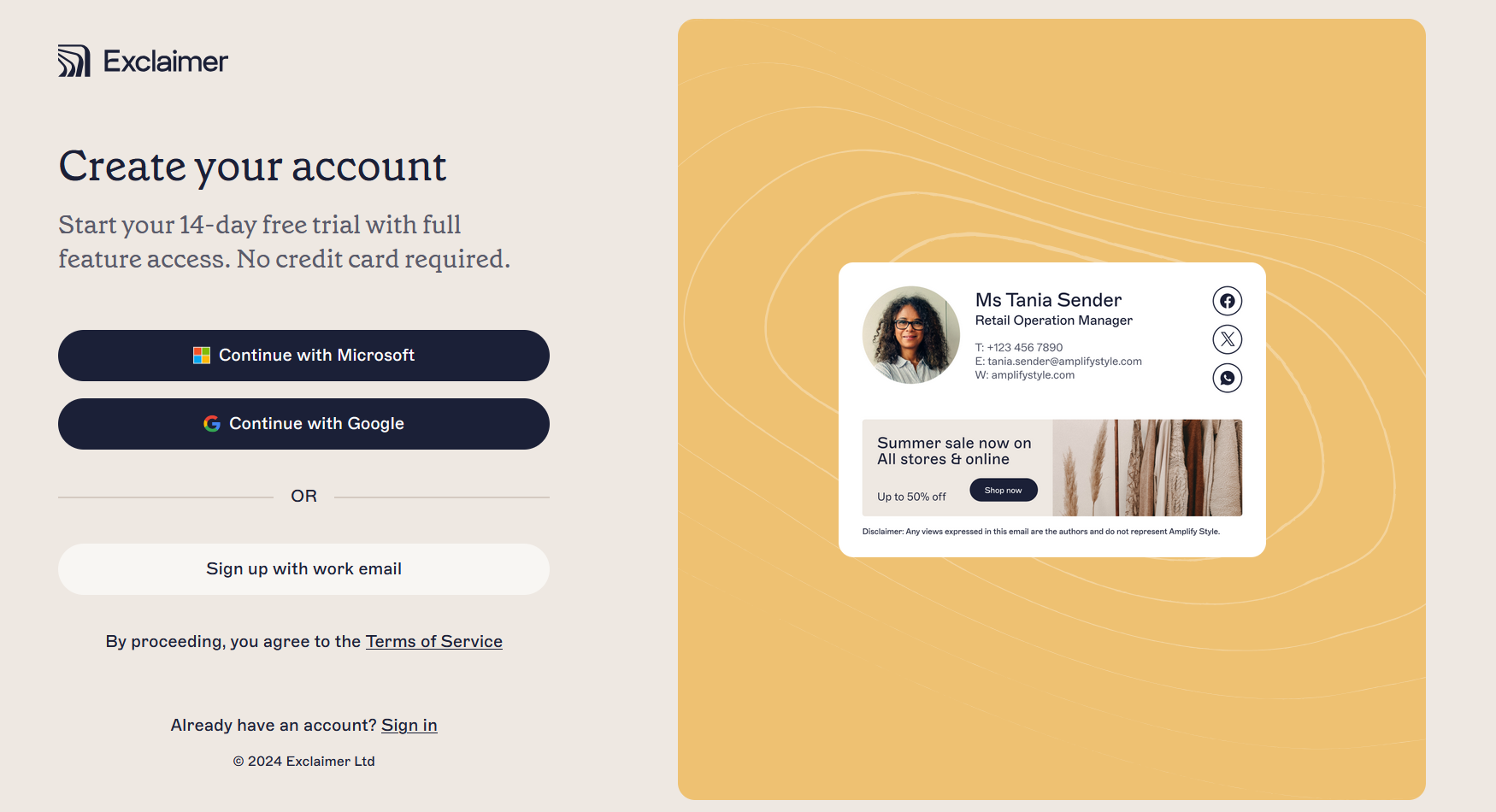
Select a sign up option to set up a new Exclaimer trial subscription.
- Select your sign up method.
EITHER:
Select Continue with Microsoft or Continue with Google.
OR
Select Sign up with work email.
- If you signed up with Microsoft or Google, you are redirected to the relevant login page for your service. Sign in with your Microsoft or Google login and select Next.
- You may receive a request to provide multi-factor authentication. If you signed up with your email address, you may be required to copy and paste a one-time security code. Follow the prompts to complete the sign-in process.
- Accept permissions from Exclaimer if prompted.
- In the Let's get to know you screen, enter your name and phone number, then select Continue.
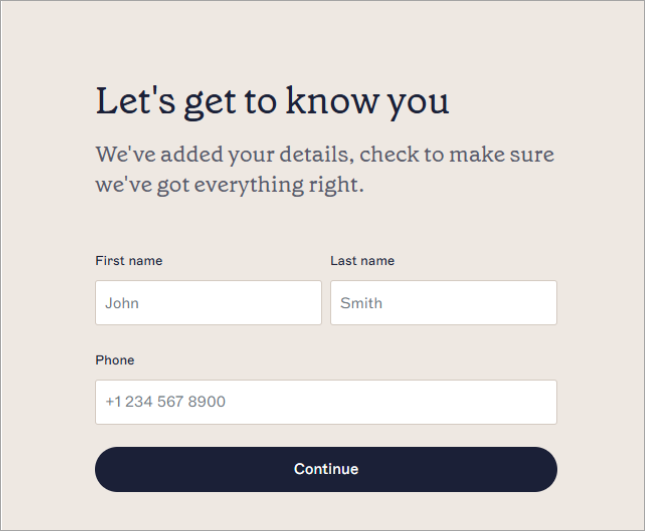
The Let's get to know you screen.
-
In the About your company screen, enter your Company name, select the number of users for your subscription from the Company size drop-down, and select your country from the Country drop-down.
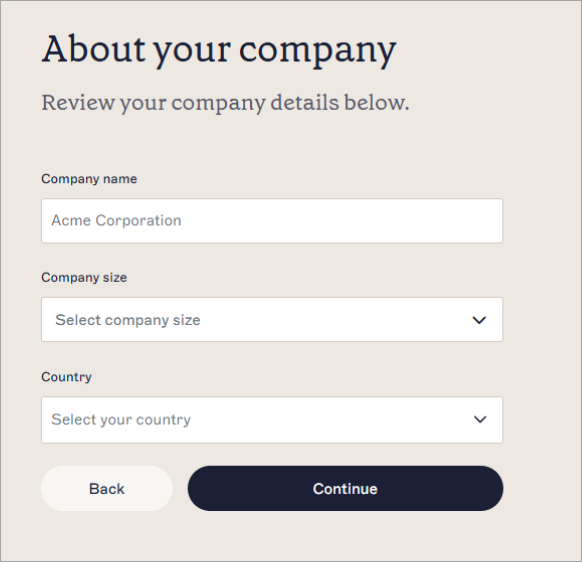
The About your company screen.NOTE: A minimum of 10 users is required. - Select Continue.
- In the What's your email platform? screen, select your email provider from the radio buttons, then select Continue.
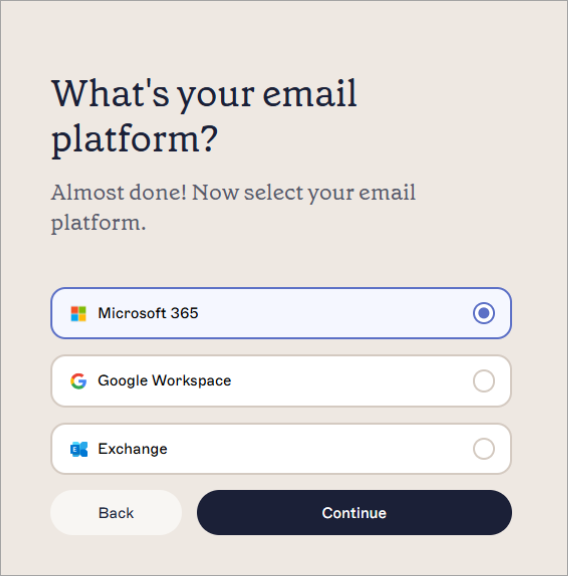
Select your email platform: Microsoft 365, Google Workspace, or Exchange.
Your Exclaimer account is now being prepared. Once it is ready, you are automatically directed to the Purchase page.
Purchasing a subscription
To purchase an Exclaimer subscription:
-
Select the plan you wish to purchase: Starter, Standard or Pro.
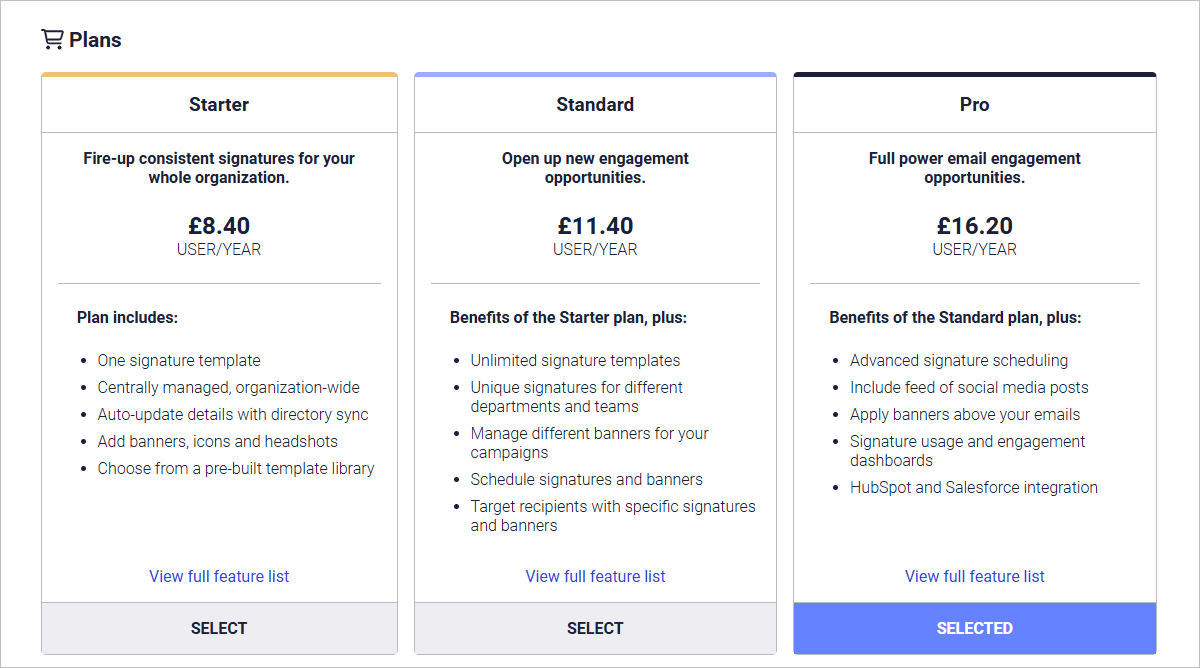
The Plans display a brief summary of each plan type. Select View full feature list for a complete breakdown of available features on each plan.
NOTE: Trial subscriptions are subscribed to the Pro plan. If you wish to select a different plan when purchasing, communicate this change with your Exclaimer account manager, and see the What to expect when purchasing a Standard or Starter plan section of this article. - In the Subscription Details section, select your subscription billing period: Monthly or Annually.
The Subscription Details section.
-
Enter the number of users in the entry field under the plan type. The total price per billing period is displayed in the Total per... bar and next to the entry field.
NOTE: You must have a minimum of 10 users. - In the Billing information section, enter the billing details. Select the Use These Details for Invoice checkbox to save your billing details for invoicing.
- Select your payment method:
If the total number of users is 499 or below, select either Direct Debit or Credit card.
If the total number of users is 500 or more, select either Direct Debit, Credit card or Invoice.
- Select Confirm and Complete Purchase.
When the purchase is complete, you receive a confirmation email including your plan details and our terms and conditions.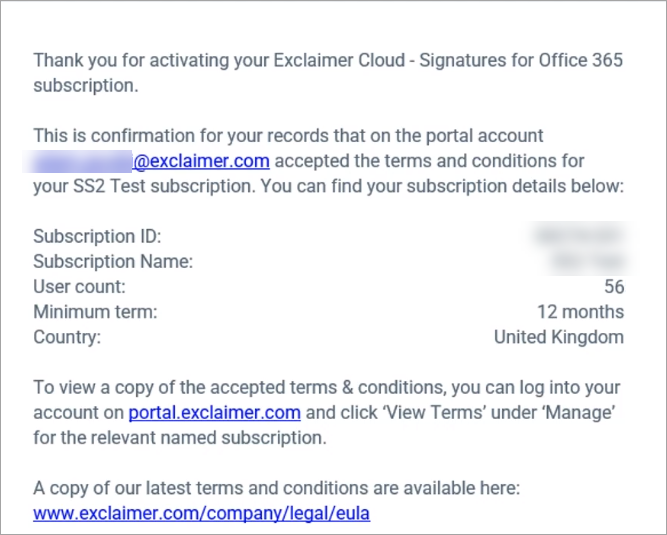
A typical confirmation message.
- Your subscription is now available in the Subscriptions list in the Overview tab. Select Launch to open your subscription, or select Manage to manage your subscription details, including adding another login, viewing subscription details such as number of users or whether it is an Active subscription or in Trial, and access to your Subscription ID.