
Scenario
You are building a signature template and are using a language that reads from right to left, such as Arabic, Urdu, or Hebrew, but the default text alignment is left to right. You want to change the text direction of all or parts of your signature to right-align text.
Resolution
To change the direction of text in a signature template, use the Text properties in the Properties pane for individual elements, or the Layout Direction properties for the whole canvas. For users with Headline Content, you can choose the alignment for either your Headline Content, your main part of the signature, or both.
To change text alignment for an element:
- Open your signature in the Signature Designer.
- Select a text-based element. These are: Text, Address {Fields}, Personal {Fields}, Contact {Fields}, All {Fields}, Disclaimer, and Registered Office.
NOTE: You must select an individual element. This solution cannot be applied to groups or table cells. For more information on selecting individual elements within groups and tables, see Colored borders, grouping, and inherit properties in the Signature Designer. - In the Properties pane, expand the Text section.
- Under Text Direction, select either Left to Right or Right to Left to set the alignment of the text.
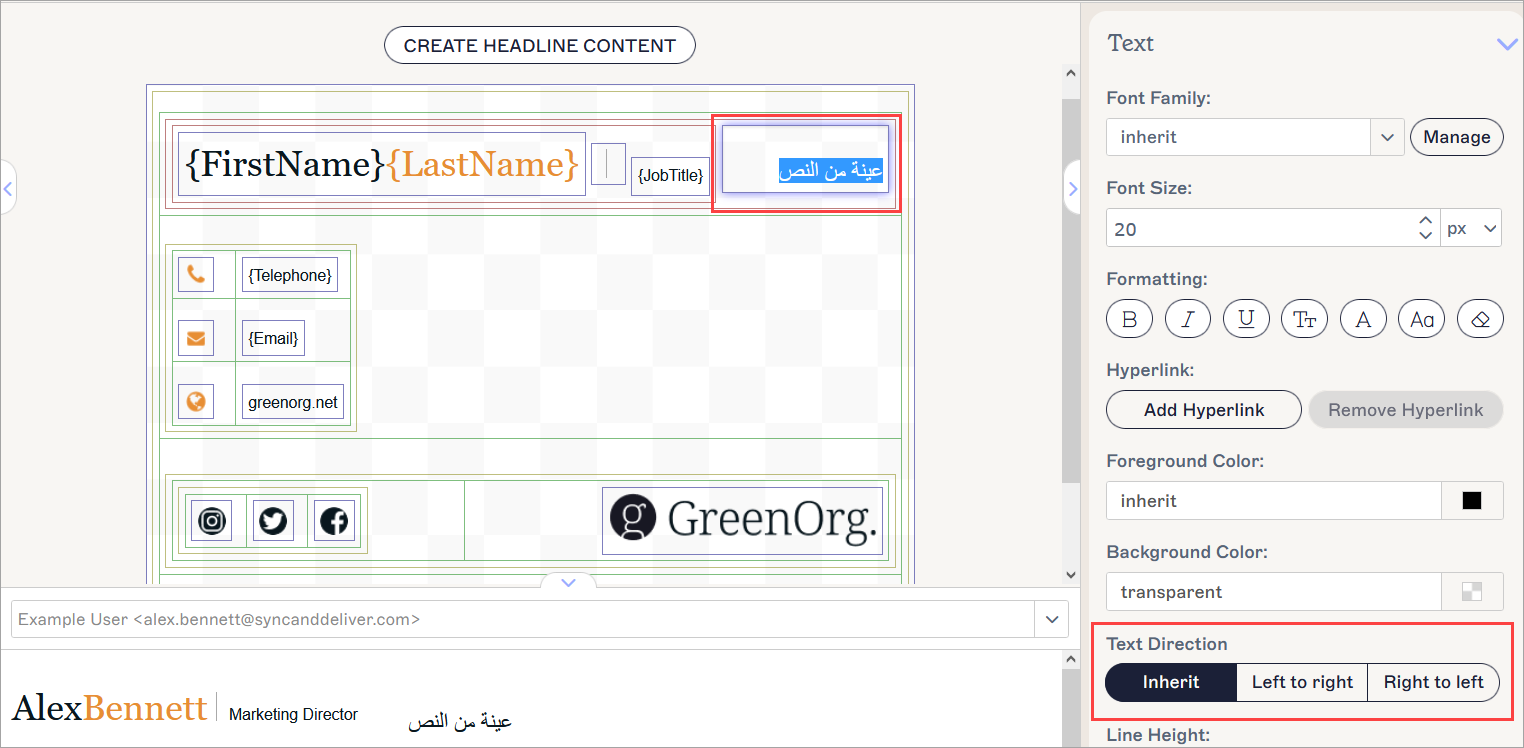
Select your element on the canvas and select the checkbox to right-align. The selected element is shown by a highlight.
- Select Save Changes to save your template.
To change text alignment for the canvas:
- Open your signature in the Signature Designer.
- Select the outermost blue border to select the whole canvas. For more information on selecting the right border, see Colored borders, grouping, and inherit properties in the Signature Designer.
- In the Properties pane, expand the Layout Direction section.
- Select the Footer Right-to-Left checkbox to set the whole template to right-aligned. Deselect the checkbox to set it to left-aligned.
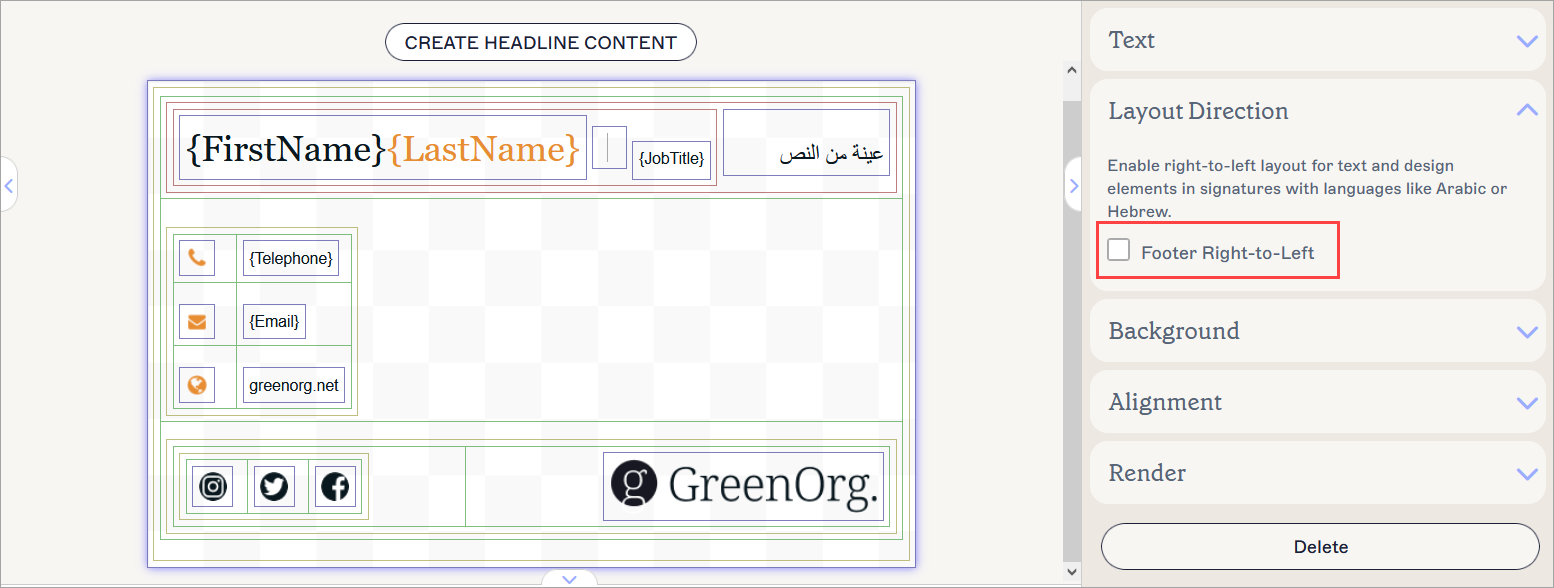
Select the canvas and select the checkbox to right-align. The selected area is shown by a highlight.
- Select Save Changes to save your template.
This solution is to set text direction for the whole canvas of the Headline Content section. For individual elements within your Headline canvas, see the Changing alignment for individual elements section of this article.
To change text alignment for the Headline Content section:
- Open your signature in the Signature Designer.
- Select the outermost blue border to select the whole canvas. This also selects the Headline canvas. For more information on selecting the right border, see Colored borders, grouping, and inherit properties in the Signature Designer.
- In the Properties pane, expand the Layout Direction section.
- To set the Headline canvas to right-aligned, select the Headline Right-to-Left checkbox. Deselect the checkbox to set it to left-aligned.
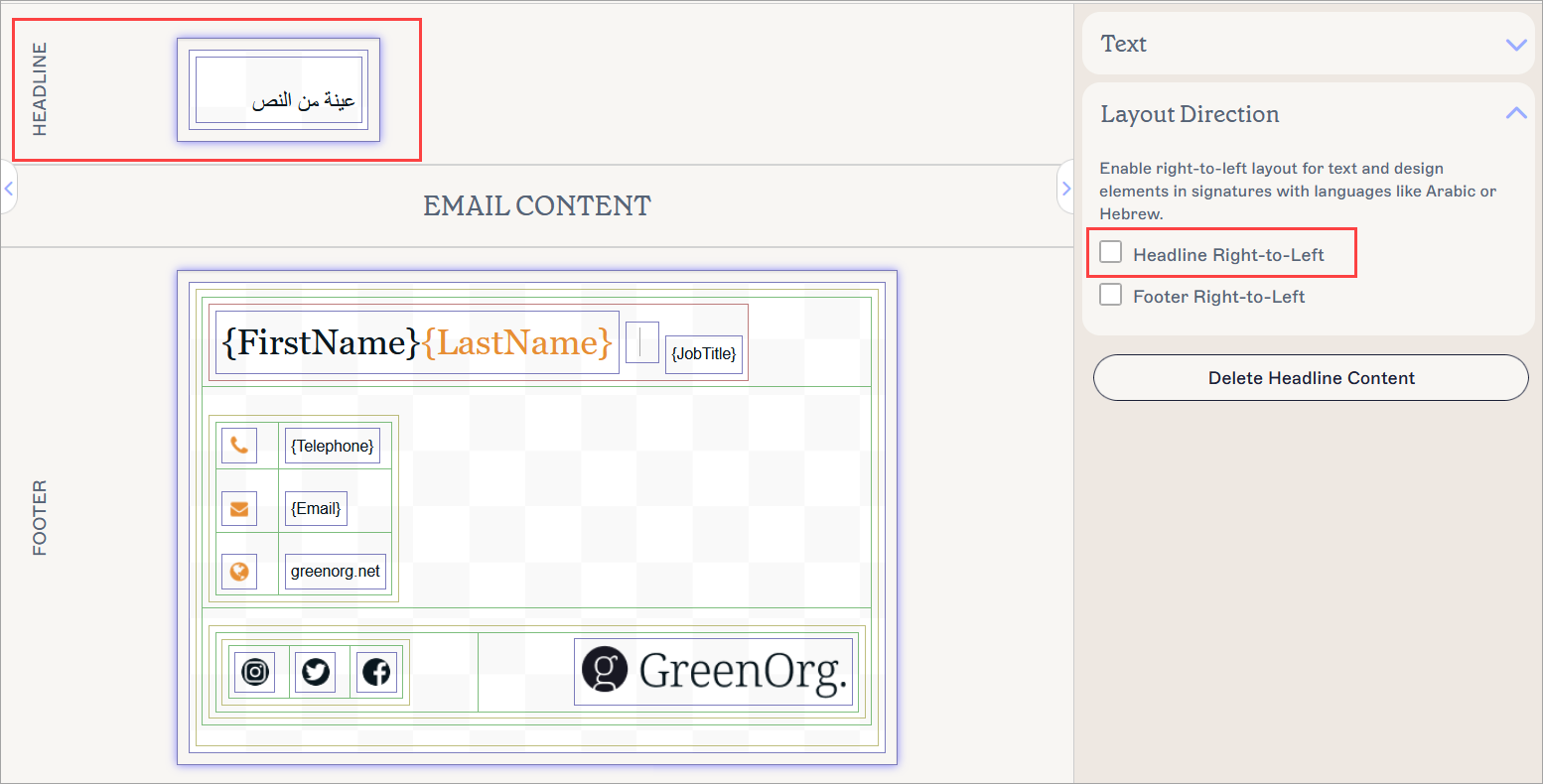
Both canvases are selected, but the Header Right-to-Left checkbox only affects the Headline canvas.NOTE: You can select either one or both of these checkboxes at any time to control the direction of your canvases individually. - Select Save Changes to save your template.