
Description
The Exclaimer Outlook Add-in is an application that can be centrally deployed to Microsoft Outlook and allows users to add email signatures created within Exclaimer while composing an email. Synchronized signatures are available within the Add-in for users to choose from, and signatures are applied to emails before sending.
Install Exclaimer Outlook Add-in
Using the Add-in
Select an option below to view the related instructions:
To use the Exclaimer Outlook Add-in (Outlook Web):
- Log in to your Outlook Web App.
-
Select New message to compose a new email. The signature currently set to Default is automatically applied to all new emails. For more information on setting signatures as default, see How to apply a Client-Side signature to a forward or reply message.
WARNING! If the email is opened in a pop-up window before the Add-in has applied the signature, the default client-side signature will not be inserted. This is due to a limitation in Outlook. - If sending as an alias address, change the address in the From field. The relevant signature is applied automatically.
-
If you have configured Signature Recipient Rules, enter the recipient address in the To field. The relevant signature is applied automatically. For more information on configuring Recipient Rules for Client-Side deployment, see Apply Recipient Settings Client-Side.
NOTE: Recipient Rules are available on Standard and Pro plans only. For more information on pricing plans, see Exclaimer pricing plans. -
To manually add a signature to your email, select the Exclaimer icon
 .
.
Depending on your installation, the Exclaimer icon can be found on the bottom toolbar or on the menu ribbon. It may be located within the ellipsis menus. If prompted, sign in to your Microsoft 365 account.
The Exclaimer icon may be in the bottom toolbar, menu ribbon, or ellipsis menus, depending on your installation.
You can resize the task pane to change how signatures are displayed.Select the Expand Apps Pane icon
 in the task pane header to switch between the default compact view and a larger, wider view. When expanded, the signature list automatically switches to a two-column layout, allowing more signatures to be visible at once without scrolling. You can also drag the left edge of the task pane horizontally to adjust its width.
By default, the Signatures tab is opened, displaying all available signatures. The icons above each signature represent whether a signature is set as a Default, a pencil icon is a Default for new emails, and an arrow icon is a Default for replied or forwarded emails. If a signature has been set as a Default, the appropriate icon is highlighted.
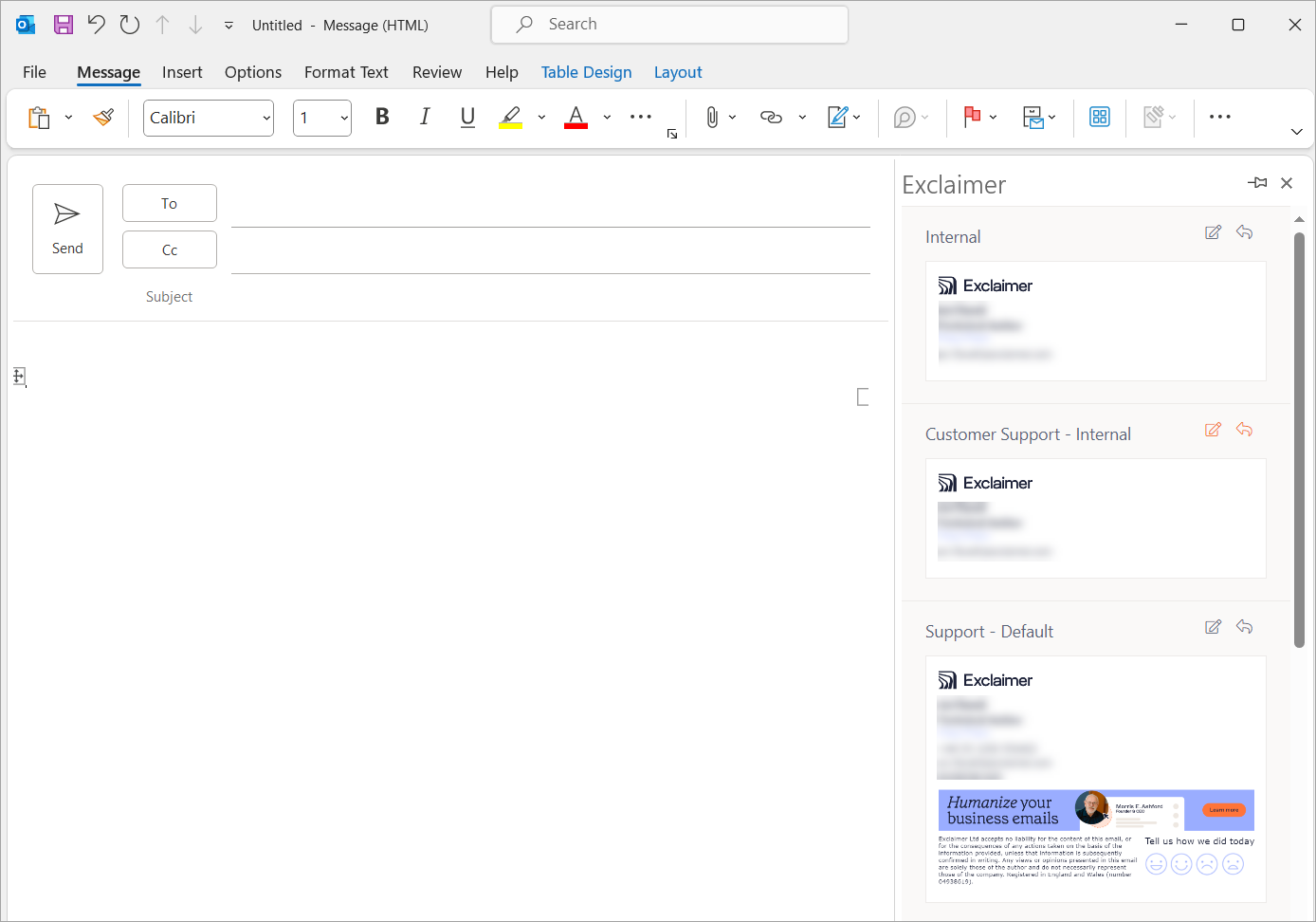
An example of the Signatures tab.
- Select a signature to add to your email. The selected signature is instantly displayed in the message area.
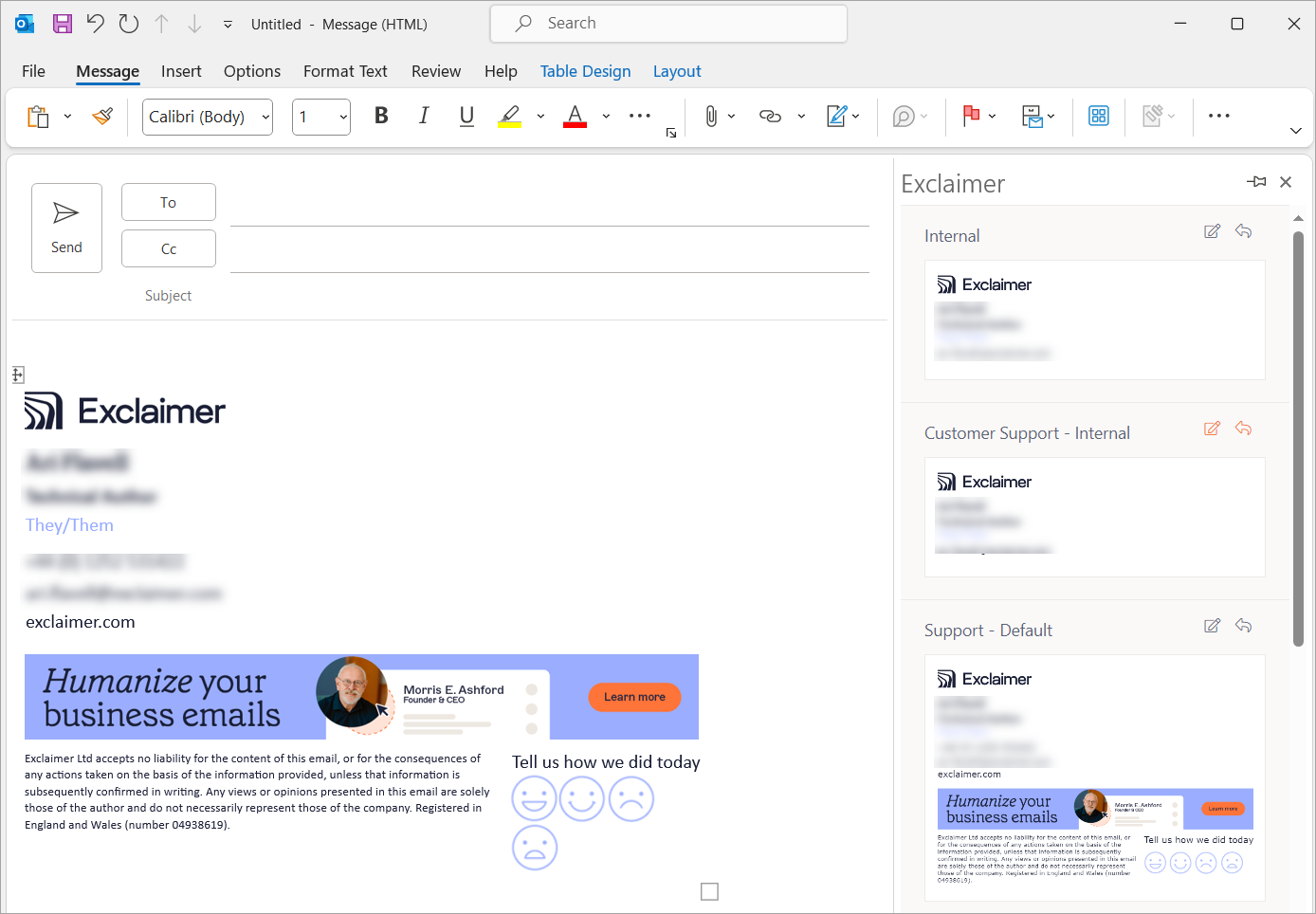
An example of a signature applied to an email.
To use the Exclaimer Outlook Add-in (Outlook Desktop):
- Log in to your Outlook Desktop App.
-
Select New Email to compose a new email. The signature currently set to Default is automatically applied to all new emails. For more information on setting signatures as default, see How to apply a Client-Side signature to a forward or reply message.
WARNING! If the email is opened in a pop-up window before the Add-in has applied the signature, the default client-side signature will not be inserted. This is due to a limitation in Outlook. - If sending as an alias address, change the address in the From field. The relevant signature is applied automatically.
-
If you have configured Signature Recipient Rules, enter the recipient address in the To field. The relevant signature is applied automatically. For more information on configuring Recipient Rules for Client-Side deployment, see Apply Recipient Settings Client-Side.
NOTE: Recipient Rules are available on Standard and Pro plans only. For more information on pricing plans, see Exclaimer pricing plans. If the client-side signature is not appearing in the Add-in, ensure the Apply this signature after any existing Client-Side Signatures option is not selected in Signatures Advanced Rules. -
To add a signature manually, within the Message ribbon, select Exclaimer. Sign in to your Microsoft 365 account if prompted.
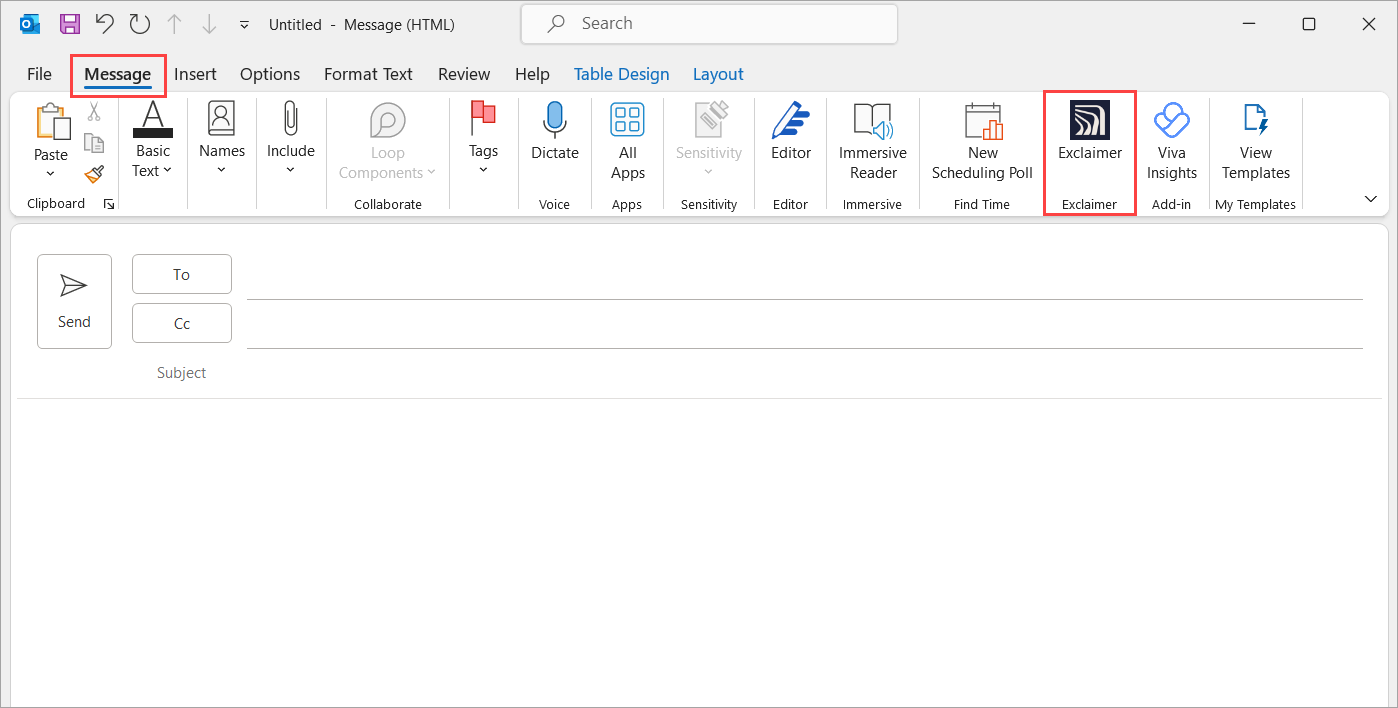
Select the Exclaimer button.
Select the Expand Apps Pane icon in the task pane header to switch between the default compact view and a larger, wider view. When expanded, the signature list automatically switches to a two-column layout, allowing more signatures to be visible at once without scrolling. You can also drag the left edge of the task pane horizontally to adjust its width. NOTE:
In Outlook Classic, the Expand Apps Pane icon is not available. However, you can still drag the left edge of the task pane to resize it.
In Outlook for Mac, neither the Expand Apps Pane icon nor manual resizing is available.By default, the Signatures tab is opened, displaying all available signatures. The icons above each signature represent whether a signature is set as a Default, a pencil icon is a Default for new emails, and an arrow icon is a Default for replied or forwarded emails. If a signature has been set as a Default, the appropriate icon is highlighted.
- Select a signature to use in the email. The signature appears in the message area.
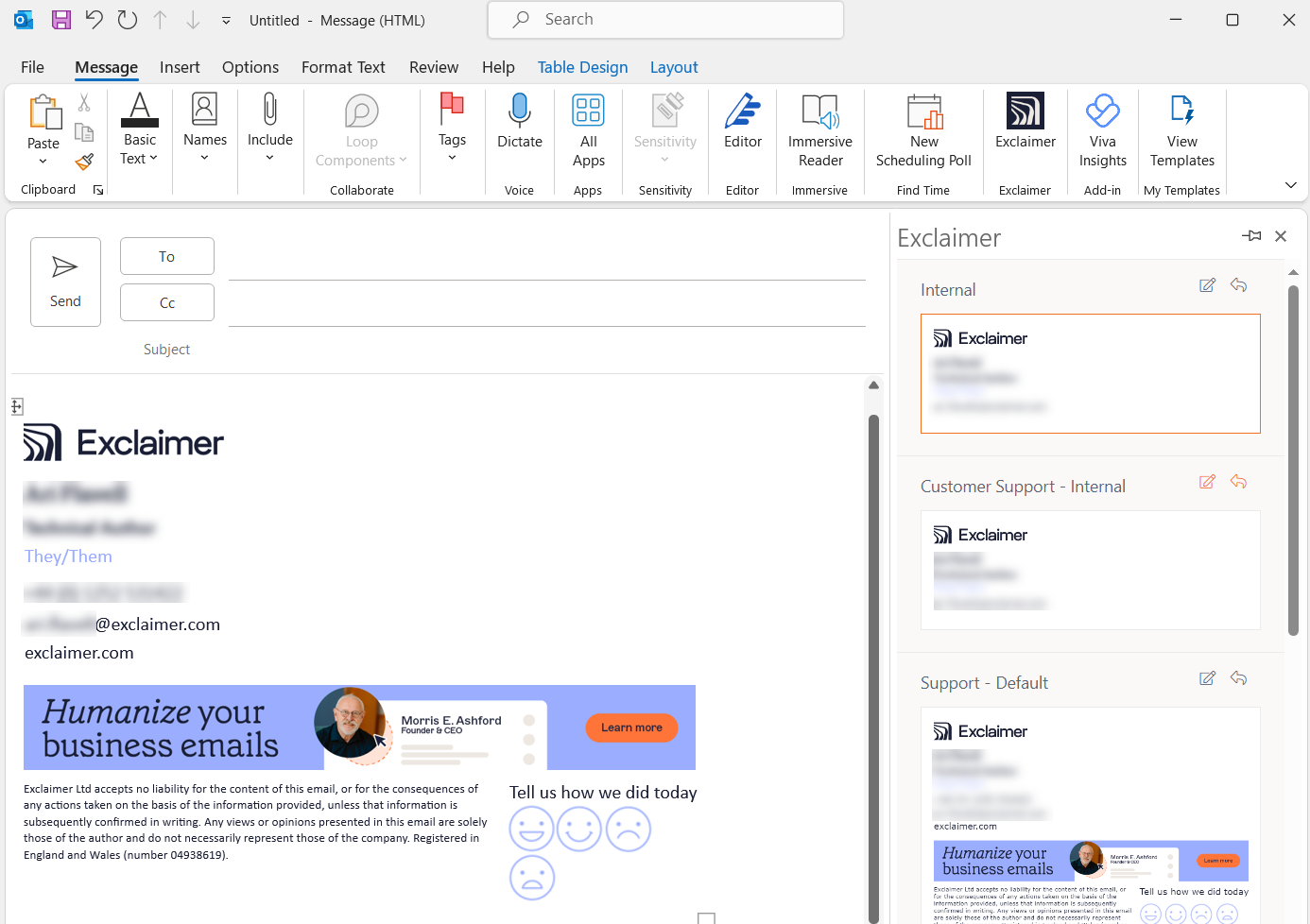
An example of a signature applied to an email.
• Android: 4.2433.0 or above
• iOS: 4.2433.0 or above
To use the Exclaimer Outlook Add-in on mobile devices:
- Log in to your Outlook app.
-
Tap to open a new email. The signature currently set to default is automatically applied to all new emails. For more information on setting signatures as default, see How to apply a Client-Side signature to a forward or reply message.

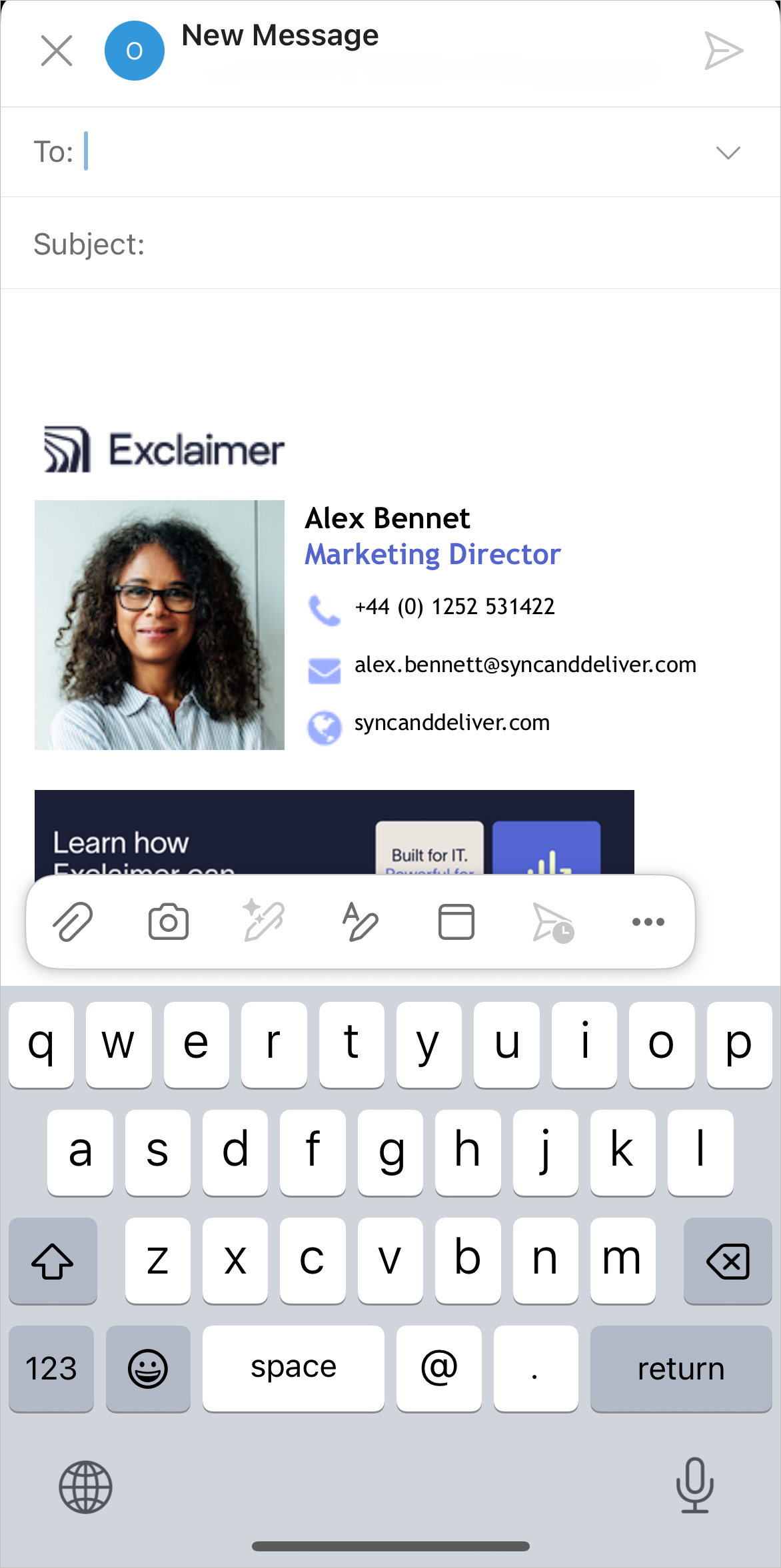
Examples of a signature applied to an email on Android and iOS.NOTES:
• Mobile devices do not support manually selecting a signature.
• Outlook mobile does not apply email signatures when using Quick Reply.
• When you use the Send a copy feature in SharePoint or other Office apps on iOS, the app generates the email outside the standard Outlook compose window, so Exclaimer cannot apply your signature. To add your signature, manually insert it after generating the email, or compose the email directly in Outlook instead of using Send a copy.
• Mobile devices do not support Shared Folders or Shared Mailboxes with Add-ins. For more information, see Microsoft's article on shared folders and mailboxes in Outlook add-ins.
This feature is not supported in Outlook mobile.
To edit your details:
- Open the Exclaimer Outlook Add-in.
-
Select the Personal details tab.
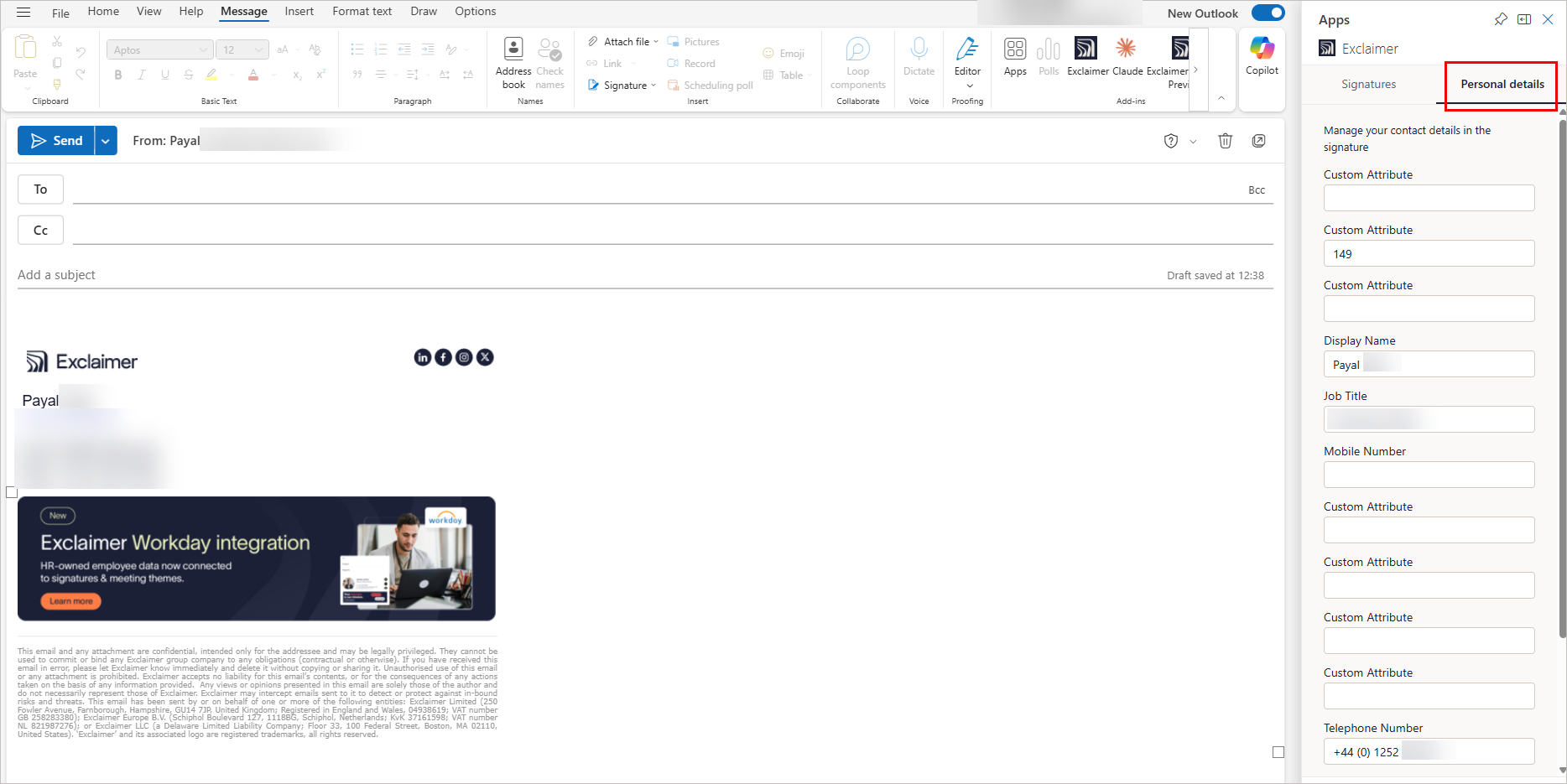
An example of the Personal details tab.
- Review your fields. If any fields need updating, select a field and enter your update. Greyed-out fields are locked and can't be changed.
- To undo a change, select the circular revert icon
 next to the field. This restores the original value.
- Select Admin-managed details to expand this section and view the fields managed by your administrator. The fields in this section are read-only and cannot be edited.
- Select Save Details to apply your changes.
- Select User Details Editor to open the User Details Editor.
For troubleshooting help, see the Troubleshooting section of our interactive guide.
If you need to raise a support ticket, run our diagnostic PowerShell script to help the Support team check your Outlook and Exclaimer Add-In setup. The script safely collects technical details, such as Outlook version, Add-In status, and connectivity, without accessing personal data or emails, enabling faster troubleshooting.
To run the script:
- Launch Windows PowerShell. Administrator privileges are optional but recommended.
-
Enter the following command:
Set-ExecutionPolicy -Scope Process -ExecutionPolicy Bypass; Invoke-WebRequest -Uri "https://raw.githubusercontent.com/exclaimerltd/Internal-Support-Scripts/master/AddInChecks.ps1" -OutFile "$env:TEMP\AddInChecks.ps1"; & "$env:TEMP\AddInChecks.ps1"
- Follow the on-screen prompts.
-
When complete, a report named AddInChecks.html will be generated.
NOTE: Report Location:
By default: C:\Users\<YourUser>\Downloads\AddInChecks.html
Fallback (if Downloads is unavailable): C:\Temp\AddInChecks.html
Attach the generated file to your Support ticket to allow the Support team to review your configuration.
If your Support request concerns authentication, include an export of the affected user's Entra ID sign-in logs with your Support ticket.
To export the logs:
- Sign in to the Microsoft Entra admin centre.
- Navigate to Monitoring & health > Sign-in logs.
- On the Interactive sign-ins tab, filter by the affected user's UPN and the date range covering the issue, then export as CSV.
- Switch to the Non-interactive sign-ins tab, apply the same filter, and export as CSV.
- Attach both CSV files to your support ticket.
• If you have saved a change to the signature design or synchronized updates to user data in the Exclaimer Portal, the Exclaimer Outlook Add-in can take up to one hour to reflect these changes in Outlook.
• If the client-side signature is not appearing in the Add-in, ensure the Apply this signature after any existing Client-Side Signatures option is not selected in Signature Manage Advanced Rules.