
Description
This option allows you to use Client-Side signatures with your Google Workspace subscription. In this mode, signatures are synchronized to the users' Gmail.
When emails are sent from Gmail, the first applicable signature that meets the rules you have configured is applied directly in Gmail. The email is not sent to Exclaimer for processing.
NOTE: Make sure you set the required Google Drive and Docs permissions when using in Client-Side signatures.
Tip! You can also use our interactive onboarding guide to follow these instructions.
REQUIRED! You need to use your Google Workspace Super Admin credentials to configure the Exclaimer - Signatures for Google Workspace subscription. If you do not have these credentials, invite an admin to complete the process.
If you install the Google App with unlicensed Super Admin credentials, the Exclaimer portal will fail to complete the verification process.
If you install the Google App with unlicensed Super Admin credentials, the Exclaimer portal will fail to complete the verification process.
How to access it
To access the See before you send (Client-side) option:
-
From the menu sidebar, select Connect to Google.
NOTE: The options within Connect to Google are only available during the initial setup. Once you have successfully configured your Exclaimer - Signatures for Google Workspace subscription, this section will not be available. - From the right-hand pane, Apply Signatures is enabled once access to Google Workspace has been enabled and the syncing process has been completed.
- Select See before you send (Client-side) to access the options.
Also, once you have successfully configured Server-Side signatures, you will be prompted to configure Client-Side signatures: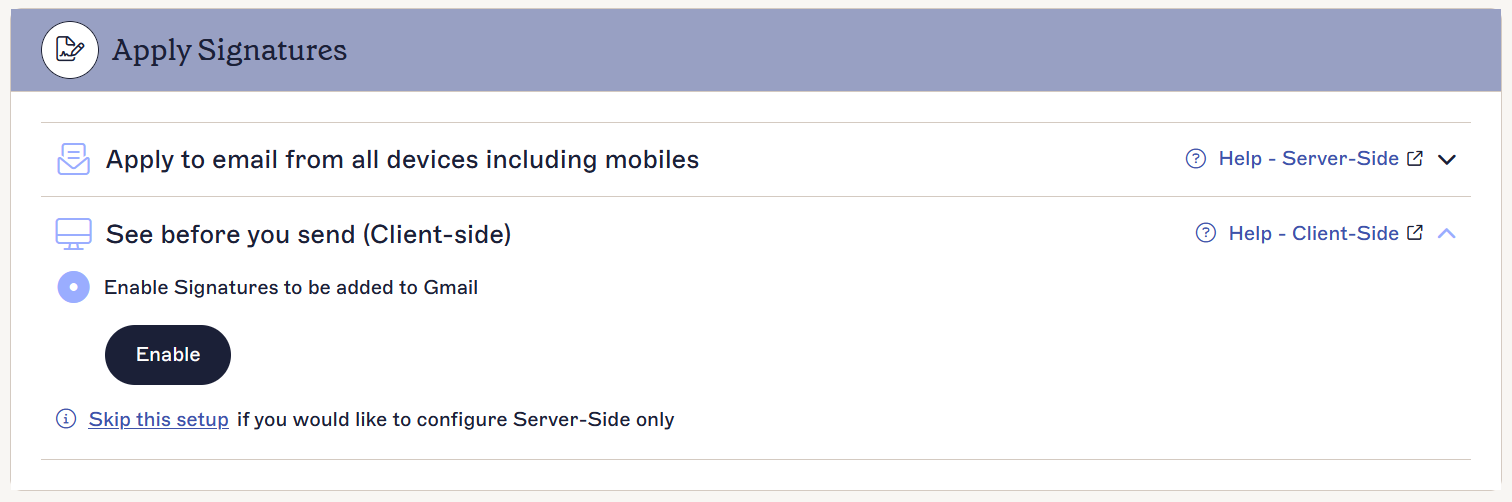
Configuring for Client-Side signatures
REQUIRED! You need to use your Google Workspace Super Admin credentials to configure your Exclaimer - Signatures for Google Workspace subscription.
To configure for Client-Side signatures:
- Select Start setup to enable signatures to be added to your Gmail emails.
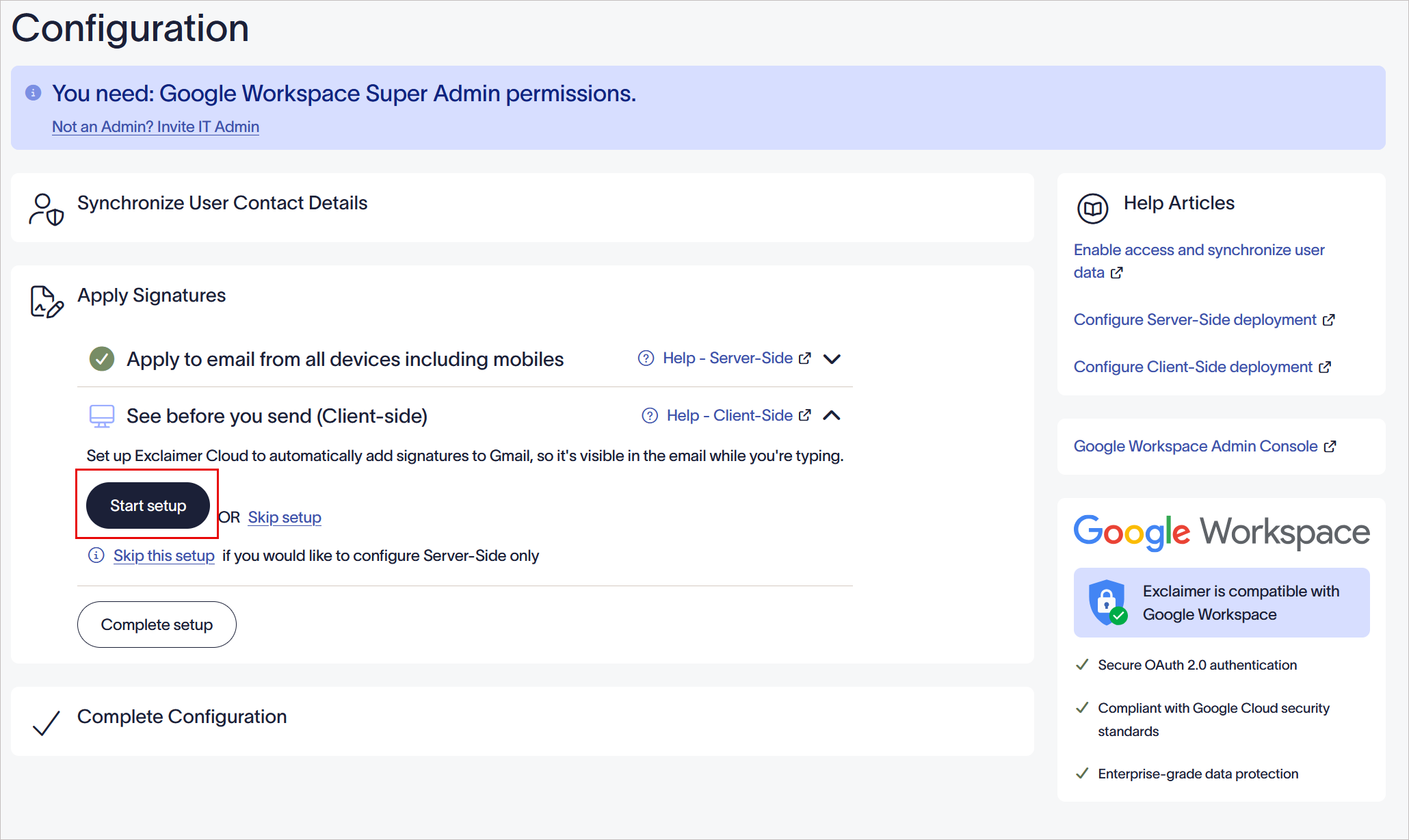
- Select Complete setup to complete the configuration process.
- To complete the setup, it is mandatory to select at least one method on how you want to apply your email signatures (server-side or client-side).
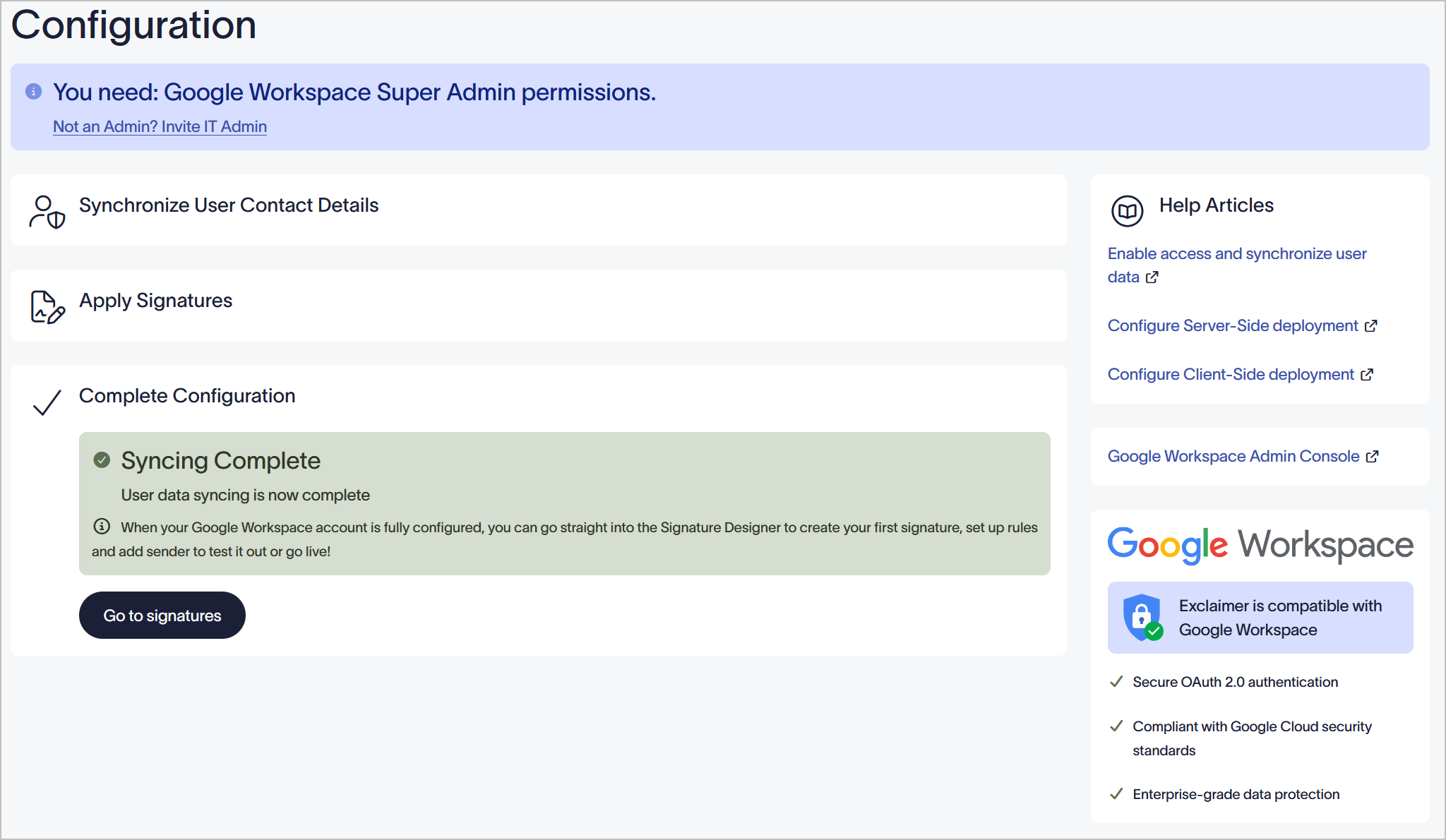
- The setup process can take some time to complete; this is indicated by a spinner. Once it is successfully completed, a Syncing Complete message is displayed, highlighting that the user data syncing is now complete.
NOTES:
• Only one Google client-side signature can be synced per account.
• Client-Side signatures synchronized from Exclaimer will override any previously configured signature for new Gmail messages.
• Only one Google client-side signature can be synced per account.
• Client-Side signatures synchronized from Exclaimer will override any previously configured signature for new Gmail messages.
Next Steps: Once you have completed your configuration, you can start creating your first signature. Select GO TO SIGNATURES.
Have you got a question? Take a look at our Frequently Asked Questions page.
Have you got a question? Take a look at our Frequently Asked Questions page.