
Description
When you create an Exclaimer account, you can either set up a new Trial subscription, or be added to an existing subscription.
You can sign up using Microsoft 365, Google, or your email address.
Trial subscriptions provide the experience of Exclaimer's Pro tier, with full feature access. For more information on the features available on Pro subscriptions, see our pricing plans.
How to access it
- Go to https://registration.exclaimer.com.
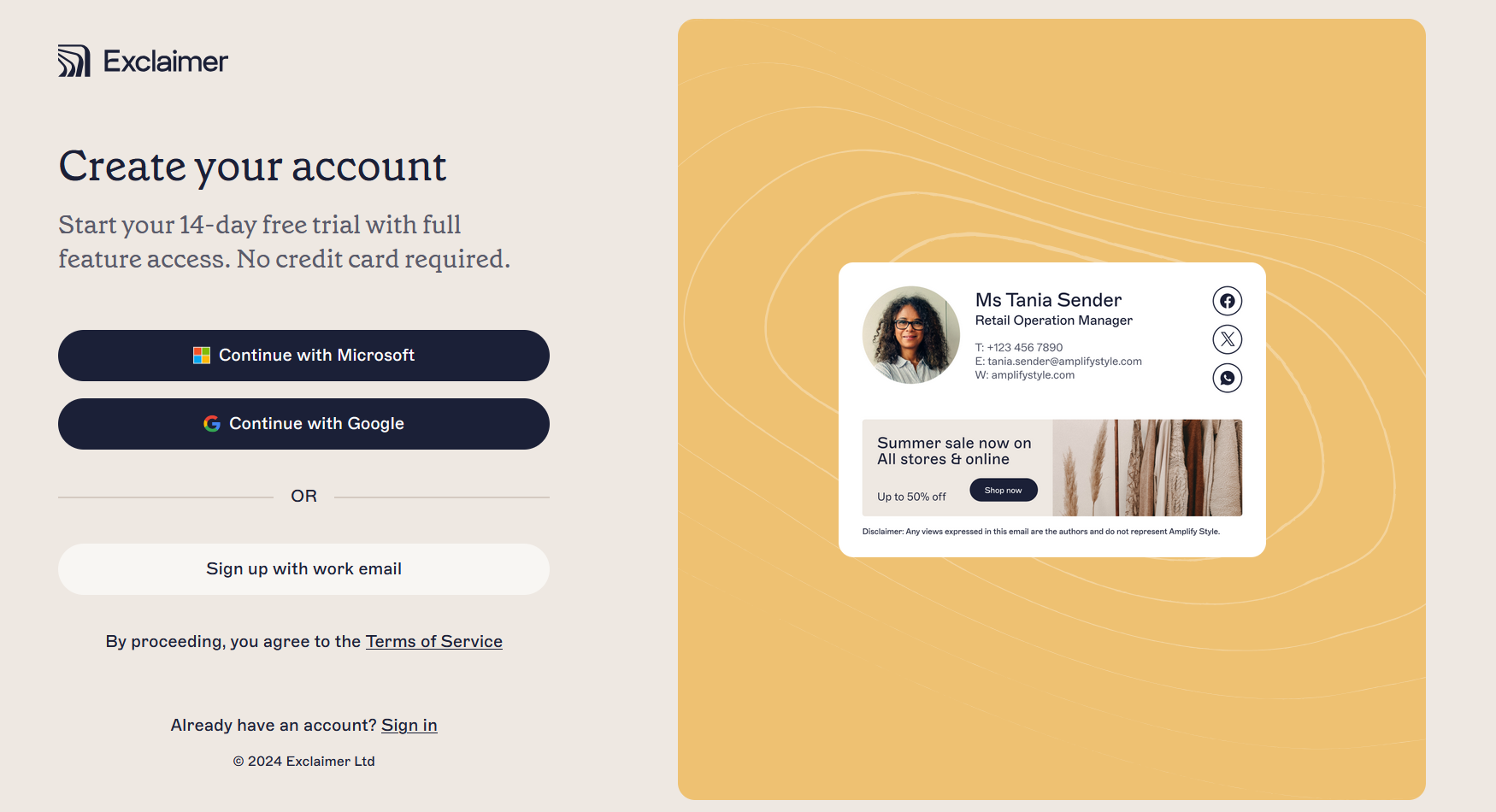
Select a sign up option to set up a new Exclaimer trial subscription.
To sign up for Exclaimer:
- Select your sign up method.
EITHER:
Select Continue with Microsoft or Continue with Google.
OR
Select Sign up with work email.
- If you signed up with Microsoft or Google, you are redirected to the relevant login page for your service. Sign in with your Microsoft or Google login and select Next.
- You may receive a request to provide multi-factor authentication. If you signed up with your email address, you may be required to copy and paste a one-time security code. Follow the prompts to complete the sign-in process.
- Accept permissions from Exclaimer if prompted.
- In the Let's get to know you screen, enter your First name, Last name, Phone number, and Role (optional). The signature preview alongside the fields updates automatically to show you how your details would look in an example email signature from Exclaimer.
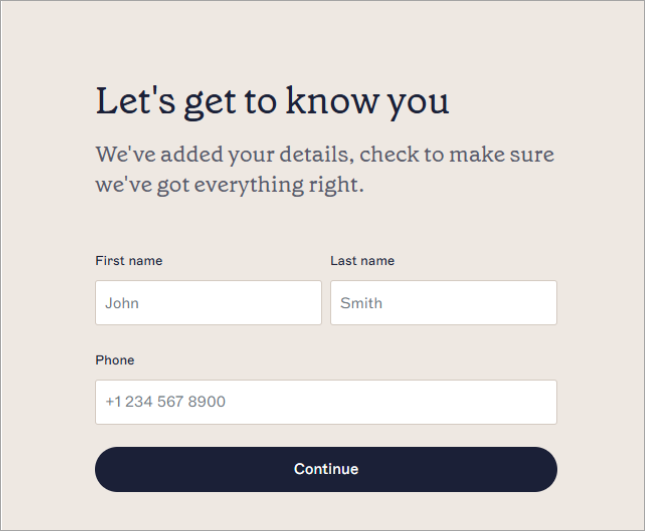
The Let's get to know you screen. The fields have been filled out with example data to show a populated signature preview.
- Select Continue.
-
In the About your company screen, enter your Company name, select the number of users for your subscription from the Company size drop-down, and select your country from the Country drop-down.
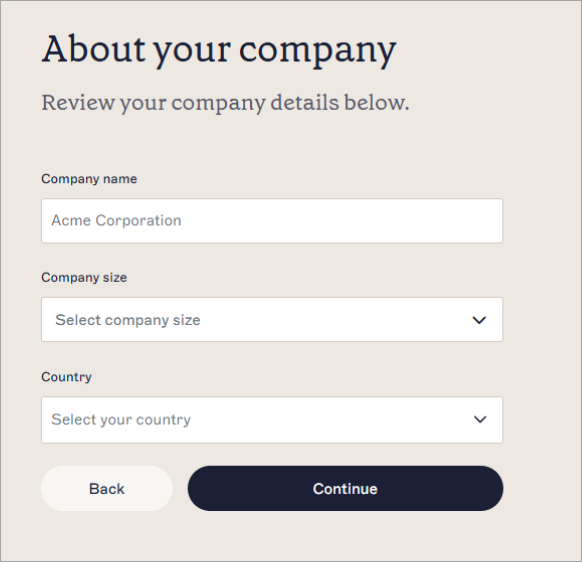
The About your company screen. The fields have been filled out with example data to show a populated signature preview.NOTE: A minimum of 10 users is required. - [Optional] To see how your brand's image would look in a signature, select Upload logo. Adjust your image in the resizer, then select Save. The signature preview updates automatically to show you an example of your image in an Exclaimer signature.
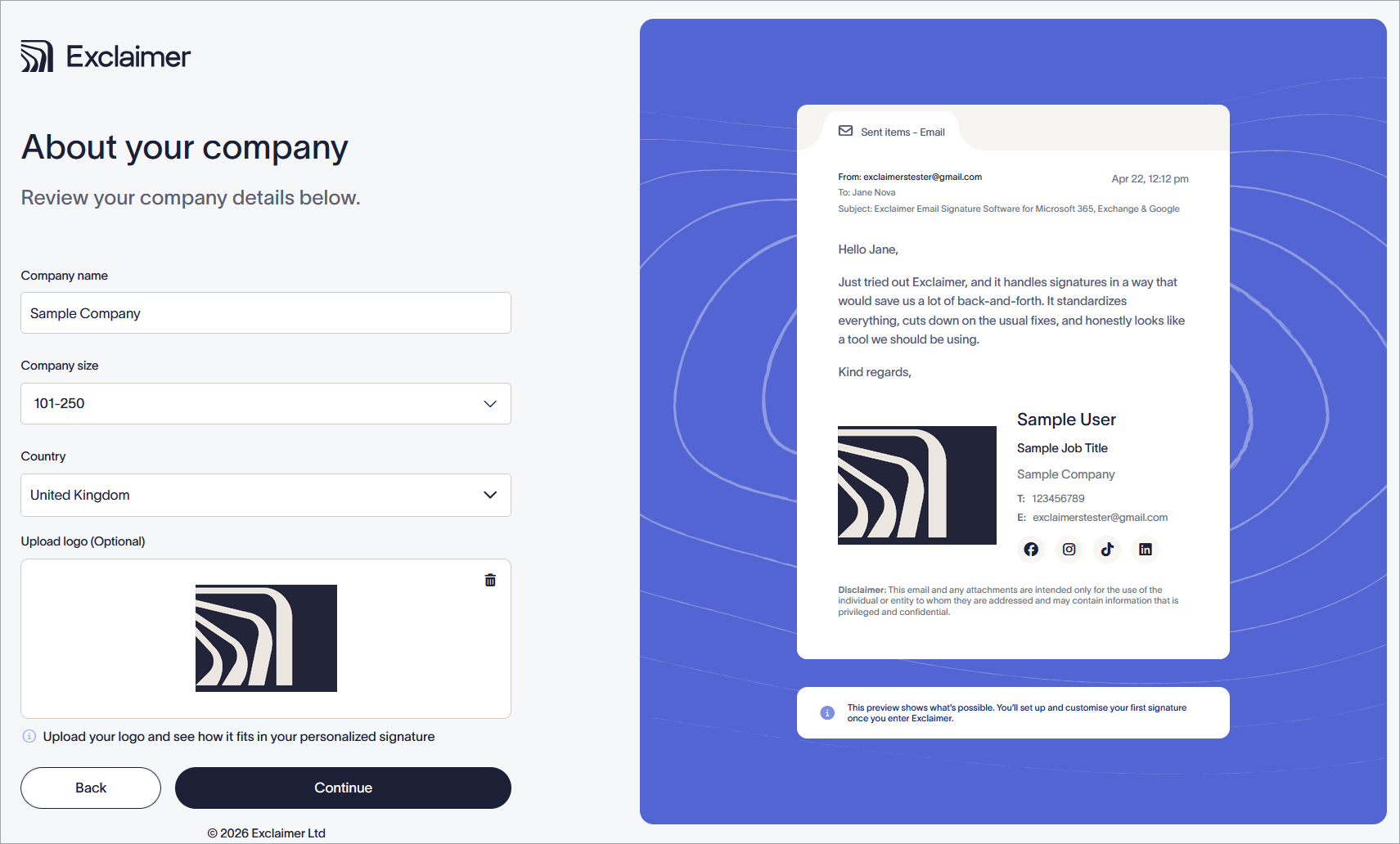
An example of an uploaded logo is shown in the signature preview.
- Select Continue.
-
EITHER:
To set up a new trial subscription, choose your email platform and select Continue.
OR
To create an account without creating a new subscription, select Skip Subscription Creation.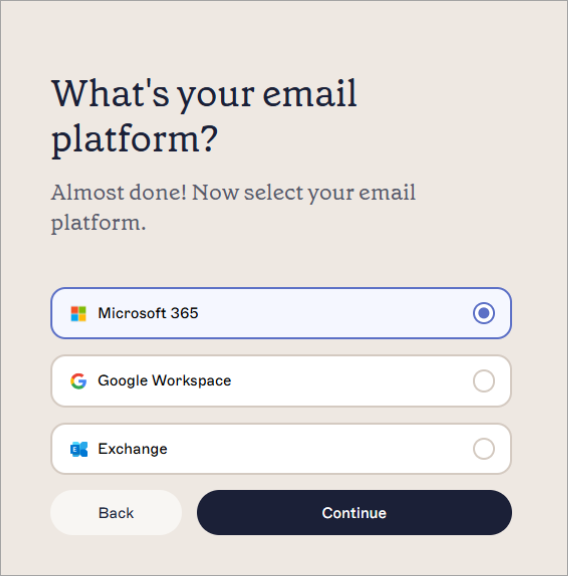
Select your email platform to create a subscription, or select Skip Subscription Creation if you are being added to an existing subscription.NOTE: Users who skip the subscription creation must either be added to an existing subscription by the owner or create a subscription later. For these users, the process is complete here. Your account is now created, and you do not need to do anything else once a subscription is available to you. - If you are proceeding with subscription creation, EITHER:
Select the applicable checkboxes on the What's your main goal? and What is your department? pages to help Exclaimer guide you in the best way to use your subscription. Once done, select Continue.
OR
Select Skip to proceed without answering.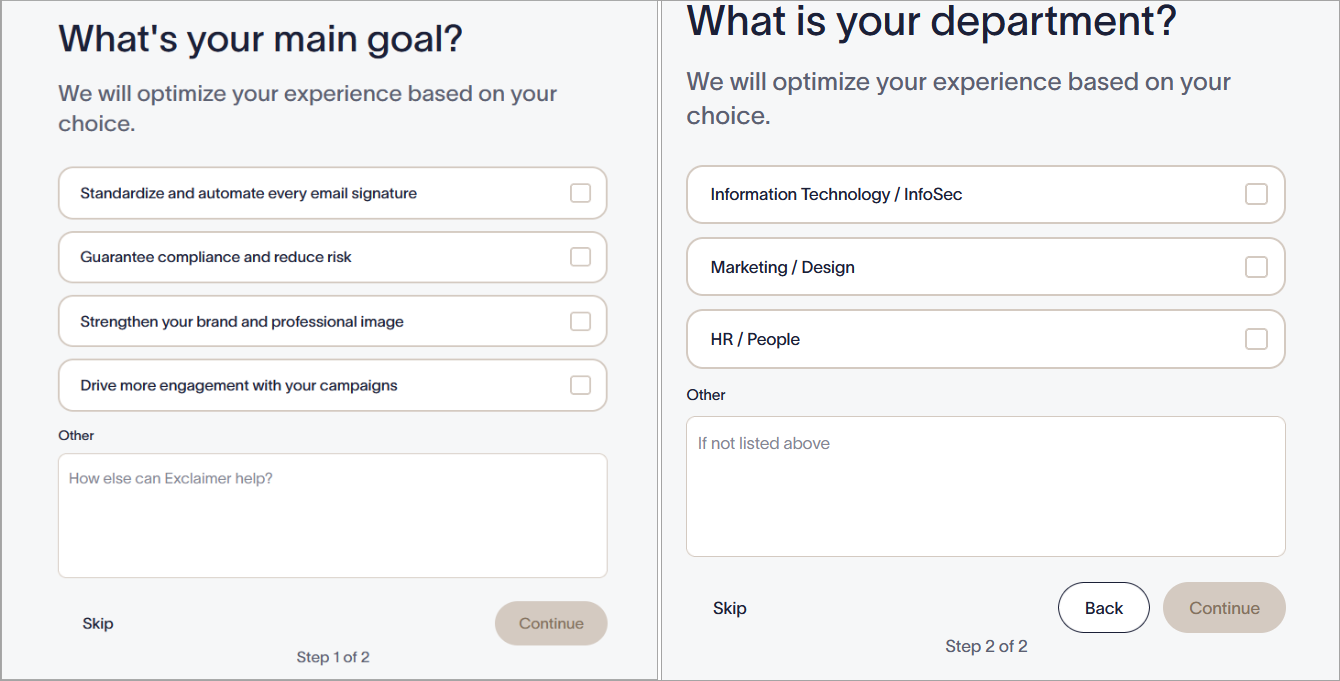
Fill out your work goals to optimize your experience.
-
Your new subscription is created and launched. Follow the onscreen onboarding to complete your new subscription setup.
NOTE: Exclaimer subscriptions cannot be configured for both Microsoft and Google at the same time. You can only have a subscription to one. If you wish to use both, you will need separate subscriptions.