
Scenario
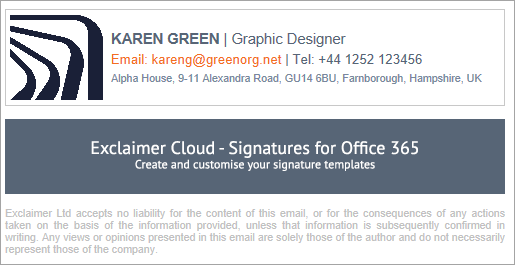
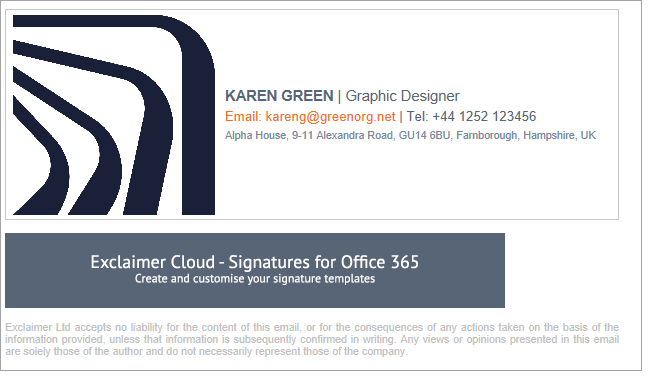
You notice that although an image in your signature appears correct in an email, when you reply or forward an email the image appears much larger than it should.
For example:
Normal image
Enlarged image after forwarding or replying
Reason
This occurs when you resize an uploaded image in the Signature Designer. Some email clients automatically revert the image back to the original file size.
Resolution
To prevent this issue, make sure your image files are the same size that you want to display at when you upload them - for example, if you want your image to display at 100x100px, then create or resize your image file to be that size.
Check your image dimensions:
- Right-click on your image file and select Properties (Windows devices) or Get info (Mac devices).
- Open the Details tab (Windows) or More info (Mac). The image size in pixels is listed in Dimensions.
- In the Signature Designer, open your signature and select the image. Expand the Size menu in the Properties pane. The values under Width and Height are the image size in pixels.
- If the dimensions in your signature template do not match the dimensions of the original image file, re-upload an image with matching pixel values.
Tip! You can use most image editing programs to resize an image. For more information, see How to resize an image to fit Exclaimer's 300KB limit.