
Scenario
You want to upload an image to your signature template using an image-based element, such as the Image/Logo, Banner, or Rotating Banner elements. However, you are unable to add the image and receive a warning stating 'Images may be no more than 300KB'.
Reason
Exclaimer cannot upload image files that are larger than 300KB in size.
To check your image file size, locate the image file in your file storage and view the Size column in Details view, or right-click and select Properties to view the Size row.
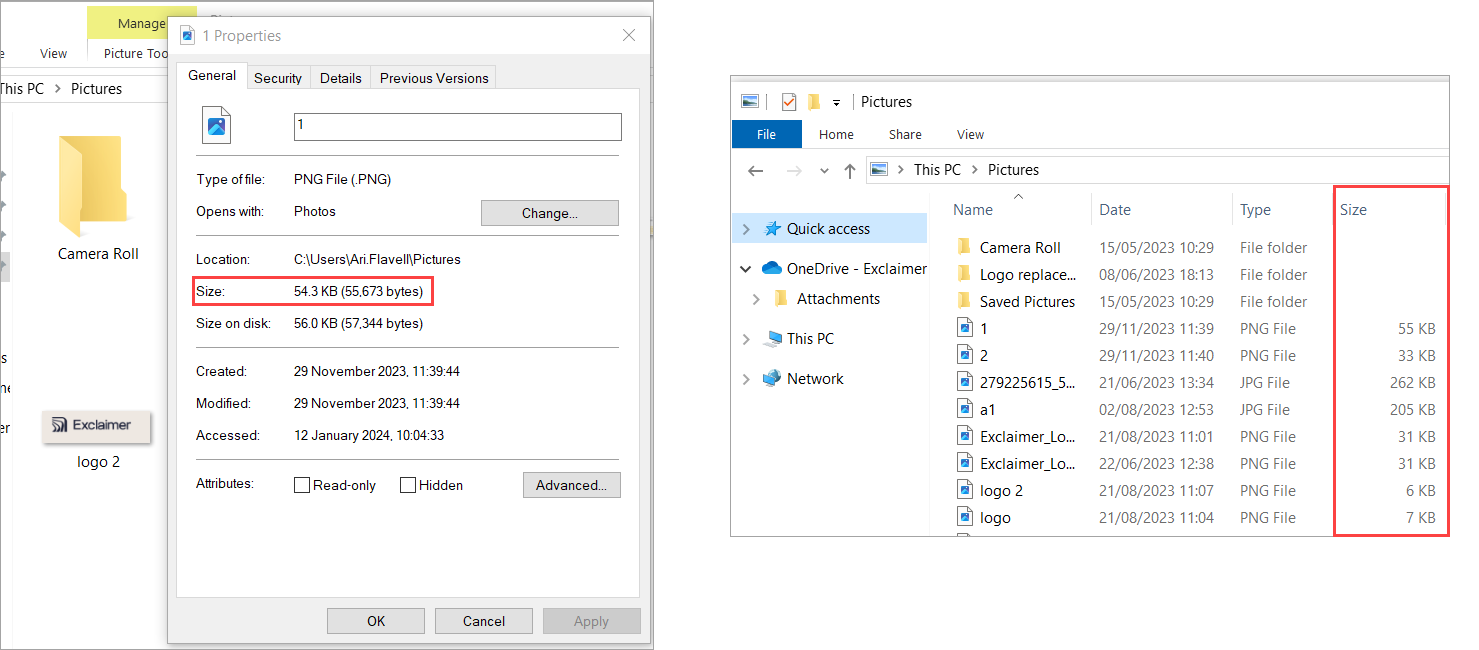
You can check image size via Properties and Details.
Resolution
To reduce an image file size, you can change the pixel size. You can use most image editing programs to resize an image.
Most image editing programs are suitable to re-size an image.
To resize an image in Microsoft Paint:
- Open your image in Paint and select Resize from the Image section of the Menu Ribbon.
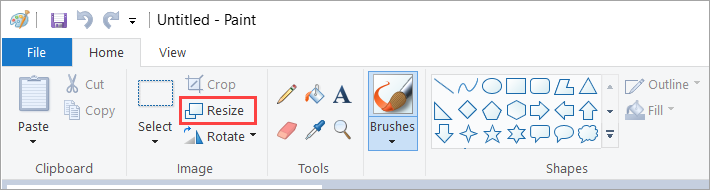
Locate Resize in the menu ribbon.
This opens the Resize and Skew window.
- Select By pixels.
- Enter a new value to shrink the image. Ensure that the Maintain aspect ratio checkbox is selected to avoid distortion.
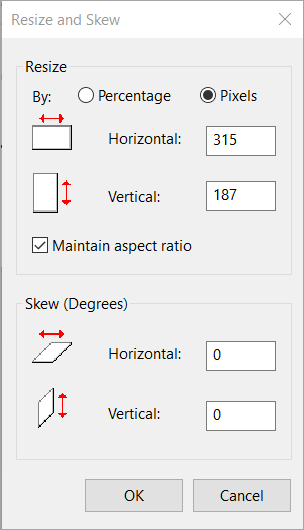
The Maintain aspect ratio checkbox is found under the Resize fields.
- Select OK to set the image size.
- Save your image.
In a basic image editing program, users may experience image skewing or warping due to the need to remove aspect ratios to achieve specific sizes. More advanced image editors such as Adobe photoshop allow you get to exact dimensions.
To resize an image in Adobe Photoshop:
- Open the Image menu, then select Image Size...
- Select Fit to > Custom.
- Enter your required pixel sizes in Width and Height.
- Select OK.
- Open the Image menu, then select Canvas Size...
- Enter your required pixel values under Width and Height.
- Select OK, then Proceed.