
Exclaimer has updated Sent Items Update to use the Microsoft Graph API instead of Exchange Web Services (EWS), ahead of Microsoft’s retirement of EWS in Exchange Online.
If you used Sent Items Update before 17th August 2026, you will need to reauthorize the service for it to continue operating. Your existing authorization was granted for EWS and must be reconfigured and reconsented to support the Microsoft Graph API.
Without reauthorization, Sent Items Update will stop applying email signatures to your sent items. This change does not affect Exclaimer’s core signature deployment. Your server-side (mail flow) and client-side (Outlook) signature deployment will continue to operate as normal and requires no action.
If you only use client-side signatures, the Outlook Add-in, or the Cloud Signature Update Agent, you are not affected by changes to EWS and Sent Items Update, as this feature only applies to server-side signatures.
There is one exception: if you use the Outlook Add-in with a version of classic Outlook below build 19725.20000, you may be affected.
If you use an up-to-date version of classic Outlook, you can safely ignore this notice. For more information, see the Client-side signature deployment section of the System Requirements for Exclaimer knowledge base article.
Yes. Exclaimer has migrated Sent Items Update from EWS to Microsoft Graph. To continue using Sent Items Update with the Graph API, you need to re-authorize the Sent Items Update in the Exclaimer UI.
Next steps: See How can I check if I have successfully re-authorized the Sent Items Update? question.
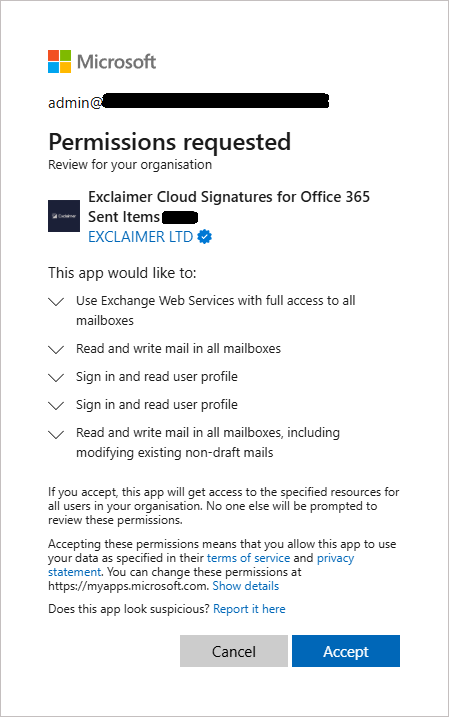
The Permissions Requested screen lists 'Read and write mail in all mailboxes, including modifying existing non-draft mails' instead of naming Microsoft Graph directly.
Next steps: See How can I check if I have successfully re-authorized the Sent Items Update? question.
We will assess when to remove the legacy EWS authorisation after all customers have successfully transitioned to Microsoft Graph.
We will notify customers if they need to take any further action.
Only if you want to keep EWS enabled for your Microsoft 365 tenant. If EWS remains enabled and you want Exclaimer’s Sent Items Update EWS fallback to continue working until Microsoft retires EWS in April 2027, you will need to add the Exclaimer application to your tenant’s EWSAllowedAppIDs list.
To add the Exclaimer app to your allow list, you will need to find the application ID in the Microsoft Entra admin center:
- In Microsoft Entra Administration Center, select Manage, then select Enterprise applications.
- Search for the Exclaimer Sent Items Update application.
- Select the application Exclaimer Cloud Signatures for Office 365 Sent Items <subscription region>.
- Add this application's ID to your tenant's EWSAllowedAppIDs list.
For more information, see
Microsoft’s guidance on configuring EWSAllowedAppIDs
Exchange Online EWS, Your Time is Almost Up
Introducing EWSAllowedAppIDs: Preparing for the Final Phase of EWS Retirement
Yes. This change will not affect signature imprinting on outgoing emails. Recipients will continue to receive emails with their signatures as normal.
Only the update of the copy stored in the sender's Sent Items folder is affected.
In your Exclaimer Cloud subscription, select the cogwheel icon in the header bar, then select Mail Flow.
Navigate to the Sent Items Update section and check whether Sent Items Update shows as Authorized.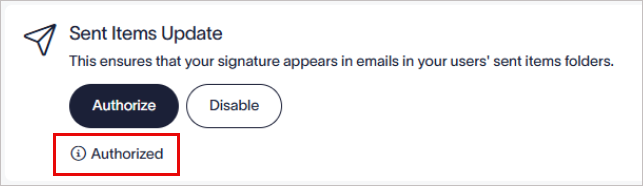
Check if Sent Items Update shows as Authorized.
You can also check in the Microsoft Entra Administration Center.
In the Microsoft Entra Administration Center, select Manage, then select Enterprise applications.
Look for the Exclaimer application associated with Sent Items Update: Exclaimer Cloud Signatures for Office 365 Sent Items <subscription region>.
We do not currently provide a tool that allows MSPs or resellers to identify which client subscriptions have Sent Items Update enabled.
For now, check each customer’s subscription using the steps detailed in the How do I check if my Exclaimer setup is using EWS / Sent Items Update? question.
Alternatively, you can contact Exclaimer Support. Our Support team can check the relevant logs for specific subscriptions to determine whether they use Sent Items Update.
You can confirm the re-authorisation in the Microsoft Entra admin center by checking that the Exclaimer Sent Items Update application has the new Microsoft Graph permission.
- In Microsoft Entra Administration Center, select Manage, then select Enterprise applications.
- Search for the Exclaimer Sent Items Update application.
- Select Exclaimer Cloud Signatures for Office 365 Sent Items <subscription region> to open the application overview.
- From the menu sidebar, select Security, then select Permissions.
- Check that Microsoft Graph – Mail-Advanced.Read.Write.All is listed. If you see this permission, you have successfully re-authorized Sent Items Update.
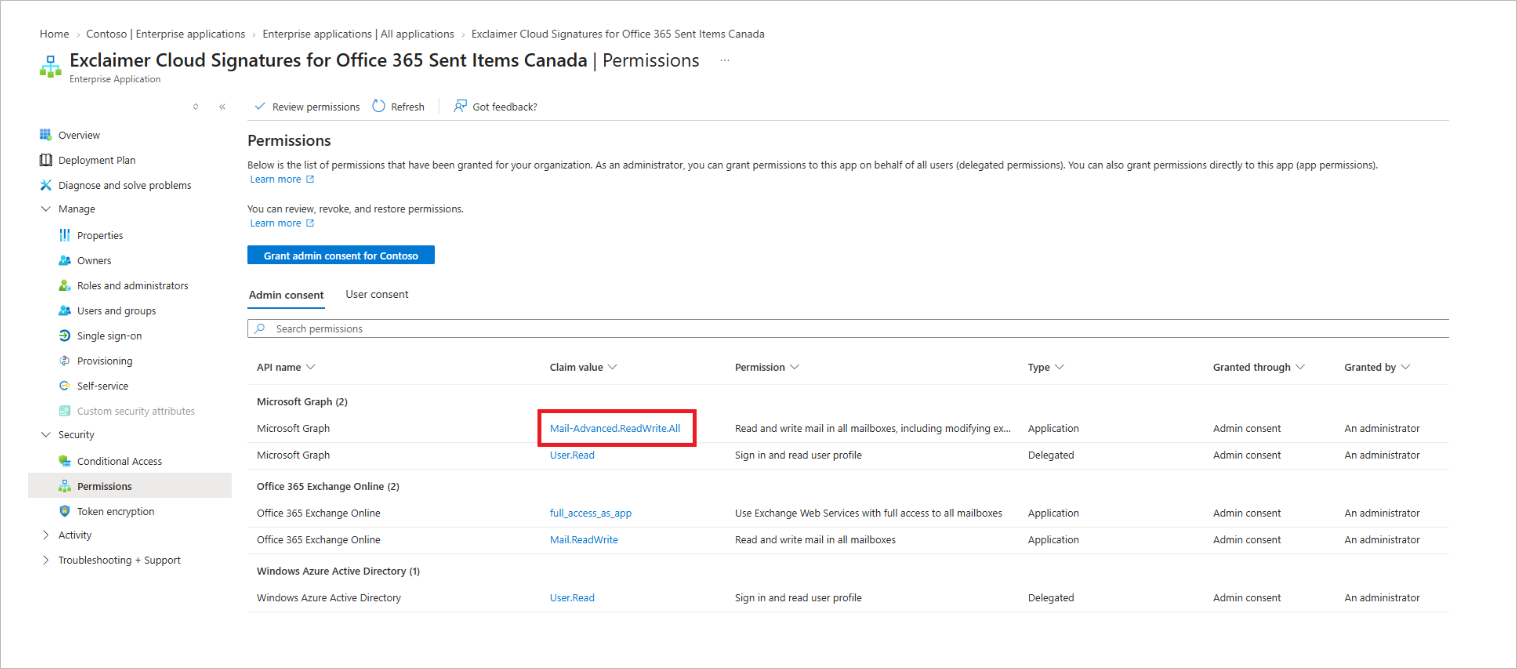
Confirm that 'Microsoft Graph – Mail-Advanced.Read.Write.All' appears under the application's Permissions.
We have notified all customers about the changes to EWS and the need to update Sent Items Update to ensure the service continues to work. We sent these notifications by email and through a pop-up reminder in the Exclaimer subscription portal.
If you have already successfully re-authorized Sent Items Update, you can safely ignore any follow-up emails. In the subscription portal, select Don’t Remind Again on the pop-up to stop receiving the reminder.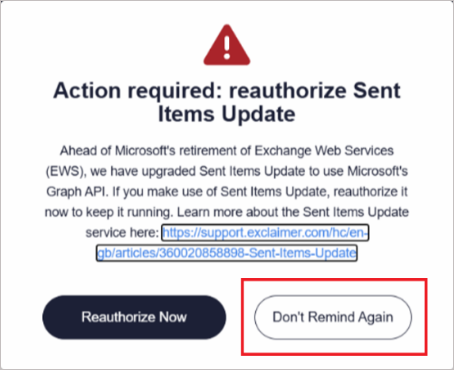
Select 'Don't Remind Again' on the pop-up to stop receiving the reauthorization reminder.
Sent Items Update is not a guaranteed service, and several factors can cause the update to fail.
If you continue to experience issues, raise a support ticket with Exclaimer Support so our team can investigate further.