
Scenario:
You have used the Exclaimer Outlook Add-In icon buttons to set a signature as default. When sending an email, you see the following error message: 'Could not use default signature. Reverting back to tenant default settings.'
Reason
This issue typically occurs because you no longer have access to the signature you chose to set as default. This could be because:
- the signature has been disabled.
- the signature template has been deleted.
- the signature rules have changed, such as Sender rules not including your email address.
Resolution
Check whether your signature is still in the signatures list, enabled, and set to include you in the signature rules.
To check the status of your signature:
- Log in to your Exclaimer subscription and select Signatures from the menu sidebar.
-
Locate the signature template in the list. If you cannot locate it, it may have been deleted.
NOTE: You can only see signatures and folders that you have access to. Folder security rules may stop you from seeing existing folders with signatures in them. We recommend speaking to your subscription owner or an admin if a signature template appears to be missing. - If your signature is present, check that it is enabled. Select Manage Rules.
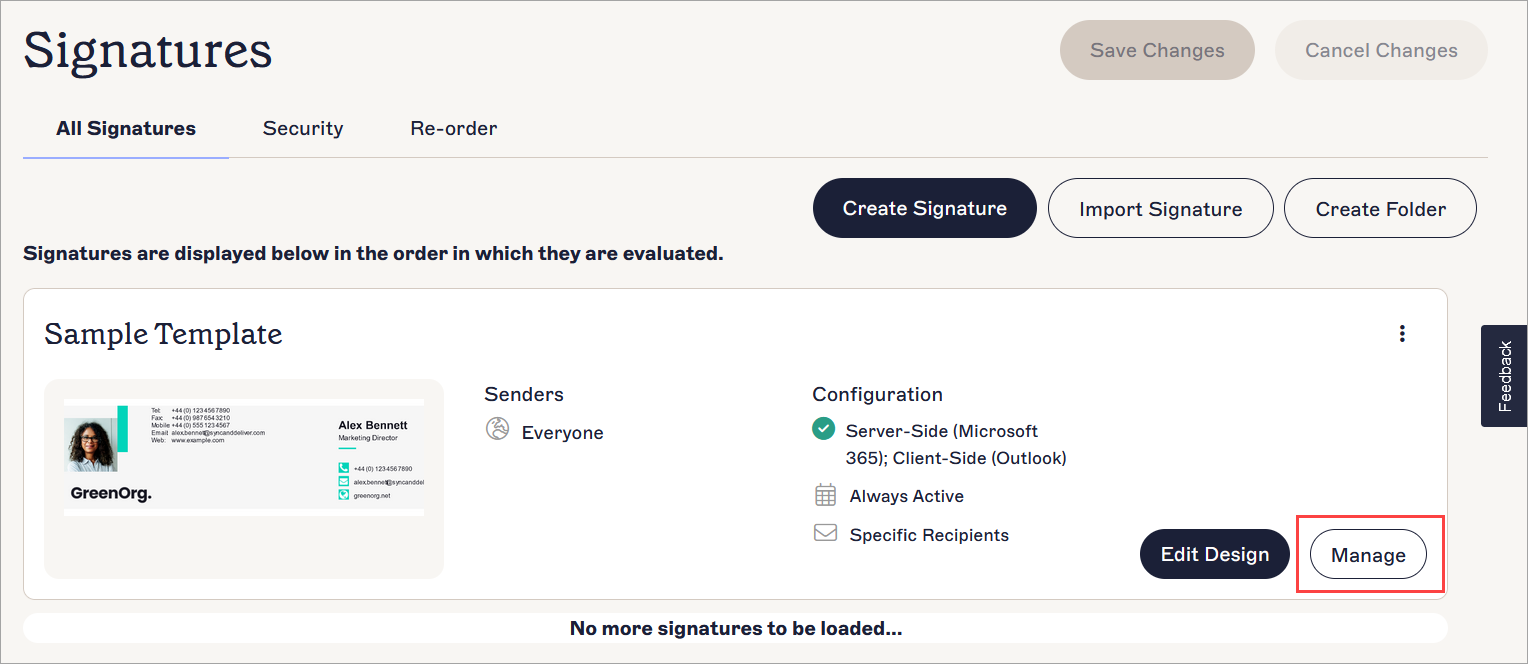
Select Manage Rules.
- Check that the Enable toggle is set to on. You can also select the Enable tab and check the status in the Client Side section. If the status is set to Not Enabled, or the toggle is set to off, the signature is not enabled and will not apply to any emails.
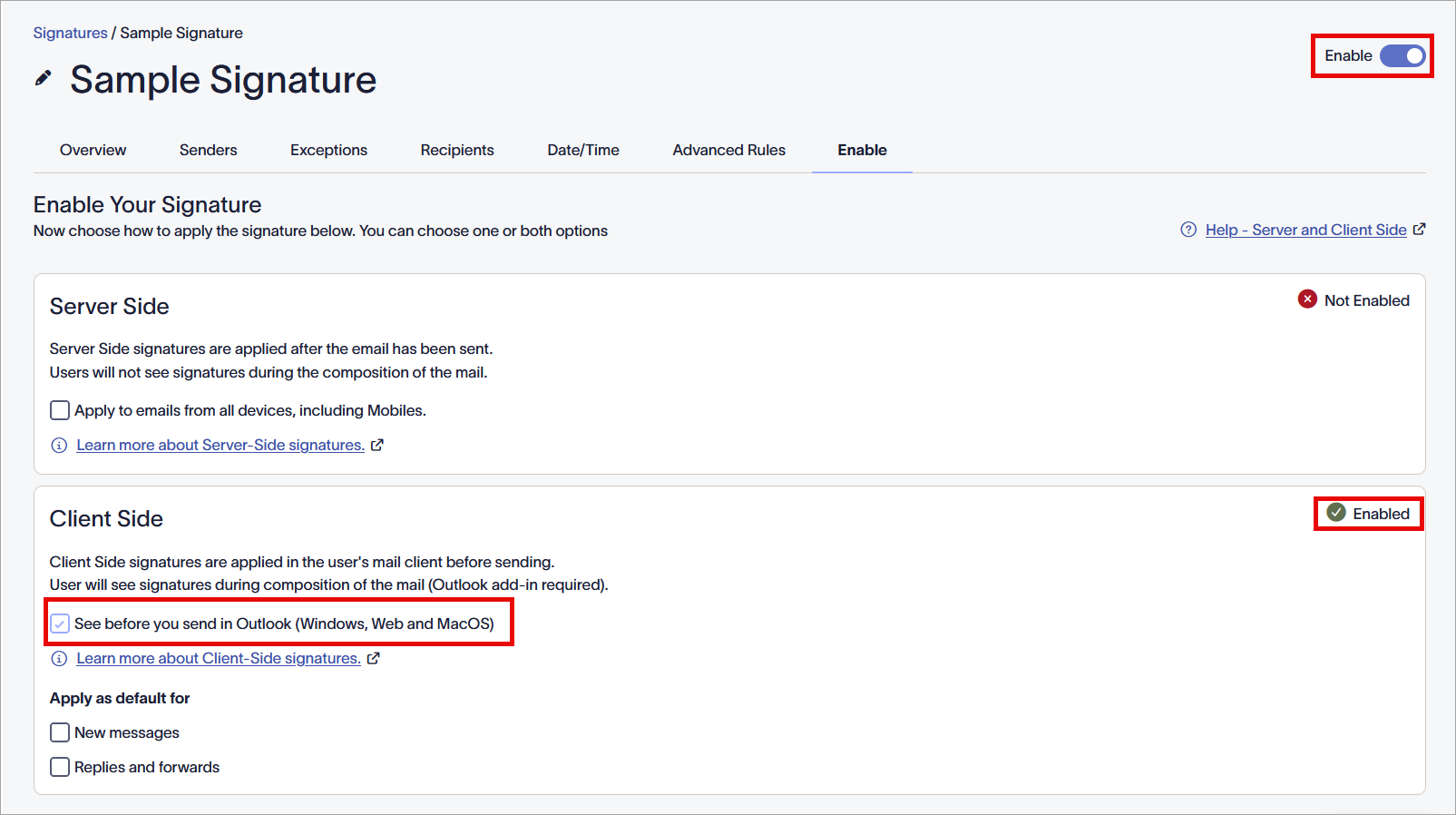
An example of the Enable tab for a signature enabled for Client-Side, showing the toggle, status, and checkbox.
- If the signature is enabled for Client-Side, check the Sender rules. Select the Senders tab.
-
If the Specific senders or groups in my organization radio button is selected, check that your email address is included by checking the values under each section on the page. If your email does not appear here, you are not included in the list of users who can have this signature applied. For more information on the data in these sections, see Signature Senders.
NOTE: Members of groups are synced to Exclaimer from your organization's Microsoft directory. Contact your system admin if you wish to check whether you are part of a group.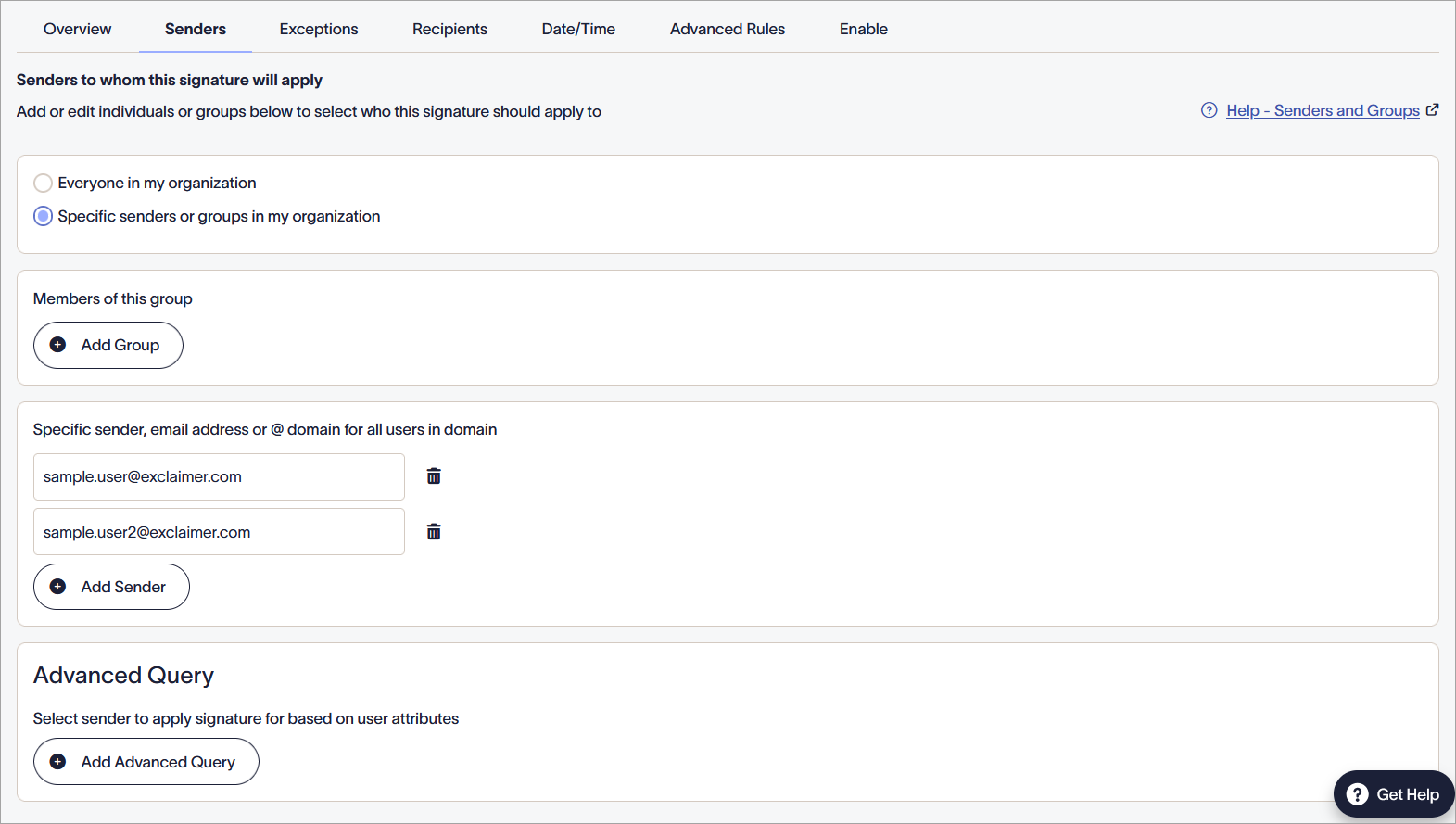
An example of the Senders tab with specific senders. Only senders on this page can use the signature. Check each section for any applied groups or users.
- Check that you have not been added as an exception. Select the Exceptions tab.
- Check that your email is not included, whether individually or as part of a group, in any sections on the page. If your email appears here, you have been excluded from using this signature. For more information, see Signature Sender Exceptions.
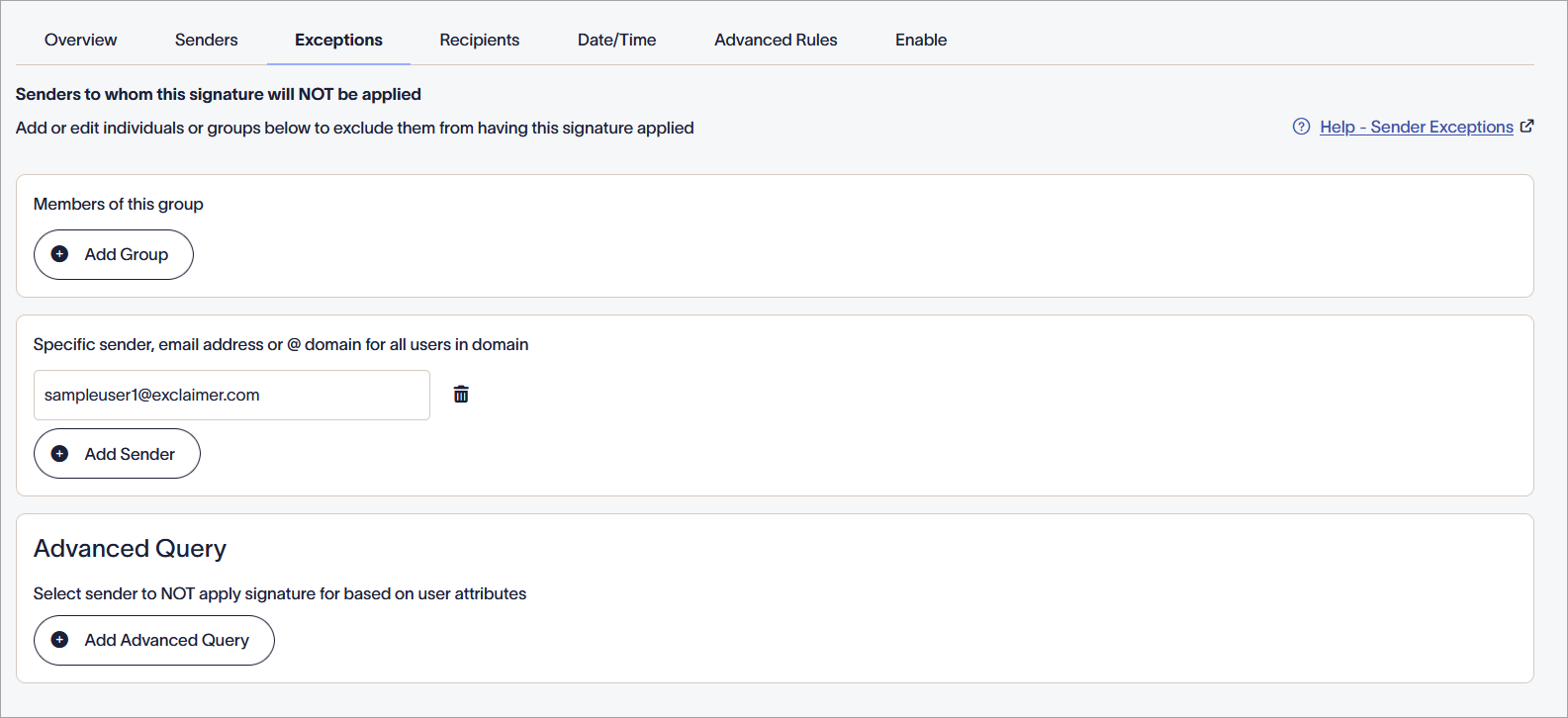
An example of the Exceptions tab with specific senders. Senders on this page cannot use the signature. Check each section for any applied groups or users.