
Scenario
A customer requests to transfer their subscription to a new provider.
Resolution
Follow the steps below to transfer the Exclaimer subscription to a new provider:
Pre-requisites: Ensure you have subscribed to purchase the Exclaimer subscription via Microsoft Marketplace (formerly Azure Marketplace). For more information, see How to purchase or renew your Exclaimer subscription through Microsoft Marketplace.
-
In Microsoft Marketplace, after subscribing to the Exclaimer subscription, select Configure account now to set up your Exclaimer account.
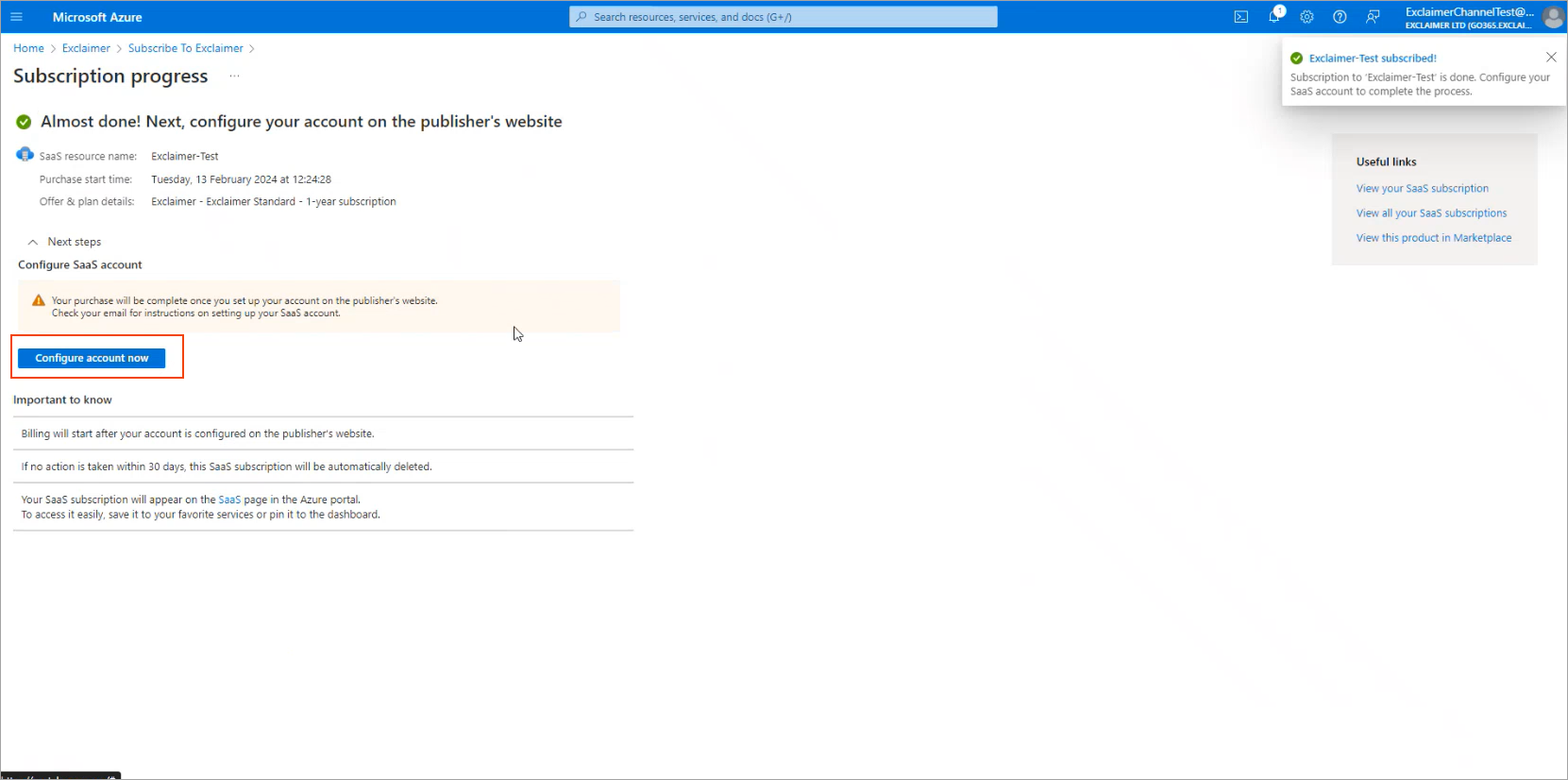
Select Configure account now.
You are directed to the Exclaimer Cloud page.
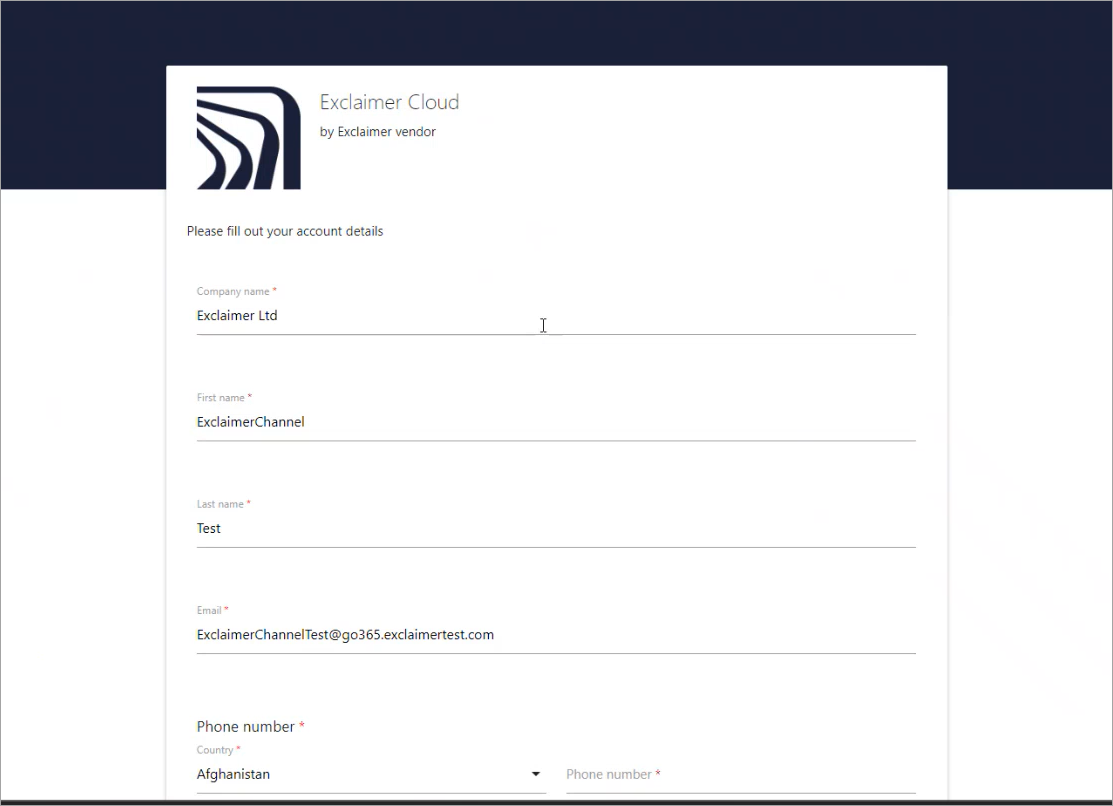
The Exclaimer Cloud page.
- Enter your account details for Exclaimer to execute the purchase order, then select NEXT. This opens the subscription details page.
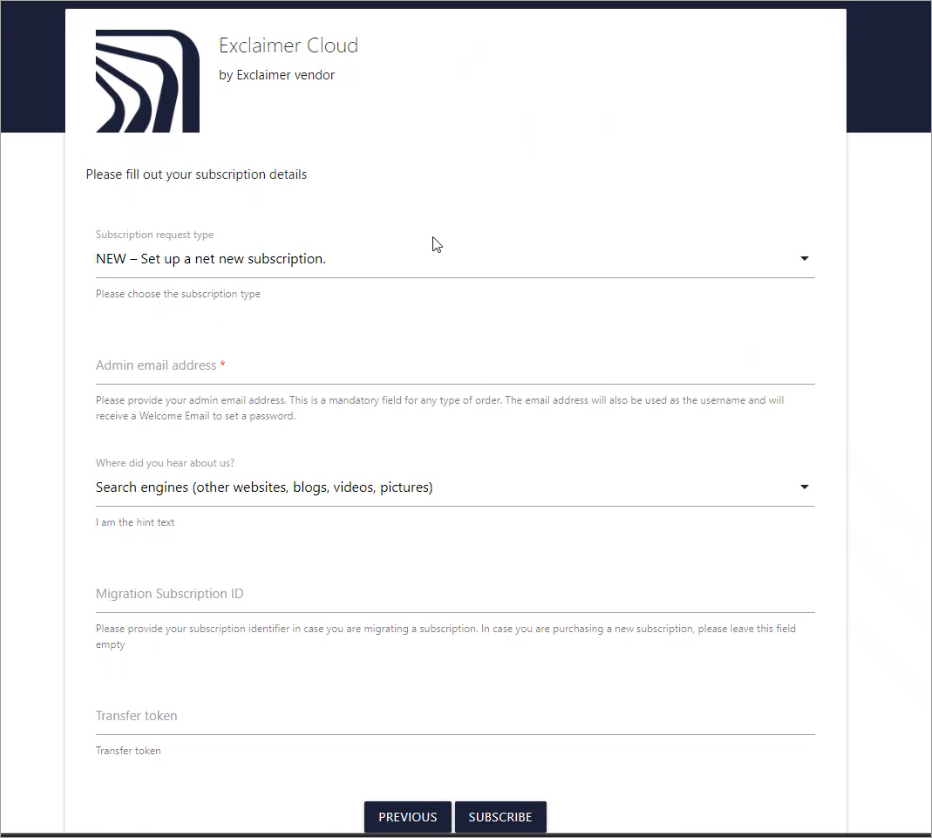
The subscription details page.
-
From the Subscription request type drop-down list, select CHANGE OF CHANNEL - Request to move an existing subscription over to your new provider.
WARNING! Do not select the IMPORT or TRANSFER options.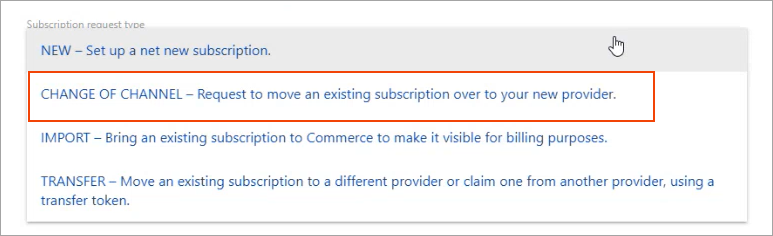
Select the CHANGE OF CHANNEL option.
- In Admin email address, enter the subscription Owner's email address. For more information, see How to find your subscription Owner.
- From the Where did you hear about us drop-down list, select the appropriate option.
- In Migration Subscription ID, enter the subscription ID.
For more information, see How to locate your subscription ID in the Exclaimer Portal.
- Select SUBSCRIBE.
Exclaimer will begin processing the account. The status displays processing.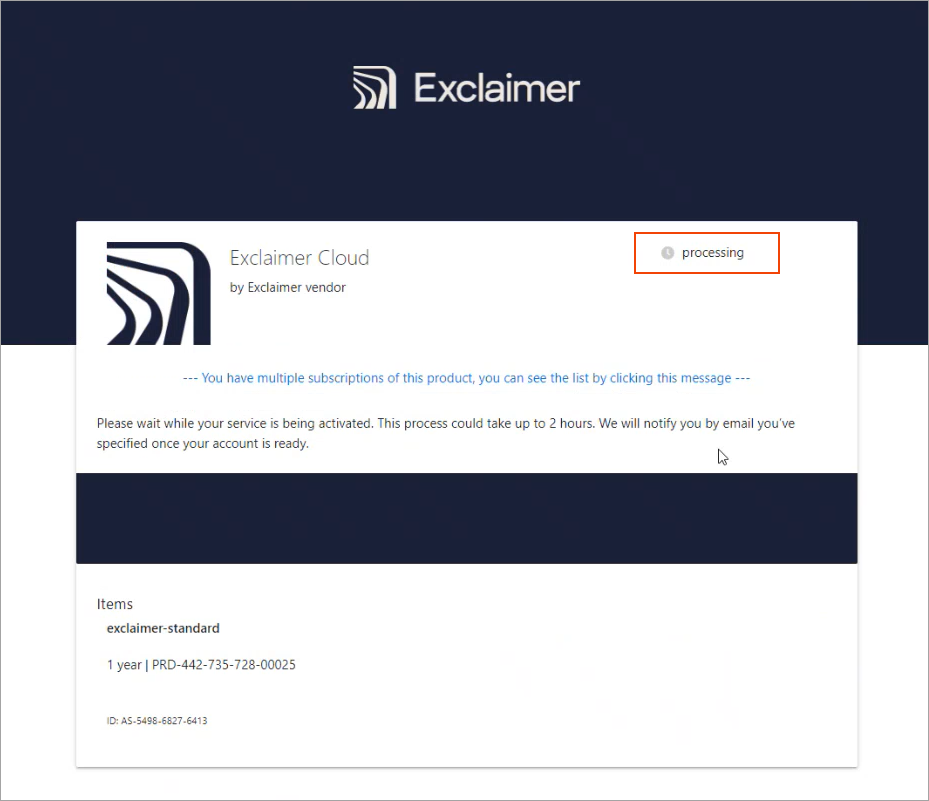
The Exclaimer Cloud page. The status displays processing.
You will receive an email notification when the processing is complete. The process can take up to 2 hours. When the process is complete, the status changes to Active, meaning you are now live on the Exclaimer system using Microsoft Marketplace.