
Description
If you have a signature file in the .ExSig2 format, for example, from exporting a signature or received from the Exclaimer Template Design team, you can import it to add it to your signatures list.
NOTE: You can only import .ExSig2 files. You cannot import external signatures, HTML files, or signatures in the .exsig1 format. These must be recreated in the Signature Designer.
For more information, see how to create signatures or how you can recreate your signature design (webinar).
This feature is only available in Standard and Pro plans. For more information on pricing plans, see Exclaimer Pricing Plans.
For more information, see how to create signatures or how you can recreate your signature design (webinar).
This feature is only available in Standard and Pro plans. For more information on pricing plans, see Exclaimer Pricing Plans.
How to access it
To access the Import option:
- Log in to Exclaimer and select Signatures from the menu sidebar.
- From the All Signatures tab, select Import Signature.
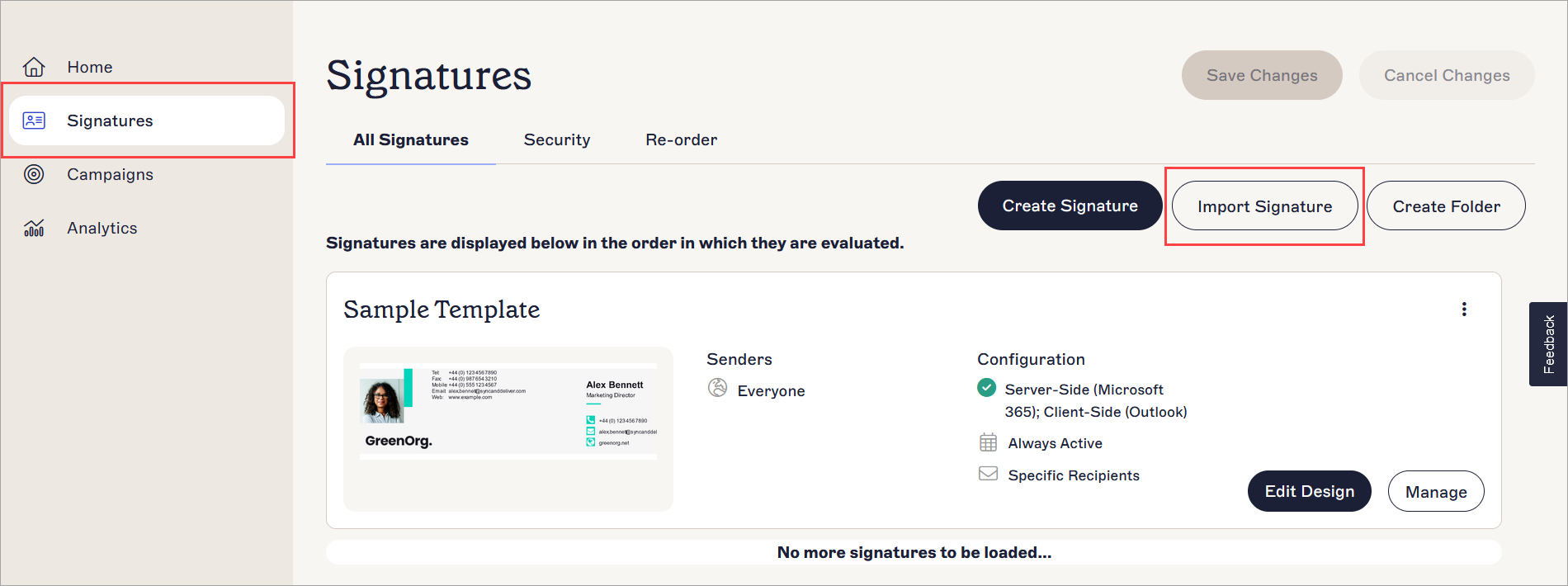
Tip! You can also import a signature from inside a folder. Open the folder and select Import Signature.
Importing a signature
To import a signature template:
- Select Import Signature.
-
Locate and select your .ExSig2 signature file in the file explorer.
NOTE: You can only import one signature template at a time. - Select Open. This imports your signature. Your imported signature is added to the list of signatures in the All Signatures tab.
Next Steps: Set up the relevant signature rules for your imported signature.