
Description
The Advanced Rules tab in signature rules management allows you to set content rules for Server-Side signatures to apply or exclude a signature based on the subject line or message content. It also contains options for signature stacking for both Server-Side and Client-Side.
This feature is only available to users on Standard or Pro plans. Users on Starter plans will not see the Advanced Rules tab. For more information, see Exclaimer pricing plans.
How to access it
To access the Advanced Rules tab:
- Select Signatures from the menu sidebar.
- From the All Signatures tab, select Manage Rules next to the relevant signature.
This opens the Manage screen.
- Select the Advanced Rules tab.
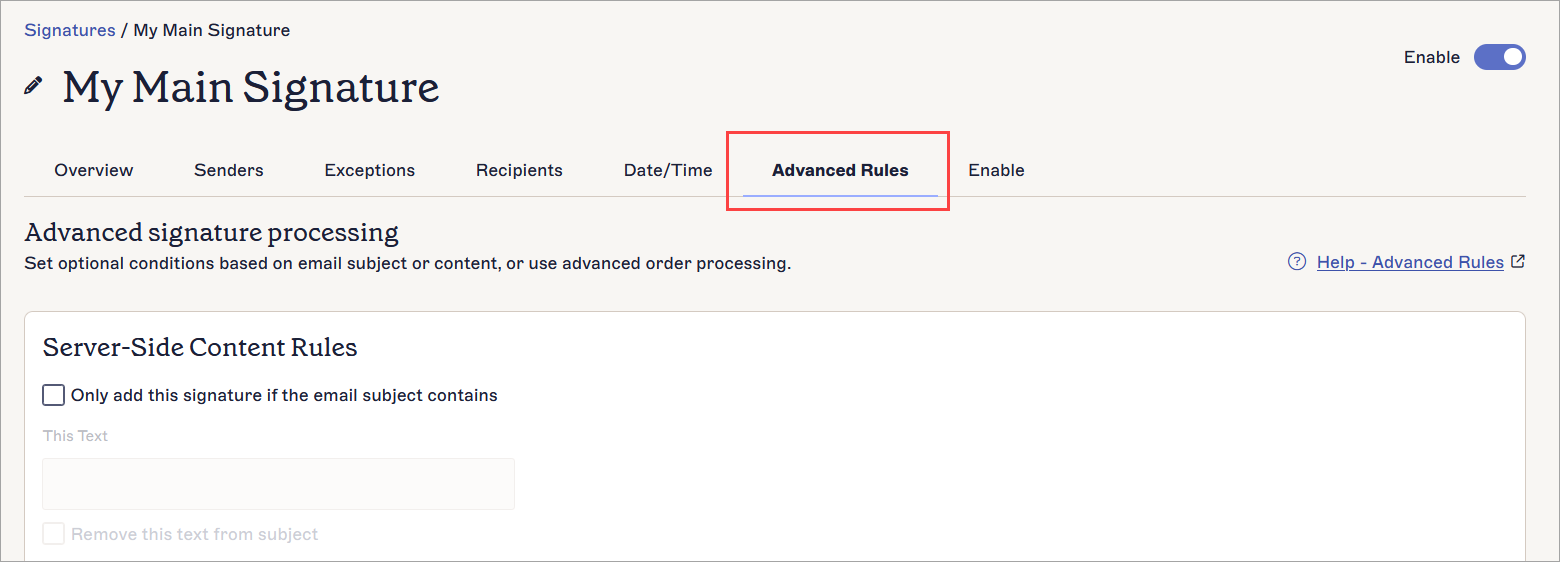
The Advanced Rules tab.
Applying Advanced Rules
You can use trigger text in Server-Side messages, either in the email subject line or the body of the message, to control if a signature is applied.
You can use stacking rules for both Server-Side and Client-Side to apply multiple signatures to an email.
Select an option below to view the related instructions:
This option allows you to enter trigger text which, if found in the email subject line, automatically applies the signature. The signature is only applied if the trigger text is detected in the subject line.
To configure this option:
- In the Server-Side Content Rules section, select the Only add this signature if the email subject contains checkbox to enable the condition configuration.
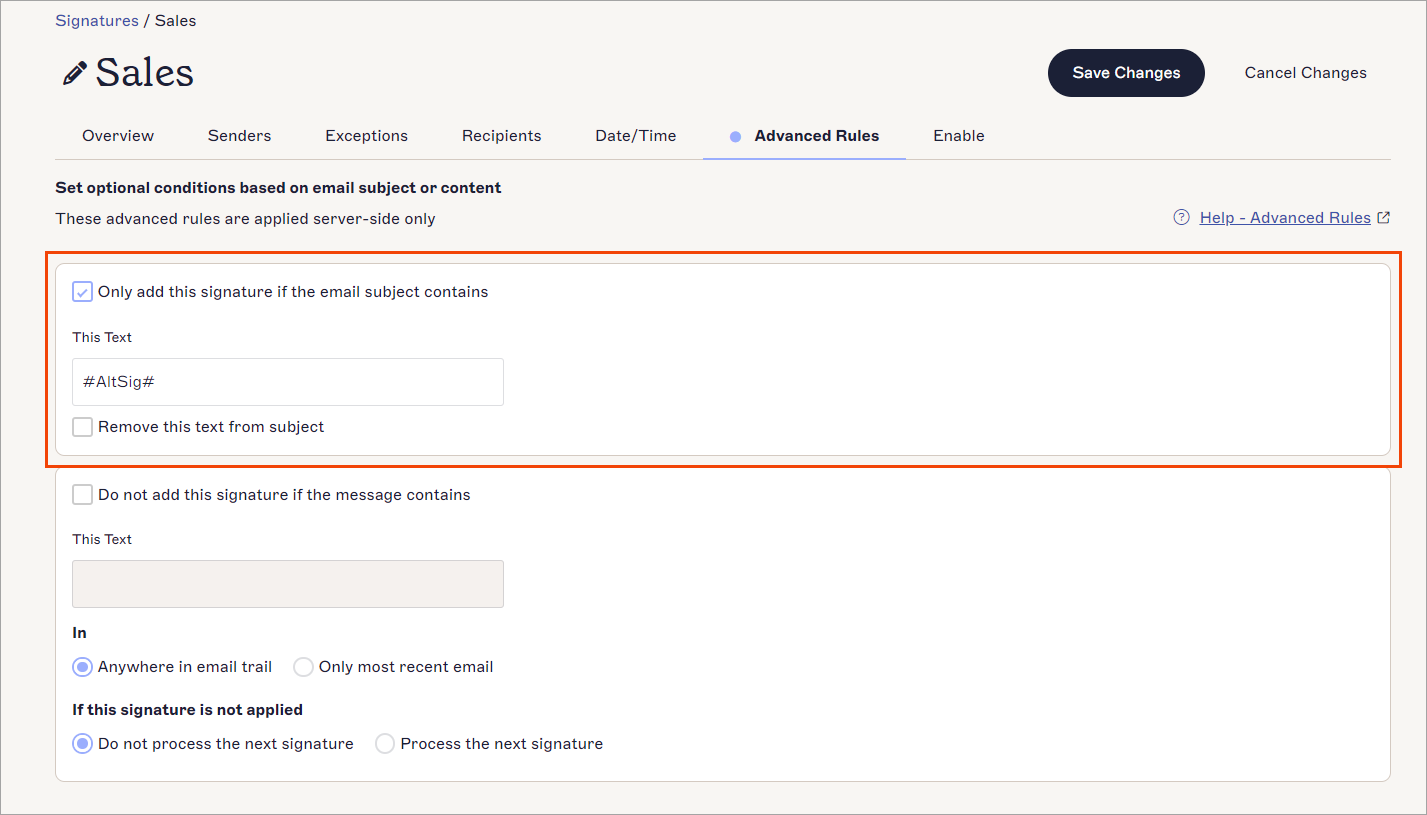
The available options when Only add this signature if the email subject contains is enabled.
-
In This Text, enter the text you wish to act as the trigger text.
NOTE: We recommend that you do not use special characters in your trigger text, as these can cause problems due to UTF-8 encoding. - Specify your preferred setting for Remove this text from subject:
Select the checkbox to remove the subject trigger text from the subject line during signature application. Recipients will not see the trigger text.
Deselect the checkbox to keep the subject trigger text in the subject line. It will be visible to the recipients.
- In the unsaved changes banner, select Save to apply your rules, or select Cancel to revert all changes.
This option allows you to enter trigger text which, if found in the body of the email, stops the signature from being applied. The signature is not applied if the trigger text is found anywhere in the message content.
- In the Server-Side Content Rules section, select the Do not add this signature if the message contains checkbox to enable the condition configuration.
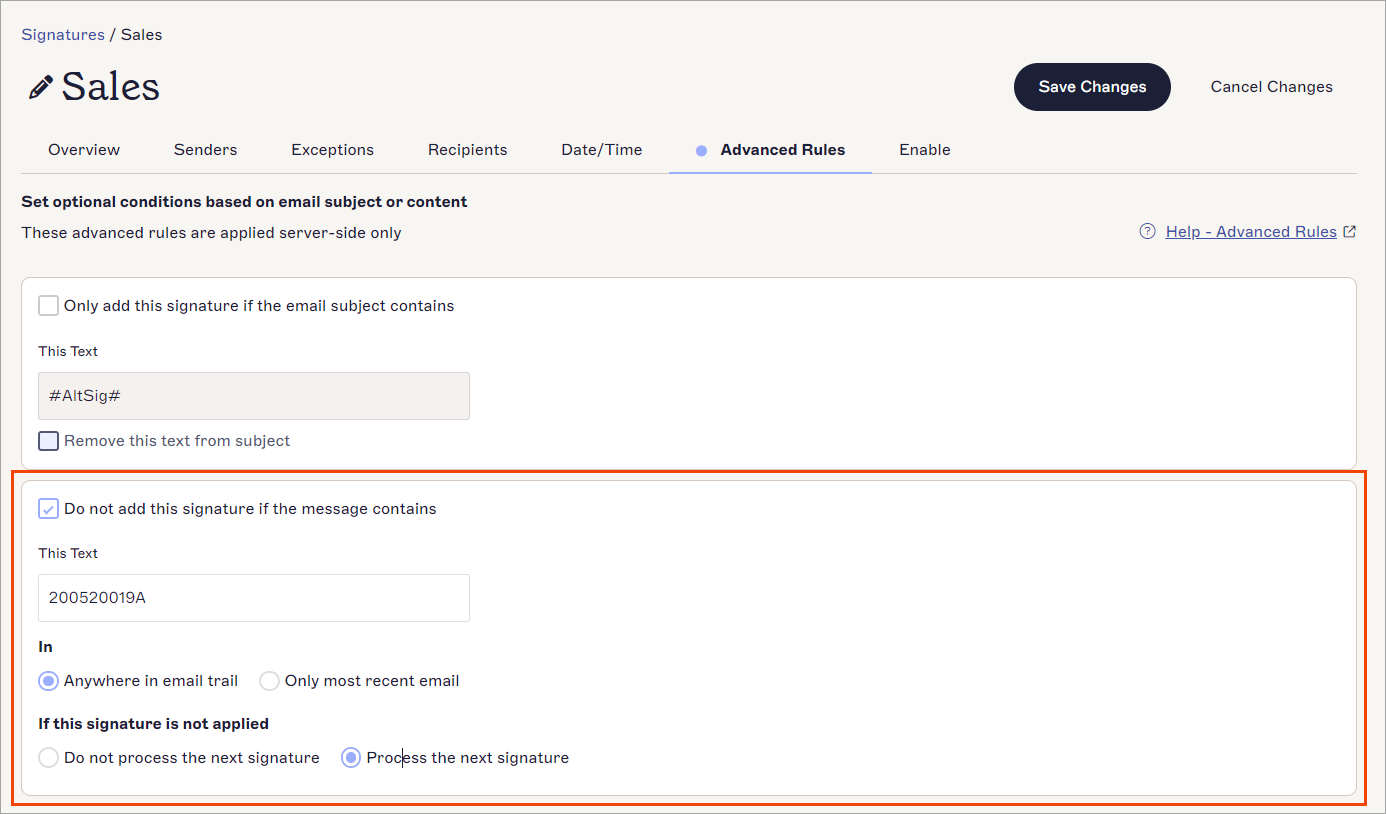
The available options when Do not add this signature if the message contains is enabled.
-
In This Text, enter the text you wish to act as the trigger text.
NOTE: We recommend that you do not use special characters in your trigger text, as these can cause problems due to UTF-8 encoding. - Under In, select whether the trigger text should be searched for Anywhere in email trail or Only in the most recent email.
-
Under If this signature is not applied, select Do not process the next signature to stop the next signature from being processed if the exception text is met, or select Process the next signature to process the next applicable signatures if the exception text is met.
CAUTION! If both Only add this signature if the email subject contains and Do not add this signature if the message contains are enabled, then the rule Do not add this signature if the message contains will take priority. - In the unsaved changes banner, select Save to apply your rules, or select Cancel to revert all changes.
To control whether to add more signatures to an email:
- In the Advanced Server-Side Rules section, under If this signature is applied, select EITHER:
Do not process the next signature to stop any further signatures from applying
OR
Process the next signature to apply the next available signature.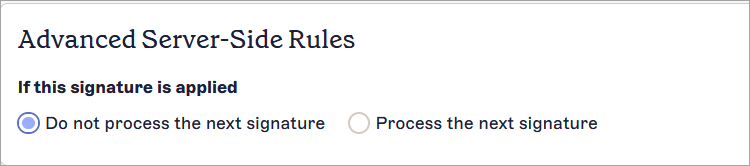
The Advanced Server-Side Rules section.
For more information on stacking signatures, see How to apply multiple signatures to the same email.
To control whether to add more signatures to an email:
- In the Advanced Client-Side Rules section, under Stack signatures in Outlook, select the Apply this signature after any existing Client-Side Signatures checkbox to enable this signature for Client-Side stacking.
- Under If this signature is applied, select EITHER:
Stop stacking signatures to stop any further signatures from applying
OR
Continue stacking signatures to apply the next available signature.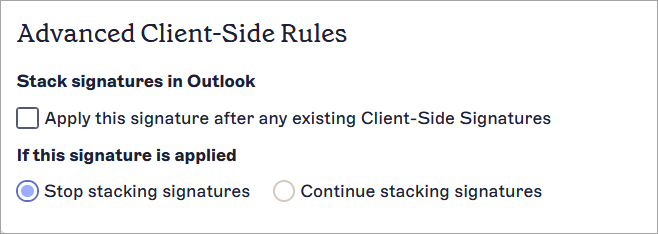
The Advanced Client-Side Rules section.
For more information on stacking signatures, see How to apply multiple signatures to the same email.