
Description
The Image/Logo element enables you to add small images to your signature designs, including Brand Kit images. This functions the same way as the Banner element, but is designed for more compact images such as logos.
How to access it
- Open your signature in the Signature designer.
For more information, see how to select a signature to edit.
- From the Toolbox, expand Images & Icons and select the Image/Logo element.
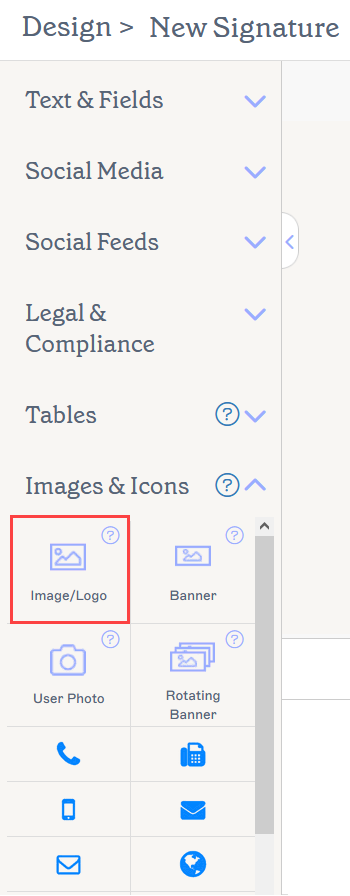
The Image/Logo element is located in the Images & Icons section.
Select an option below to view the related instructions:
To add an Image/Logo:
- Minimum dimensions: 4 x 4px
- Maximum dimensions: 2048 x 2048px
- Maximum size: 300KB
- File extensions: .jpg, .jpeg, .gif, .png, .bmp For more information on resizing an image to meet pixel requirements, see our image resizing guide.
-
Drag and drop the Image/Logo element onto your canvas.
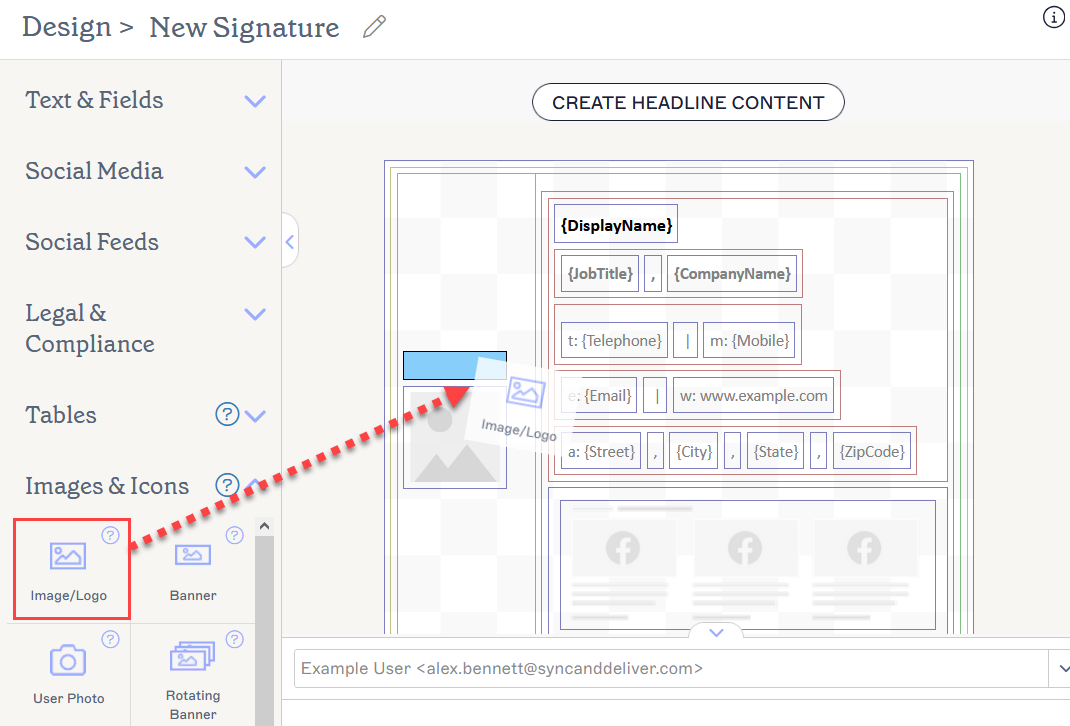
Drag the element to any area of the canvas.
This opens the Image/Logo window.
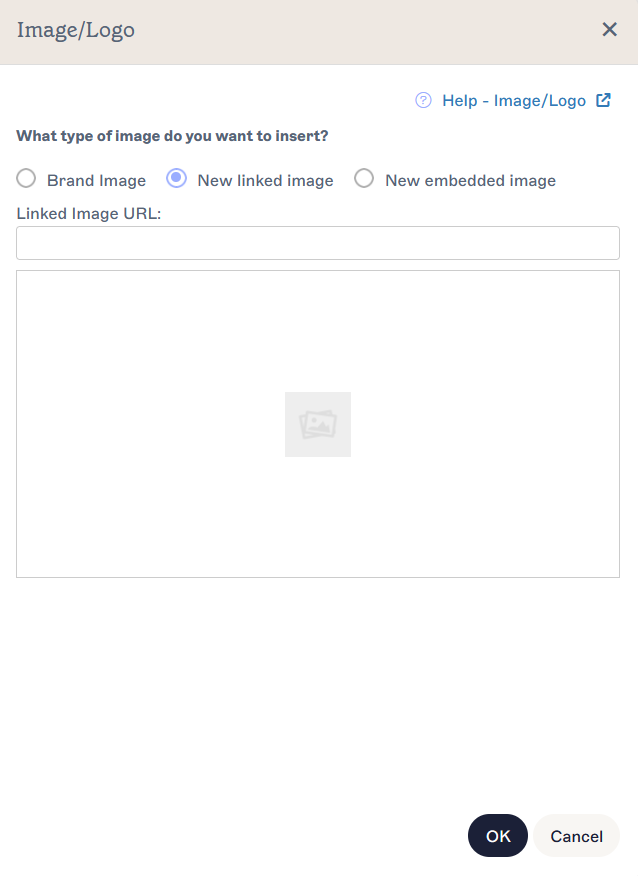
The Image/Logo window contains the customization options.NOTE: An image or logo can be embedded directly into the signature, or hosted externally via a web link. For more information, read about the differences between vs. linked images in email signatures. - To add Branding images, select the Brand Kit Image radio button. This opens the Brand Kit Image tab, which displays previews of any Brand Kit images you have added. Select either Logo, Icon, or Banner. If you have not uploaded any Brand Kit images, a blank placeholder is added to your canvas, which will update once you add images in the Brand Kits screen. For more information, see How to use Brand Kit content in a signature.
-
To add a linked image, select the New linked image radio button. This opens the Linked image tab. Enter the URL of your web-hosted image in Linked Image URL. A preview of the image is displayed in the window.
Tip! To set dynamic images that change with each user, see How to set linked images using custom fields. - To add an , select the New embedded image radio button. This opens the Embedded image tab. Select Upload Image, choose your image file, and select Open. A preview of the image is displayed in the window.
- Select OK to confirm your image choice and close the window, or select Cancel to return to the canvas without saving.
To remove an Image/Logo:
- Select the element on the canvas.
- Select Delete from the Properties pane.
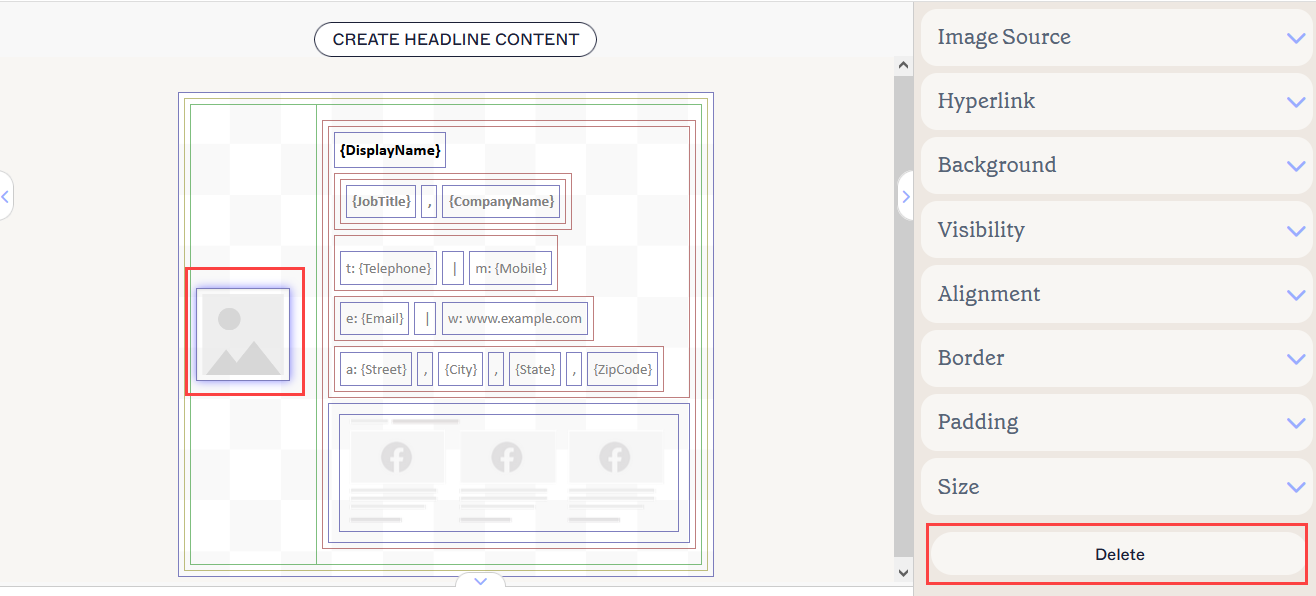
The Delete button is found in the Properties pane. You may need to close Properties sections to view it.
You can edit the following element properties in the Properties pane:
Image source properties
Image properties are used to specify the image type and file origin.
For more information, see vs linked images in email signatures.
| Brand Kit image | Select to set your image as a Logo, Icon, or Banner from the active Brand Kit. |
|---|---|
| Link to an image | Select to set your image as a linked image. Enter the image URL. |
| Upload an image | Select to set your image as an embedded image. |
| Upload Image |
Select to upload an embedded image file.
|
Hyperlink properties
Hyperlink properties are used to apply a hyperlink to the image.
| Destination URL | Enter the URL to use in the hyperlink. |
|---|---|
| Alt Text | Enter alternate text to be shown if this image cannot be displayed. |
| Screen reader label | Enter a descriptive label that helps screen readers and other accessibility software accurately describe the Destination URL. |
Background properties
Background properties are used to define the background of the item.
| Background |
Select Color to select a background colour. You can either enter a color code or select the required color using the color picker. Brand Color 1 and Brand Color 2 appear in the color picker and contain color choices set on the Brand Kits screen. If you change these colors on the Branding screen, your elements set to Brand Kit Colors will automatically update to the new color choice. |
|---|
Visibility properties
Visibility properties are used to adjust when the item appears.
| Always visible | Select to ensure the item is always visible in the signature. |
|---|---|
| Auto-hiding separator | This option is not valid for images. |
| Visible when | Select to set conditions under which an item becomes visible. |
Alignment properties
Alignment properties are used to determine the horizontal and vertical alignment of the item.
| Horizontal | Select Left, Center, or Right to set the horizontal alignment. |
|---|---|
| Vertical | Select Top, Center, or Bottom to set the vertical alignment. |
Border properties
Border properties are used to set borders on the item.
| All |
Check All the same to enable the All border properties. Select line style, line width, and line color to apply to all sides of the item. Brand Color 1 and Brand Color 2 appear in the color picker and contain color choices set on the Brand Kits screen. If you change these colors on the Brand Kits screen, your elements set to Brand Kit Colors will automatically update to the new color choice. |
|---|---|
| Left / Right / Top /Bottom | Uncheck All the same to enable individual border properties for Left, Right, Top, and Bottom. Select line style, line width, and line color to apply to each side of the item. |
Padding properties
Padding properties are used to define spacing for the item.
| All | Check All the same to enable the All padding properties. Enter either a pixel or point value to apply padding to all sides of the item. |
|---|---|
| Left / Right / Top /Bottom | Uncheck All the same to enable individual padding values for Left, Right, Top, and Bottom. Enter either a pixel or point value to apply padding to each side of the item. |
Size properties
Size properties are used to define the size of the selected field.
| Width |
Enter a pixel (px) or point (pt) value to set the width of the item. Set EITHER the Width OR Height value to auto to allow the item to automatically adjust based on viewer size. Setting both values to auto will display the image at its standard size. |
|---|---|
| Height |
Enter a pixel (px) or point (pt) value to set the width of the item. Set EITHER the Width OR Height value to auto to allow the item to automatically adjust based on viewer size. Setting both values to auto will display the image at its standard size. |