
Description
Exclaimer signatures are created and edited in the Signature Designer. When you create a signature, you can start from a pre-defined template created by our signature design experts, or start from a blank canvas.
How to access it
To access the Create Signature feature:
- Log in to your Exclaimer account and launch your subscription.
- Select Signatures from the menu pane.
-
Select Create Signature. This opens the Create a signature window.
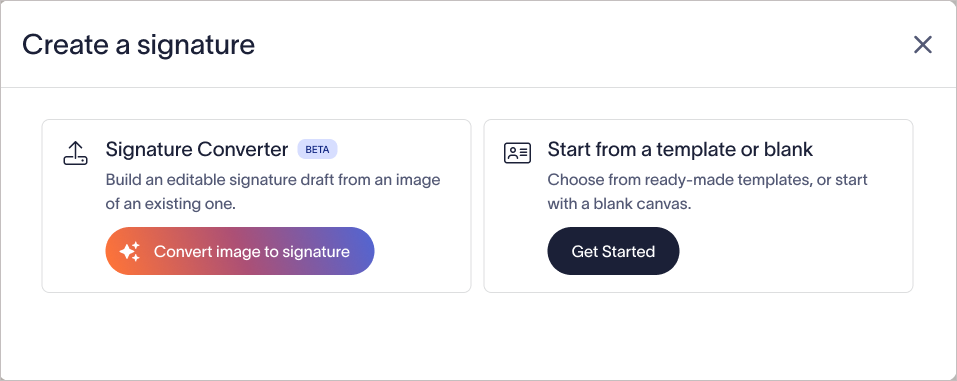
Create a signature window.NOTE: By default, the Signature Converter is disabled.
Admins: Select Enable AI Feature to enable the Signature Converter.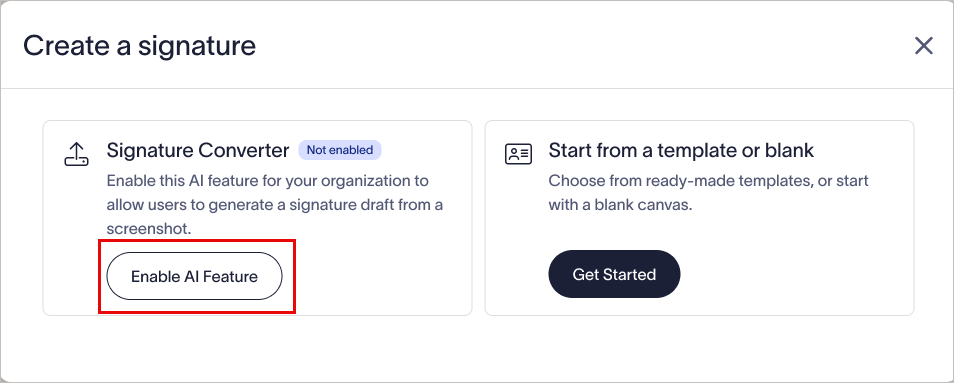
Admin users must select Enable AI Feature to enable the Signature Converter.
Non-admins: Select Request Access to email the Admins your subscription details. A confirmation message will appear to confirm that your request was sent.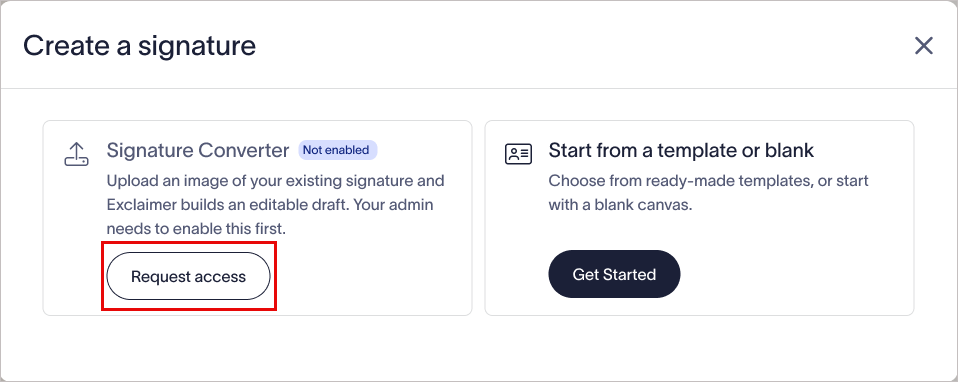
Non-admin users must select Request access to request access to the Signature Converter.
Creating a new signature
To create your signature:
EITHER:
- Select Convert image to signature to upload an image of an existing email signature and use AI to rebuild it as an editable version in the Signature Designer.
-
Select Get Started to choose a template from the available resources or create a brand new template. The Choose a Template window is displayed.
EITHER:Select a pre-designed signature template. For more information on creating a new signature from a template, see How to create a signature using a pre-defined Exclaimer template. All Exclaimer templates are fully customizable.
ORSelect Start With Blank from the template list. You may need to scroll. For more information on creating a new blank signature, see How to create a signature without using a pre-defined Exclaimer template.
NOTE: If you are using an Exclaimer trial subscription, you can begin a Brand Kit from the Choose a Template window. Upload a logo, choose a font and color, then select Save and apply to proceed with creating a signature with your Brand Kit assets. For more assets (including more images and colors) and to edit a Brand Kit, see the Brand Kits screen.
Have you got a question? Take a look at our Frequently Asked Questions page.