
Scenario
You have configured Server-Side signatures and completed the required configuration steps detailed in configuration settings within the Google Workspace Admin console, but emails from some users do not have a signature applied.
Resolution
To resolve this issue, you need to confirm if the policy is being applied to the sender of the email. You can do this with the Signature Tester.
If the user is showing as having a signature applied in the Signature Tester but the received email does not have a signature applied, this is more than likely caused by the email not being routed through Exclaimer.
Follow these steps to determine if the sender meets the conditions of the Content Compliance rule:
- Login to the Google Admin console as a Super Admin: https://admin.google.com
-
From the Google Admin console, select Apps, select Google Workspace, and then select Gmail.
- Select Compliance, then scroll down to Content compliance. Hover your mouse cursor over the Exclaimer Content compliance rule and select Edit.
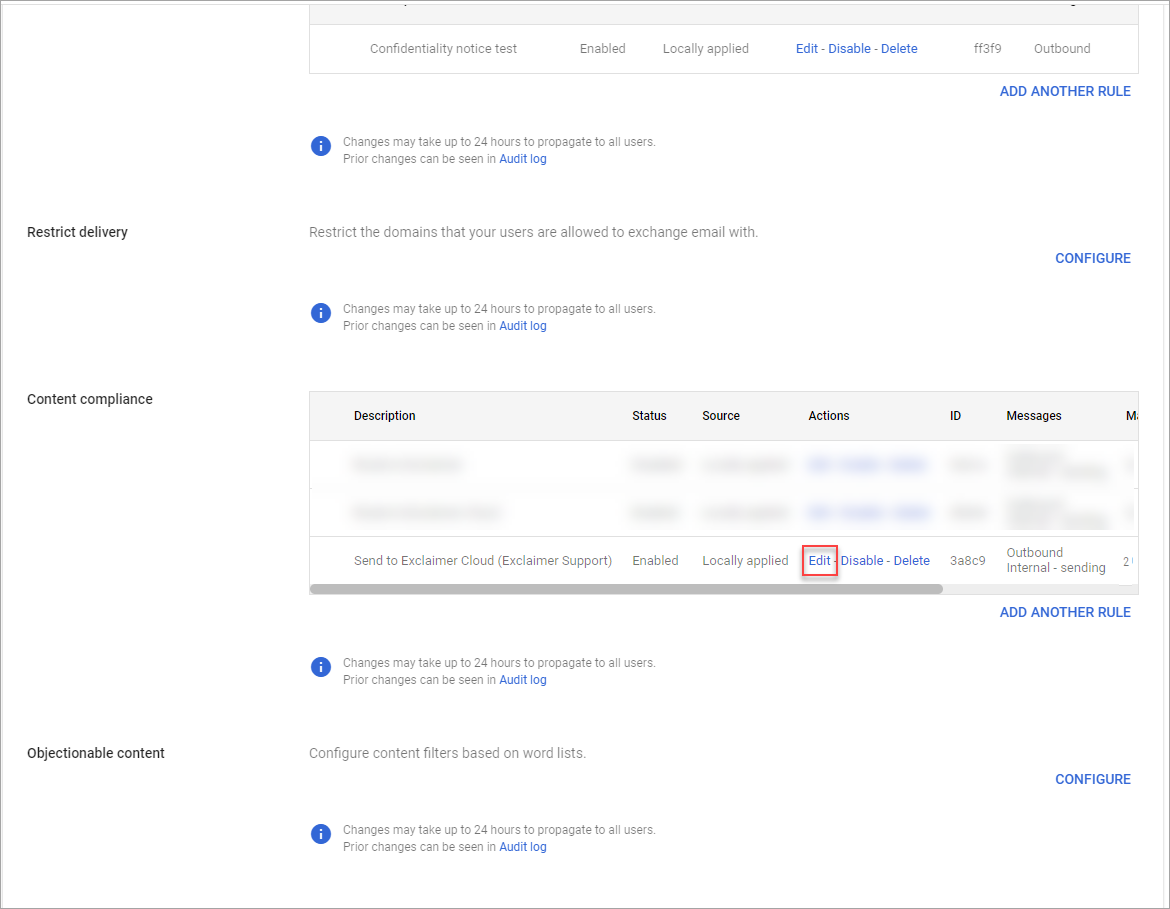
Hover your mouse cursor over the Content compliance rule and select Edit.
- In the Edit setting window, scroll to the bottom and select Show options.
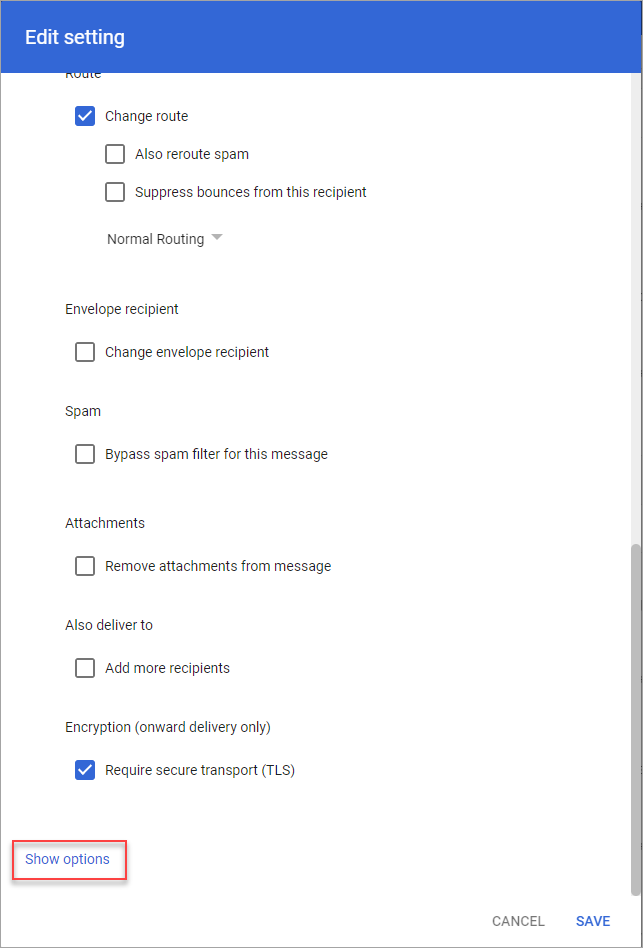
Select Show options.
- Scroll down to option C. Envelope filter and confirm if the Only affect specific envelope senders option is selected.
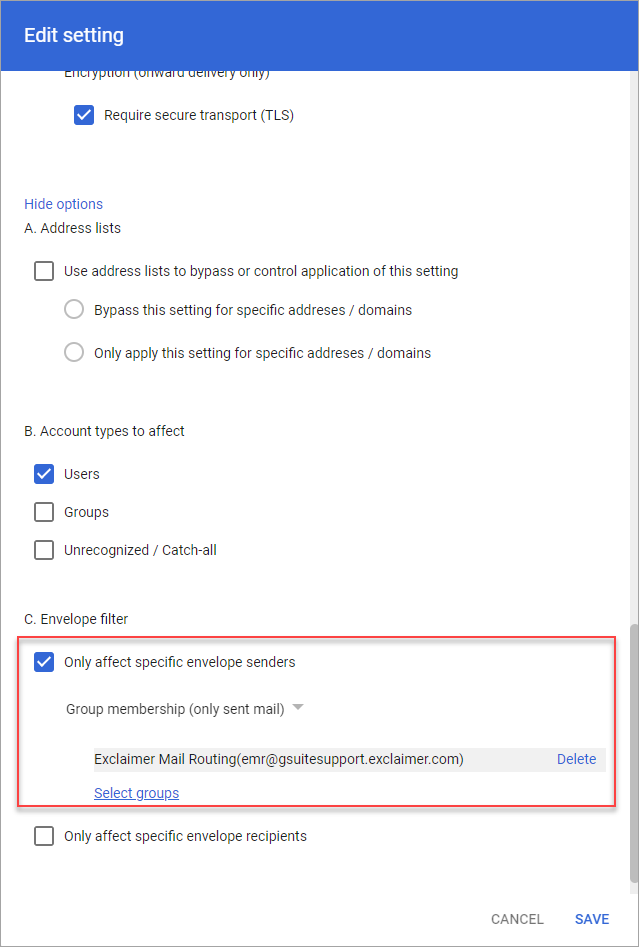
Confirm if the Only affect specific envelope senders option is selected.
- If option C. Envelope filter is enabled and a group is specified, you will need to ensure that the sender is a member of the group. Alternatively, you will need to disable the envelope filter and route all emails through Exclaimer.
NOTE: When you save any changes to the Admin console, it can take up to 24 hours for the changes to replicate across Google's servers.