
Scenario
You are using Exclaimer signatures in Outlook 2016 and notice that some text is being cut off in your signature - for example, descending letters such as y and g appear cut off or cropped.
Reason
Microsoft has confirmed that this is an issue with Outlook 2016, and does not occur with other Outlook versions. The issue also only occurs with some font family and size combinations, for example with Verdana at font size 9.
Resolution
We recommend setting a line height value on your signature template that is 2 points (pt) larger than the font size used.
NOTE: If you use pixel (px) values, refer to Pixel to Point conversions to find out the equivalents.
To set a line height:
- Open your signature in the Signature Designer.
- Select your text on the canvas.
- In the Properties pane, locate the Font Size and Line Height fields in the Text section.
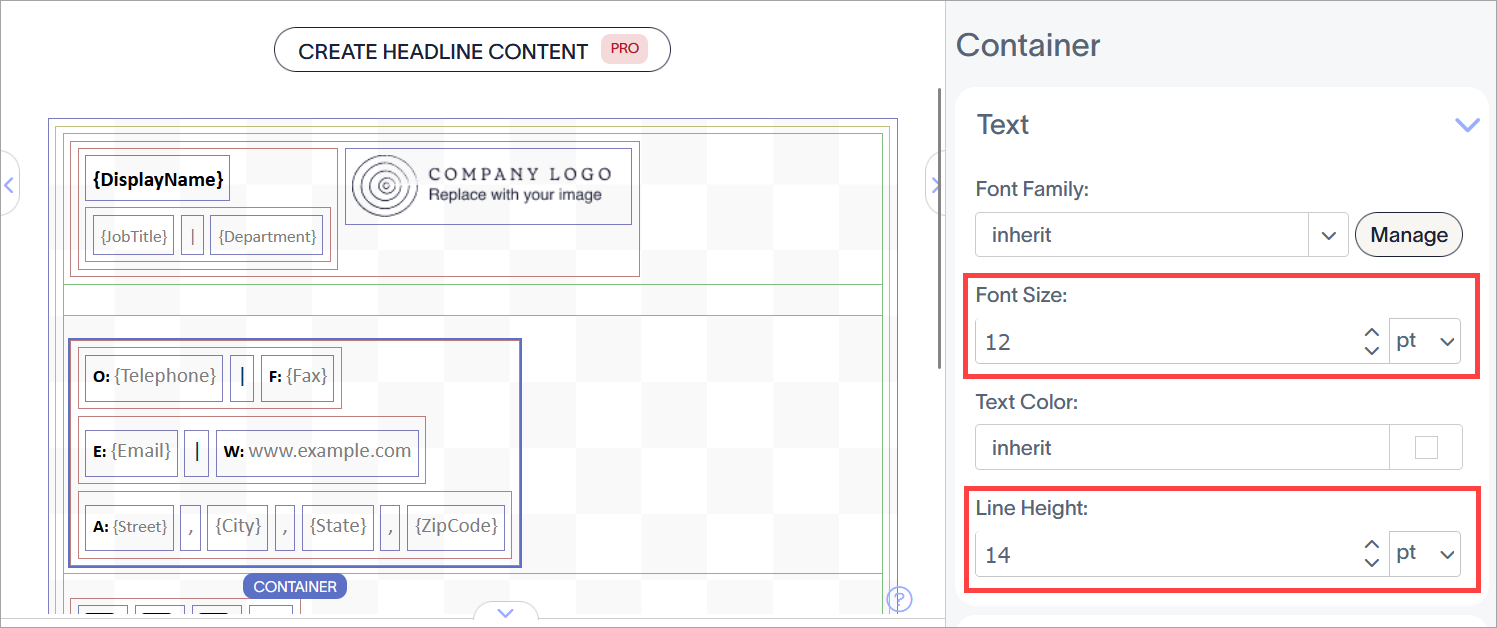
The Font Size and Line Height properties are found in the Text section.
-
Edit the value in the Line Height field to be two pt, or the equivalent value in px, higher than the value in the Font Size field.
NOTE: If you are using different sizes for different sections of text, select each applicable container to apply a line height value. You can also apply a line height value to a whole group by selecting the group outline on the canvas. For more information on selecting different containers, see Colored borders grouping, and inherit properties in the Signature Designer. - Select Save Changes.