
Scenario
You have created your signature(s) in Exclaimer, but want to choose whether to apply a signature or not on an email-by-email basis.
Resolution
To stop any signature from applying to a specific email message, you must create and configure a 'blank' signature to apply instead, making the email look as if there is no signature.
In Server-Side deployment, use Advanced Rules to trigger the blank signature based on the email message. For Microsoft 365 users only, choose the blank signature using the Exclaimer Outlook Add-In for Client-Side deployment.
Select an option below to view the related instructions:
To create and configure a blank signature:
-
Create a new signature with no signature elements.
- Save the template.
- Return to the All Signatures tab, locate your new blank template and select Manage Rules. This opens the Manage screen.
- Select the Advanced Rules tab.
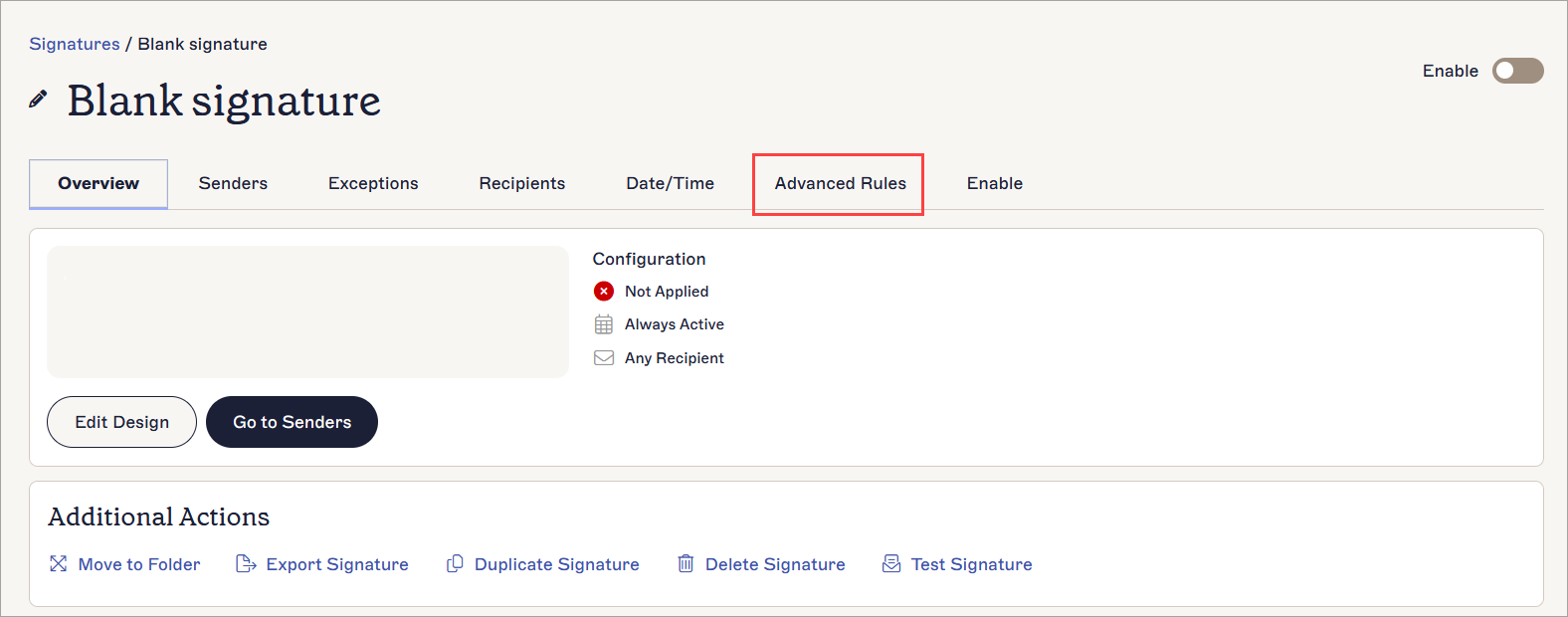
Open the Advanced Rules tab.
-
Under Server-Side Content Rules, select the Only add this signature if the email subject contains checkbox.
NOTE: While it is possible to apply the Do not add this signature if the message contains setting to existing signatures to stop them from applying when you type trigger text in the email message, we do not recommend this as a solution for this scenario as the trigger text will not be removed from your email. - Enter your trigger text in the This Text field.
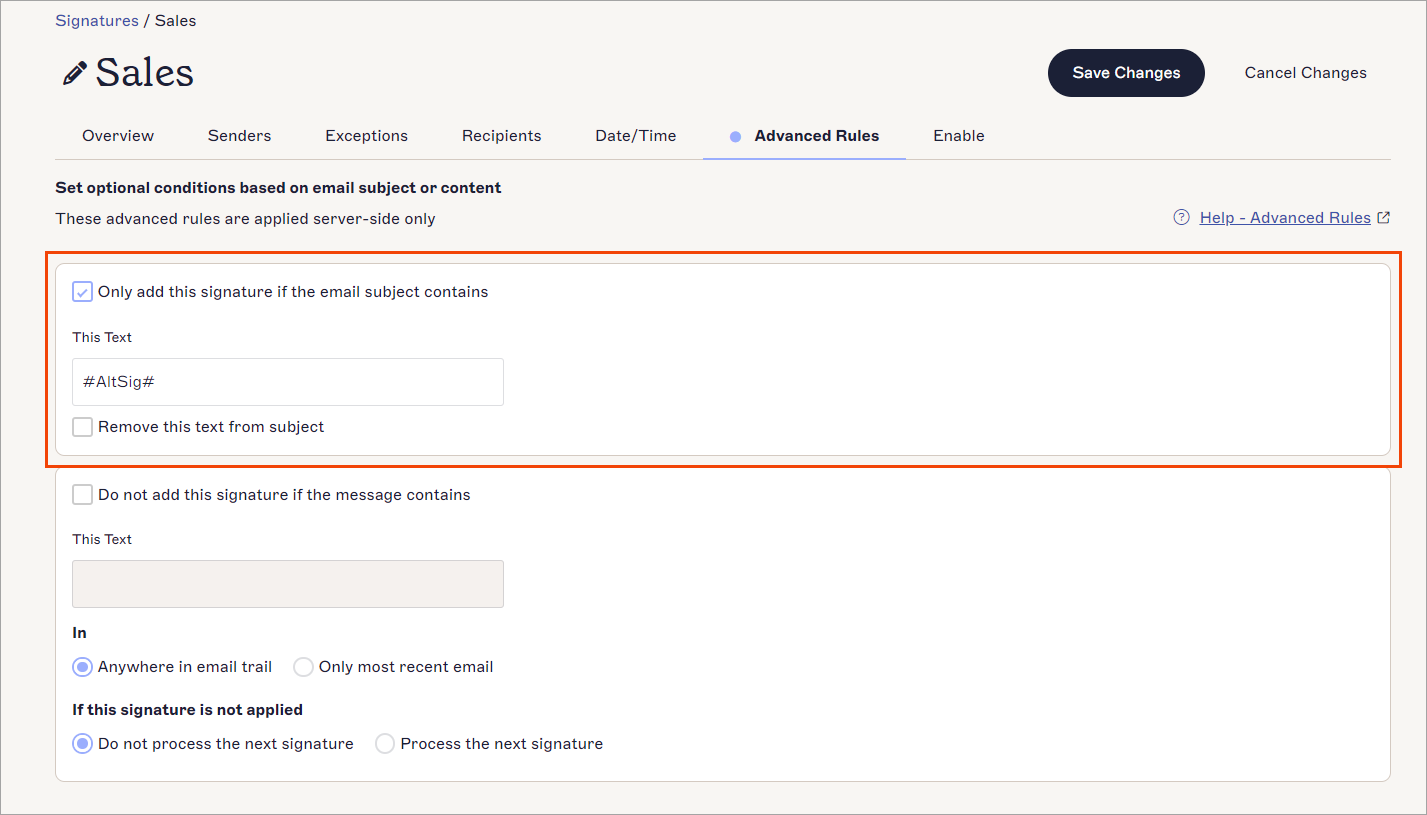
Enter text that will be used in your subject line to trigger the blank signature.
- [Optional] Select the Remove this text from subject checkbox to stop your trigger text from appearing in the subject line when sent.
- Select the Enable tab.
- Under Server-Side, select the Apply to emails from all devices, including Mobiles checkbox.
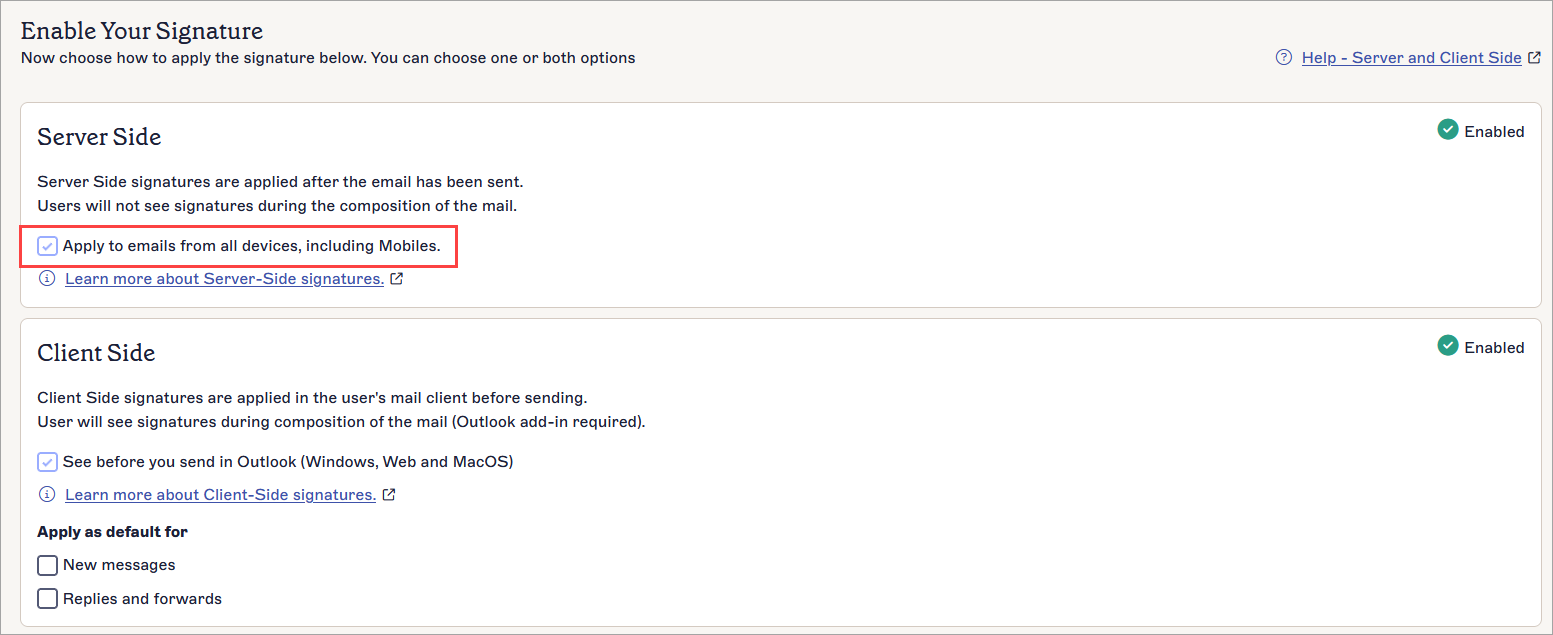
Select the checkbox to enable the signature for Server-Side deployment.
- In the unsaved changes banner, select Save.
- When sending an email, enter your trigger text in the subject line. The blank signature is applied to your email instead of any other Exclaimer signatures, and your email appears as if no signature is present.
To create and configure a blank signature:
-
Create a new signature with no signature elements.
- Save the template.
- Return to the All Signatures tab, locate your new blank template and select Manage Rules. This opens the Manage screen.
- Select the Enable tab.
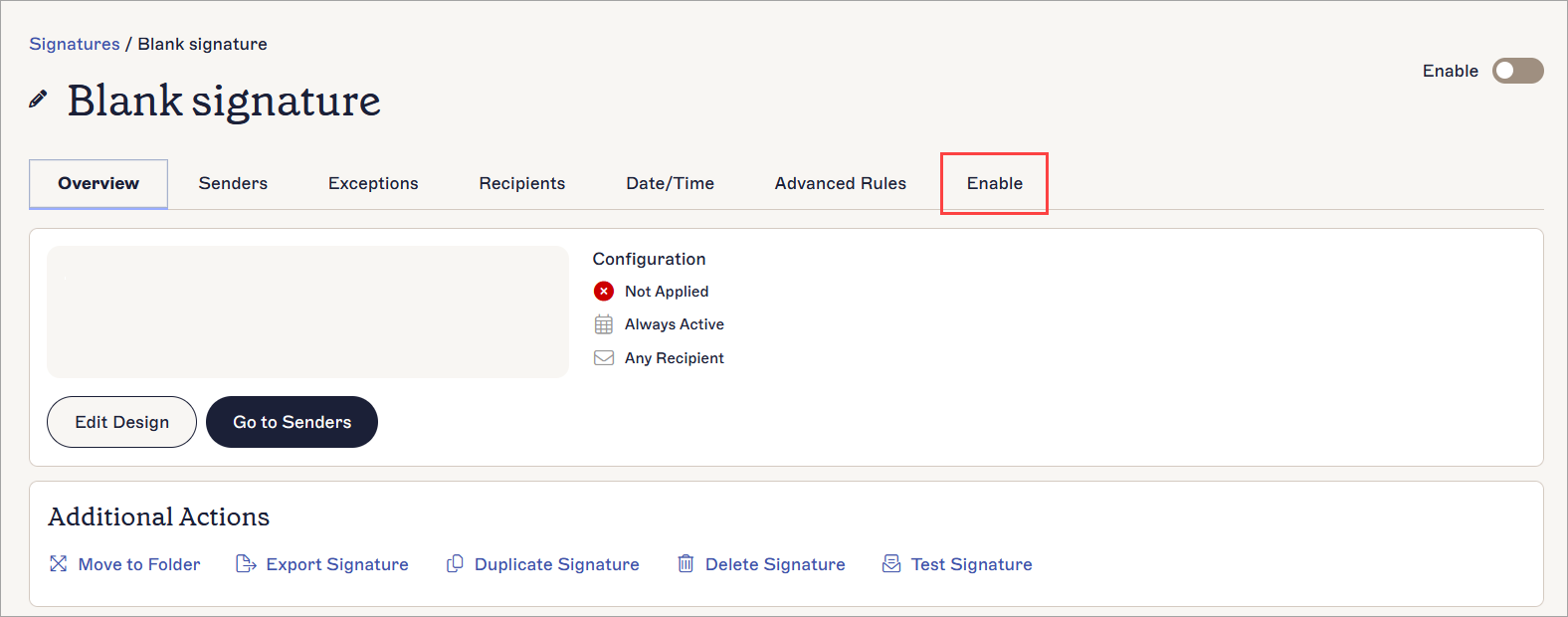
Open the Enable tab.
- Under Client Side, select the See before you send in Outlook (Windows, Web and Mac OS) checkbox.
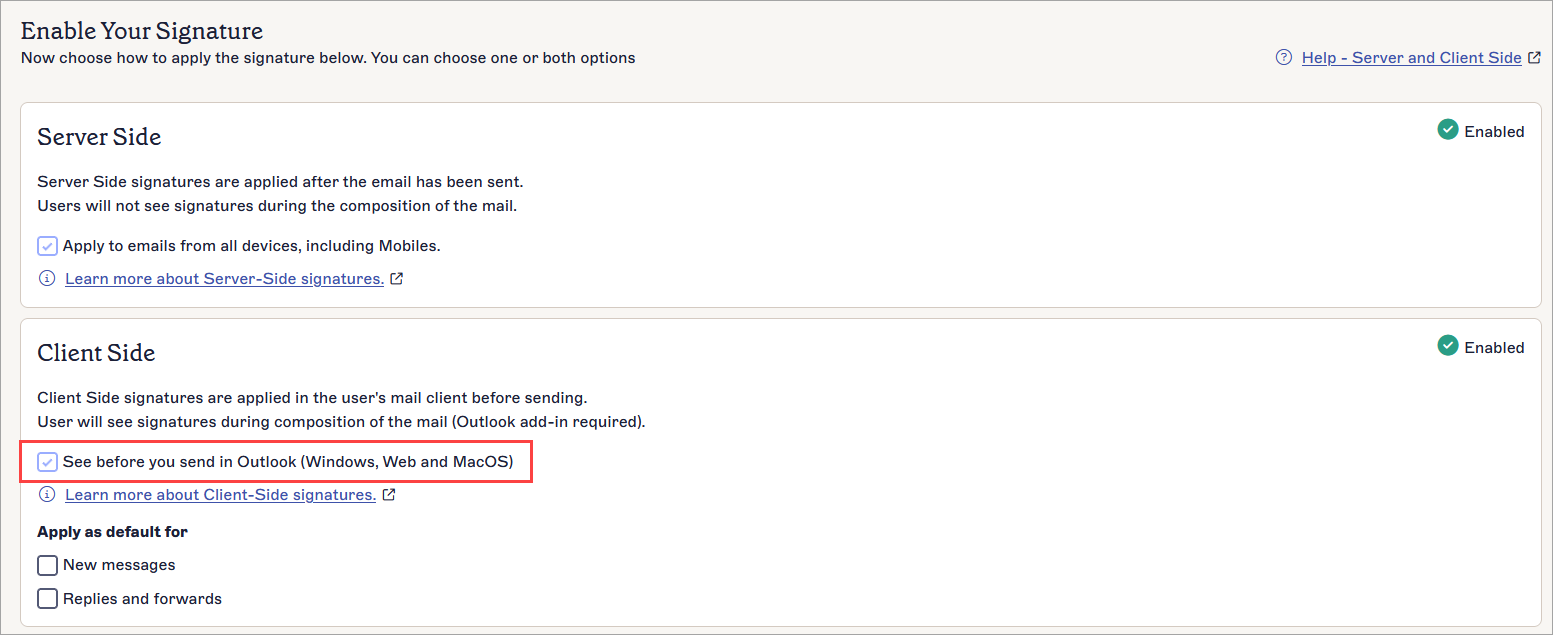
Select the checkbox to enable the signature for Client-Side deployment.
- In the unsaved changes banner, select Save.
-
Run a manual synchronization.
NOTE: This can take up to an hour to reflect the new signature in the Add-In. -
Open the Exclaimer Outlook Add-In for Web or Desktop and select the blank signature from the signatures pane. This may appear differently based on how you are accessing Outlook. For more information, see Using the Exclaimer Outlook Add-In.
NOTE: Selecting a signature manually is not supported on mobile devices.