
In questa sezione, seleziona come desideri aggiungere firme alle tue email.
Devi essere il Proprietario dell'abbonamento per configurare un abbonamento. Per ulteriori informazioni sui ruoli degli utenti, consulta Gestione degli utenti.
Devi utilizzare le credenziali di Super Amministratore di Google Workspace per configurare l'abbonamento a Exclaimer - Firme per Google Workspace.
Se installi l'app Google con credenziali di Super Amministratore non autorizzate, il portale di Exclaimer non riuscirà a completare il processo di verifica.
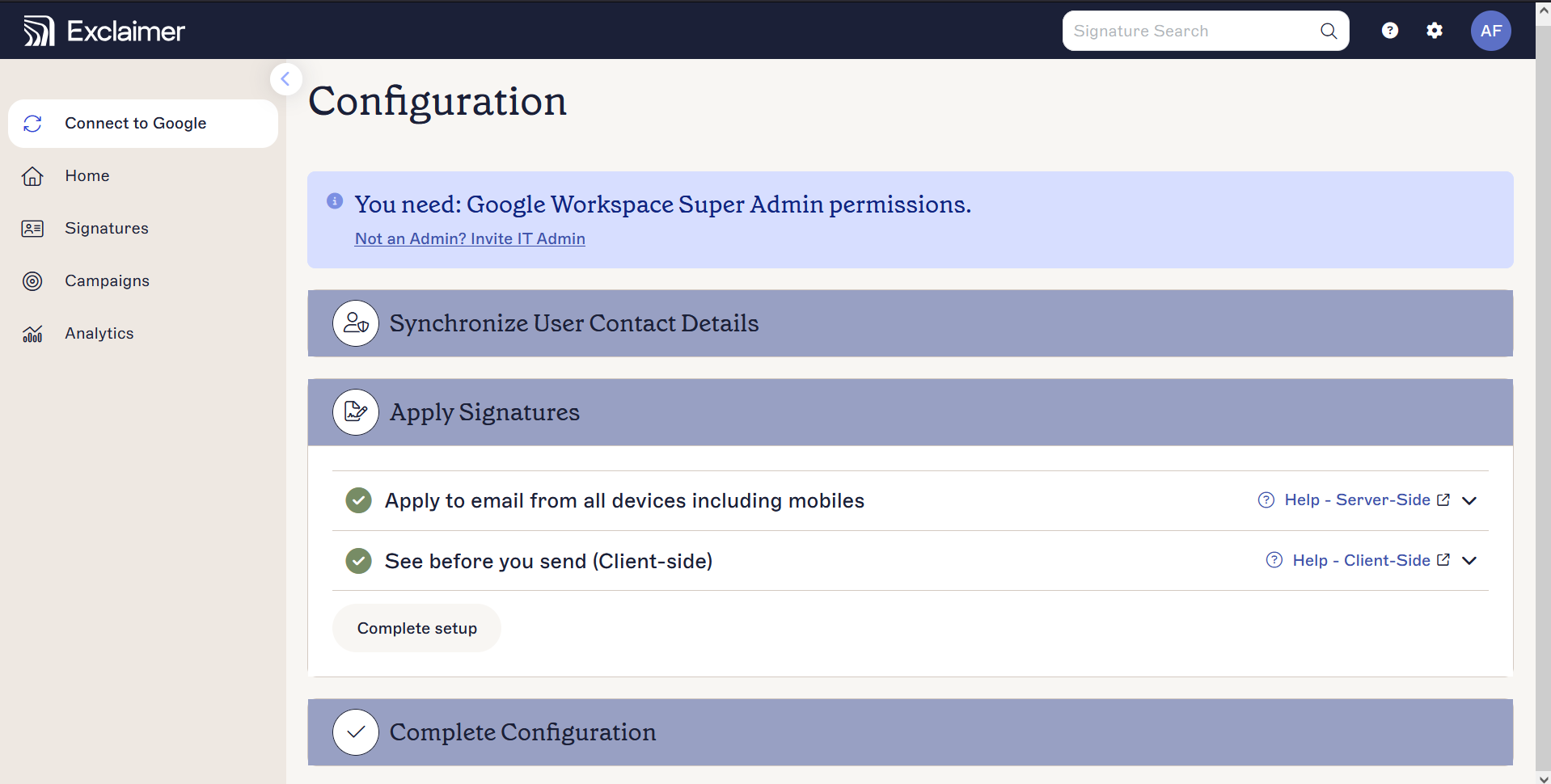
Server-Side:
Server-Side significa che le firme vengono applicate dopo che l'email è stata inviata: non è possibile visualizzare la firma dell'email durante la composizione dei messaggi di posta elettronica. Le firme vengono applicate a tutti i messaggi di posta elettronica tramite il servizio Cloud di Exclaimer, indipendentemente dal browser/dispositivo/client di posta elettronica utilizzato.
- La firma viene aggiunta automaticamente ai messaggi di posta elettronica in base alle regole impostate.
- La firma viene applicata dopo l'invio dell'email.
- Puoi applicare le firme Server-Side alle email inviate da qualsiasi dispositivo o client di posta elettronica.
- Includono il set più avanzato di opzioni di targeting, tra cui mittente, destinatario, oggetto, testo del corpo, data e ora.
Seleziona Continua per configurare le firme Server-Side per il tuo abbonamento.
Client-Side:
Client-Side significa che puoi visualizzare la tua firma email durante la composizione dei messaggi di posta elettronica in Gmail. Le firme sono sincronizzate con il client di posta elettronica degli utenti.
- A causa delle limitazioni HTML di Google, può essere utilizzata solo una firma in Client-Side per Google Workspace. Ciò significa che viene applicata la prima firma applicabile che corrisponde a tutte le regole configurate.
- La firma appare nell'email prima che l'email venga inviata.
Seleziona Avvia la configurazione per configurare le firme Client-Side per il tuo abbonamento.