
Description
As a reseller, your Exclaimer account gives you the ability to manage all of your customers' Exclaimer active subscriptions at one location.
When you log into the Exclaimer portal, you can see a list of all your customer subscriptions, plus actions to manage them individually. You can also add more subscriptions and view previous ones. 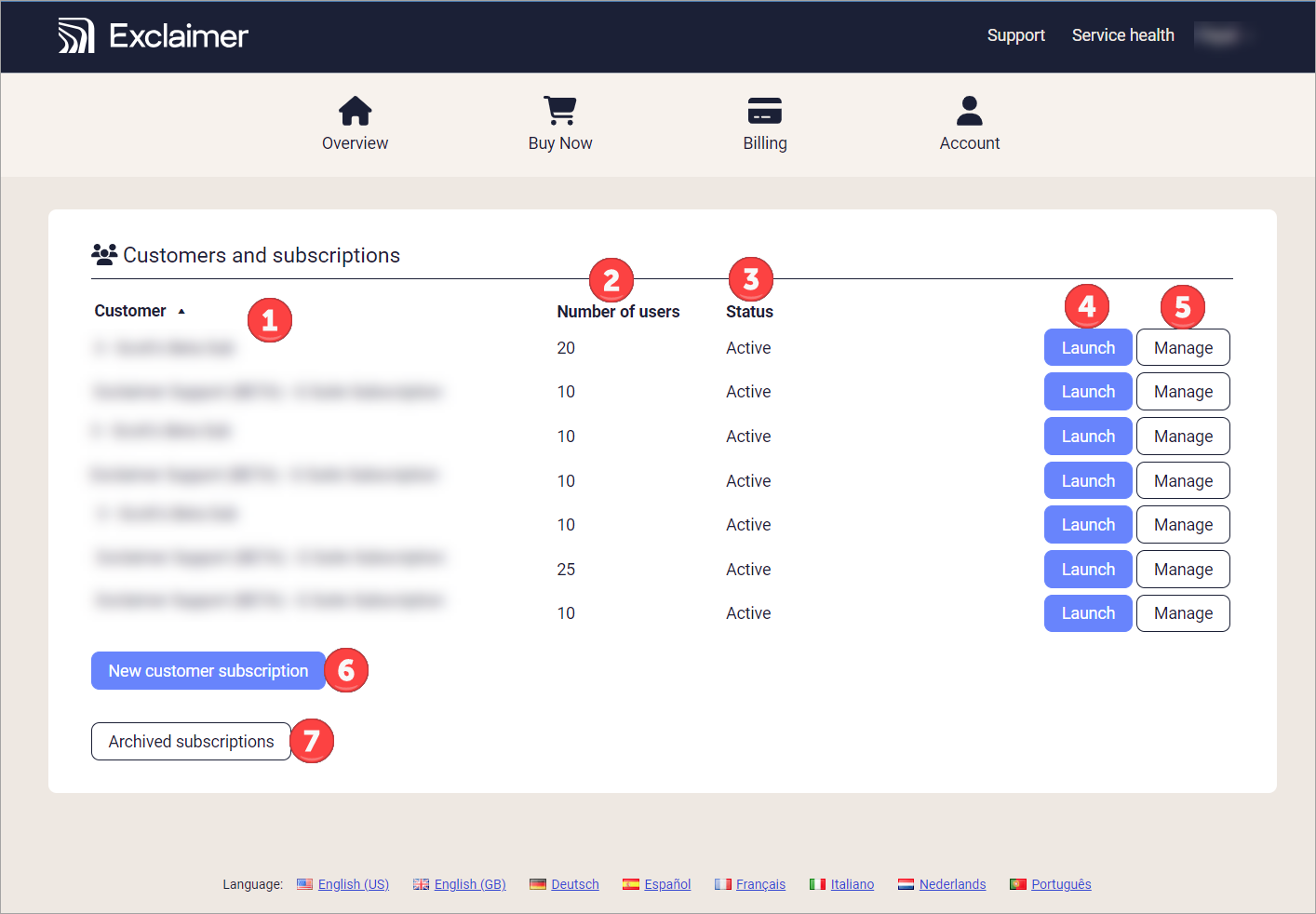
Example screen displaying a list of reseller customers and their associated subscriptions. Each number corresponds to a different section or functionality. Each one is described in the following table.
The following table outlines the features available in the Overview tab:
|
Customer |
The name of the customer, as entered when the subscription was created. |
|
Number of users |
The number of users on this subscription. |
|
Status |
The status of this subscription. |
|
Launch |
Select to launch this subscription. This opens the Home page. |
|
Manage |
Select to open the Manage screen. This allows you to:
For a full guide to managing a subscription, see Manage your subscription. |
|
New customer subscription |
Select to add a new customer subscription to your account. Follow the instructions in the Adding a new customer subscription section of this article. |
 Archived subscriptions Archived subscriptions
|
Select to view previously ended customer subscription details. Expired subscriptions remain visible for 90 days. |


To add a new customer subscription to your account, follow the instructions below:
To add a new customer subscription:
- Select New customer subscription.
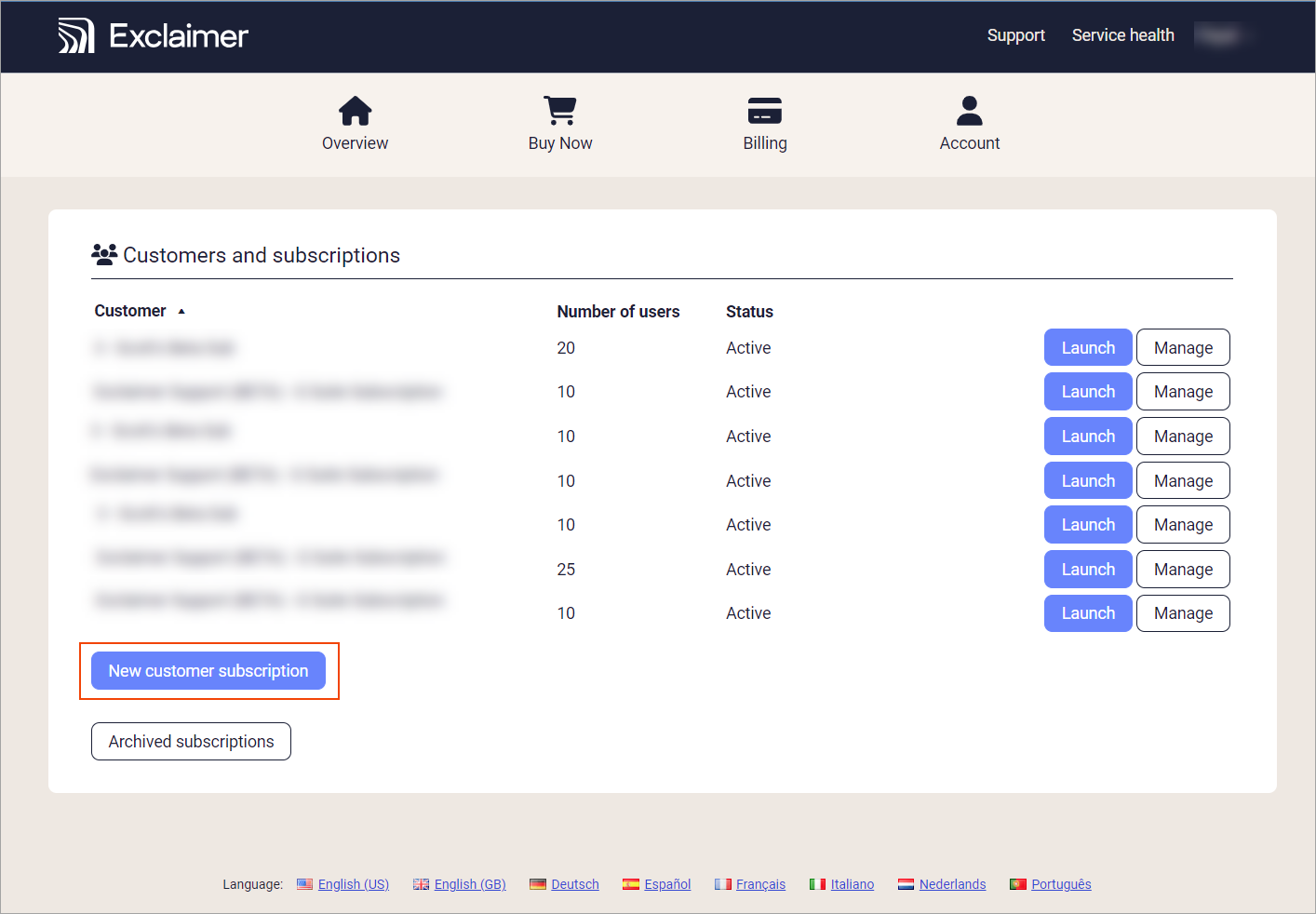
Select New customer subscription.
The New customer subscription window is displayed.
- Under Product, select either the Signatures for Office 365 or Signatures for G Suite radio button.
- From the Hosting region drop-down, select the region where the customer is based.
- In Customer company name, enter the name of the customer's company.
- In Number of users, enter the total number of users in the customer's organization.
- EITHER:
If the customer will access Exclaimer to use signatures and other Exclaimer features themselves, select the Let customers edit signatures? checkbox. This enables further fields.
OR
If you will manage the customer’s signatures and other Exclaimer features and the customer will not access Exclaimer, proceed to Step 9.
- If you selected the checkbox in Step 6: In Customer contact name, enter the customer’s name.
- If you selected the checkbox in Step 6: In Customer email address, enter the customer’s email address.
- Select the I have read and agree to the terms and conditions checkbox.
- Select Create.
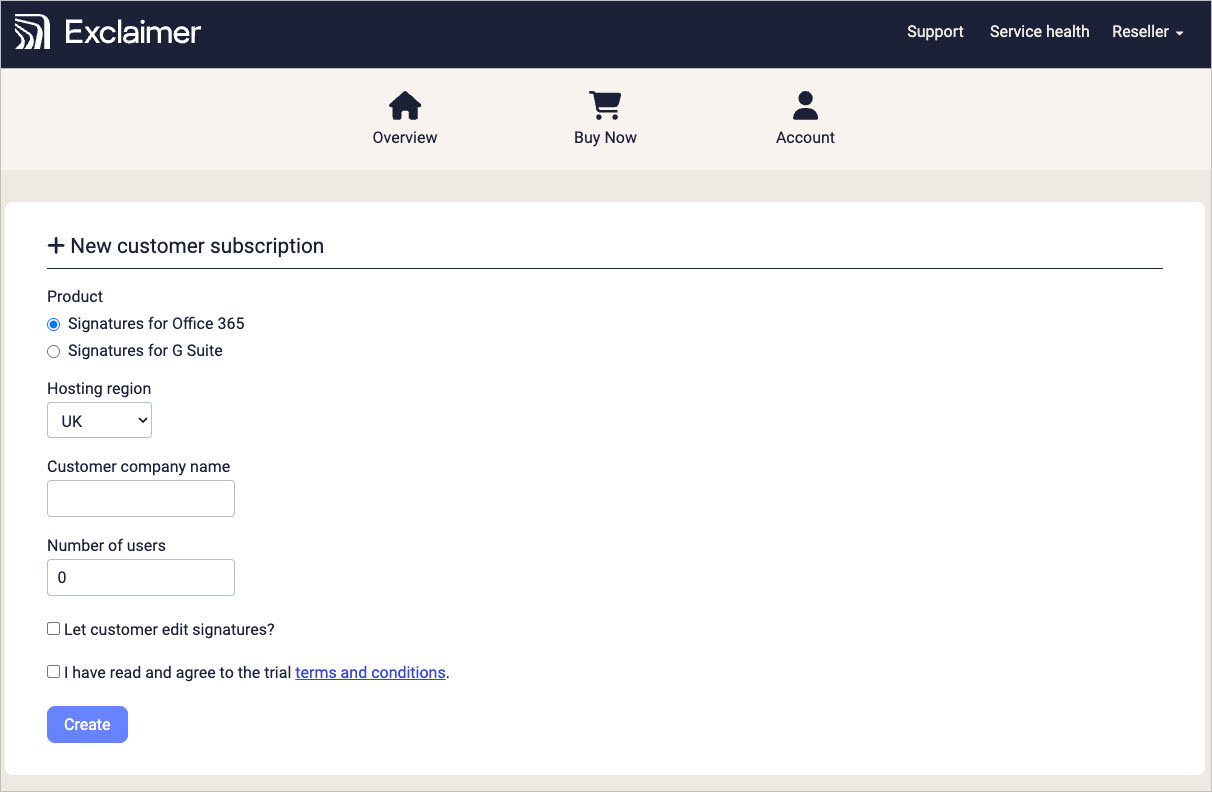
Fill in the fields as appropriate, then select Create.
•The customer receives an automated email invitation to use Signatures for Microsoft 365 / Google Workspace. The customer must click the email link, enter their contact details, and create a secure password. The customer’s username will be their email address.
• A 14-day trial starts automatically once the subscription is created. Customers can only manage their signatures in the user interface. They do not have access to billing. Billing is managed through your Exclaimer account.