
Scenario
You have configured Exclaimer and have synchronized your data from Google Workspace. You notice that some user details, such as Job Title, are missing from your signatures.
Reason
Exclaimer for Google Workspace uses Google's API to query for data for each account and requires that the field data has the primary value set to true. 
An example of the Organzations data, shown in a request format, with primary set to true.
If this value has not been set to true, the data will not be reflected in Exclaimer. Some services, such as OKTA, do not automatically set a value for the 'Organizations' attributes.
Resolution
You must set the primary value to true for the Organization data for each affected user. This is done by using Google Workspace's Directory API: first by taking the data using a Get request, then changing the values using an Update request. This can be done manually in Google Workspace, or you can run a Powershell script to update the values in bulk.
Select an option below to view the related instructions:
This resolution must be repeated for each affected user.
To change the primary value for Organization data:
- Navigate to the Google Workspace Admin console - Directory API page for a Get request using the following link: https://developers.google.com/admin-sdk/directory/v1/reference/users/get.
- Select API from the icons panel menu to open the APIs Explorer pane.
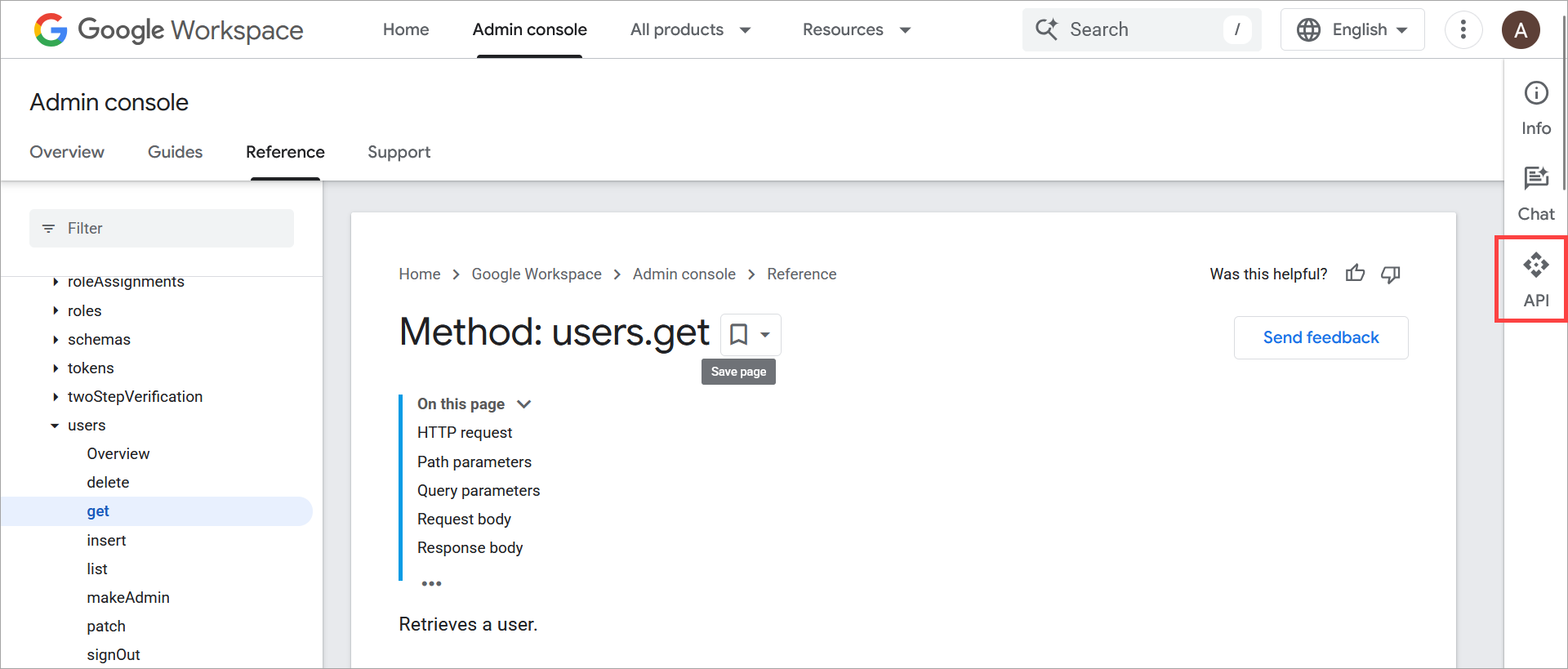
Select API from the vertical panel menu.
- Under Request parameters, enter the email address of a user to query in the userKey field.
- From the projection drop-down, select full.
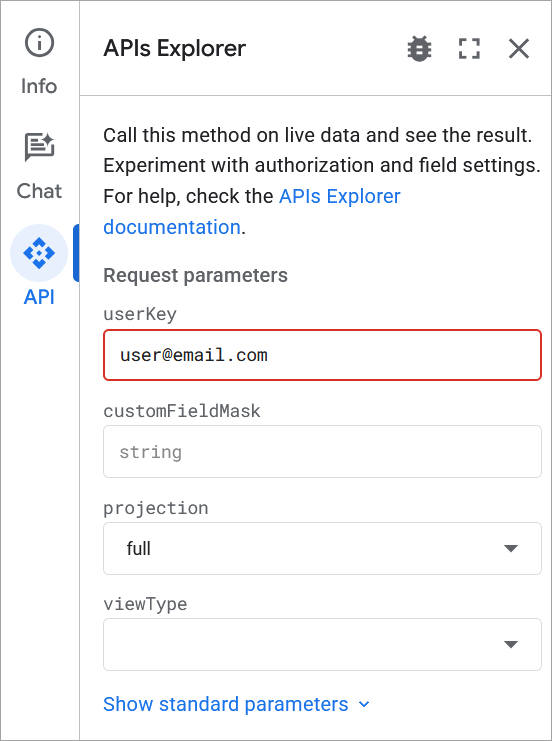
An example of a completed query for a sample user.
- Select Execute. You may need to scroll.
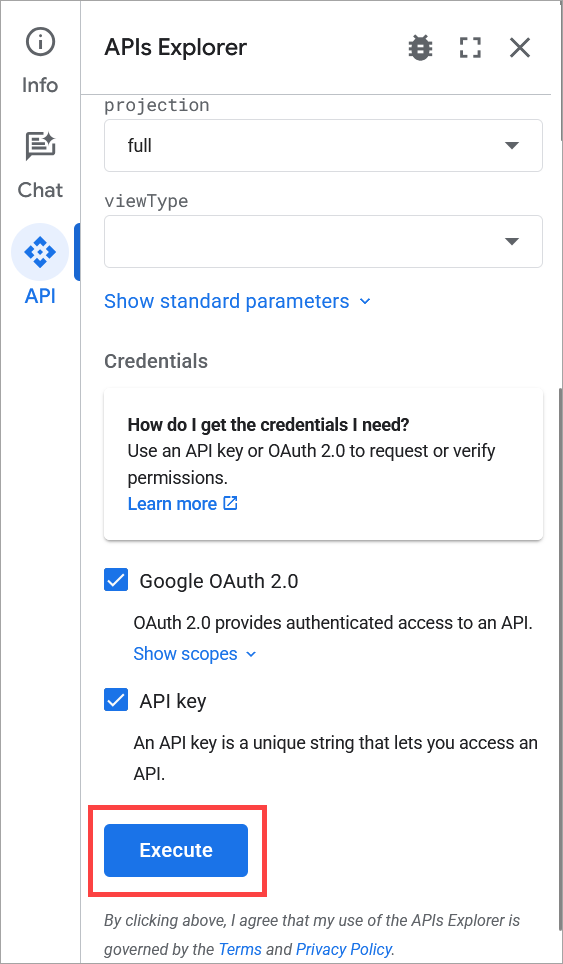
The Execute button is found after the full content of the pane.
- When prompted, sign into a scoped Google Workspace account to authenticate the query.
- From the query results, copy the full organizations parameter, including all sub-parameters.
- Navigate to the Directory API page for an Update request using the following link: https://developers.google.com/admin-sdk/directory/v1/reference/users/update
- Select API from the icons panel to open the APIs Explorer pane.
- Enter the email address of the same user as before in the userKey field.
- In Request body, paste the parameter you copied in Step 7.
-
Enter the following text as a sub-parameter:
"primary": "True"
NOTES: If the primary value is already present, it may appear as:"primary": ""In this case, add True inside the quotation marks.Ensure that you add a comma in the appropriate place if adding this text to a list of other sub-parameters. All sub-parameters must be separated by a comma.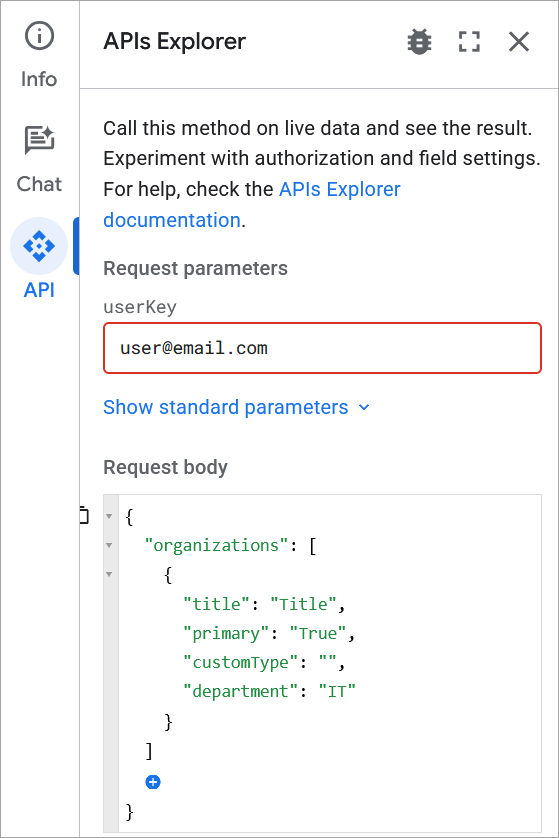
An example of a completed query with the organizations data for the same user, with the primary value updated to be set to True.
- Select Execute. You may need to scroll.
- When prompted, sign into a scoped Google Workspace-Suite account to authenticate the query, and allow the permissions request.
- Repeat this process for all affected users.
- Re-synchronize your user data in Exclaimer.
To set the value using a Powershell scriptThis Powershell script sets the primary value to True for all active users.
To change the primary value for Organization data:
- Open Windows Powershell.
- Run the following command:Set-ExecutionPolicy -Scope Process -ExecutionPolicy Bypass; Invoke-WebRequest -Uri "https://raw.githubusercontent.com/exclaimerltd/Internal-Support-Scripts/master/GoogleAPIFieldPrimary.ps1" -OutFile "$env:TEMP\GoogleAPIFieldPrimary.ps1"; & "$env:TEMP\GoogleAPIFieldPrimary.ps1"
- Follow the steps provided by the script.
- Re-synchronize your user data in Exclaimer.
NOTE: For OKTA users, it is possible to add the Primary attribute for newly created users in OKTA. For more information, see a third-party guide for a solution: https://support.bettercloud.com/s/article/Okta-to-G-Suite-Provisioning-bc88101 - Follow the steps provided by the script.
- Select Execute. You may need to scroll.