
Scenario
You have configured Exclaimer for Server-Side signatures and you notice a domain ending with smtp.exclaimer.cloud or smtp.excl.cloud showing in the Domains list of the Microsoft 365 admin center, with the status as Incomplete setup.
You want to know if any further steps need to be taken to complete the setup of this domain.
Example: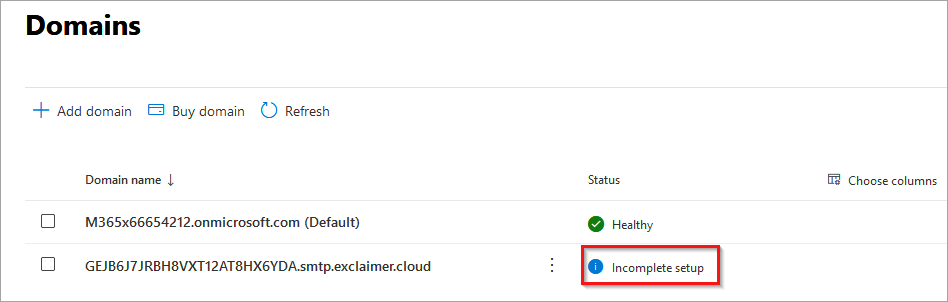
Reason
Exclaimer adds a domain ending with smtp.exclaimer.cloud or excl.cloud to Microsoft 365 during the configuration of Server-Side signatures to use in conjunction with a Transport Layer Security (TLS) certificate. This is to ensure that only certified emails can be received by the Exclaimer receive connector.
When domains are added to Microsoft 365, the typical process includes setting up DNS records to ensure emails sent from/to that domain function correctly. As no mailboxes will be configured with this domain, and no emails will be sent from/to the domain, it is unnecessary to configure these DNS records.
Resolution
In a typical setup, the domain does not need to be verified with Azure in order to function. However, if you would like to complete the Domain setup, the following outlines the process.
To complete the Domain setup:
- In the Microsoft 365 admin center, select Domain then click Continue setup.
Example: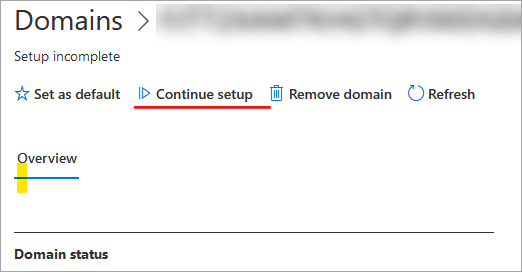
Select Continue setup.
- On the connection options page, select the Add your own DNS records radio button, then click Continue.
Example: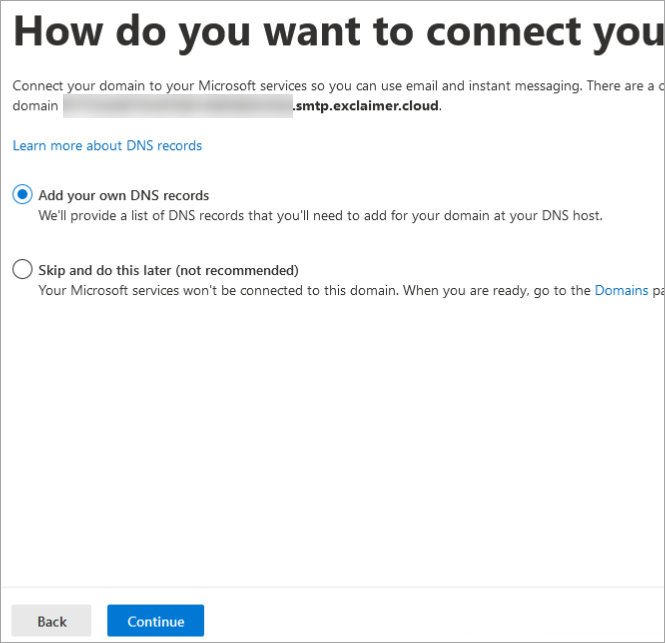
Select the Add your own DNS records radio button.
- In Add DNS records, unselect any services that are selected, then click Continue.
Example: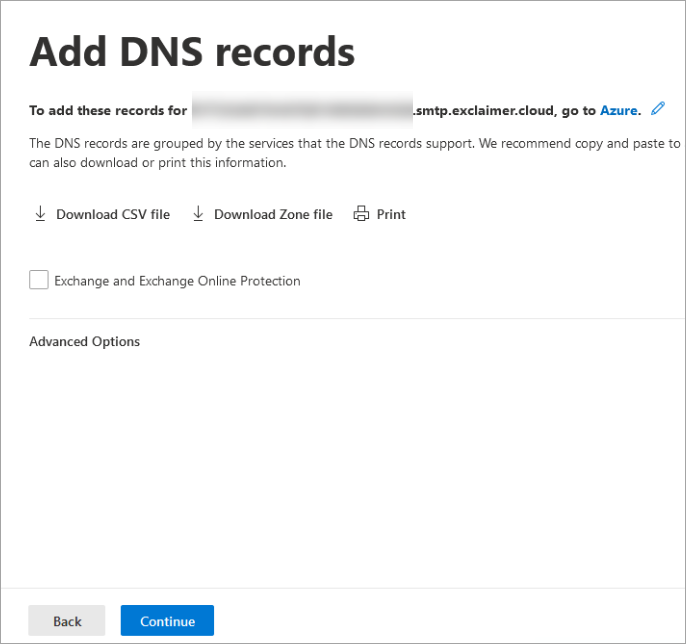
An example of the DNS records. De-select any that appear.
A confirmation message will appear on the screen that the Domain setup is complete.
Example: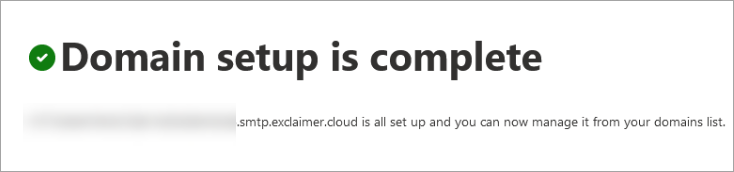
The confirmation message.
Once complete, the domain will show with status "No services selected":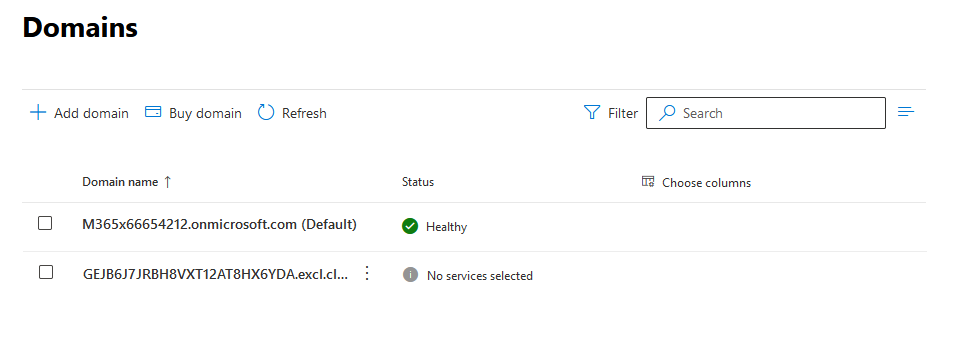
An example of a domain showing the No services selected status.