
Scenario
You have a Server-Side signature that is not applied automatically. You want to apply this signature to specific emails only. For example, you may want to trigger this signature to apply in place of your usual signature.
Resolution
You can use Advanced Rules for Server-Side signatures to enter trigger text which, if found in the email subject line, automatically applies the signature. The signature is only applied if the trigger text is detected in the subject line.
NOTE: To use this method to override an existing or default signature, you must re-order your signatures so that the signature using the trigger rule is higher in the list than the existing/default signature. For instructions on re-ordering your signatures, see Re-order Signatures.
To apply an email based on subject line text:
- Log into your Exclaimer account and select Signatures from the menu sidebar.
- From the All Signatures tab, select Manage Rules next to the relevant signature.
This opens the Manage screen.
- Select the Advanced Rules tab.
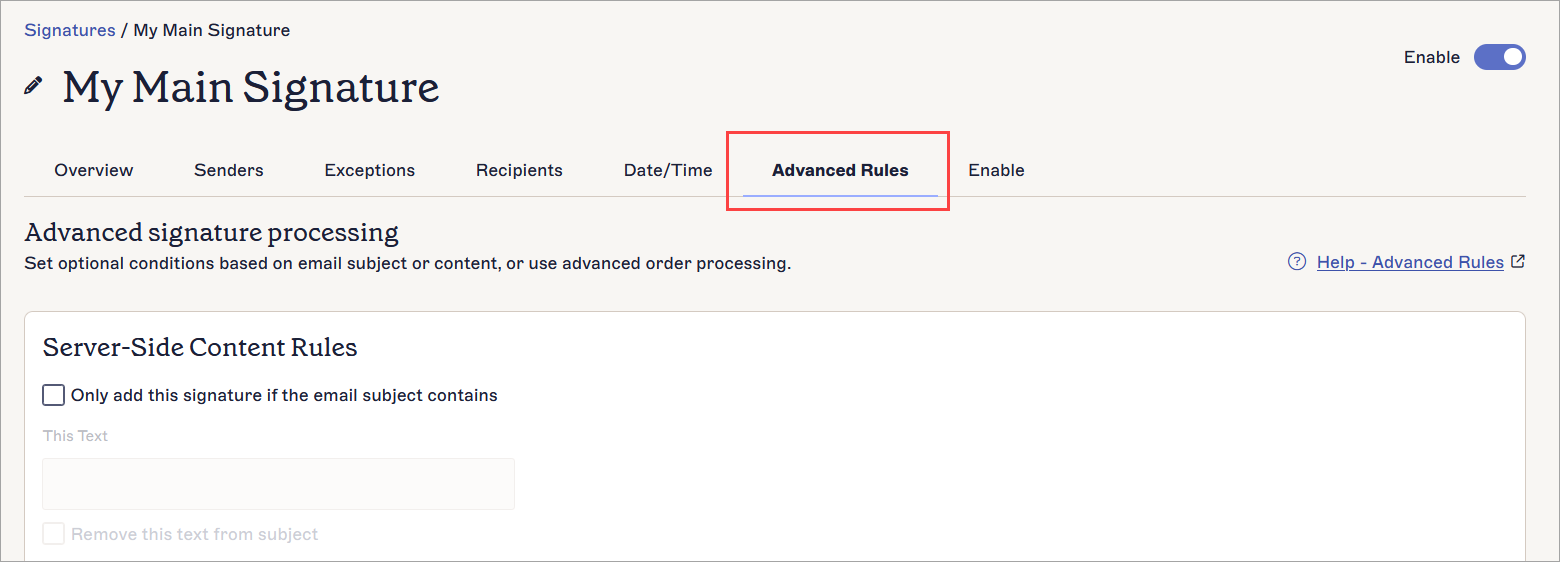
The Advanced Rules tab.
- In the Server-Side Content Rules section, select the Only add this signature if the email subject contains checkbox to enable the condition configuration.
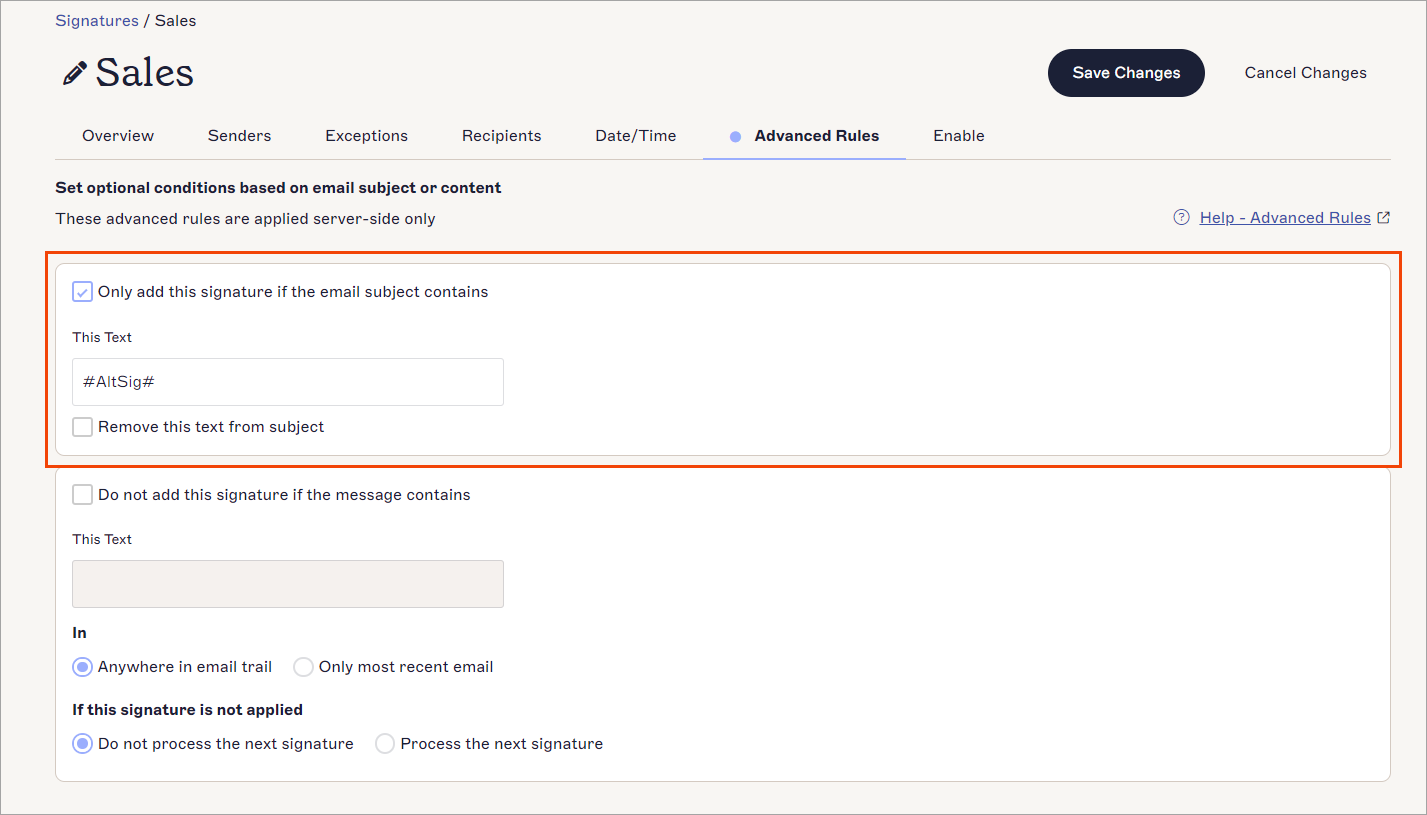
The available options when Only add this signature if the email subject contains is enabled.
-
In This Text, enter the text you wish to act as the trigger text.
NOTE: We recommend that you do not use special characters in your trigger text, as these can cause problems due to UTF-8 encoding. - Specify your preferred setting for Remove this text from subject:
Select the checkbox to remove the subject trigger text from the subject line during signature application. Recipients will not see the trigger text.
Deselect the checkbox to keep the subject trigger text in the subject line. It will be visible to the recipients.
- In the unsaved changes banner, select Save.
- When composing an email, enter the trigger text you defined in Step 5 in the subject line of the email. When you send the email, Exclaimer detects the trigger text and applies the signature. The signature is not applied to emails that do not have the trigger text in the subject line.
NOTES:
Server-Side signatures with subject line trigger rules will not override Client-Side signatures.
If the Sent Items Update is enabled, the subject line trigger words/phrases will also be removed from the copy of the email in the Sent Items folder (Microsoft 365 only).
Server-Side signatures with subject line trigger rules will not override Client-Side signatures.
If the Sent Items Update is enabled, the subject line trigger words/phrases will also be removed from the copy of the email in the Sent Items folder (Microsoft 365 only).