
Scenario
You want to apply a signature based on the email domain of the sender. For example, for all senders with an @company.com email address.
Resolution
To apply a signature using the sender domain:
- Log in to your Exclaimer account and from the menu sidebar, select Signatures.
- Locate your signature in the signatures list and select Manage Rules.
- Select Senders to open the Senders tab.
- Select the Specific senders or groups in my organization radio button.
- Under Specific sender, email address or @ domain for all users in domain, select
 Add Sender.
- Enter the @domain in the entry field; this is a predictive text field, so any matched names will be shown as you start to type.
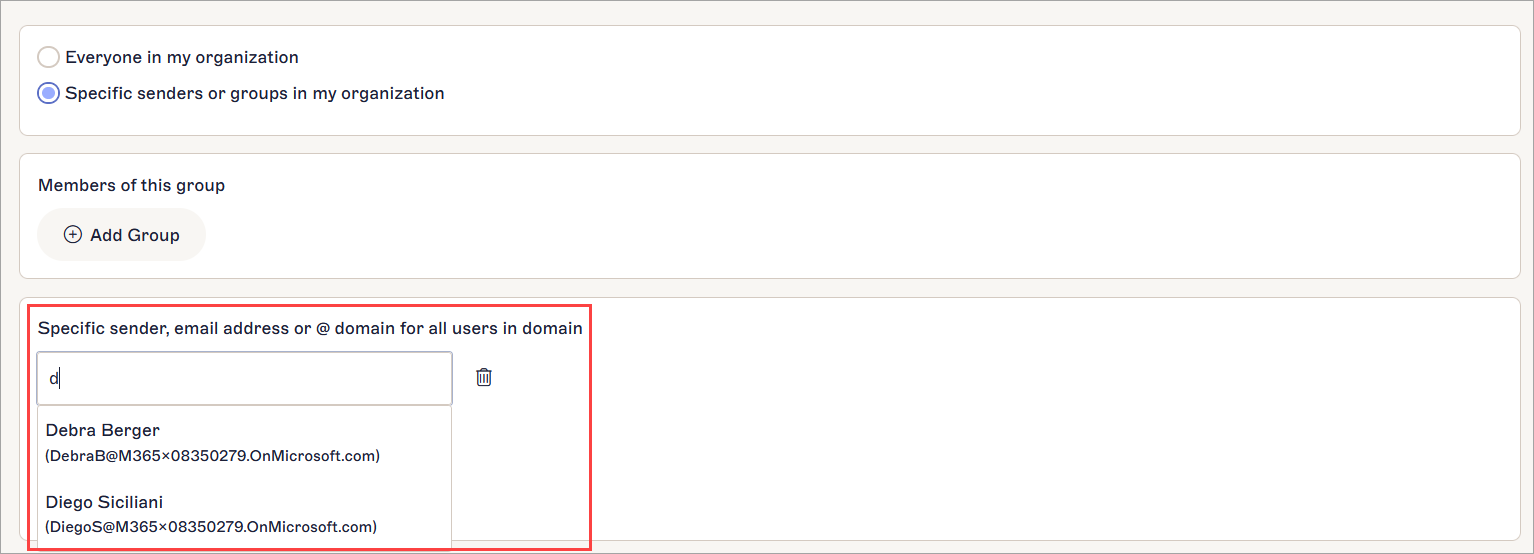
Enter your text.
Tip! You can also use wildcard (*) when entering an email address or domain name. Wildcard represents any available characters attached to the complete text. Exclaimer allows for any amount of characters to be substituted for wildcard.
Some examples using wildcard are:
*@greenorg.net - this would include any email addresses that are followed by '@greenorg.net'.
@exclaimer.* - this would include any domains attached to Exclaimer email addresses.
@*.de - this would include any domains that are followed by .de. - To specifiy more domains, select Add Sender.
- To remove a specified domain, select the bin icon.

- In the unsaved changes banner, select Save.