
Scenario
The Support team has advised you to provide a HAR file for the issue occurring for further analysis.
Additional info: HAR files contain sensitive data, including the page content you downloaded while recording and your cookies. This can allow anyone with the HAR file to impersonate your account and all the information that you submitted while recording (this can include personal details, passwords, credit card numbers, and so on).
Resolution
You can generate a HAR file using different browsers - please click on the required options listed below to go through the detailed description:
Internet Explorer
Generating the HAR file from Internet Explorer
The following steps apply to both Windows and macOS.
- Open the browser and navigate to the page causing the issue.
- Press the [F12] key on your keyboard.
- Select the Network tab.
- Select
 to clear any existing entries.
- Repeat the steps and try to reproduce the issue.
- Select Save. Name the file with the extension .har file.
- Reply to your support ticket with this file as an attachment.
Safari
Generating the HAR file from Safari
Pre-requisite: Before you start the process of generating the HAR file, ensure you can access the Develop menu in Safari.
For more information, see Use the developer tools in the Develop menu in Safari on Mac.
For more information, see Use the developer tools in the Develop menu in Safari on Mac.
- From the Develop menu, select Show Web Inspector.
- Select the Network tab.
- Select the Preserve log option.

- Repeat the steps and try to reproduce the issue.
- Select Export (far-right on the Network tab) and save the HAR file.
- Reply to your support ticket with this file as an attachment.
Chrome
Generating the HAR file from Chrome
The following steps apply to both Windows and macOS.
- Open the browser and navigate to the page causing the issue.
- Select the vertical ellipses (
 ), then select More Tools > Developer Tools.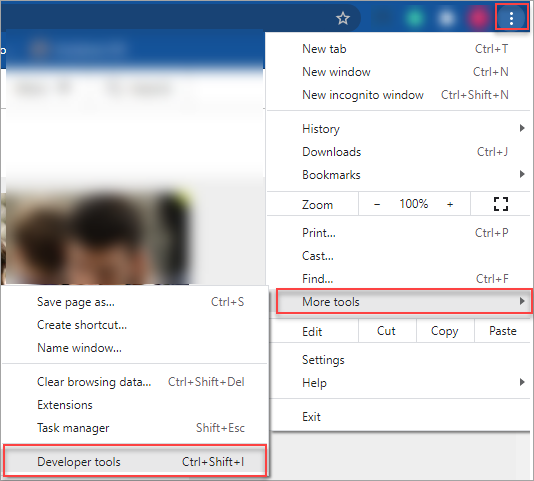
- Select the Network tab.
- Select Record (
 ) in the top-left corner of the tab.
Make sure that it is red. If it is gray, select it once to start recording.
- Select the Preserve log option.
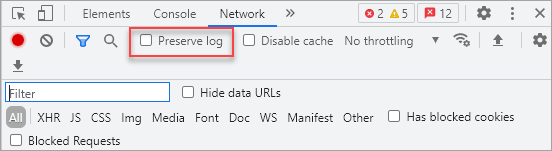
- Repeat the steps and try to reproduce the issue. The network requests will be recorded.
- Select Download and save your file on your computer - Save as HAR with content.
- Reply to your support ticket with this file as an attachment.
Firefox
Generating the HAR file from FireFox
The following steps apply to both Windows and macOS.
- Open the browser and navigate to the page causing the issue.
- From the Firefox menu (3 parallel lines), select Web Developer > Network.
- Select the Network tab.
- From Settings, select the Persist Logs option.
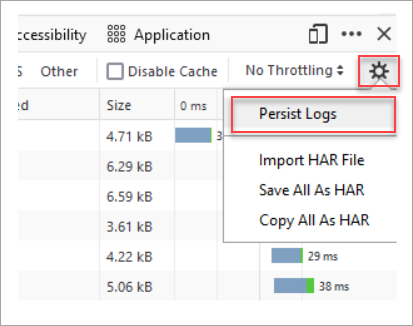
- Repeat the steps and try to reproduce the issue. The network requests will be recorded automatically when an action is performed.
- Once the issue has been reproduced, right-click anywhere under the File column, and select Save all as HAR.
- Reply to your support ticket with this file as an attachment.
Edge
Generating the HAR file from Edge
- Open the browser and navigate to the page causing the issue.
- Press the [F12] key on your keyboard.
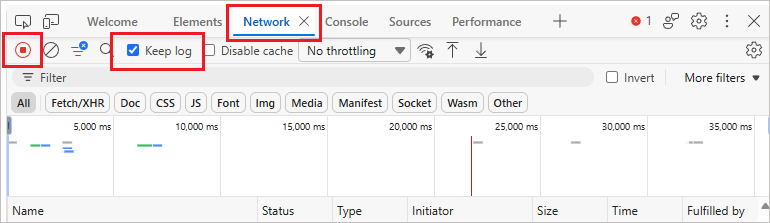
- In the Developer tool, select the Network tab, then select Keep log.
- Check the Record (
 ) button in the top-left corner of the tab.
Make sure that it is red. If it is gray, select it once to start recording.
- Repeat the steps and try to reproduce the issue. The network requests will be recorded.
- Select Export and save your .har file on your computer.

- Reply to your support ticket with this file as an attachment.
New Outlook
Generating the HAR file from New Outlook
- Close New Outlook if it is already open.
- Launch the Run dialog from the Windows menu (or press [Windows + R]).
-
Enter the following command and press [Enter]:
olk.exe --devtools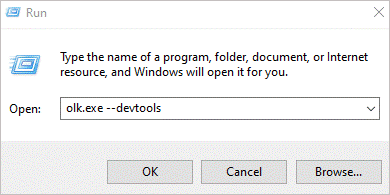
This will open New Outlook with the Developer Tools enabled.
- In the Developer tool, select the Network tab, then select Keep log.
- Check the Record () button in the top-left corner of the tab.
Make sure that it is red. If it is gray, select it once to start recording.
- Repeat the steps and try to reproduce the issue. The network requests will be recorded.
- Select Export and save your .har file on your computer.
- Reply to your support ticket with this file as an attachment.