
Description
If you have made changes to your users' data within Microsoft 365 or Google Workspace, you will need to manually synchronize the changes with Exclaimer in order to apply the updated signatures to email messages.
You must be the subscription Owner or an Admin to start a sync. For more information on roles and permissions, see User Management.
For Microsoft 365: An automatic sync is done to user data twice a day.
For Google Workspace: An automatic sync is done every 12 hours.
How to access it
To access the Start sync option:
- From the header bar, select the cogwheel icon, then select Sender Management.
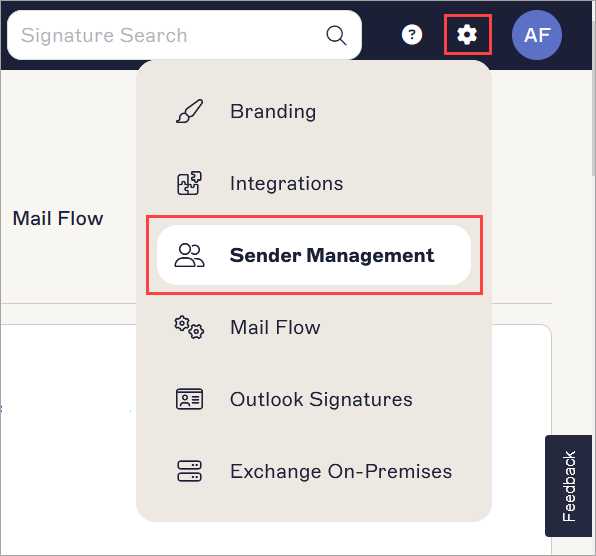
The Settings menu is found under the cogwheel icon.
- Navigate to the Start Synchronization section.
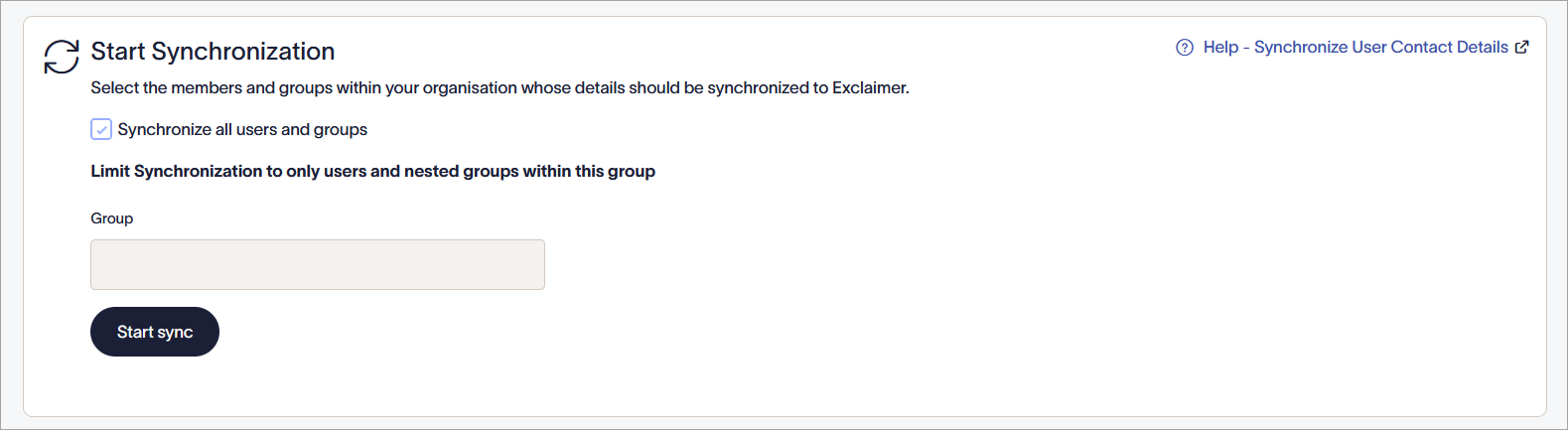
The Start Synchronization option within a Microsoft 365 subscription.
Performing a sync
Select an option below to view the related instructions:
To synchronize user contact details:
-
Select which members of your organization you wish to synchronize with Exclaimer:
Select the Synchronize all users and groups checkbox to synchronize the contact details of all members of your organization with Exclaimer.
OR
In Group, enter a mail-enabled security group you wish to synchronize from the existing Entra ID (formerly Azure AD) groups. For information on creating groups, see How to create a mail-enabled security group.WARNING! If the Group option is selected then all user data for people outside this group will be removed from the database.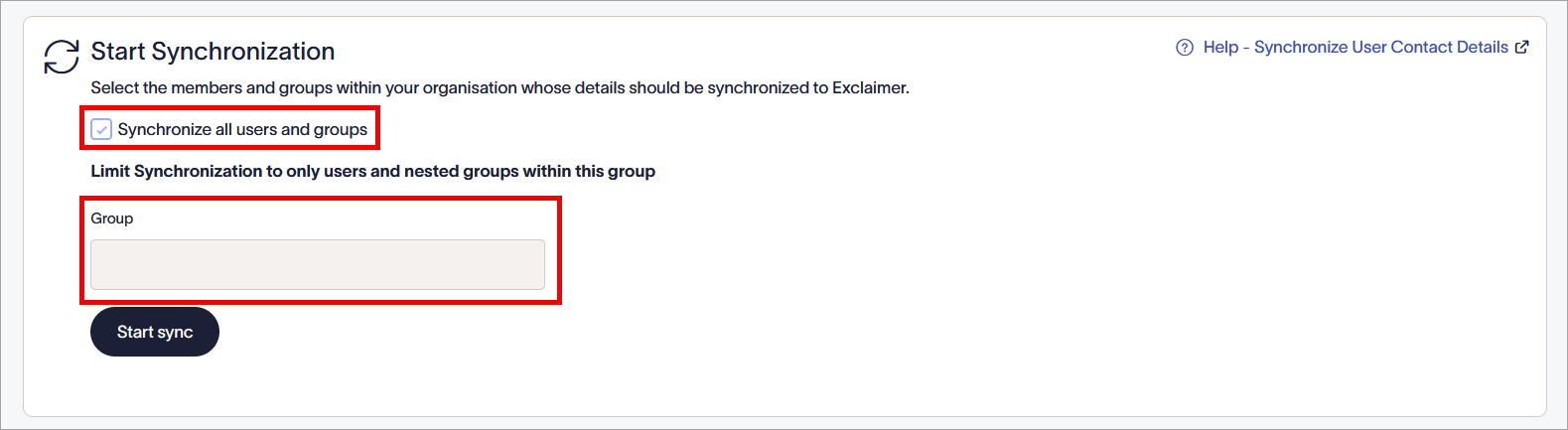
Deselect the checkbox to enable the Group entry field.
- Select Start Sync. The synchronization status is displayed in the Synchronize User Contact Details section and is one of the following process messages:
-
In Progress - The synchronization is currently running.
-
Consent required - You have not completed the authorization process. Follow the steps to authorize/enable your subscription for Google Workspace or for Microsoft 365.
-
Failed - An unknown error has occurred. Submit a request to the Exclaimer Support team.
Once a sync has completed, the time and date of the most recent sync is displayed in place of a progress message. Allow up to three hours for a sync to complete.
-
In Progress - The synchronization is currently running.
The following are possible reasons for issues that may occur with data synchronization.
A user or group is missing
If you find that a user or group is missing from the Senders or Recipients selection boxes, then we recommend:
Verify the settings for Synchronize only users in this group. This setting restricts the scope of the data synchronization to users and groups that are members of the group specified.
A synchronization has been in progress for a long time
Typically, the data synchronization may show as in progress during the global automated data synchronizations that occur at 00:00 and 12:00 UTC.
Allow up to 90 minutes for the data synchronization to complete. If the data synchronization takes longer than 90 minutes, contact Exclaimer Support for further assistance.
User data is missing after a synchronization
Verify that the visibility settings are correct for the field within the signature design.
To check visibility settings:
- Open the required signature template within the Signature Designer.
- Select the field you wish to check the visibility properties for.
- In the Properties pane, expand the Visibility section.
- Check that the visibility settings for the selected field do not prevent the field from displaying for the user.
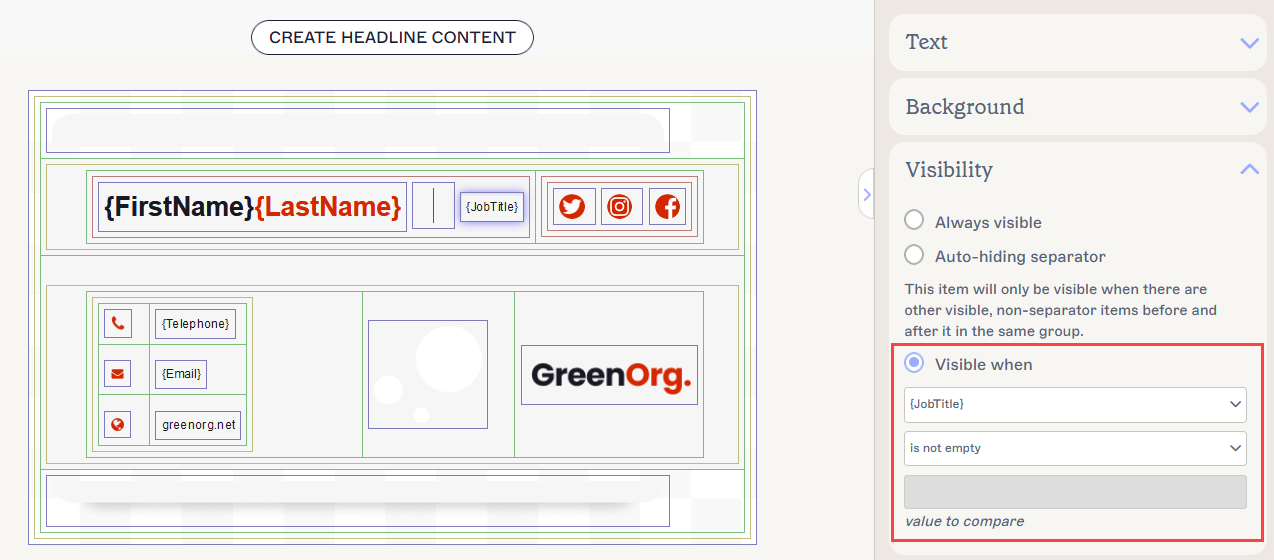
The Visibility properties in the Signature Designer.
- Select Save Changes to save any changes made to the template.
For Microsoft 365 users: Occasionally, delays between Microsoft 365 and Entra ID can prevent Exclaimer from synchronizing the most up-to-date user data.
You may need to allow up to 2 hours after entering new user data in Microsoft 365 for the data to be synchronized to Entra ID.