
Scenario
You are using Exclaimer, and you are creating your email signature. The signature template requires linked images; however, you do not have access to a web location to host the linked images, such as the company's web directory. You would like to host an image that you can maintain and store easily.
Reason
Dropbox is a free-to-use service where you can upload multiple types of files, including images.
Dropbox recently changed how the files are 'shared' and no longer supports web-hosted images the same way.
Pre-requisites
To use linked images in your signature template, please ensure:
- You have an account with Dropbox.
Resolution
To host images using Dropbox:
- Upload the image(s) to your Dropbox account.
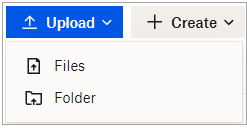
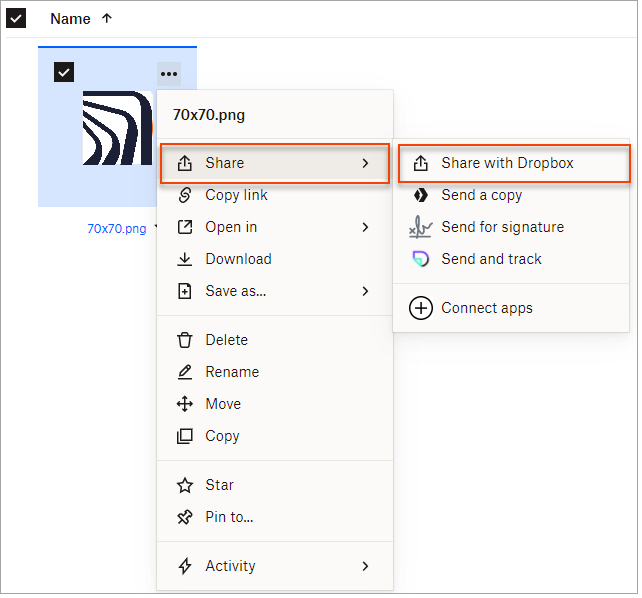
- Once the image has been uploaded, click on the ellipsis (three dots), select Share, then select Share with Dropbox.
- A window is displayed. Ensure that Anyone with this link can view is set.
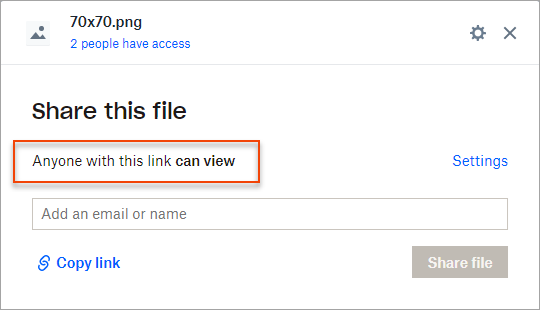
- If the Anyone with this link can view is not set, select the Settings link to change it.
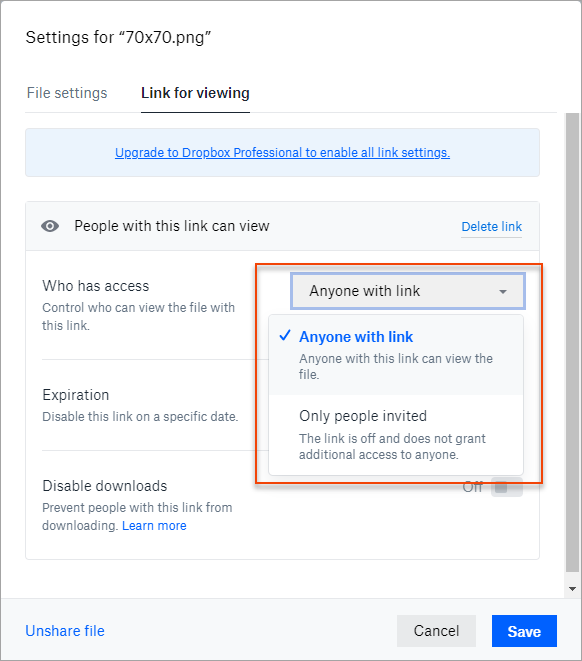
- Select Save to save the changes made.
- Select Copy Link to copy the link; alternatively, click on the ellipsis (three dots) on the image, then select Copy link.
Copy Link to copy the link: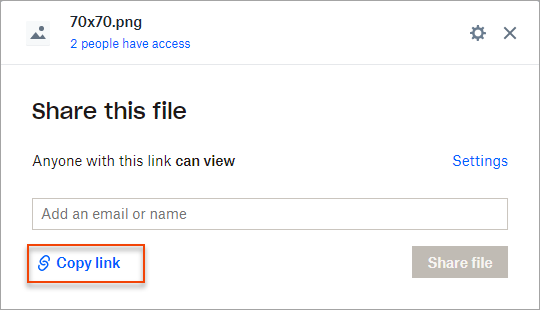
Alternative option: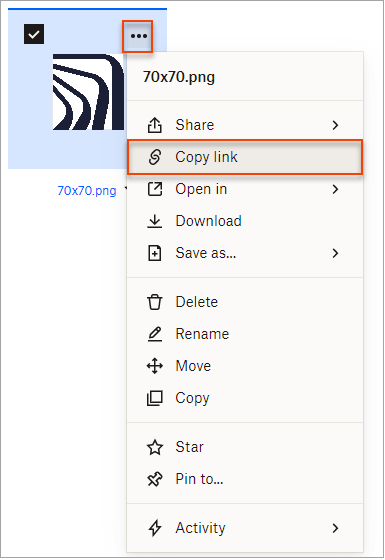
- Now, within Exclaimer, open the required signature template within the Signature Designer.
- Select the Image element in the template. From the right-hand side, Properties pane, expand the Image Source section.
- In the Linked Image URL, paste the generated link (from Copy link).
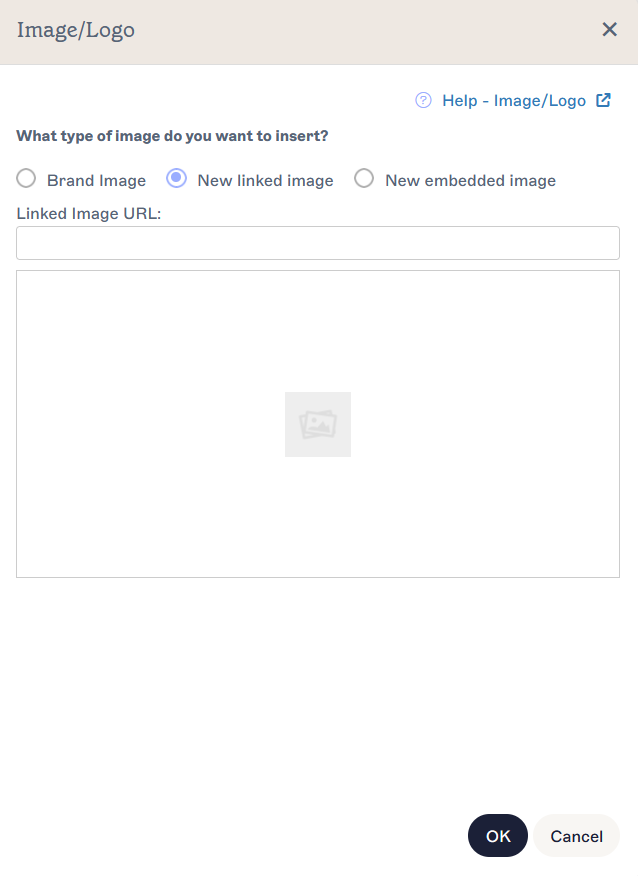
Please note that the link will not work as it currently is - the image will not show correctly.
- To ensure the image can be seen, locate the text dl=0 within the Linked Image URL and change it to raw=1.
Linked Image URL - Before:
Linked Image URL - After:
- Once this is done, you will see the image within the template and the image preview.

- Select OK to save the changes and close the Image/Logo window.
- Select Save Changes to save the changes made to the signature template.