
Scenario
You are using a Google Workspace Exclaimer subscription and are trying to synchronize with Gmail. Your signature(s) are enabled for Client-Side deployment and contain embedded images.
Reason
This may be due to issues with a folder called $ExclaimerSignatures. This folder exists in Google Drive to store embedded images for Client-Side signatures. It is meant to have no permission restrictions by default and remain private.
Resolution
Check that your $ExclaimerSignatures folder is present in your Google Drive and has the default permissions set.
To check your $ExclaimerSignatures folder and permissions:
- Log in to your Google Drive account.
- To locate the folder, select My Drive from the menu sidebar.
- If your $ExclaimerSignatures folder is present, proceed to Step 4 to check the folder permissions. If the folder is not present, create a new folder in this location and name it $ExclaimerSignatures. Then, return to Exclaimer and retry the Gmail synchronization.
- To check the folder permissions, select the folder. This opens the details pane.
- In the details pane, check that the setting under Who has access says Private to you, and that the setting under Security limitations says No limitations applied. If this is not the case, select Manage Access.
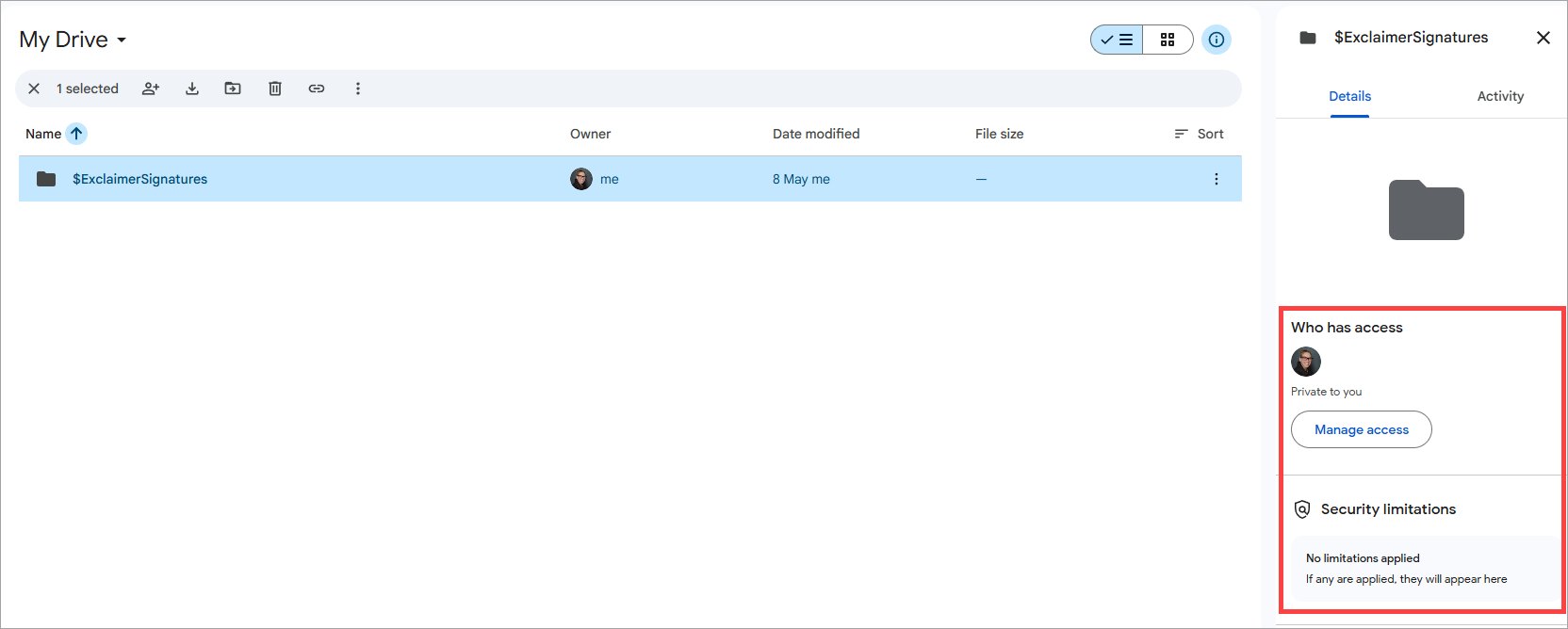
Check the access and security settings in the pane.
- To change who has access, ensure you are the only user listed under People with access and remove any other users. Under General access, ensure the setting is set to Restricted.
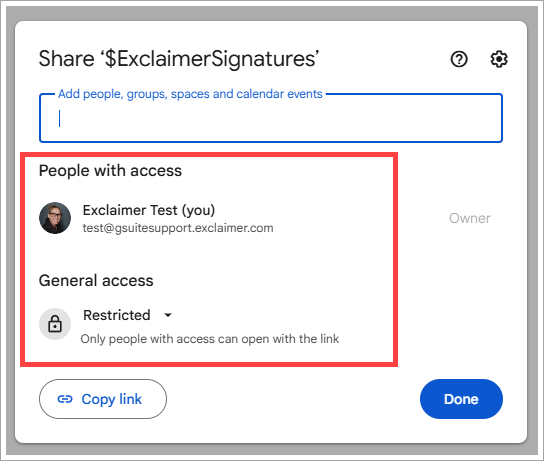
Check the access restriction settings.
- To remove security limitations, select the cogwheel icon to open the folder settings. Deselect the Limit access to '$ExclaimerSignatures' checkbox.
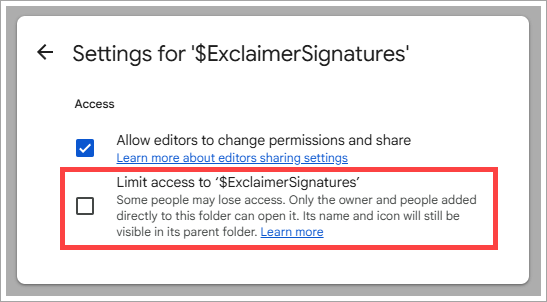
Make sure the checkbox is not selected.
-
Return to Exclaimer and retry the Gmail synchronization.
NOTE: If changing the access and security settings has no effect, delete the $ExclaimerSignatures folder and recreate it with the settings defined above.