
Description
Complete initial partner onboarding and resell through Microsoft Marketplace to create and manage customer-specific private offers.
• A completed commercial marketplace account in Partner Center
• Access to Microsoft Marketplace offers
• Appropriate role (developer, manager, or account owner) linked to your Marketplace Seller ID
• A verified Microsoft tenant
• Completed reseller authorization from Exclaimer
• A valid payout and tax profile
Initial partner onboarding
If you are a Managed Service Provider (MSP) interested in becoming an Exclaimer Partner, register your interest here: https://exclaimer.com/partners/msp-reseller/
Wait for confirmation from Exclaimer before proceeding.
Exclaimer will help set up your PRM account and guide you through the training.
Create a dedicated Microsoft 365 account in the format: exclaimer@msp-domain.com.
Provide the following details to Exclaimer:
- Microsoft Entra Tenant ID or Tenant ID in the Partner Center (GUID format)
- Microsoft Marketplace Seller ID (8-digit ID)
These identifiers link your organization to the Exclaimer resale offer in the Microsoft Marketplace.
To locate your Tenant ID (Microsoft Entra Admin Center):
- Sign in to the Microsoft Entra Admin Center (Azure portal).
- From the menu sidebar, select Microsoft Entra ID.
- Select the Overview tab.
- EITHER:
Locate the Tenant ID in the Basic information section.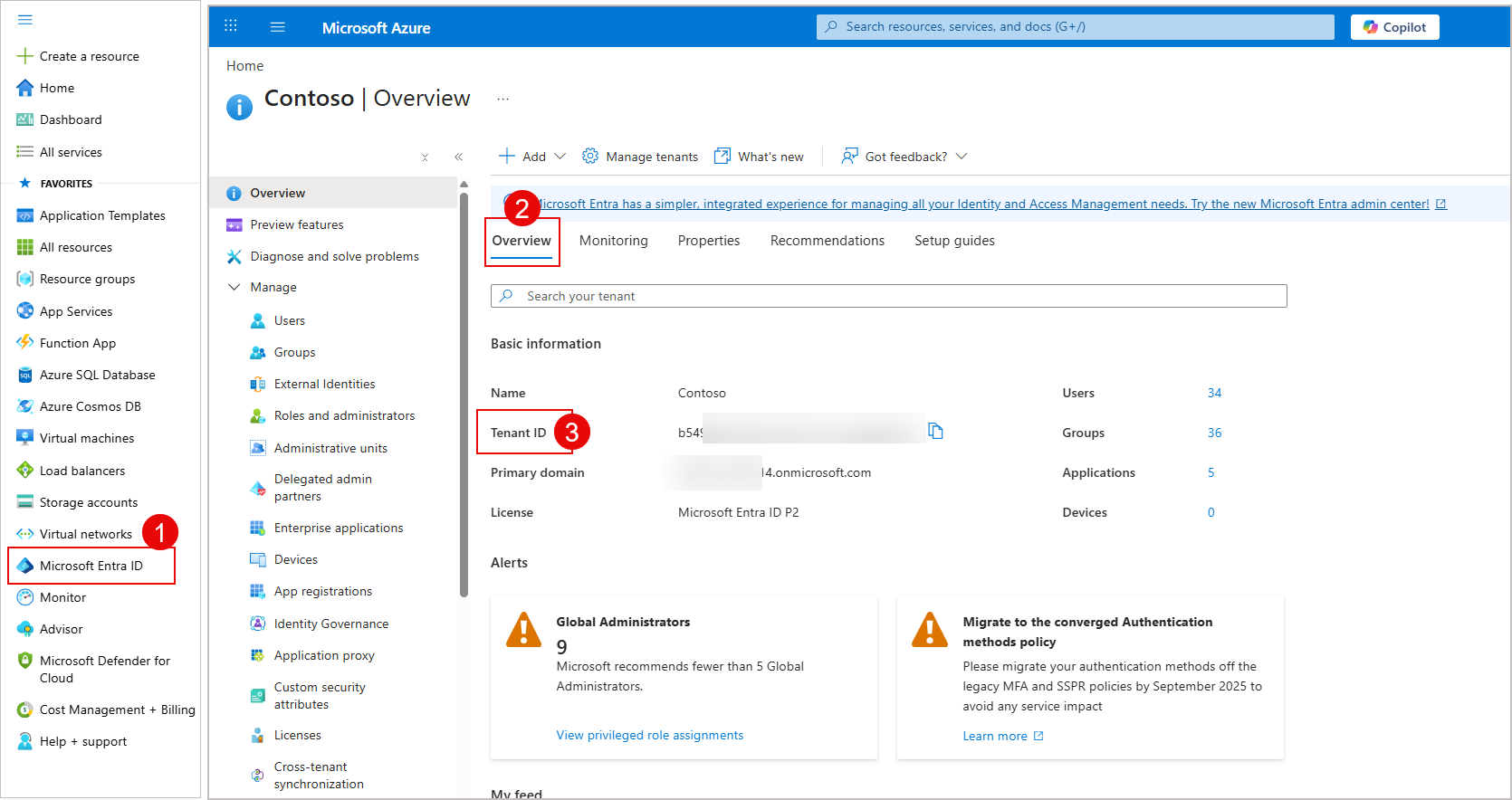
Example screen showing how to find the Tenant ID in Microsoft Entra.
OR
Select the Properties tab, and locate the Tenant ID.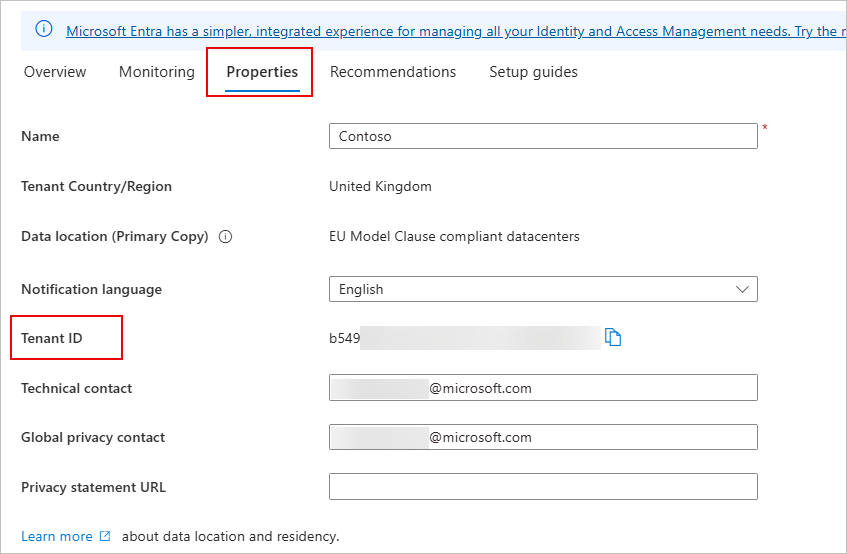
Example screen showing an alternative way to find the Tenant ID in Microsoft Entra.
To locate your Tenant ID (Microsoft Partner Center):
- Sign in to the Microsoft Partner Center dashboard.
- From the header bar, select the cogwheel icon, then select Account Settings.
- From the menu sidebar, select Tenants.
- Select the Partner tab. The Microsoft Entra tenant ID is located in the Current tenant associations section.
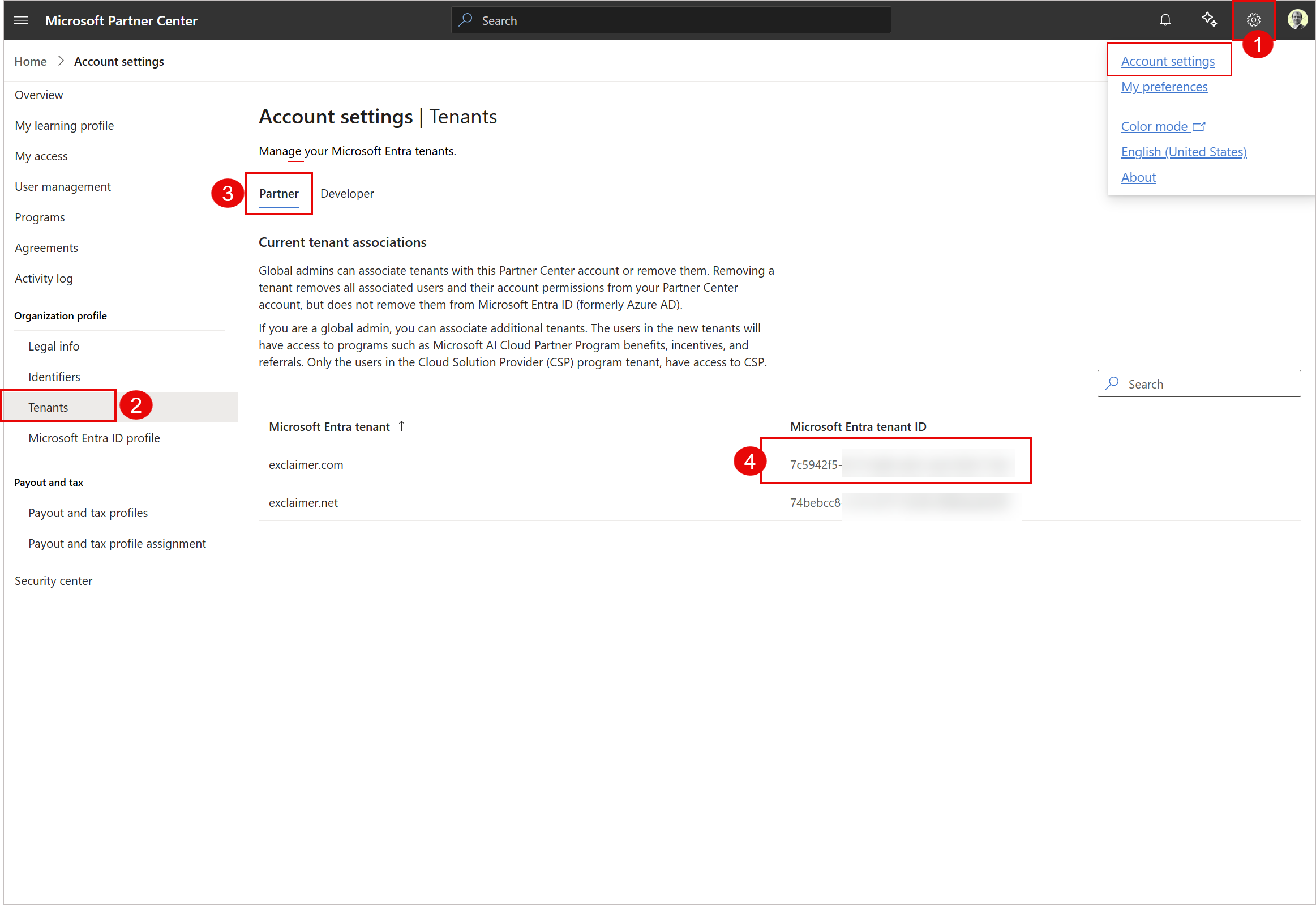 Example screen showing how to find the Tenant ID in the Microsoft Partner Center.
To locate your Microsoft Marketplace Seller ID:
- Sign in to the Microsoft Partner Center dashboard.
- From the header bar, select the cogwheel icon, then select Account Settings.
- From the menu sidebar, select Identifiers.
- Select the Publisher tab. The Publisher table will have your Seller ID.
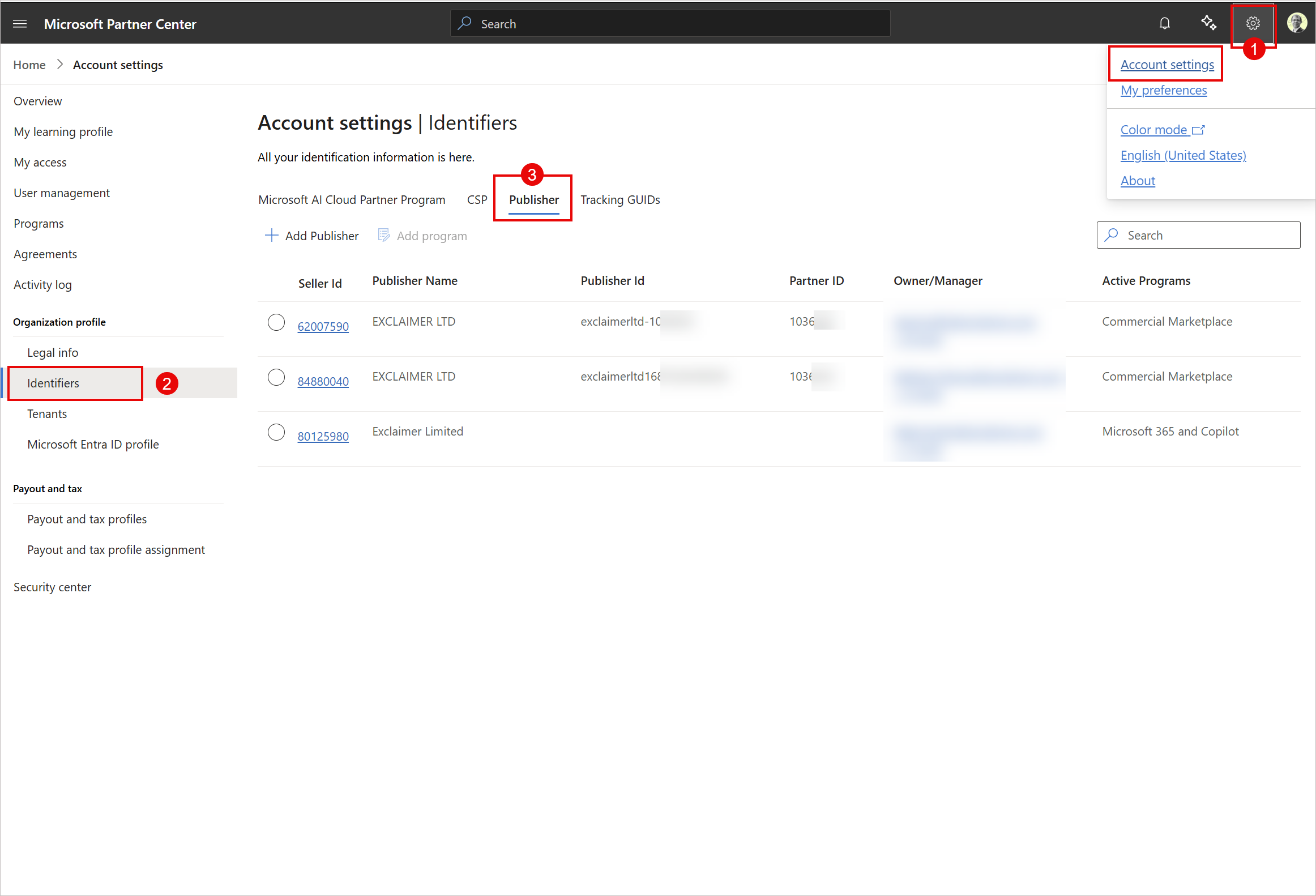 Example screen showing how to find the Marketplace Seller ID in the Microsoft Partner Center.
Review and sign the Exclaimer MSP contract to proceed with the onboarding.
The agreement defines:
- Approved selling territories
- Pricing structure and currency
- Exclaimer Pro pricing per user per month
Exclaimer will approve your reseller status and send you an email confirmation. This allows you to sell the offer in approved regions.
Selling in the Marketplace
Before you sell, verify that your reseller access is active.
Once Exclaimer approves your reseller status, you will receive an email confirmation. This allows you to sell the offer in approved regions.
To view the reseller authorization:
- Sign in to the Microsoft Partner Center.
-
From the menu sidebar, select Marketplace Offers, then select Resale enabled offers.
NOTES:
As a reseller, you cannot edit the authorization. Only Exclaimer can update it.
As a reseller, you can view read-only details, including the full list of customer markets permitted to sell in.
For more information, see Resale enabled offers for resale partners.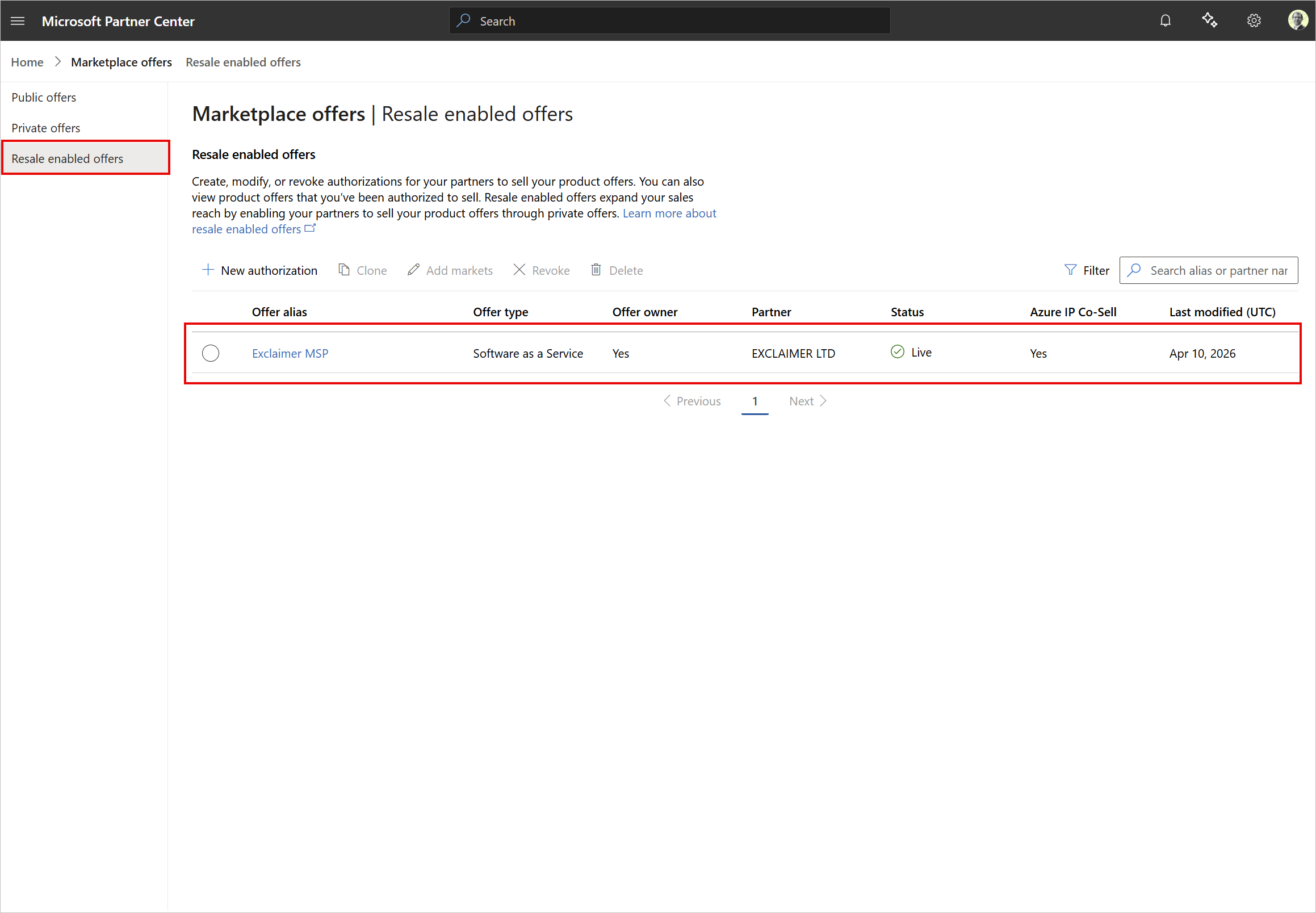 Example screen showing how to verify your reseller's active status.
Create a customer-specific private offer.
For more information, see Private offers overview.
To create a private offer:
- Sign in to the Microsoft Partner Center.
- From the menu sidebar, select Marketplace Offers, then select Private offers.
-
In the Customers tab, select New private offer.
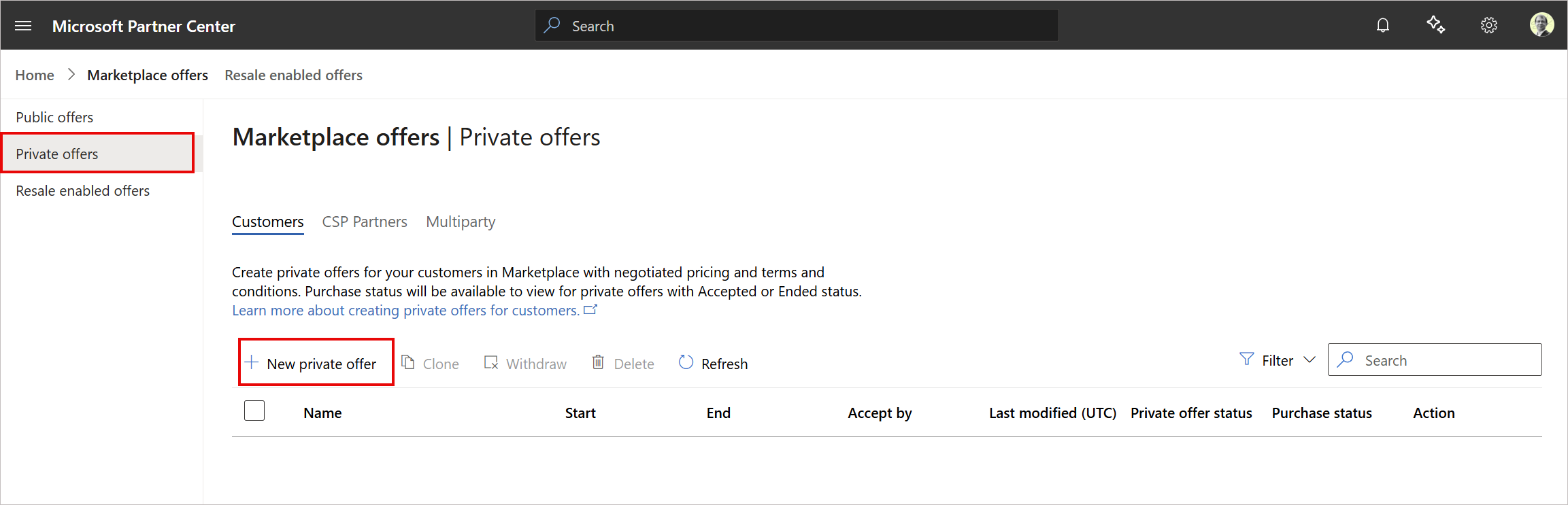 Example screen showing how to create a private offer.
A New private offer side pane is displayed.
- In Private offer name, enter a private offer name. This is a customer-facing identifier.
- Select Create a private offer with absolute pricing as a new Software as a Service or Professional service plan (or Create a private offer with absolute pricing as a new SaaS plan).
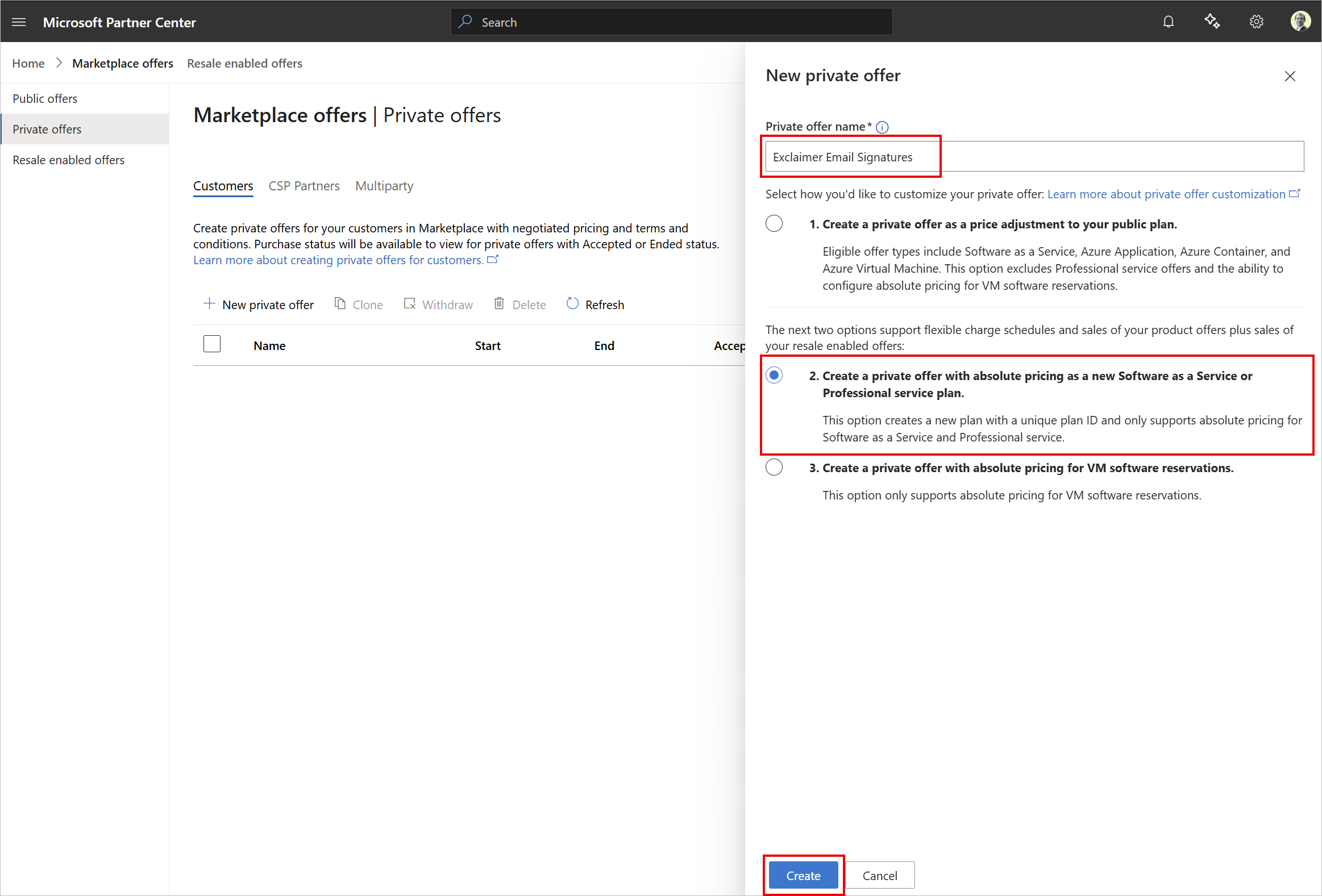
Example screen showing the private offer name and other options.
- Select Create.
- In the Customer information section, enter your customer billing account ID. For more information, see Locate your billing account ID.
- Complete the remaining required fields.
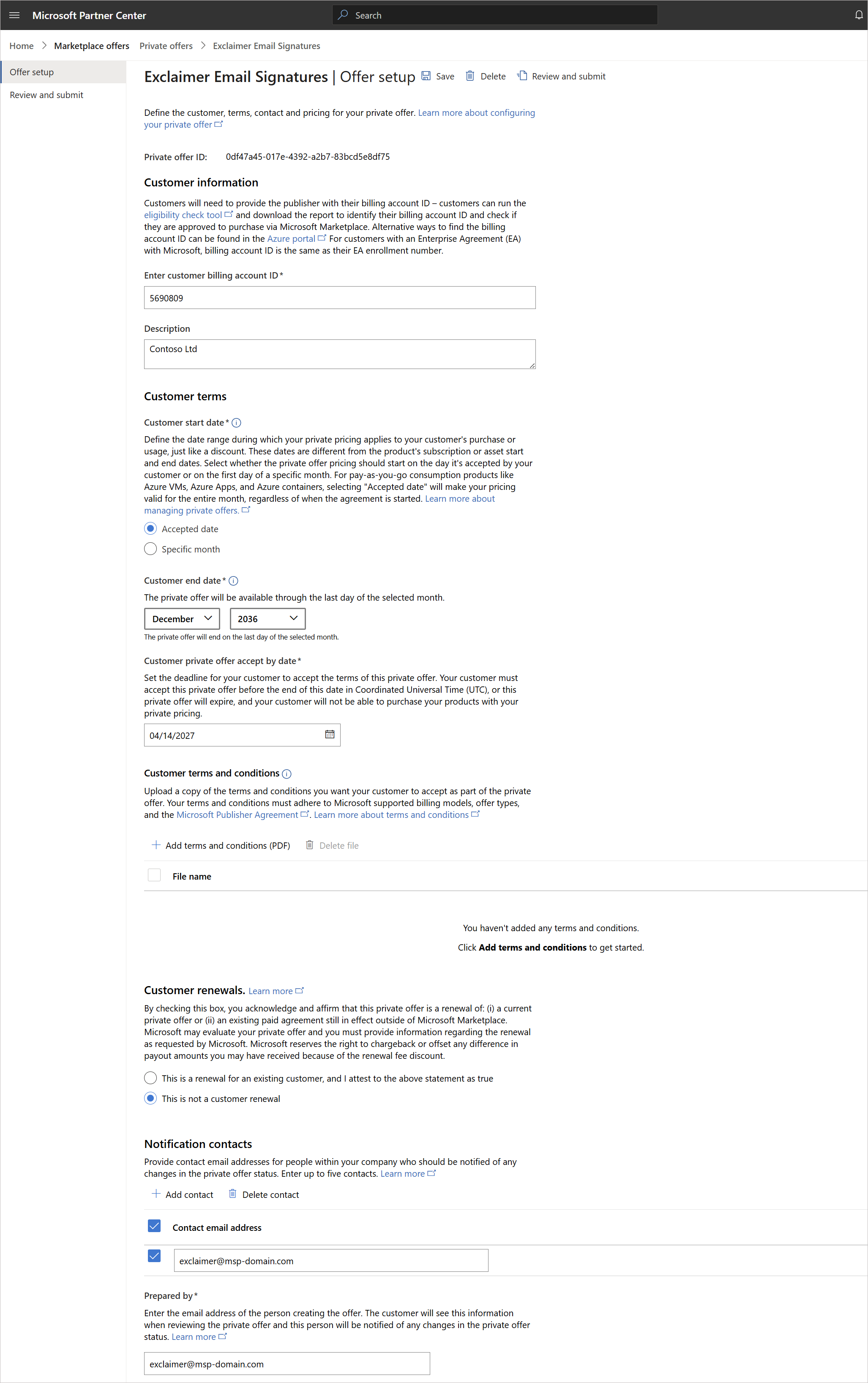
Example screen showing options to fill in when creating a private offer.
-
In the Product offers section, select Create new plan.
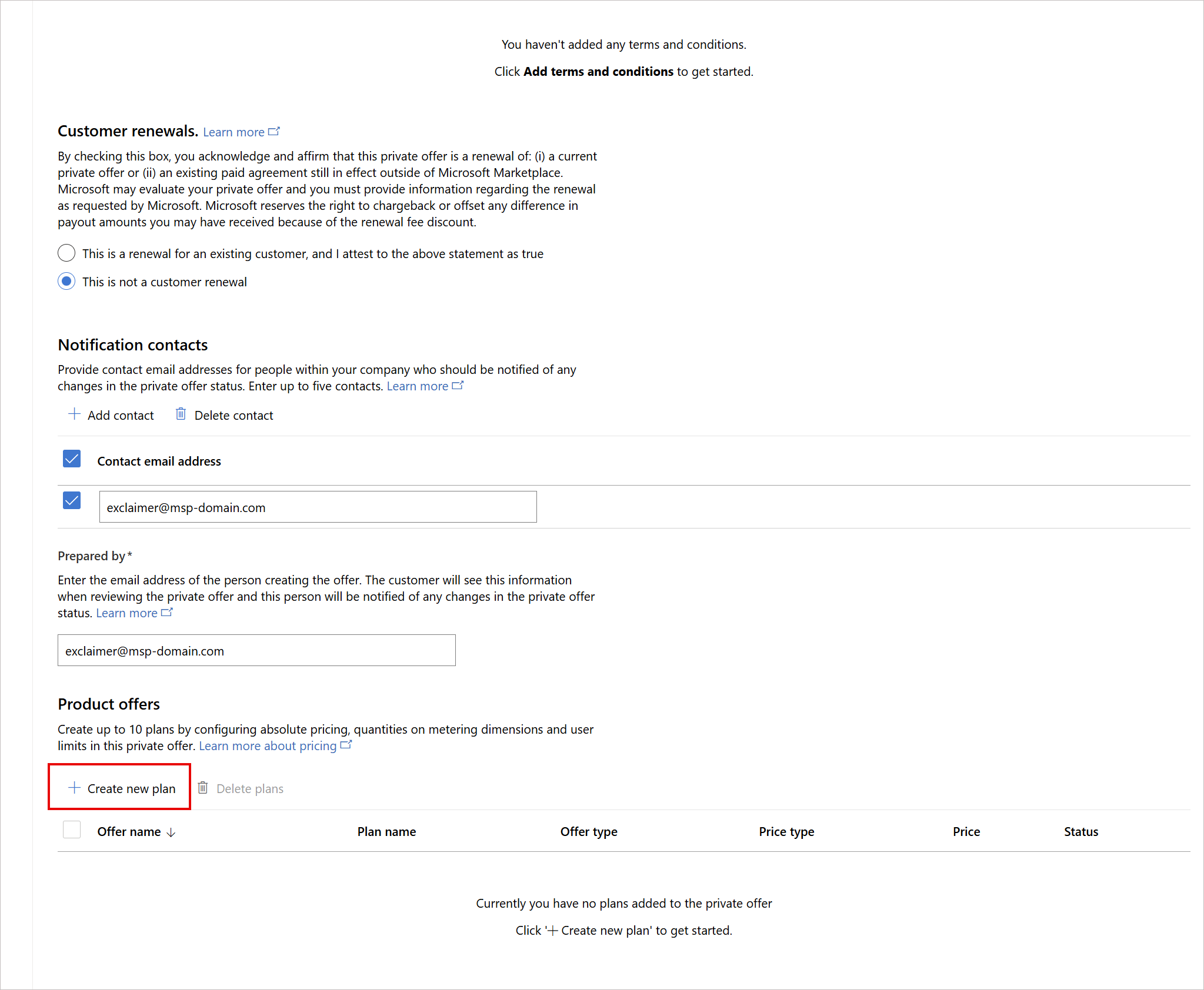
Example screen showing options to fill in when creating a private offer. Select Create new plan.
A Create new plan side pane is displayed.
- In Plan name, enter a name for your plan.
- In the Offer/plan section, select Exclaimer.
-
Select Add to add the new plan.
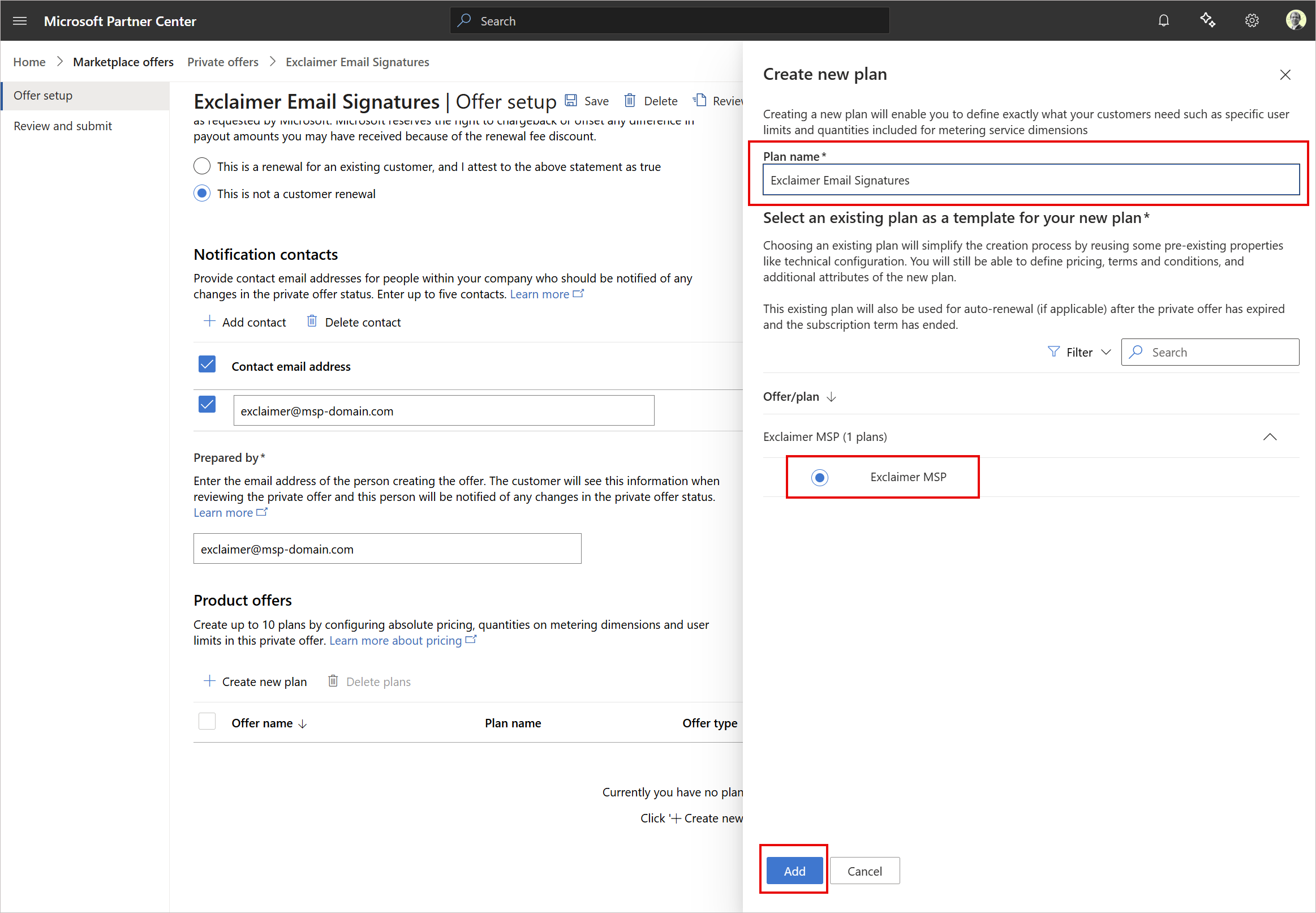
Example screen showing options when creating a new plan.
The plan is added to the Product Offers section.
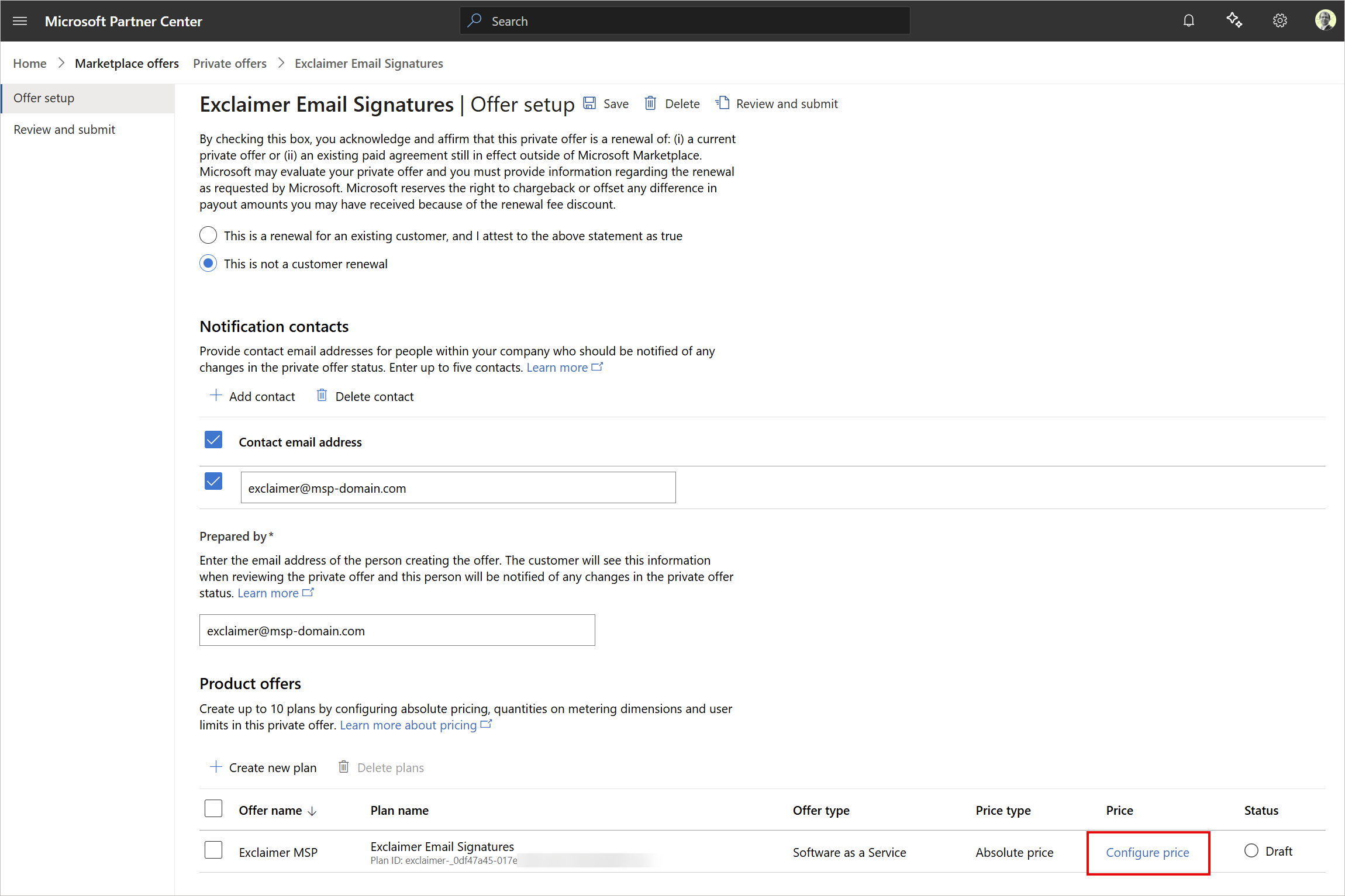
Example screen showing options when creating a new plan. Select Configure price to configure the customer pricing.
- Select Configure price to set the customer pricing. Exclaimer does not control end-customer pricing in the Marketplace.
For more information, see Manage customer private offers.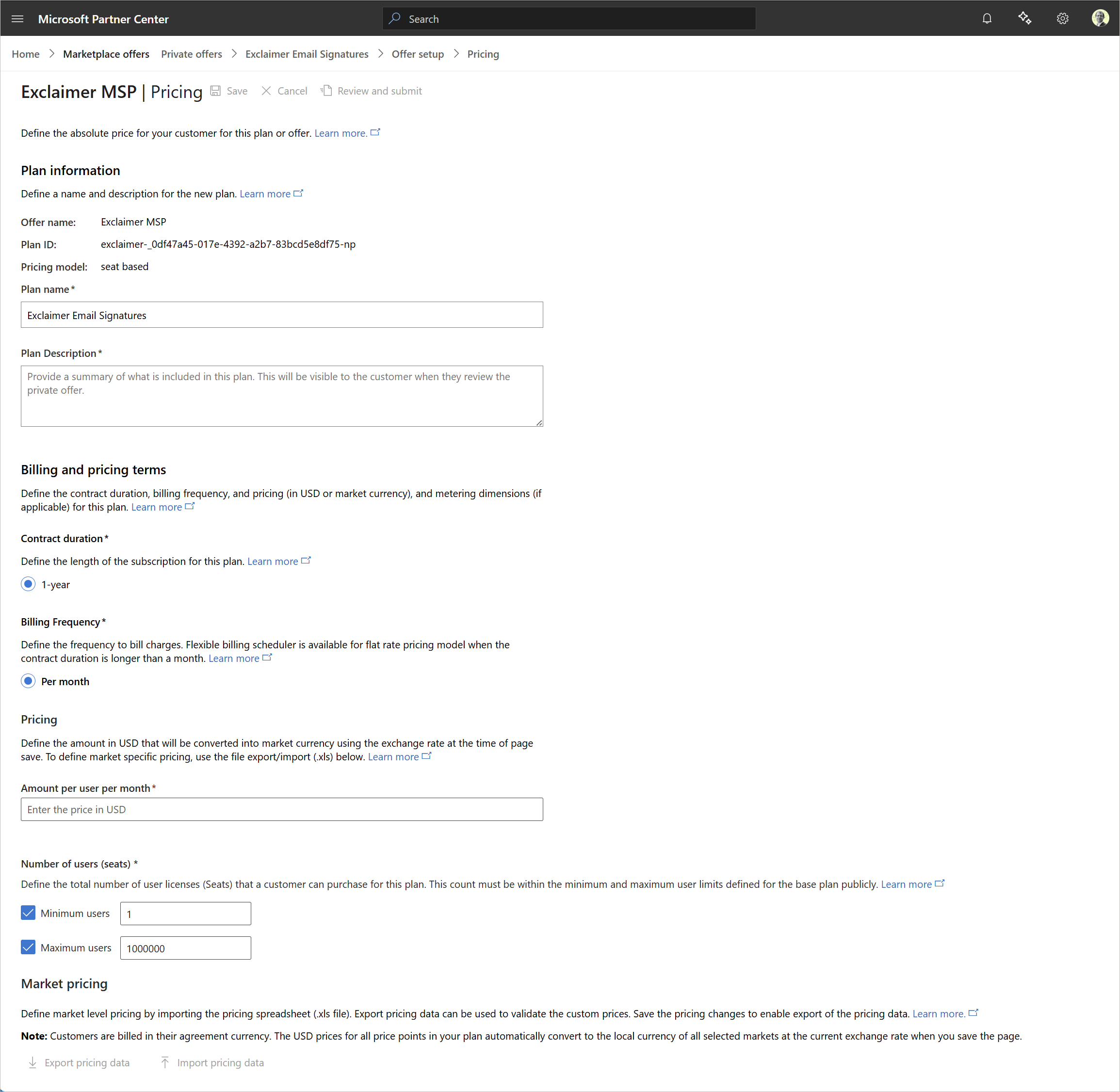
Example screen showing options when configuring customer pricing.
- Select Save to save the private offer you created and edit it further later on.
- Select Review and submit to review the final offer, then submit it to the customer.
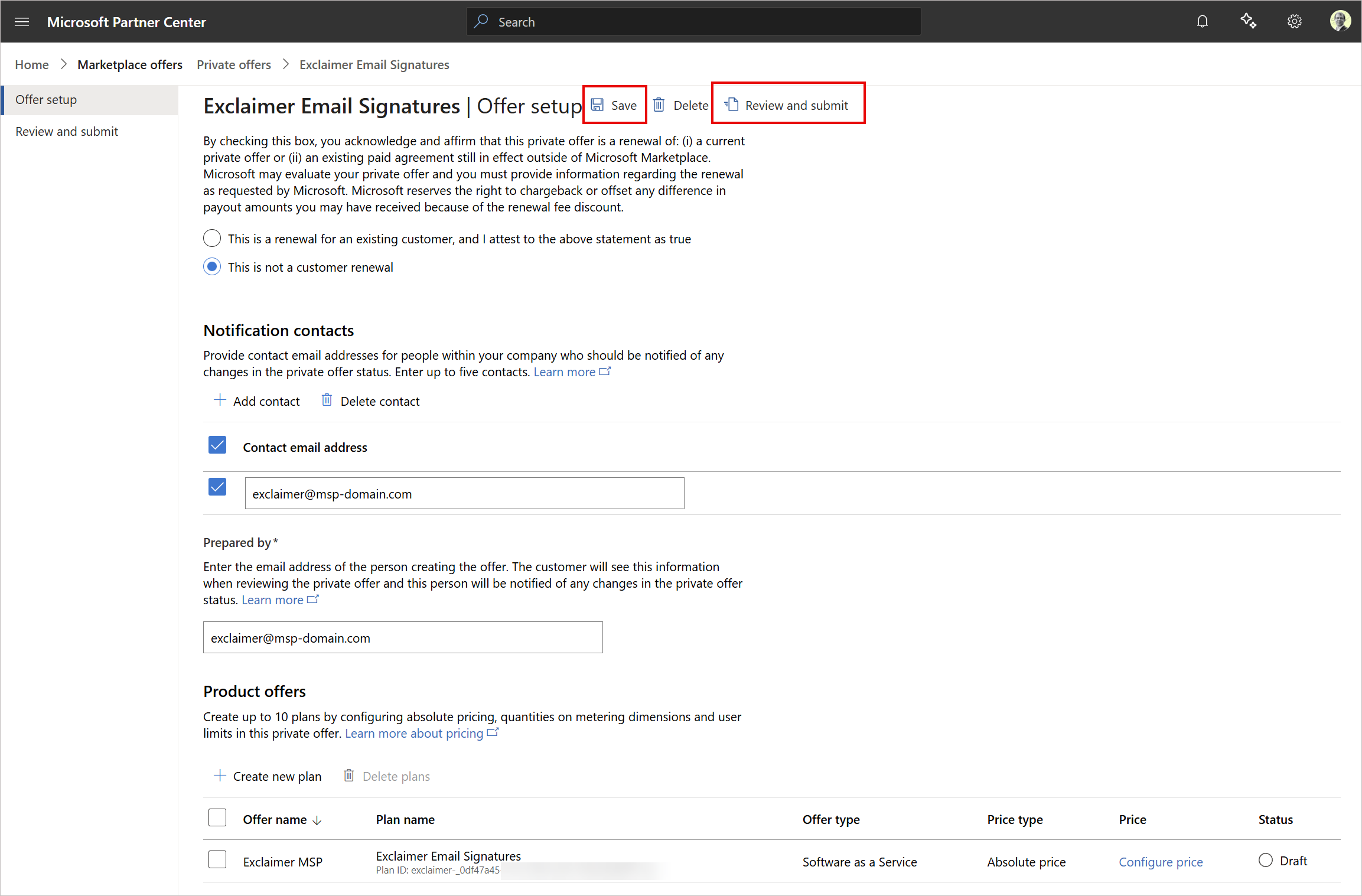
Example screen showing Save and Review and Submit options.
Send the private offer to your customer through Microsoft Marketplace.
Your customer will:
- Review the offer details
- Accept the pricing and terms
- Complete the purchase through Marketplace
- Proceed with the onboarding
For more information, see Seamless Marketplace private offers: creation to customer use.
Microsoft invoices the customer directly and pays you according to its payout terms.
You pay Exclaimer separately based on your agreement. For more information, see Resale enabled offers for resale partners.
Track your resale performance using Partner Center insights.
To view performance data:
- Sign in to the Microsoft Partner Center.
- From the menu sidebar, select Marketplace Offers, then select Resale enabled offers.
- Use the Resale partner filter in the dashboard for Revenue, Orders, and Usage.
For more information, see Resale enabled offers for resale partners.