
Scenario
Users report that when sending emails from Classic Outlook, their messages contain unexpected extra spacing. The issue affects the entire email body, including the email signature and any previous replies within the message thread.
Reason
Classic Outlook uses the Word engine to create emails and wraps each paragraph in the MsoNormal style. This style sets line spacing and spacing before and after paragraphs, and is included in the email’s formatting code. Because signatures and quoted replies are treated as standard paragraphs, they inherit this style, which can result in extra spacing throughout the entire email, including the signature and previous messages.
Resolution
To remove extra spacing in Classic Outlook emails caused by the MsoNormal style:
- In Classic Outlook, open a New Email or reply to an existing one.
- Select the Format Text tab in the ribbon.
- From the Styles drop-down, select Apply Styles. The Apply Style window is displayed.
- Select Modify. The Modify Style window is displayed.
- From the Format drop-down list, select Paragraphs. The Paragraph window is displayed.
- In the Spacing section, set the spacing Before to 0 pt, and After to 0 pt.
- Clear any locally applied paragraph formatting.
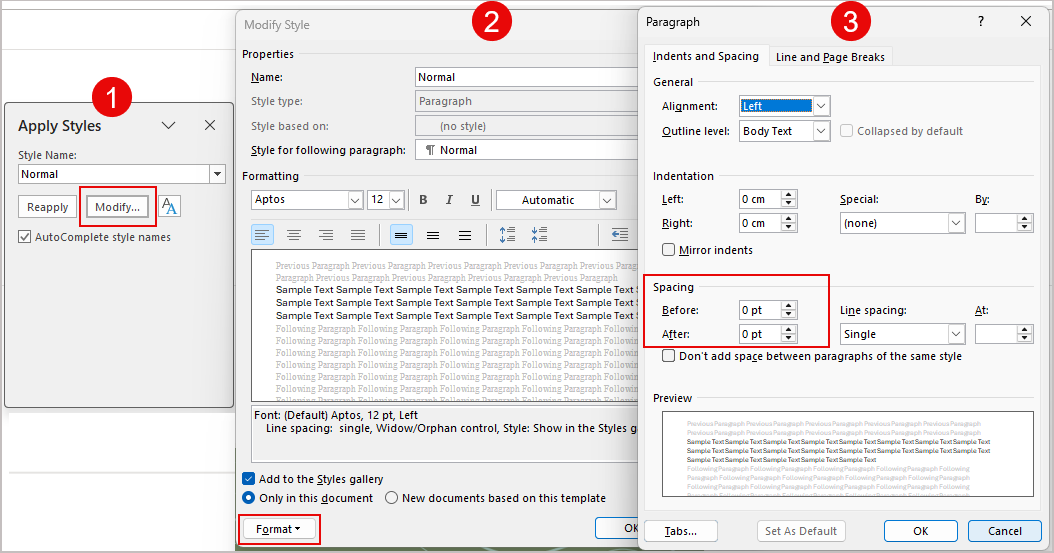 The 1st image shows the Modify option. The 2nd image shows the Format drop-down. The 3rd image shows where to set the spacing Before and After to 0.
- Select OK to close all windows. After these changes, new emails will no longer inject additional spacing through the MsoNormal class, preventing unwanted spacing in signatures and replies.