
Scenario
When enabling access to Google Workspace during onboarding, you are required to install Exclaimer for all users in your organization. However, during the synchronize process, you synchronized only a group of specific users. You now want to extend Exclaimer to apply to more or all of the people in your organization. For example, you are happy with your testing phase and want to extend Exclaimer to more than your testing users.
Resolution
To deploy signatures across the entire organization, you need to re-synchronize your user data to include the new users. We also recommend checking the Sender rules for your signatures after completing this process to ensure the new users are included in any specific sender rules you may have added.
Pre-requisites: To complete this process, you must:
- Be an Owner or Admin. For more information on Exclaimer user roles, see User Management.
To run a data synchronization:
- Log in to your Exclaimer subscription as an Owner or Admin.
- From the header bar, select the cogwheel icon to open the Settings menu, then select Sender Management.
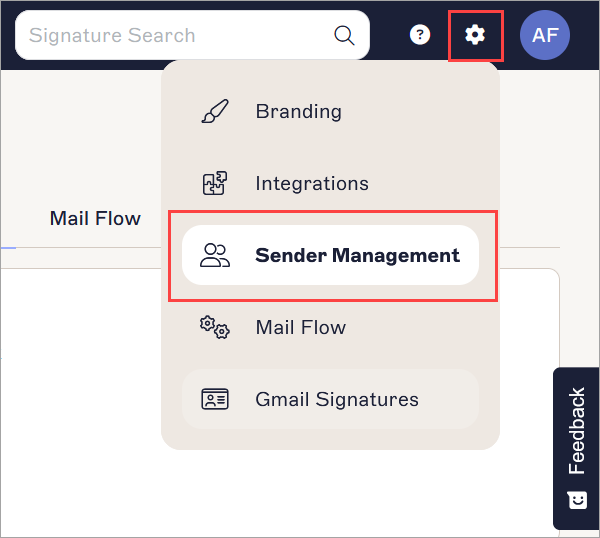
The Settings menu is found under the cogwheel icon.
-
In the Start Synchronization section, EITHER:
Select the Synchronize All Users checkbox to synchronize the contact details of all members of your organization with Exclaimer.
OR
In the Group entry field, enter a group containing all relevant users you wish to sync.WARNING! If the Group option is selected then all user data for people outside this group will be removed from the database.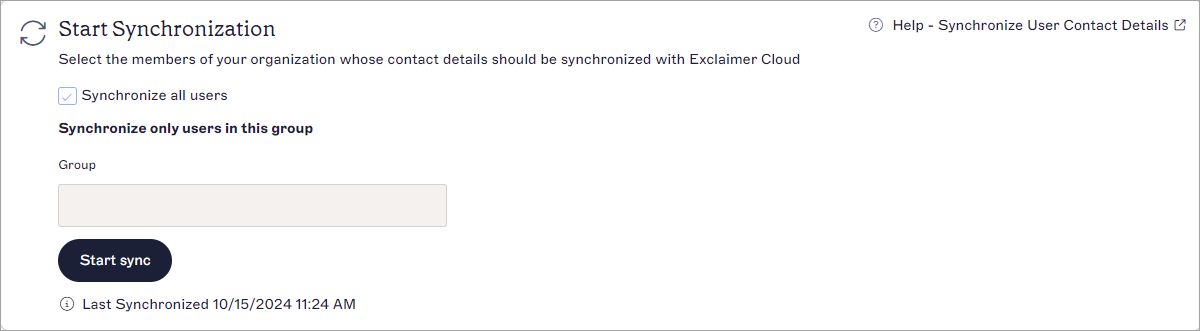
The Start Synchronization section.
- Select Start Sync. Allow up to three hours for a sync to complete. For more information on your synchronization, see Synchronize user data.
If you have configured specific sender rules for your signature(s), your new users may not have these signatures applied as they have not been included in your specified senders.
To check your Sender rules:
- From the menu sidebar, select Signatures. This opens the All Signatures list.
- Locate your signature and select Manage.
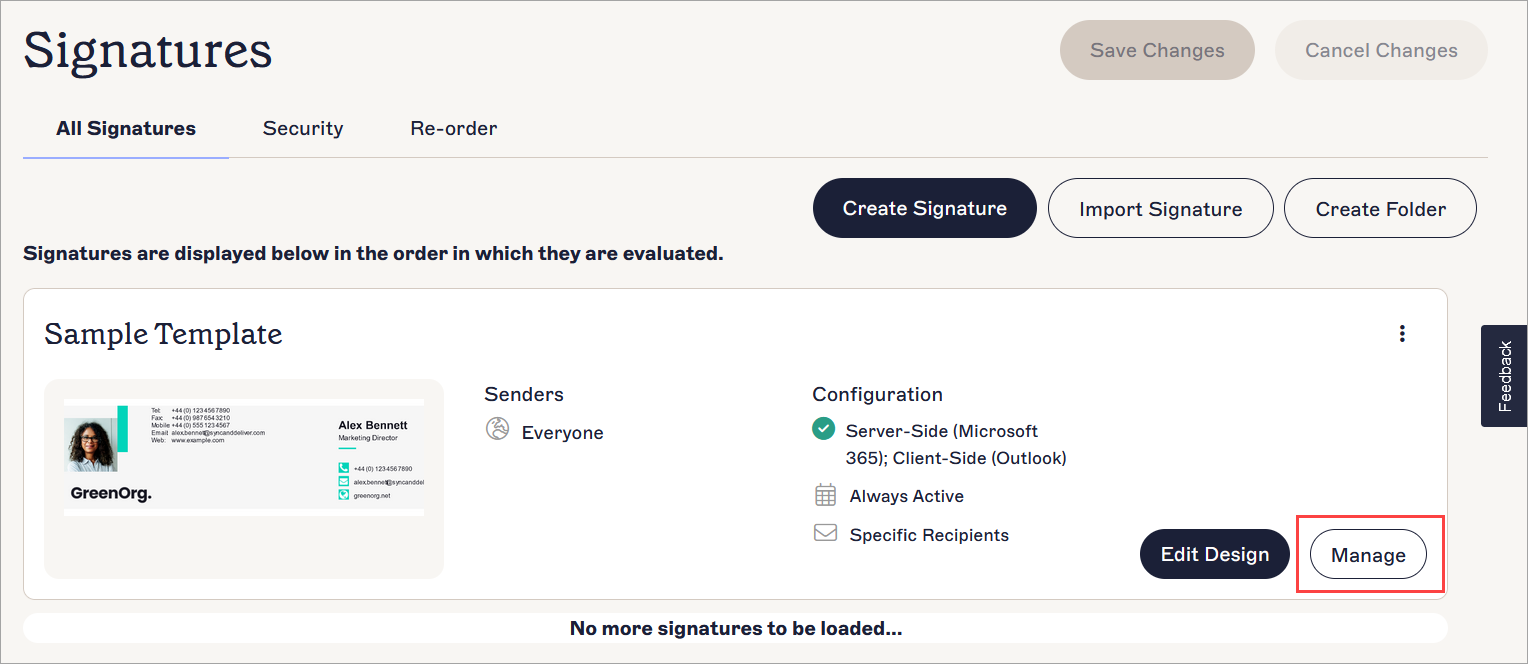
The Manage button is found with the Edit button on the signature card.
- Select the Senders tab.
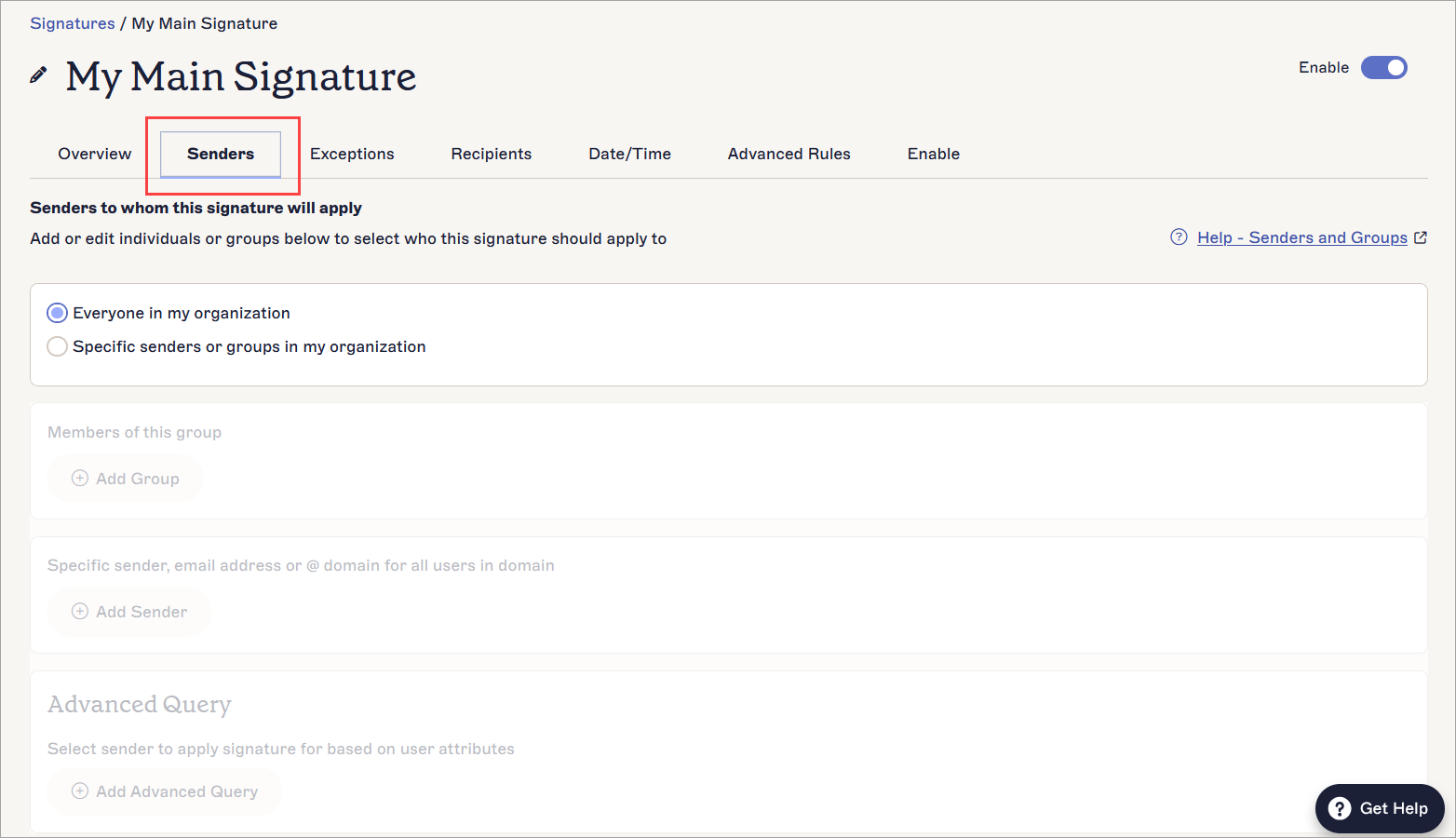
The Senders tab shows what options you may have configured for this signature's permitted senders.
- If the Everyone in my organisation radio button is selected, your new users are automatically available as senders for this signature. If the Specific senders or groups in my organization radio button is selected, check that your new users are included in the Group, Sender, or Advanced Query set up for this signature. You may need to change or add details depending on what you have set up. For guides on configuring your sender options, see Signature Senders.
- Repeat for any other applicable signatures.