
Scenario
In classic Outlook for desktop, some users encounter the error The operation failed when opening or interacting with the Exclaimer Outlook Add-in. This issue may affect only specific users, while others in the same environment are unaffected, despite identical Outlook Trust Center settings.
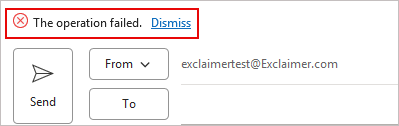
Image showing 'The operation failed' error.
Reason
This can occur for the following reasons:
- Outlook uses Microsoft Word’s rendering engine to display add-in panes and other web-based content. If Word’s File Block Settings are configured to block Web Pages, Outlook cannot load the Add-in interface, which results in the error The operation failed.
- This behavior can occur when a local or policy-applied registry key enforces the block. [HKEY_CURRENT_USER\Software\Policies\Microsoft\office\16.0\word\security\fileblock] "htmlfiles"=dword:00000003
The value 3 tells Word to block HTML and web page content entirely, which prevents Outlook from rendering the Exclaimer Add-in.- A local Group Policy may also enforce this configuration under:User Configuration\Administrative Templates\Microsoft Word 2016\Word Options\Security\Trust Center\File Block Settings\Web Pages
If this policy is enabled and set to Block, both Microsoft Word and Outlook will prevent HTML-based content from opening.Resolution
Choose one of the options below:
Option 1: Unblock Web Pages in Word’s Trust CenterTo unblock Web Pages in Word’s Trust Center:
- In Microsoft Word, open the File menu, select Options, select Trust Center, select Trust Center Settings, then select File Block Settings.
- Within the File Type list, find Web Pages.
- Make sure the Open and Save options are unchecked for Web Pages. If these options are checked, the web page content is blocked.
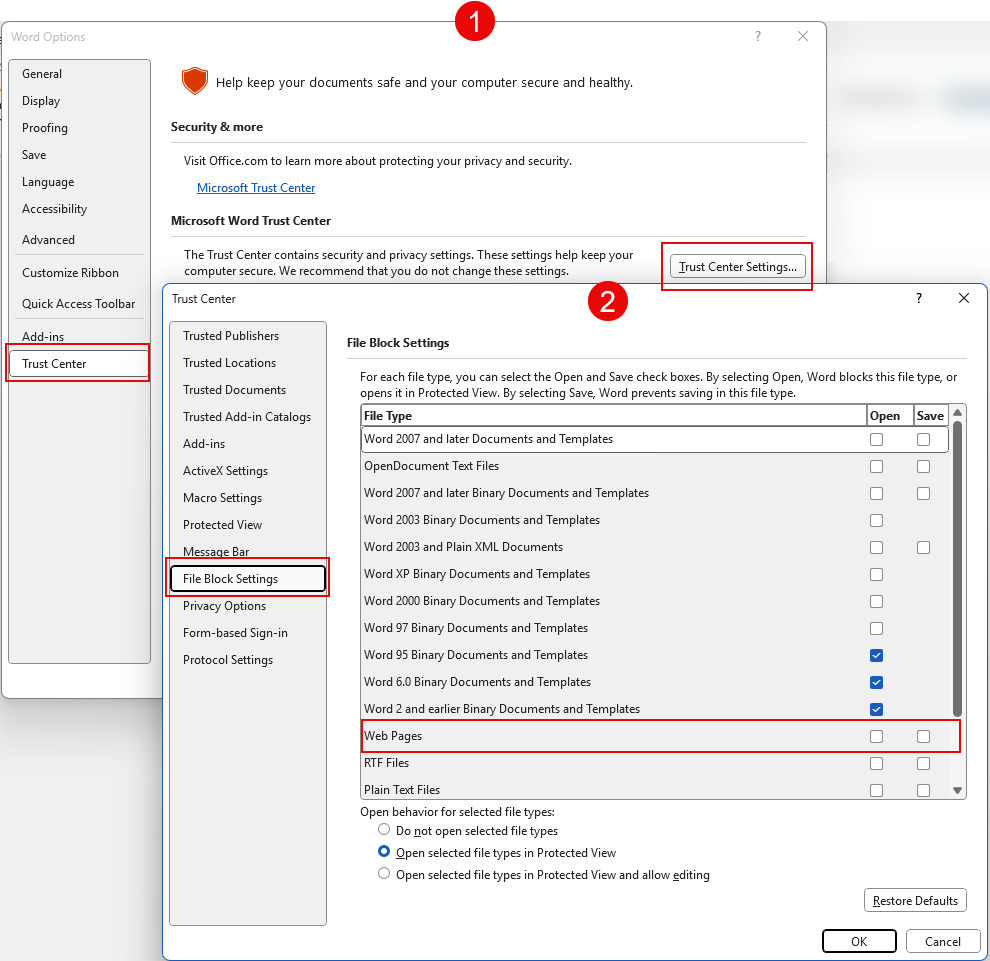
Select Trust Center, select Trust Center Settings, then select File Block Settings. Make sure the Open and Save options are unchecked for Web Pages.
- Select OK to apply the changes. Close Word, then restart Outlook.
Option 2: Update the registry valueTo update the registry value:
- If the registry value exists, update it as follows to remove the block:[HKEY_CURRENT_USER\Software\Policies\Microsoft\office\16.0\word\security\fileblock] "htmlfiles"=dword:00000000
- Re-open Outlook.
The Exclaimer Add-in should now load without an error.Option 3: Unblock local group policyTo unblock local group policy:
- Open the Local Group Policy Editor.
- From the menu sidebar, expand Administrative Templates, expand Microsoft Word 2016, expand Word Options, expand Security, expand Trust Center, then select File Block Settings.
- From the Settings list, select Web pages.
- Check if the policy is enabled. If this policy is enabled and set to Block, both Microsoft Word and Outlook will prevent HTML-based content from opening. Select Disabled to unblock.
- Select OK to apply the changes. Restart Outlook.
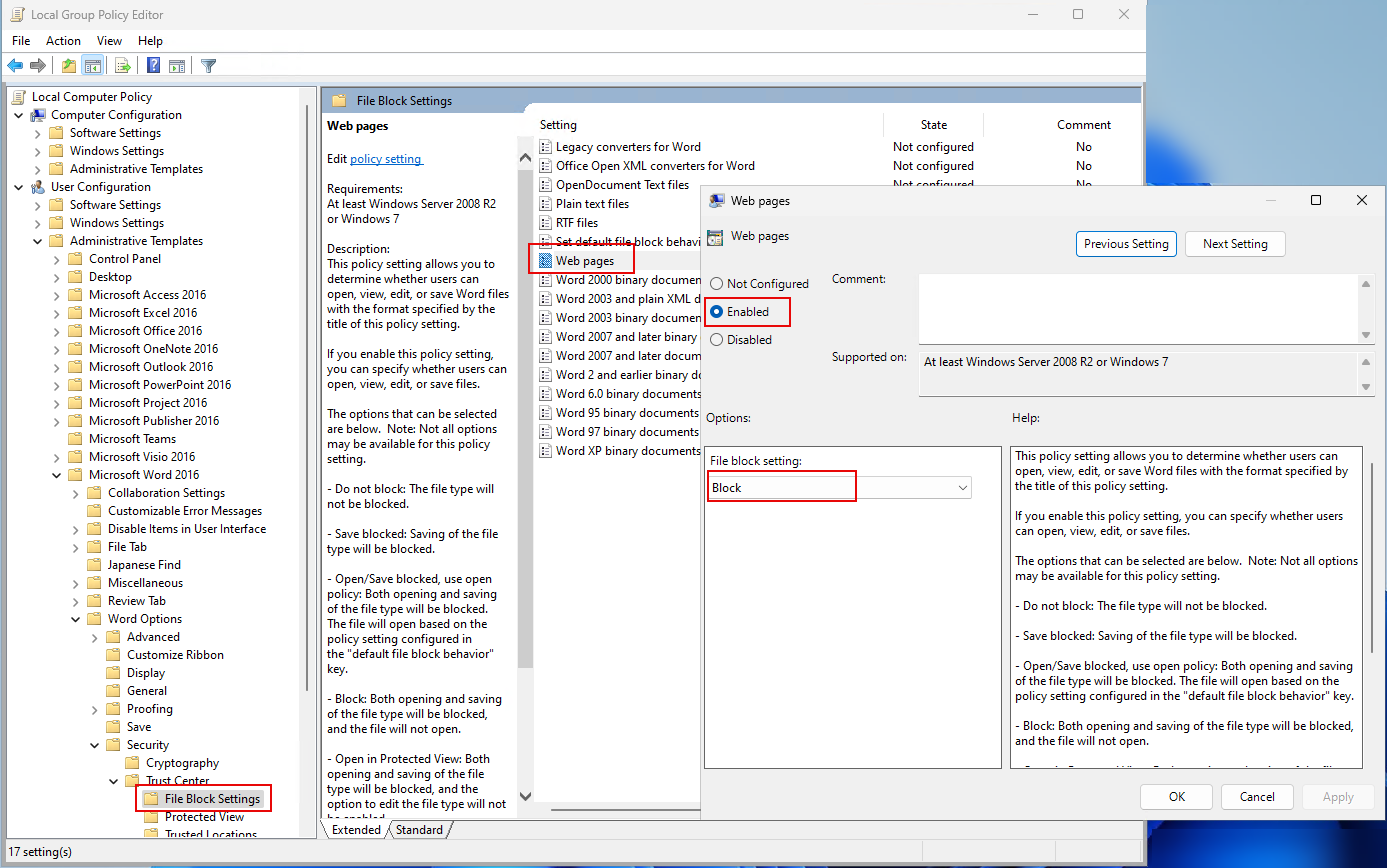
Select File Block Settings, then select Web Pages. Check if the policy is enabled and is blocking the settings. Select Disabled to unblock the settings.
- Re-open Outlook.
- In Microsoft Word, open the File menu, select Options, select Trust Center, select Trust Center Settings, then select File Block Settings.
- A local Group Policy may also enforce this configuration under: