
Scenario
You want to apply a signature to emails sent from a group email address.
Resolution
Users with access to the User Details Upload feature (Standard and Pro plan users only) can add the group email address as a field in the details upload CSV, then use the signature Sender rules to apply the signature to the uploaded address.
NOTE: This resolution is only applicable to users on Standard or Pro plans due to the availability of the User Details Upload feature. For more information, see Exclaimer pricing plans.
To upload and apply a signature to a group email address:
- Log in to your Exclaimer subscription and open the Settings menu by selecting the cogwheel icon from the header bar.
- Select Sender Management.
- Navigate to the User Details Upload section.

The User Details Upload section of Sender Management.
- Select Export Existing. This downloads a CSV file of your current user data to your device.
- Open the CSV file and add a new row containing the group email address in the Email column. Save the file.
- Return to the User Details Upload section and select Update Existing.
- Upload your updated CSV file. Once complete, the Update Existing Successful message is displayed.
- Select Signatures from the menu sidebar.
- Locate your signature and select Manage Rules.
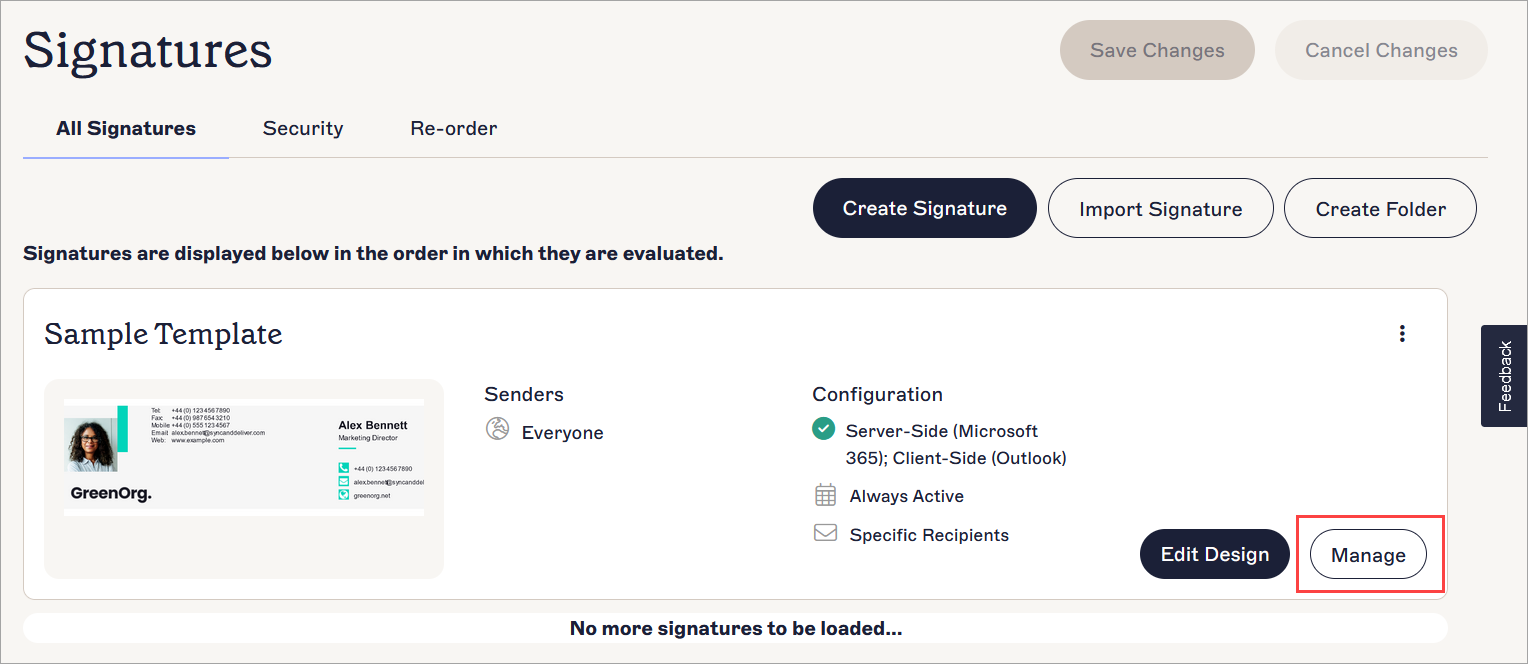
The Manage Rules button is found with the Edit Design button next to your signature.
- Select the Senders tab.
- Under Specific sender, email address or @ domain, select
 Add Sender.
- Begin typing the group email address. Select the address from the autofill drop-down.
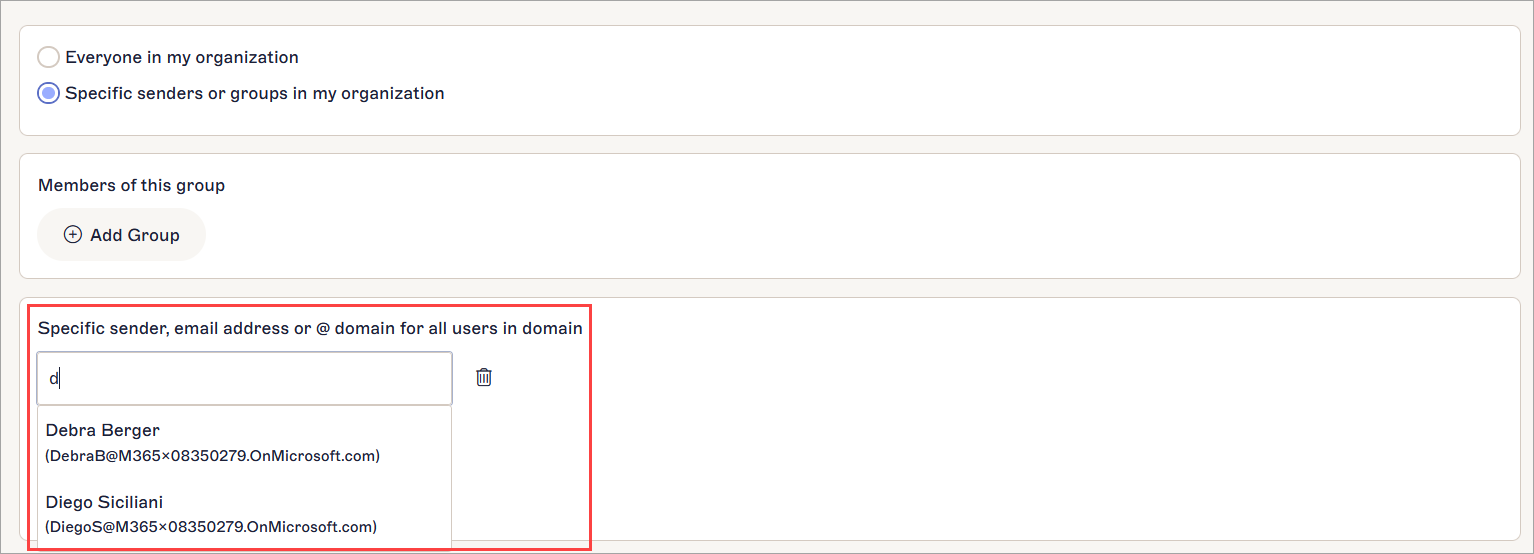
Enter your text.
- In the unsaved changes banner, select Save. Your signature will now apply only to emails sent from this email address.