
Description
The option within this section updates the emails in the user's sent items folder, allowing them to see the signature on their sent emails.
How to access it
To access the Sent Items option:
- From the header bar, select the cogwheel icon, then select Mail Flow.
- Navigate to the Sent Items section.
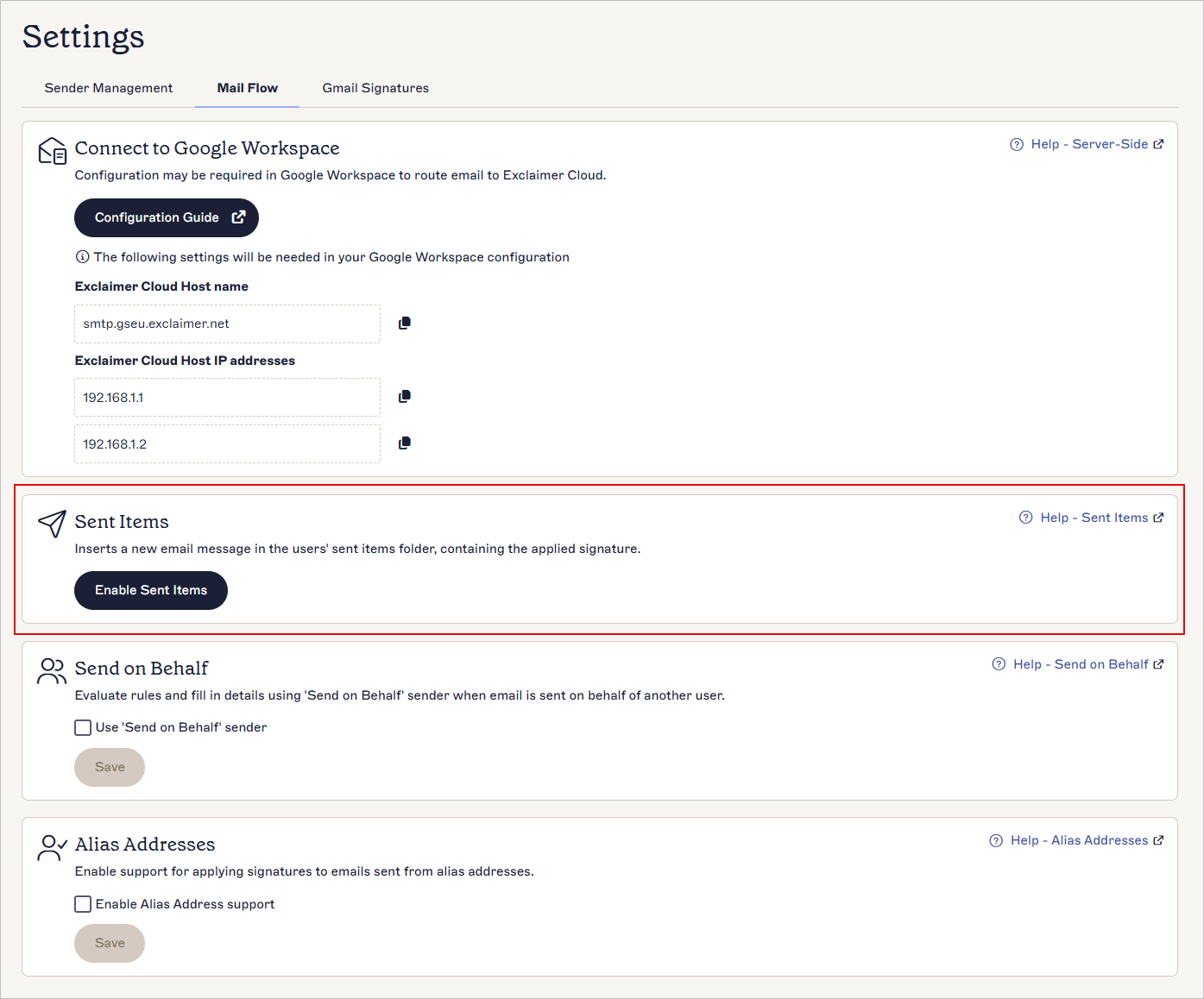 The Sent Items section
Enabling the Sent Items
To enable Exclaimer to ensure the signature appears in the recipient's Sent Items folder:
To enable the Sent Items for new users:
-
Select Enable Sent Items to request activation of the Sent Items feature.

Select Enable Sent Items.
If the request is successful and the feature is enabled, the Successfully enabled message is displayed.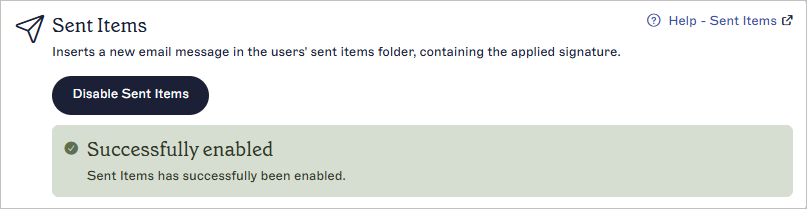
The Successfully enabled message.
The Disable Sent Items option is now available, also confirming this feature is active.
Sent emails will appear in the Sent Items folder with the Exclaimer signature applied automatically.
NOTE: Authorization will fail if the permissions required for the Sent Items feature have not been accepted. To grant access, refer to the section Enabling Sent Items for existing users. The Authorization Failed message.
To enable the Sent Items feature, you must grant permission to access it.
 The Authorization Failed message.
To grant permissions to access the Sent Items feature:
-
Sign in to your Google Admin console.
NOTE: Sign in using your Super Admin account - this does not end in @gmail.com.
For more information, see Google Admin console. - Expand Apps, then expand Google Workspace Marketplace apps and select Apps list.
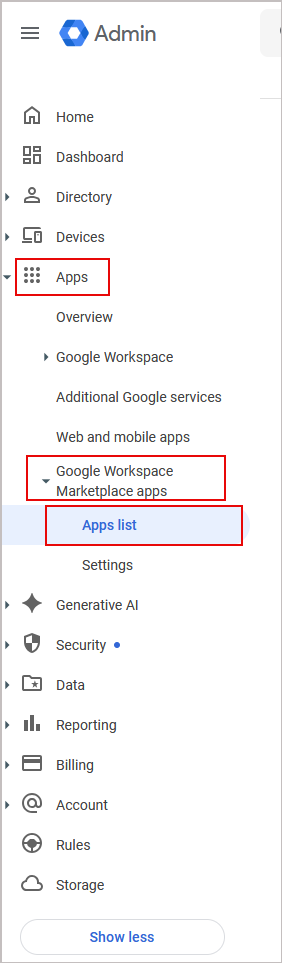
In the Google Admin console, expand Apps, expand Google Workspace Marketplace apps, then select Apps list.
- Select Exclaimer Email Signature Management.
- In the table view, verify that the Status is Partially granted and the two new permissions show Not granted.
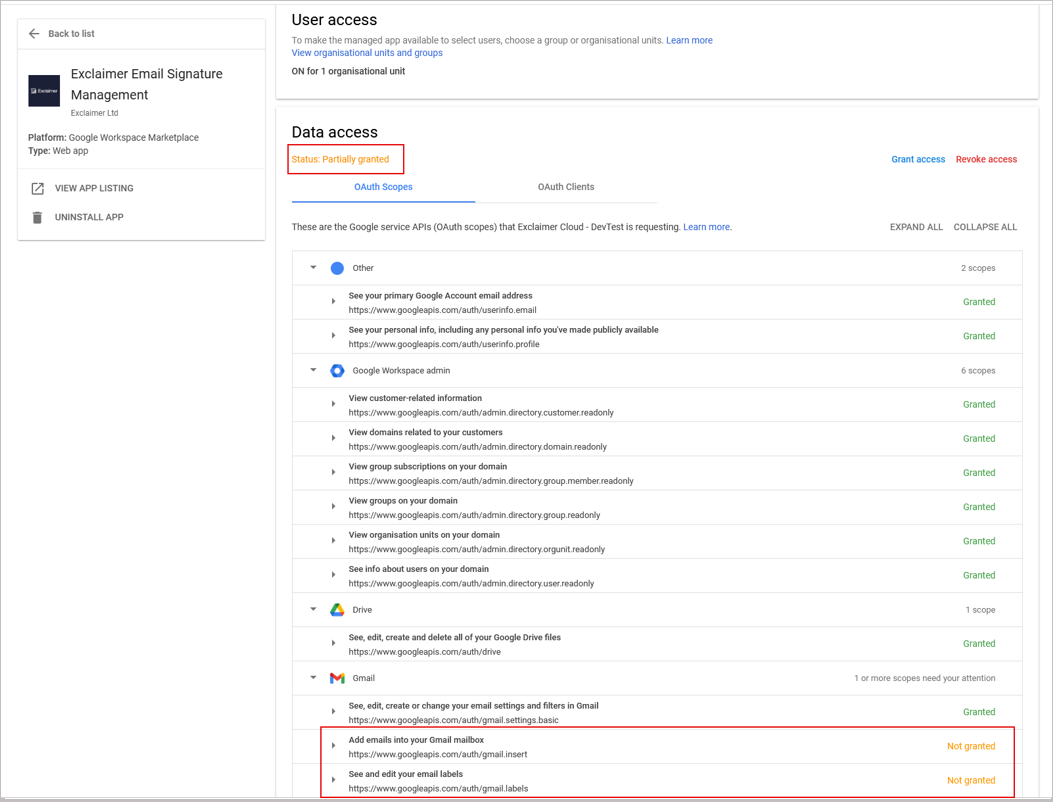
Verify that the Status is Partially granted and the two new permissions show Not granted.
-
Select Grant access to approve the additional permissions.
WARNING! Selecting Revoke access will remove all permissions and disable the G Suite integration.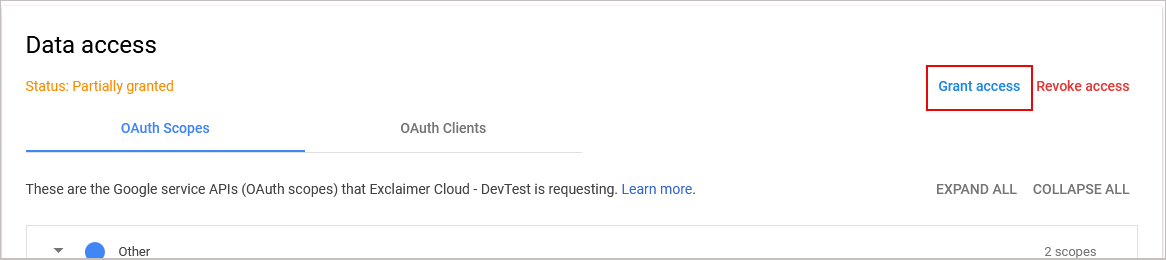 Select Grant access.
-
Return to the Exclaimer application and select Enable Sent Items to request activation of the Sent Items feature.

Select Enable Sent Items.
If the request is successful, the Successfully enabled message is displayed.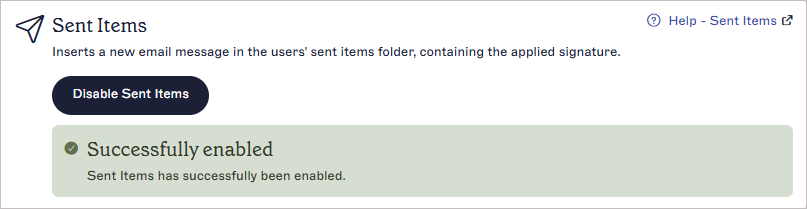
The Successfully enabled message.The Disable Sent Items option is now available, also confirming this feature is active.
Sent emails will appear in the Sent Items folder with the Exclaimer signature applied automatically.