
Scenario
When running the connection wizard to Connect to Microsoft 365, you encounter the following error message:
You cannot access this right now
Your sign-in was successful, but does not meet the criteria to access this resource. For example, you might be signing in from a browser, app, or location that is restricted by your admin.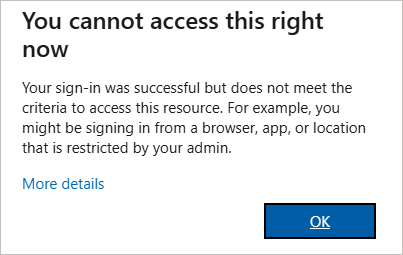
Error message: You cannot access this right now.
Reason
Common reasons this error may occur are:
Conditional Access Policies
- Access is controlled based on factors such as user location, device compliance, sign-in risk, and MFA status.
- Sign-in attempts that don’t meet these conditions (e.g., incomplete MFA, untrusted location, or non-compliant device) will be denied.
Permission Issues
- The user may lack the required roles or permissions to access the targeted application or resource.
Outdated Applications or Operating System
- Using older versions of Microsoft apps or an unsupported OS can cause errors.
- Ensure that the latest supported versions of applications and operating systems are installed.
Corrupted Cache
- Cached login credentials or tokens in browsers or applications can become corrupted.
- Clearing the cache or signing out and signing back in usually resolves the issue.
Resolution
Follow the steps outlined below to troubleshoot and resolve the issue:
To review the Sign-in Logs:
- Open the Microsoft Azure portal.
- Select Microsoft Entra ID.
- From the menu sidebar, select Monitoring, then select Sign-in Logs.
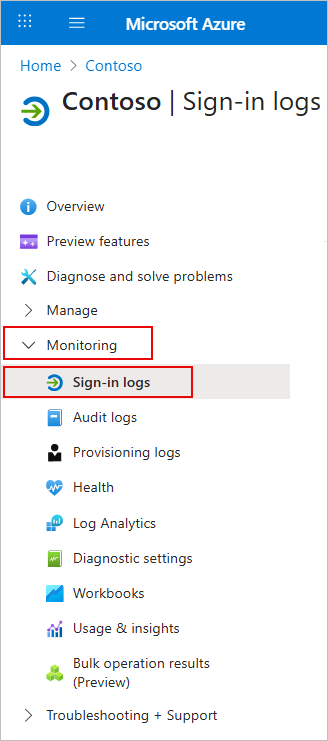
Select Monitoring, then select Sign-in Logs
- Locate the failed signed-in event associated with the user.
- Select the event to view the detailed information, including:
- Conditional Access status
- Failure reason
- Location
- Device state
- Applied polices

Apply filters to refine your search results.
To review the Conditional Access Policies:
- From the menu sidebar, expand Manage, then select Security.
- From the menu sidebar, expand Protect, then select Conditional Access.
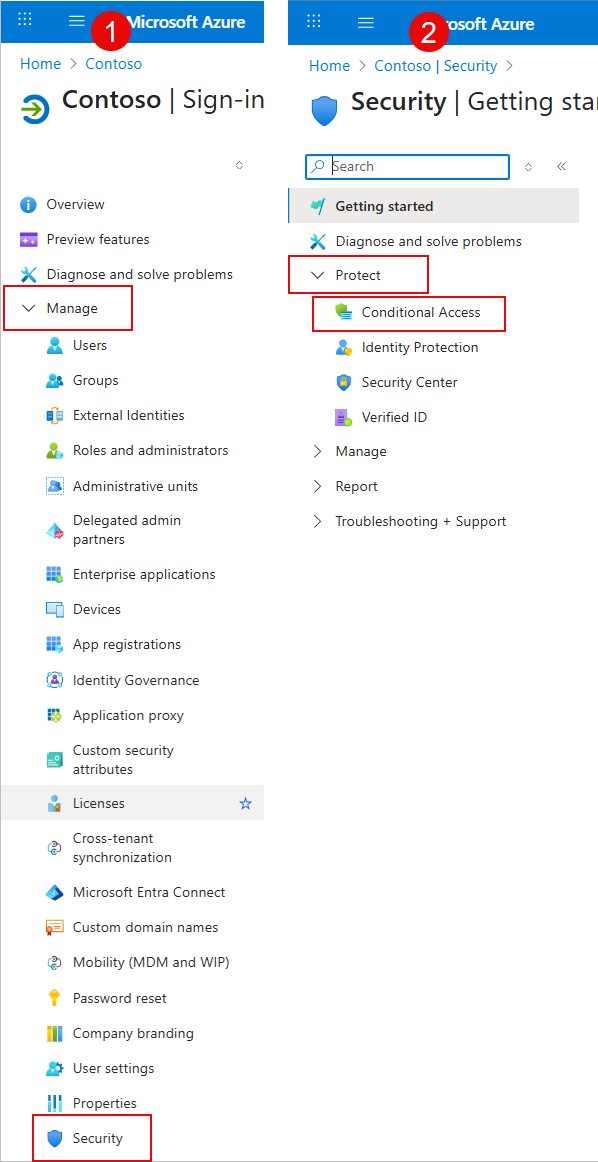
Expand Manage, then select Security. Expand Protect, then select Conditional Access.
- Under Policies, review the list of active policies.
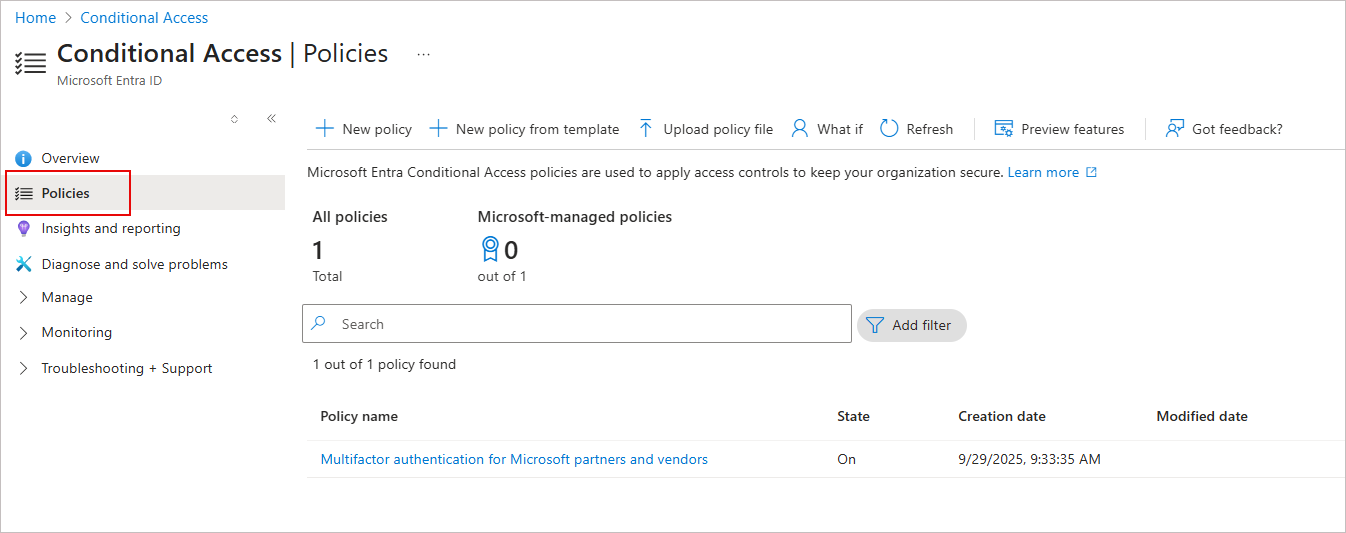
Review the list of active policies.
- Identify any policies that may be restricting access, such as:
- Sign-in risk
- User group membership
- Device compliance status
- Location restrictions (example: blocking sign-ins from foreign IPs)
- Application-specific targeting
6. Select the relevant policies to see the Assignments, Conditions and Access controls (example: Require MFA, Block access).
To verify the permissions and role assignments:
- From the menu sidebar, expand Manage, then select Users.
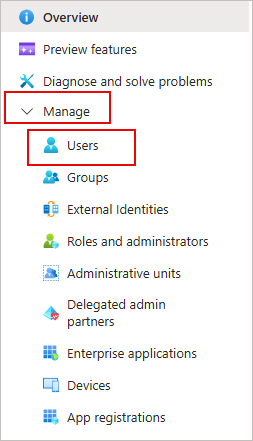
Expand Manage, then select Users.
- Locate and select the user experiencing access issues. The user's profile, including all relevant account and access information, is displayed.
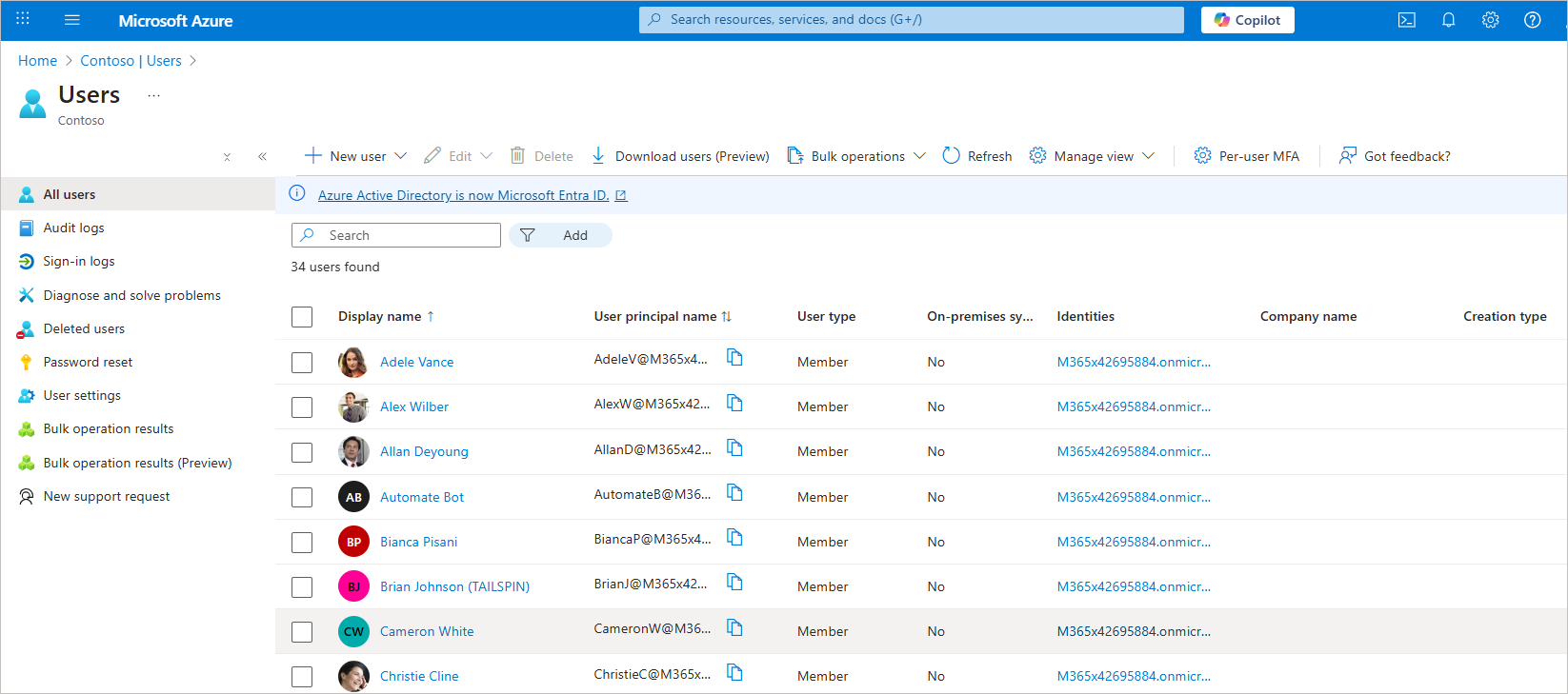 Select the user experiencing access issues.
- Verify:
- The roles assigned to the user, such as User, Global Administrator, or any custom roles. Ensure the user has the Global Administrator role in order to configure Exclaimer.
-
Check which groups the user is a member of. Certain group memberships can affect access via Conditional Access policies or role assignments.
- The roles assigned to the user, such as User, Global Administrator, or any custom roles. Ensure the user has the Global Administrator role in order to configure Exclaimer.
- Clear the browser’s cache and cookies through its settings.
- Alternatively, try signing in using an incognito/private window to rule out cache-related issues.