
Description
Once you or your admin set your Meeting Branding theme's assets in our Brand Kits feature, you must apply your Branding to your meeting software for it to appear in your meetings.
For Microsoft Teams or Google Meet users, you need to download the Branding from the User Details Editor and set it as a picture background.
Applying your Meeting Branding
Users must install and apply their meeting branding on their devices. This cannot be done remotely from the Exclaimer portal.
Select an option below to view the related instructions:
Video Guide
To set up and apply Meeting Branding on Microsoft Teams:
-
Use the link found in the How to apply themes tab of the Meeting Branding screen, or otherwise open the User Details Editor.
Tip! Use the Copy icon to copy the link. This can be used to share the link to other participants.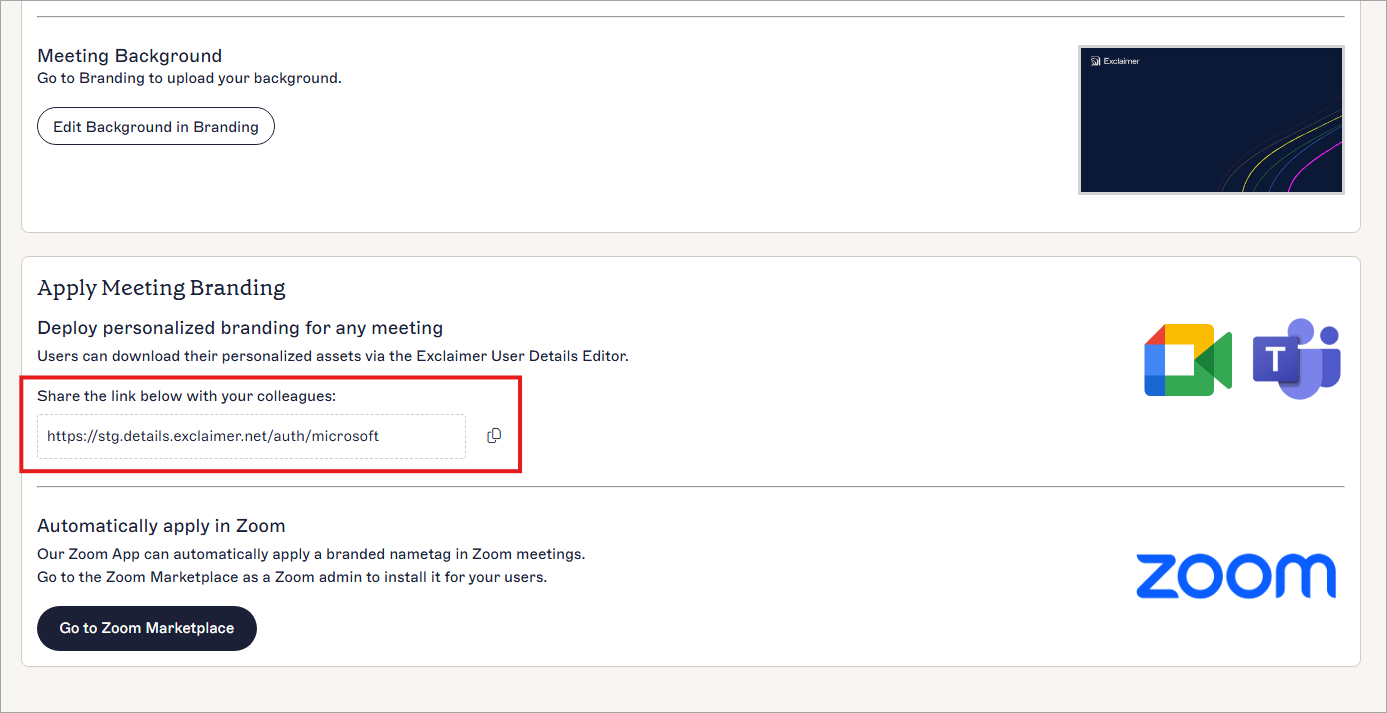
The link to the User Details Editor is found in the Deploy personalized branding for any meeting section. Use the copy icon to copy the link to share with colleagues.
-
In the Meeting Branding section of the User Details
Editor, select Download background. This downloads
the
branded background to your device. If multiple themes have been created in Meeting Branding, you can choose from all available backgrounds.
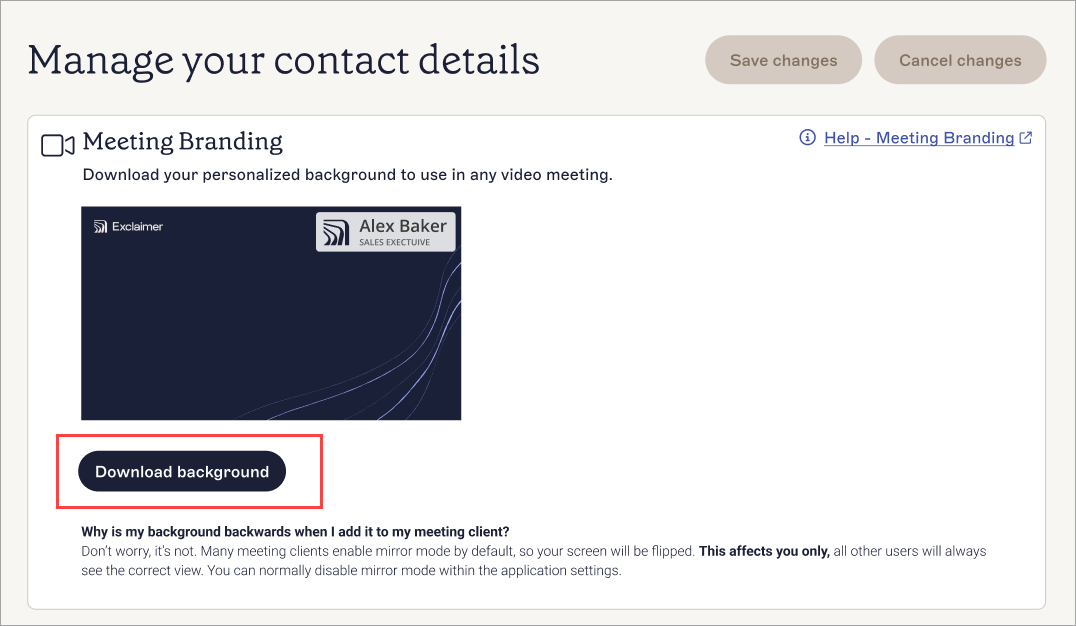
Select Download background to save the branding.
-
Open Microsoft Teams and join a meeting. This opens the personal settings screen before adding you to the meeting.
Tip! You can select Meet from the menu sidebar then Meet now > Start Meeting to open a meeting with only you as a participant. This gives you chance to prepare your background before joining meetings with others. -
Select Effects and avatars, then
More video effects. This opens the
Video effects pane.
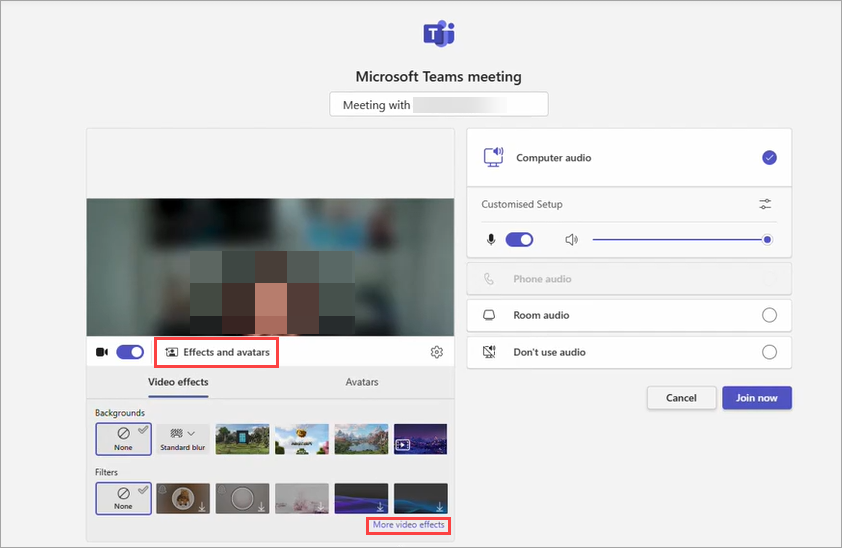
Open the Video effects pane.
-
From the Backgrounds section, select Add New.
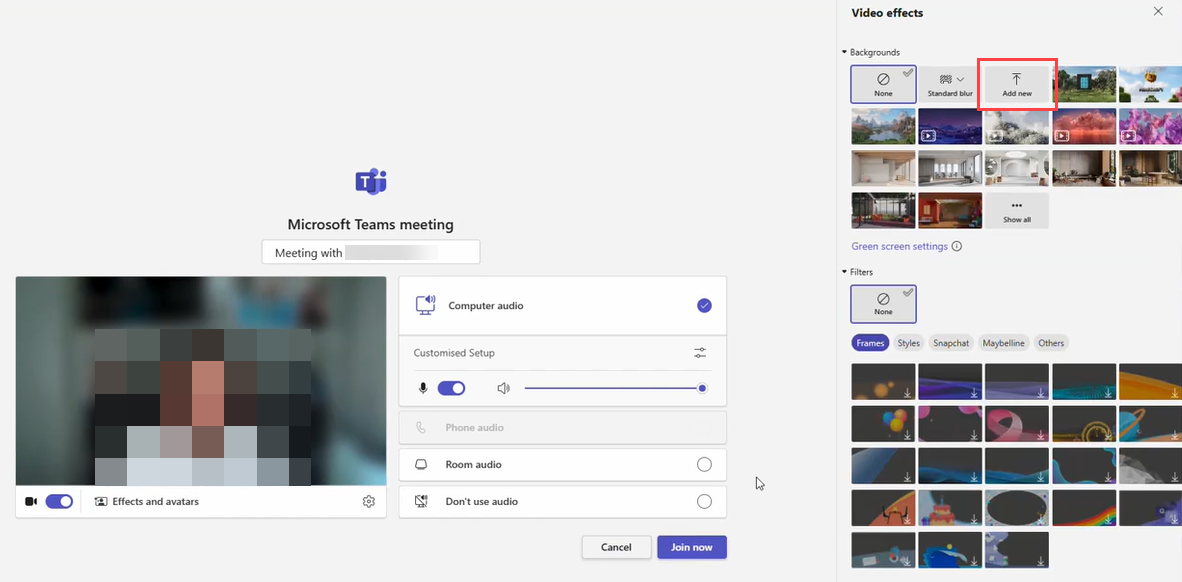
Select Add New to upload a background.
-
Locate the branded background file you downloaded in Step 2 and select Open.
This adds your branded background as your Microsoft Teams background.
You can now choose this background in Microsoft Teams meetings.
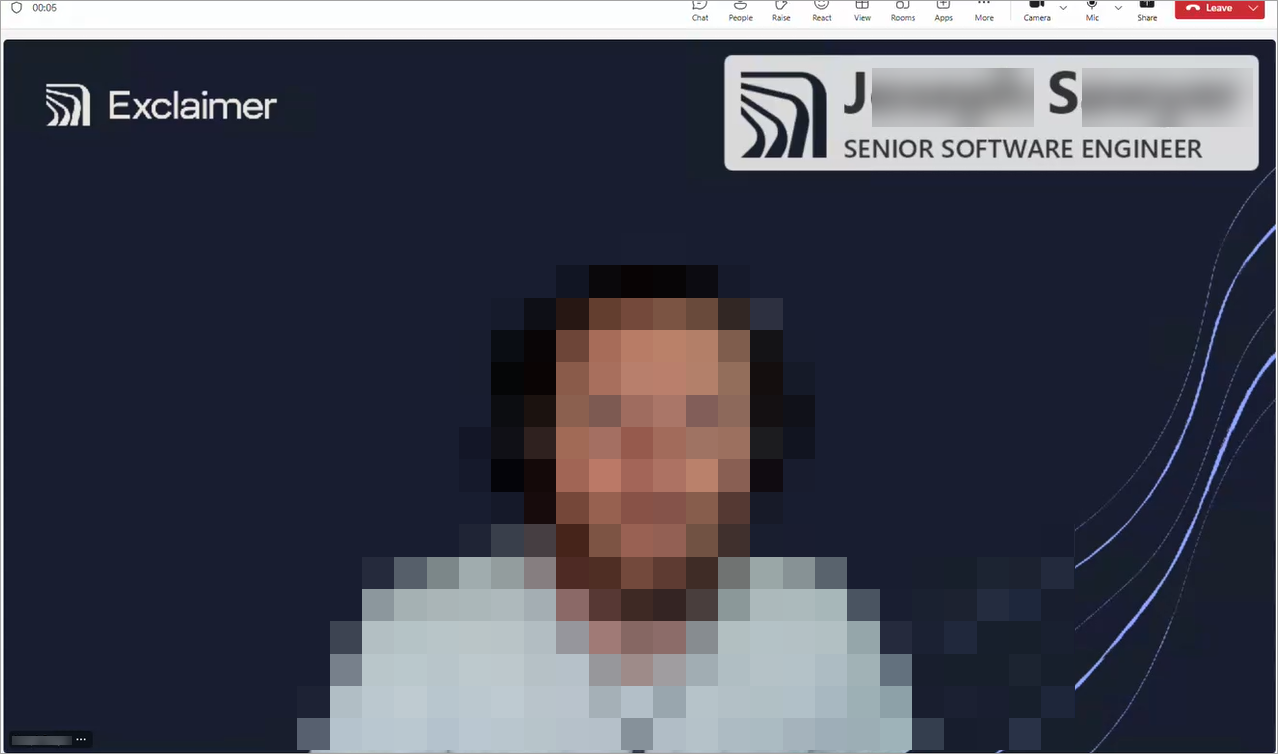
An example of a branded background in Microsoft Teams.
Video Guide
To set up and apply Meeting Branding on Google Meet:
-
Use the link found in the How to apply themes tab of the Meeting Branding screen, or otherwise open the User Details Editor.
Tip! Use the Copy icon to copy the link. This can be used to share the link to other participants.
The link to the User Details Editor is found in the Deploy personalized branding for any meeting section. Use the copy icon to copy the link to share with colleagues.
-
In the Meeting Branding section of the User Details
Editor, select Download background. This downloads
the
branded background to your device. If multiple themes have been created in Meeting Branding, you can choose from all available backgrounds.
Select Download background to save the branding.
-
Open Google Meet and join a meeting.
Tip! You can select Start an instant meeting to open a meeting with only you as a participant. This gives you a chance to prepare your background before joining meetings with others. -
From either the bubble overlay of icon buttons or the ellipsis menu,
select Backgrounds and effects to open the
Backgrounds and effects pane.
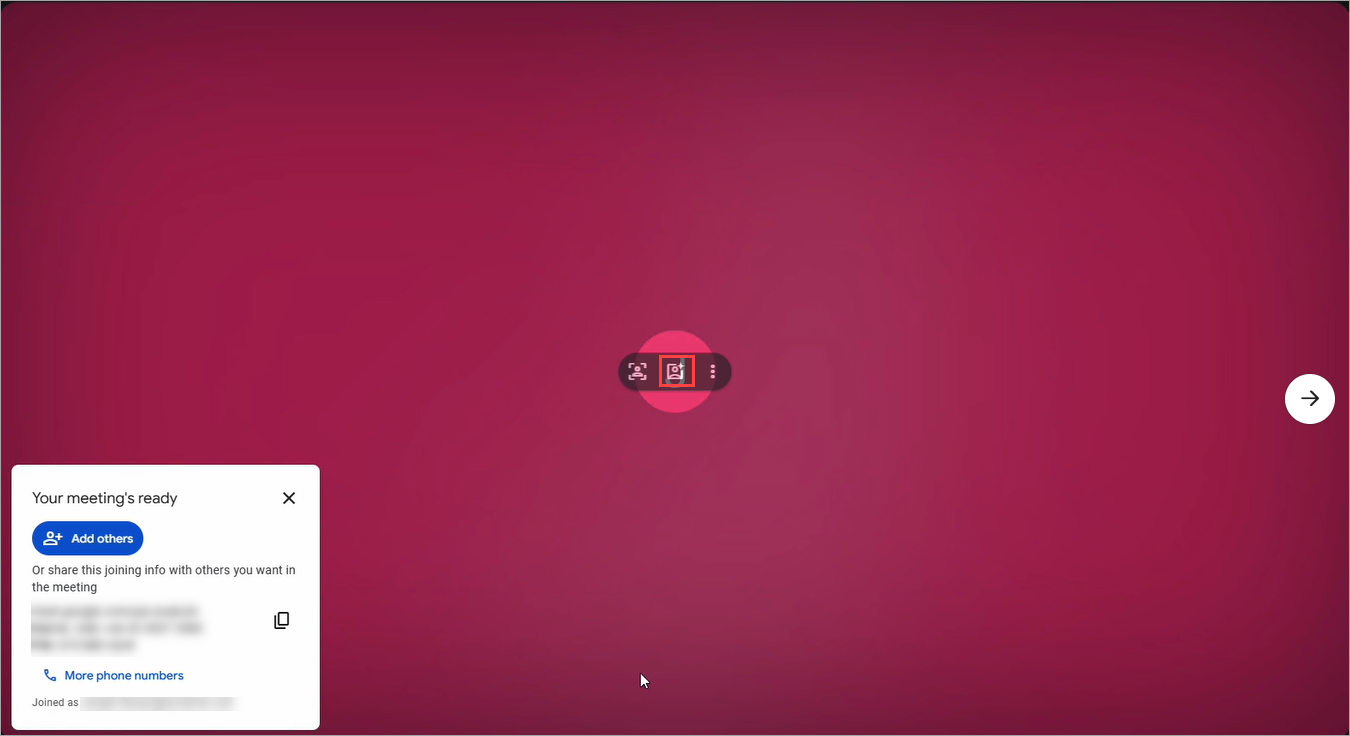
The backgrounds and effects icon in the bubble overlay. This can also be found in the menu.
-
In the Blur and personal backgrounds section, select
the Upload image icon.

Select to upload a background.
-
Locate the branded background file you downloaded in Step 2 and select
Open. This adds your branded background as your
Google
Meet background. You can now choose this background in Google Meet
meetings.
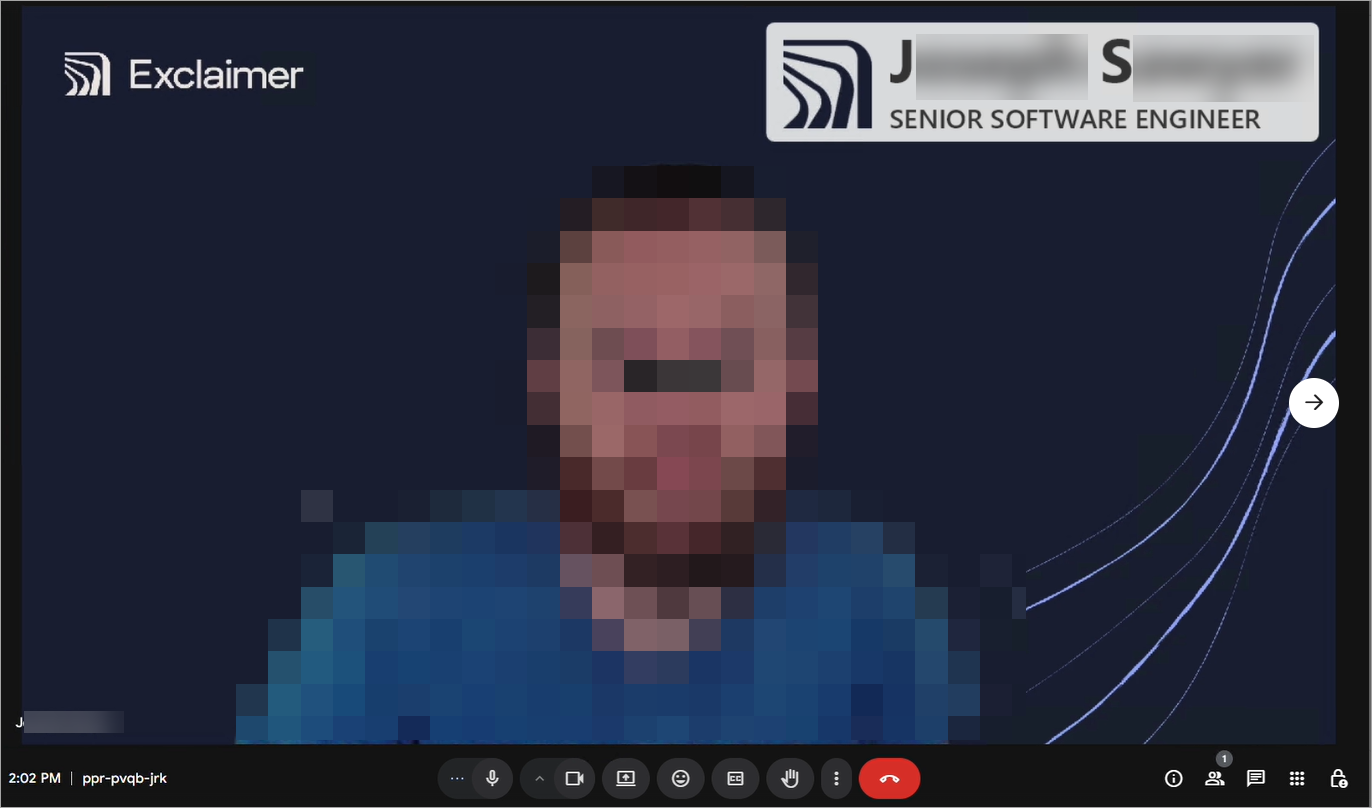
An example of a branded background in Google Meet.